---
title: How do I manage players who do not belong to the current team but are involved in some activities, such as trainings or games?
description: This article showcases how the user can manage reserve players (players that do not belong to the current team, but that for a specific day/period/training/game are joining the squad).
---
[Skip to content](https://support.iterpro.com/en/guide/1.8-how-to-manage-reserve-players#main-content)
- [English](https://support.iterpro.com/en/guide/1.8-how-to-manage-reserve-players)
- [Italiano](https://support.iterpro.com/it/guide/1.8-come-gestire-le-riserve)
- [العربية - مصر](https://support.iterpro.com/ar-eg/guide/1.8-كيفية-إنشاء-عضو-جديد-في-الطاقم-الفني-1)
English
Show submenu for translations
[](https://app.iterpro.com/auth/login)
- [Iterpro Login Page](https://app.iterpro.com/auth/login)
- [Contact Support](https://share.hsforms.com/1rE7NvsvuTIWBm7WQ1dhslQ1uo0p)
Open main navigation
Close main navigation
- [Iterpro Login Page](https://app.iterpro.com/auth/login)
- [Contact Support](https://share.hsforms.com/1rE7NvsvuTIWBm7WQ1dhslQ1uo0p)
- - [English](https://support.iterpro.com/en/guide/1.8-how-to-manage-reserve-players)
- [Italiano](https://support.iterpro.com/it/guide/1.8-come-gestire-le-riserve)
- [العربية - مصر](https://support.iterpro.com/ar-eg/guide/1.8-كيفية-إنشاء-عضو-جديد-في-الطاقم-الفني-1)
English
Show submenu for translations
How can we help you?
- There are no suggestions because the search field is empty.
1. [User Guide](https://support.iterpro.com/en/guide?hsLang=en)
2. [Account set-up and other](https://support.iterpro.com/en/guide/account-set-up-and-other?hsLang=en)
3. [Create, archive and delete players](https://support.iterpro.com/en/guide/account-set-up-and-other?hsLang=en#create-archive-and-delete-players)
# How do I manage players who do not belong to the current team but are involved in some activities, such as trainings or games?
## This article showcases how the user can manage reserve players (players that do not belong to the current team, but that for a specific day/period/training/game are joining the squad).
### THE RESERVE PLAYERS
### HOW TO REMOVE RESERVE PLAYER(S) FROM THE SEASON
### ***FEATURES DESCRIPTION***
Reserves are players who do not belong to the current team but are temporarily included in its activities, such as training sessions, matches, or any other events. For example, an Under 17 player may join the Under 19 team for a week, for a longer period, or even for a single session.
Reserve players are marked with a specific **icon or label**, visible in sections like *My Team* or when selecting players for the season. This indication is applied system-wide.
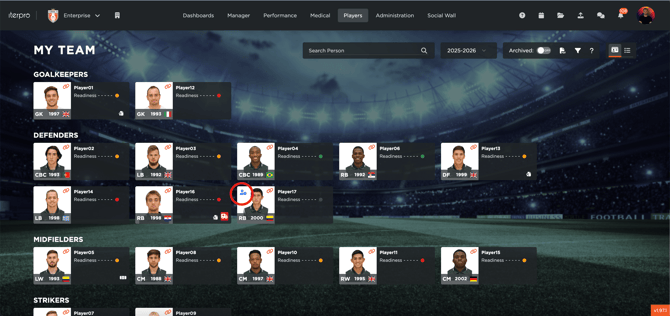
To add a reserve player to the current team:
1. Go to **Manager \> Planning**, and select the event.
2. Click **Edit**, then go to the player selection area.
3. Choose **“Add reserve player.”**
**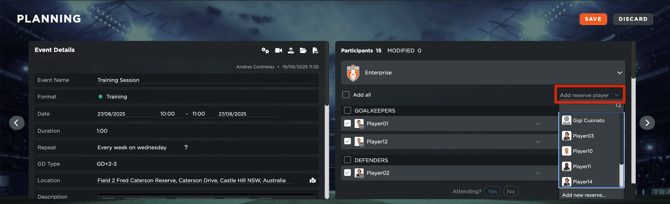**
Here, you will see the reserves already linked to the team and have the option to add new ones. By clicking the button, you can browse players from all teams and select the athletes you want to add. Once selected, they will appear in the dropdown list and can be included in the event.
After adding, the reserve player will be marked as part of the event, meaning they can participate. If the player is already assigned to another event at the same date and time, the system will notify you of a potential conflict.
From the calendar view, you can filter:
- **All events**, or
- Only those that include reserve players.
Each user can also track the events where their players participate as reserves in another team.
To **remove a reserve player from the current or a past season** in Iterpro, just follow the steps below:
1. Go to **Settings \> Team \> Seasons** and select the relevant season.
2. Navigate to **Line-up** and click on **Select players**.
3. On the right side, you will find the list of all players assigned to the season, including both active players and reserves (reserves are clearly marked with a specific label or icon).
4. Click on the reserve player you want to remove and move them back to the club players list on the left.
5. Click **Save**.
After saving, the player will no longer appear in that season’s roster as a reserve for the selected team.
- [What's New](https://support.iterpro.com/en/guide/whats-new?hsLang=en)
- [Quick Onboarding](https://support.iterpro.com/en/guide/quick-onboarding?hsLang=en)
- [Account set-up and other](https://support.iterpro.com/en/guide/account-set-up-and-other?hsLang=en#main-content)
- [Login & Iterpro overview](https://support.iterpro.com/en/guide/account-set-up-and-other?hsLang=en#login-iterpro-overview)
- [Settings](https://support.iterpro.com/en/guide/account-set-up-and-other?hsLang=en#settings)
- [Create, archive and delete players](https://support.iterpro.com/en/guide/account-set-up-and-other?hsLang=en#create-archive-and-delete-players)
- [Other](https://support.iterpro.com/en/guide/account-set-up-and-other?hsLang=en#other)
- [Manager](https://support.iterpro.com/en/guide/manager?hsLang=en#main-content)
- [Tactics](https://support.iterpro.com/en/guide/manager?hsLang=en#tactics)
- [Planning](https://support.iterpro.com/en/guide/manager?hsLang=en#planning)
- [Videogallery](https://support.iterpro.com/en/guide/manager?hsLang=en#videogallery)
- [Drills](https://support.iterpro.com/en/guide/manager?hsLang=en#drills)
- [Attendances](https://support.iterpro.com/en/guide/manager?hsLang=en#attendances)
- [Performance](https://support.iterpro.com/en/guide/performance?hsLang=en#main-content)
- [Session Analysis](https://support.iterpro.com/en/guide/performance?hsLang=en#session-analysis)
- [Workload Analysis](https://support.iterpro.com/en/guide/performance?hsLang=en#workload-analysis)
- [Assessments](https://support.iterpro.com/en/guide/performance?hsLang=en#assessments)
- [Readiness](https://support.iterpro.com/en/guide/performance?hsLang=en#readiness)
- [Medical](https://support.iterpro.com/en/guide/medical?hsLang=en#main-content)
- [Medical Records](https://support.iterpro.com/en/guide/medical?hsLang=en#medical-records)
- [Infirmary](https://support.iterpro.com/en/guide/medical?hsLang=en#infirmary)
- [Examinations](https://support.iterpro.com/en/guide/medical?hsLang=en#examinations)
- [Medical Statistics](https://support.iterpro.com/en/guide/medical?hsLang=en#medical-statistics)
- [Player](https://support.iterpro.com/en/guide/player?hsLang=en#main-content)
- [My Team](https://support.iterpro.com/en/guide/player?hsLang=en#my-team)
- [Scouting](https://support.iterpro.com/en/guide/player?hsLang=en#scouting)
- [Transfers](https://support.iterpro.com/en/guide/player?hsLang=en#transfers)
- [Administration](https://support.iterpro.com/en/guide/administration?hsLang=en#main-content)
- [Squads](https://support.iterpro.com/en/guide/administration?hsLang=en#squads)
- [Finance Overview](https://support.iterpro.com/en/guide/administration?hsLang=en#finance-overview)
- [Bonus Tracking](https://support.iterpro.com/en/guide/administration?hsLang=en#bonus-tracking)
- [Cash Flow](https://support.iterpro.com/en/guide/administration?hsLang=en#cash-flow)
- [Transactions](https://support.iterpro.com/en/guide/administration?hsLang=en#transactions)
- [Registrations](https://support.iterpro.com/en/guide/administration?hsLang=en#registrations)
- [Mobile apps](https://support.iterpro.com/en/guide/mobile-apps?hsLang=en#main-content)
- [Player App](https://support.iterpro.com/en/guide/mobile-apps?hsLang=en#player-app)
- [Coach App](https://support.iterpro.com/en/guide/mobile-apps?hsLang=en#coach-app)
- [Director App](https://support.iterpro.com/en/guide/mobile-apps?hsLang=en#director-app)
- [Iterpro Login Page](https://app.iterpro.com/auth/login)
- [Contact Support](https://share.hsforms.com/1rE7NvsvuTIWBm7WQ1dhslQ1uo0p)
- [Terms & Conditions](https://www.iubenda.com/terms-and-conditions/53739842)
- [Privacy Policy](https://www.iubenda.com/privacy-policy/53739842)
[](https://iterpro.com/)
Copyright © 2025, Iterpro Support Team