---
title: How do I set thresholds for Team and Individual tactical metrics?
description: This article showcases how to set thresholds for team and individual tactical metrics
---
[Skip to content](https://support.iterpro.com/en/guide/2.8-how-to-set-thresholds-for-team-and-individual-tactical-metrics#main-content)
- [English](https://support.iterpro.com/en/guide/2.8-how-to-set-thresholds-for-team-and-individual-tactical-metrics)
- [العربية - مصر](https://support.iterpro.com/ar-eg/guide/2.8-كيفية-تعيين-العتبات-للمقاييس-التكتيكية-للفريق-والفرد)
English
Show submenu for translations
[](https://app.iterpro.com/auth/login)
- [Iterpro Login Page](https://app.iterpro.com/auth/login)
- [Contact Support](https://share.hsforms.com/1rE7NvsvuTIWBm7WQ1dhslQ1uo0p)
Open main navigation
Close main navigation
- [Iterpro Login Page](https://app.iterpro.com/auth/login)
- [Contact Support](https://share.hsforms.com/1rE7NvsvuTIWBm7WQ1dhslQ1uo0p)
- - [English](https://support.iterpro.com/en/guide/2.8-how-to-set-thresholds-for-team-and-individual-tactical-metrics)
- [العربية - مصر](https://support.iterpro.com/ar-eg/guide/2.8-كيفية-تعيين-العتبات-للمقاييس-التكتيكية-للفريق-والفرد)
English
Show submenu for translations
How can we help you?
- There are no suggestions because the search field is empty.
1. [User Guide](https://support.iterpro.com/en/guide?hsLang=en)
2. [Manager](https://support.iterpro.com/en/guide/manager?hsLang=en)
3. [Tactics](https://support.iterpro.com/en/guide/manager?hsLang=en#tactics)
# How do I set thresholds for Team and Individual tactical metrics?
## This article showcases how to set thresholds for team and individual tactical metrics
- 0.00: introduction
- 0.11: set individual tactical metrics thresholds
- 1.13: set team tactical metrics thresholds
### ***FEATURES DESCRIPTION***
After configuring individual and team tactical metrics, users can proceed to define **thresholds** for both players and the team as a whole.
**Individual Player Tactical Thresholds**
- Go to **Players** → **My Team**.
- Select the player you want to set thresholds for.
- Navigate to the **Thresholds** tab and click on **Tactical**.
- On this page, you will see all your active **individual tactical metrics**.
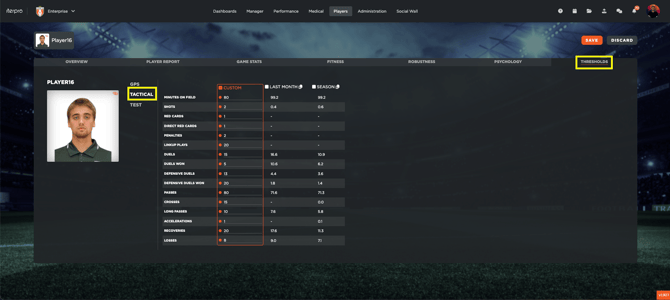
- By clicking on **Edit**, you can access the **Custom** column:
- Here, you can manually set a custom threshold value.
- Alternatively, you can choose to base the threshold on either the **Last Month** or the **Season**:
- **Last Month**: The system calculates the average values from games where the player played more than 85 minutes.
- **Season**: The system uses the average from all games played in the current season.
Once you have set the desired thresholds, click **Save** to confirm.
Additionally, users can apply the same custom value or threshold type to **multiple players or groups** at once by selecting them from the dropdown menu and clicking **Apply**.
**Team Tactical Thresholds**
- Go to **Settings** → **Threshold** → **Team**.
- Here, you will find the active **team tactical metrics**.
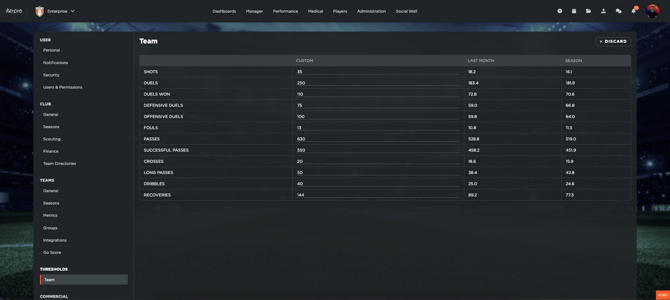
- In the **Custom** column, you can edit and input your desired threshold values.
- As reference points, the system also displays the average values for the **Last Month** and **Season**.
After setting the team thresholds, don't forget to click **Save** to finalize the changes.
- [What's New](https://support.iterpro.com/en/guide/whats-new?hsLang=en)
- [Quick Onboarding](https://support.iterpro.com/en/guide/quick-onboarding?hsLang=en)
- [Account set-up and other](https://support.iterpro.com/en/guide/account-set-up-and-other?hsLang=en#main-content)
- [Login & Iterpro overview](https://support.iterpro.com/en/guide/account-set-up-and-other?hsLang=en#login-iterpro-overview)
- [Settings](https://support.iterpro.com/en/guide/account-set-up-and-other?hsLang=en#settings)
- [Create, archive and delete players](https://support.iterpro.com/en/guide/account-set-up-and-other?hsLang=en#create-archive-and-delete-players)
- [Other](https://support.iterpro.com/en/guide/account-set-up-and-other?hsLang=en#other)
- [Manager](https://support.iterpro.com/en/guide/manager?hsLang=en#main-content)
- [Tactics](https://support.iterpro.com/en/guide/manager?hsLang=en#tactics)
- [Planning](https://support.iterpro.com/en/guide/manager?hsLang=en#planning)
- [Videogallery](https://support.iterpro.com/en/guide/manager?hsLang=en#videogallery)
- [Drills](https://support.iterpro.com/en/guide/manager?hsLang=en#drills)
- [Attendances](https://support.iterpro.com/en/guide/manager?hsLang=en#attendances)
- [Performance](https://support.iterpro.com/en/guide/performance?hsLang=en#main-content)
- [Session Analysis](https://support.iterpro.com/en/guide/performance?hsLang=en#session-analysis)
- [Workload Analysis](https://support.iterpro.com/en/guide/performance?hsLang=en#workload-analysis)
- [Assessments](https://support.iterpro.com/en/guide/performance?hsLang=en#assessments)
- [Readiness](https://support.iterpro.com/en/guide/performance?hsLang=en#readiness)
- [Medical](https://support.iterpro.com/en/guide/medical?hsLang=en#main-content)
- [Medical Records](https://support.iterpro.com/en/guide/medical?hsLang=en#medical-records)
- [Infirmary](https://support.iterpro.com/en/guide/medical?hsLang=en#infirmary)
- [Examinations](https://support.iterpro.com/en/guide/medical?hsLang=en#examinations)
- [Medical Statistics](https://support.iterpro.com/en/guide/medical?hsLang=en#medical-statistics)
- [Player](https://support.iterpro.com/en/guide/player?hsLang=en#main-content)
- [My Team](https://support.iterpro.com/en/guide/player?hsLang=en#my-team)
- [Scouting](https://support.iterpro.com/en/guide/player?hsLang=en#scouting)
- [Transfers](https://support.iterpro.com/en/guide/player?hsLang=en#transfers)
- [Administration](https://support.iterpro.com/en/guide/administration?hsLang=en#main-content)
- [Squads](https://support.iterpro.com/en/guide/administration?hsLang=en#squads)
- [Finance Overview](https://support.iterpro.com/en/guide/administration?hsLang=en#finance-overview)
- [Bonus Tracking](https://support.iterpro.com/en/guide/administration?hsLang=en#bonus-tracking)
- [Cash Flow](https://support.iterpro.com/en/guide/administration?hsLang=en#cash-flow)
- [Transactions](https://support.iterpro.com/en/guide/administration?hsLang=en#transactions)
- [Registrations](https://support.iterpro.com/en/guide/administration?hsLang=en#registrations)
- [Mobile apps](https://support.iterpro.com/en/guide/mobile-apps?hsLang=en#main-content)
- [Player App](https://support.iterpro.com/en/guide/mobile-apps?hsLang=en#player-app)
- [Coach App](https://support.iterpro.com/en/guide/mobile-apps?hsLang=en#coach-app)
- [Director App](https://support.iterpro.com/en/guide/mobile-apps?hsLang=en#director-app)
- [Iterpro Login Page](https://app.iterpro.com/auth/login)
- [Contact Support](https://share.hsforms.com/1rE7NvsvuTIWBm7WQ1dhslQ1uo0p)
- [Terms & Conditions](https://www.iubenda.com/terms-and-conditions/53739842)
- [Privacy Policy](https://www.iubenda.com/privacy-policy/53739842)
[](https://iterpro.com/)
Copyright © 2025, Iterpro Support Team