---
title: How do I set up Teams General settings and Seasons? (Only for ADMIN users)
description: Club, team, general, Settings, Seasons
---
[Skip to content](https://support.iterpro.com/en/guide/4.-how-to-set-up-advanced-settings-0#main-content)
English
Show submenu for translations
[](https://app.iterpro.com/auth/login)
- [Iterpro Login Page](https://app.iterpro.com/auth/login)
- [Contact Support](https://share.hsforms.com/1rE7NvsvuTIWBm7WQ1dhslQ1uo0p)
Open main navigation
Close main navigation
- [Iterpro Login Page](https://app.iterpro.com/auth/login)
- [Contact Support](https://share.hsforms.com/1rE7NvsvuTIWBm7WQ1dhslQ1uo0p)
- English
Show submenu for translations
How can we help you?
- There are no suggestions because the search field is empty.
1. [User Guide](https://support.iterpro.com/en/guide?hsLang=en)
2. [Account set-up and other](https://support.iterpro.com/en/guide/account-set-up-and-other?hsLang=en)
3. [Settings](https://support.iterpro.com/en/guide/account-set-up-and-other?hsLang=en#settings)
# How do I set up Teams General settings and Seasons? (Only for ADMIN users)
## This article explains how to set up Team General settings and seasons.
### TEAM SETTINGS (General)
- 00:04 - team General Settings;
- 00:28 - how to add team photo.
### TEAM SETTINGS (Seasons)
- 00:20 - set season timelines;
- 00:28 - manage season line-up;
- 00:42 - manage season staff;
- 00:48 - manage season competitions.
### ***FEATURES DESCRIPTION***
### Team General Settings
You can customise specific configurations for each squad in your organization.
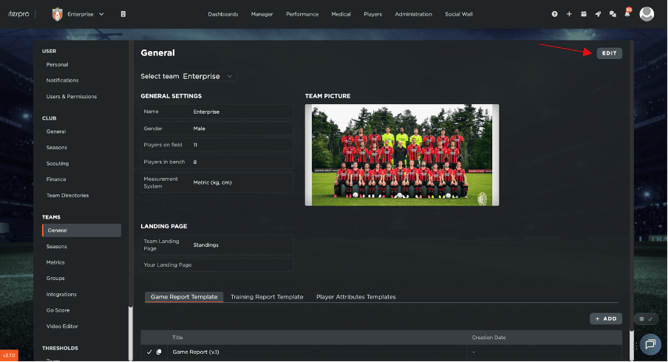
1. Navigate to **Settings** → **Teams** → **General**.
2. Click the **"Edit"**
3. Select the team you wish to configure from the dropdown menu of squads you have access to.
4. Update the **Team Name**, **Gender**, and define the default **number of field and bench players**.
5. Configure landing page preferences:
- **Team Landing Page:** Set a unified default landing page for the entire squad.
- **Your Landing Page:** Set your own personal landing page for when you log in.
6. Upload a **Team Picture**.
7. Assign specific **Report Templates** (Game and Training reports) and **Player Attributes Templates** to ensure the team utilises the correct evaluation data structures across the platform.
8. Click **"Save"**.
### Team Season
A Team Season links a specific squad to a Club Season and defines the operational phases of their yearly calendar.
- Navigate to the **Seasons** tab under the Teams menu.
- Click **"Add"**.
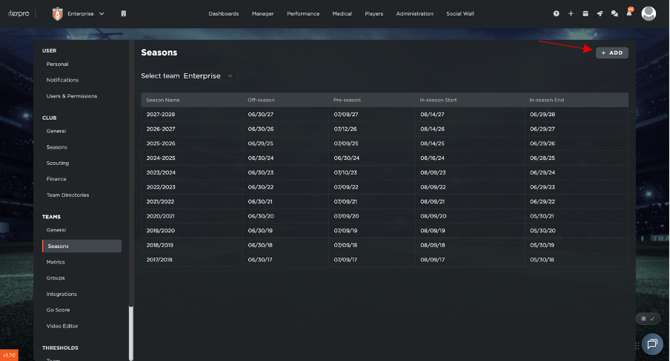
- *Optional:* You can copy settings from your current active season if preferred. To create a configuration from scratch:
- Enter the **Season Name**.
- Define the specific date ranges for each phase: **Off-season**, **Pre-season**, and **In-season**.
- Link the Team Season directly to the corresponding **Club Season** you created previously.

The second step is setting the season line-up players. Just go to **Line-up** and click on **Select player**. On the left side, you will see all available players in your club, along with their assigned team, while on the right side you will see the players already added to the current season's team.
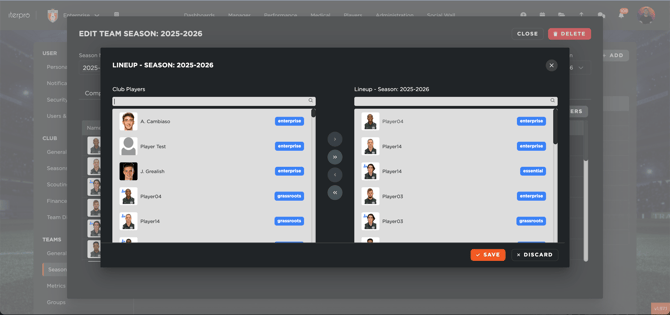
Players marked with a **blue icon** are reserves (explained in detail in chapter 1.8). To add a player to the season, simply click on their name and use the arrow icon to move them to the right column of active players.
It is important to note the difference between a player being part of a **season’s roster** and belonging to a **specific team**.
- The **team label** (defined in *Administration \> Squads*) indicates the player’s default team, which determines their availability in the Player App.
- Adding a player to the **season roster** allows them to appear across all screens of the selected team for that season.
Once your selection is complete, click **Save**.
The same process applies to **staff members**:
- On the left, you will find all available staff within the club.
- On the right, you will see the staff assigned to the season.
Select the staff members you want to include and move them to the right column.
When all information is set, click **Save** to confirm the season setup.
The last step is to configure the competitons.
#### Using the Wyscout Integration
If your club has the Wyscout integration enabled, you can import your league and cup schedules directly:
1. Go to the **Competitions**
2. Search for and select your Gerographical Area .
3. Choose the Competitions.
4. Link the corresponding **Wyscout Season** in the settings.
5. Enable the **Events Sync** This ensures your upcoming fixtures, matches, and event data are automatically populated and updated within your planning calendar. In other words, the system will create by itself the game event for the synced competition in the calendar and, once the match has been played, the tactical data will be shared by API
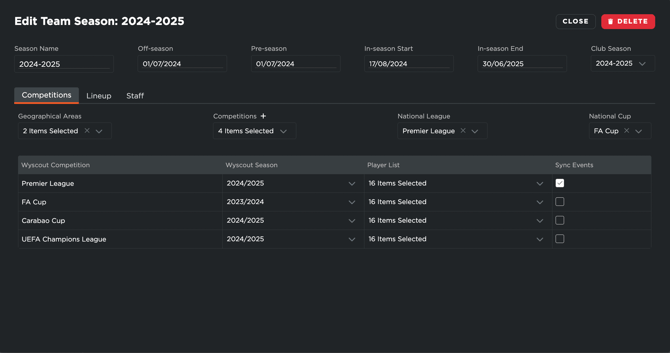
The last step now is to add the athletes to the player list, so they can attend the game of the selected competition: just open the dropdown below the colum "Player list" and select the ones they must be included.
IMPORTANT: if you do not select someone in this menù he/she will not be sble to be selected as participant in that specific competition.
### IMPORTANT
When you are createing a new season, because the past one is going to end or it's already ended, you need also to move the players to the belonged team from Administration - Squads, if needed.
For example, the players that the past year were in the U15, they now belong to the U17. What need to be done is:
1. Create the new season and add the player, in Settings - Team - Sesons
2. Move the players to the belonged team (from U15 to U17) in Administration - Squads
- [What's New](https://support.iterpro.com/en/guide/whats-new?hsLang=en)
- [Quick Onboarding](https://support.iterpro.com/en/guide/quick-onboarding?hsLang=en)
- [Account set-up and other](https://support.iterpro.com/en/guide/account-set-up-and-other?hsLang=en#main-content)
- [Login & Iterpro overview](https://support.iterpro.com/en/guide/account-set-up-and-other?hsLang=en#login-iterpro-overview)
- [Settings](https://support.iterpro.com/en/guide/account-set-up-and-other?hsLang=en#settings)
- [Create, archive and delete players](https://support.iterpro.com/en/guide/account-set-up-and-other?hsLang=en#create-archive-and-delete-players)
- [Other](https://support.iterpro.com/en/guide/account-set-up-and-other?hsLang=en#other)
- [Manager](https://support.iterpro.com/en/guide/manager?hsLang=en#main-content)
- [Tactics](https://support.iterpro.com/en/guide/manager?hsLang=en#tactics)
- [Planning](https://support.iterpro.com/en/guide/manager?hsLang=en#planning)
- [Videogallery](https://support.iterpro.com/en/guide/manager?hsLang=en#videogallery)
- [Drills](https://support.iterpro.com/en/guide/manager?hsLang=en#drills)
- [Attendances](https://support.iterpro.com/en/guide/manager?hsLang=en#attendances)
- [Performance](https://support.iterpro.com/en/guide/performance?hsLang=en#main-content)
- [Session Analysis](https://support.iterpro.com/en/guide/performance?hsLang=en#session-analysis)
- [Workload Analysis](https://support.iterpro.com/en/guide/performance?hsLang=en#workload-analysis)
- [Assessments](https://support.iterpro.com/en/guide/performance?hsLang=en#assessments)
- [Readiness](https://support.iterpro.com/en/guide/performance?hsLang=en#readiness)
- [Medical](https://support.iterpro.com/en/guide/medical?hsLang=en#main-content)
- [Medical Records](https://support.iterpro.com/en/guide/medical?hsLang=en#medical-records)
- [Infirmary](https://support.iterpro.com/en/guide/medical?hsLang=en#infirmary)
- [Examinations](https://support.iterpro.com/en/guide/medical?hsLang=en#examinations)
- [Medical Statistics](https://support.iterpro.com/en/guide/medical?hsLang=en#medical-statistics)
- [Player](https://support.iterpro.com/en/guide/player?hsLang=en#main-content)
- [My Team](https://support.iterpro.com/en/guide/player?hsLang=en#my-team)
- [Scouting](https://support.iterpro.com/en/guide/player?hsLang=en#scouting)
- [Transfers](https://support.iterpro.com/en/guide/player?hsLang=en#transfers)
- [Administration](https://support.iterpro.com/en/guide/administration?hsLang=en#main-content)
- [Squads](https://support.iterpro.com/en/guide/administration?hsLang=en#squads)
- [Finance Overview](https://support.iterpro.com/en/guide/administration?hsLang=en#finance-overview)
- [Bonus Tracking](https://support.iterpro.com/en/guide/administration?hsLang=en#bonus-tracking)
- [Cash Flow](https://support.iterpro.com/en/guide/administration?hsLang=en#cash-flow)
- [Transactions](https://support.iterpro.com/en/guide/administration?hsLang=en#transactions)
- [Registrations](https://support.iterpro.com/en/guide/administration?hsLang=en#registrations)
- [Mobile apps](https://support.iterpro.com/en/guide/mobile-apps?hsLang=en#main-content)
- [Player App](https://support.iterpro.com/en/guide/mobile-apps?hsLang=en#player-app)
- [Coach App](https://support.iterpro.com/en/guide/mobile-apps?hsLang=en#coach-app)
- [Director App](https://support.iterpro.com/en/guide/mobile-apps?hsLang=en#director-app)
- [Iterpro Login Page](https://app.iterpro.com/auth/login)
- [Contact Support](https://share.hsforms.com/1rE7NvsvuTIWBm7WQ1dhslQ1uo0p)
- [Terms & Conditions](https://www.iubenda.com/terms-and-conditions/53739842)
- [Privacy Policy](https://www.iubenda.com/privacy-policy/53739842)
[](https://iterpro.com/)
Copyright © 2025, Iterpro Support Team