---
title: 7.6 How to navigate through the main sections of the Director App
description: This article showcases the main areas available in the Director App and accessible, based on permissions, to your management and scouts. These comprehend the calendar, video gallery, scouted players, and the player's financial performance.
---
[Skip to content](https://support.iterpro.com/en/guide/7.6-how-to-navigate-through-the-main-sections-of-the-director-app#main-content)
- [English](https://support.iterpro.com/en/guide/7.6-how-to-navigate-through-the-main-sections-of-the-director-app)
- [Español](https://support.iterpro.com/es/guide/7.6-cómo-navegar-por-las-secciones-principales-de-la-app-director)
- [Nederlands](https://support.iterpro.com/nl/guide/7.6-hoe-navigeer-je-door-de-belangrijkste-secties-van-de-director-app)
- [العربية - مصر](https://support.iterpro.com/ar-eg/guide/7.6-كيفية-التنقل-عبر-الأقسام-الرئيسية-في-تطبيق-المدير)
- [日本語](https://support.iterpro.com/ja/guide/7.6-ディレクターアプリの主要セクションをナビゲートする方法)
English
Show submenu for translations
[](https://app.iterpro.com/auth/login)
- [Iterpro Login Page](https://app.iterpro.com/auth/login)
- [Contact Support](https://share.hsforms.com/1rE7NvsvuTIWBm7WQ1dhslQ1uo0p)
Open main navigation
Close main navigation
- [Iterpro Login Page](https://app.iterpro.com/auth/login)
- [Contact Support](https://share.hsforms.com/1rE7NvsvuTIWBm7WQ1dhslQ1uo0p)
- - [English](https://support.iterpro.com/en/guide/7.6-how-to-navigate-through-the-main-sections-of-the-director-app)
- [Español](https://support.iterpro.com/es/guide/7.6-cómo-navegar-por-las-secciones-principales-de-la-app-director)
- [Nederlands](https://support.iterpro.com/nl/guide/7.6-hoe-navigeer-je-door-de-belangrijkste-secties-van-de-director-app)
- [العربية - مصر](https://support.iterpro.com/ar-eg/guide/7.6-كيفية-التنقل-عبر-الأقسام-الرئيسية-في-تطبيق-المدير)
- [日本語](https://support.iterpro.com/ja/guide/7.6-ディレクターアプリの主要セクションをナビゲートする方法)
English
Show submenu for translations
How can we help you?
- There are no suggestions because the search field is empty.
1. [User Guide](https://support.iterpro.com/en/guide?hsLang=en)
2. [Mobile apps](https://support.iterpro.com/en/guide/mobile-apps?hsLang=en)
3. [Director App](https://support.iterpro.com/en/guide/mobile-apps?hsLang=en#director-app)
# 7.6 How to navigate through the main sections of the Director App
## This article showcases the main areas available in the Director App and accessible, based on permissions, to your management and scouts. These comprehend the calendar, video gallery, scouted players, and the player's financial performance.
### LOGIN
- 00.01: Accessing the Director App
- 00.15: Login using magic link
- 00.31: Login using Google or Apple Authentication
- 00.47: Settings ( Date Format & Language, Notifications)
### TEAM VIEW
- 00.04: Team view
- 00.12: Player list and lineup view
- 00.28: Team details (staff, season, readiness and fixtures)
- 01.00: Team financial KPIs (squad value and contracts)
### PLAYER'S PROFILE
- 00.03: Accessing a player profile
- 00.011: Explanation of scouting shadow players
- 00.26: Player's personal details
- 00.30: Player's seasonal performance and medical statistics and KPIs
- 01.17: Player's contractual details, bonuses and financial KPIs
### BONUS TRACKING
- 00.02: Accessing the bonus tab
- 00.06: Visualizing the bonus details and progress
- 00.20: Filtering between bonuses for your players, staff, and agents
- 00.33: Searching for specific players. staff, or agents' bonuses
### CALENDAR
- 00.07: Viewing the calendar in daily or monthly view
- 00.15: Accessing events in the calendar
- 00.24: Training event details
- 00.37: Game event details
- 00.53: Navigating through the calendar
- 01.03: Event colorization legend
### VIDEO GALLERY & CHATTING TOOL
- 00.05: Accessing the video gallery
- 00.14: Watching the videos and commenting them
- 00.20: Create threads and reply to player or staff member's comments
- 00.29: How to see game, training and other type of videos
- 00.40: Accessing the chatting tool
- 00.55: How to create a new chat
- 01.04: How to create a new group
### ***FEATURE DESCRIPTION***
#### **Login**
To log in to the **Iterpro Director App**, you must first complete your initial login through the **Iterpro web platform**. Once this step is completed, you can proceed to access the Director App.
There are two ways to log in:
**Magic Link**
Enter the email address associated with your Iterpro account. A magic link will be sent to your inbox. Opening the link will automatically sign you in to the Director App.
**Google or Apple Authentication**
Alternatively, you can log in using your **Google** or **Apple** account linked to your Iterpro email.
 
After logging in, your **profile icon** will appear in the **top-left corner** of the screen. From here, you can open the **Settings menu**.
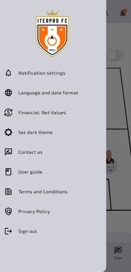
In the settings menu, you can:
- Change the **language**
- Adjust the **date format**
- Configure **notification preferences**, including enabling alerts and setting reminders.
#### **Team View**
After logging in to the **Iterpro Director App**, you will be automatically redirected to the **Team tab**, which provides a complete overview of your squad and key team information.
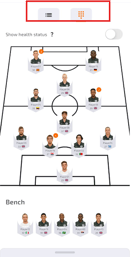
At the top of the page, you can switch between two different views:
- **Player List View**, which displays players in a structured list.
- **Lineup View**, which shows players positioned on the pitch.
You can also toggle the **Health Status** option to quickly view the current physical condition of your players and get an immediate overview of their availability.
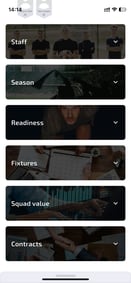
Within the Team tab, you can access several important sections related to your team, including:
- **Staff Members** assigned to the team
- **Seasonal Statistics**
- **Player Readiness**, which provides insights into their physical and medical condition
You can also review the **season fixtures**, including upcoming and past matches, and access detailed **match statistics** for both your team and your opponents. These statistics are provided through the **Wyscout integration**.
Finally, the **Financial section** provides key financial insights related to your team, including:
- **Total Squad Value**
- **Investment Performance**
- **Player and Staff Contract Details**
#### **Player Profile**
From the **Team View**, you can access player profiles directly from both the **player list** and the **lineup view** by selecting a player.
If scouting scenarios have been shared with you, **shadow players** may also appear in the profile.
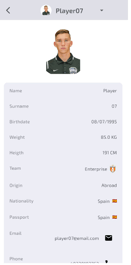
Inside the **Player Profile**, you can review key information including:
- **Personal details and seasonal statistics**
- **Readiness and fitness assessments**, along with uploaded fitness data
- **Medical information**, including chronic issues and active or past injuries
- **Seasonal availability**, career statistics, and last transfer information
 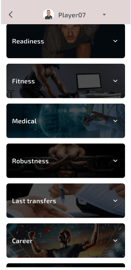
Note: Some transfer and career data is available only for players imported through the **Wyscout integration**.
If scouting reports have been created by coaches or scouts, they can also be accessed from the profile. These reports may include **strengths, weaknesses, descriptions, and attached videos**.
The profile also includes **financial KPIs**, such as contract information, bonuses and their progression over time, as well as indicators like **return on investment or capital gain**.
#### **Bonus Tracking**
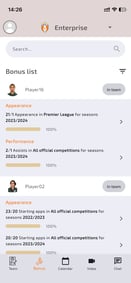
In the **Director App**, you can access the **Bonus tab** to monitor bonuses related to **players, staff members, and agents**.
Within this section, you can review the **conditions attached to each bonus** and track their **progress over time**.
To better organize the information, you can apply different **filters**, such as filtering bonuses by **players, agents, or staff members**. Additional filters, including **status, transaction type, and contract type**, are also available.
You can also use the **search function** to quickly find a specific player, staff member, or agent and review the bonuses associated with them.
#### **Calendar**
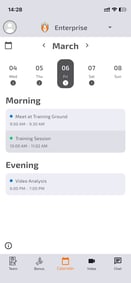
In the **Calendar** section of the Director App, you can view all events where you have been set as a participant.
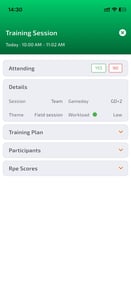
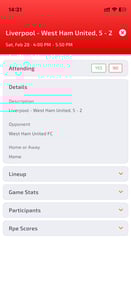
You can switch between **daily** and **monthly** views to navigate through your schedule. Selecting an event will open the **event details**, which vary depending on the event type.
 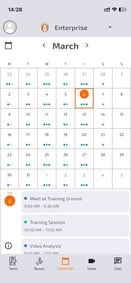
For **training sessions**, you can review:
- Event details
- Training plan
- Participants involved
- Player **RPE scores**
For **game events**, you can view the **team lineup** and related **match statistics**.
If the match has not yet taken place, the event will show the **players who have been called up** for that game.
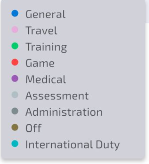
The **Legend** helps identify the different types of events shown on the calendar.
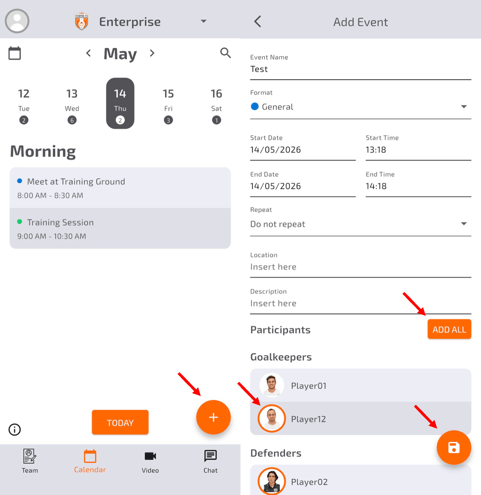
To create a event using the Director App:
- Click the "**+"** icon on the bottom right.
- Fill in the details - the are multiple formats that have different requirements.
- Add the participants one by one, or use the "**Add All**" button to select all the same time
- Click "**Save**"
*Note:* Please keep in mind that while the Mobile Apps are great for quick access, the Web Platform provides the depth needed for advanced management. For detailed operations—such as creating Training Plans or managing Medical Treatments—we recommend using the Web App. It offers the complete interface required to edit existing events or build new ones with all the necessary details.
#### **Video Gallery & Chatting Tool**
**Video Gallery**
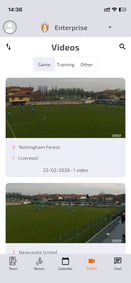
In the **Video Gallery**, you can view all videos that have been uploaded to the platform and shared with you.
By opening a video, you can watch it directly and leave **comments** for players or staff members. Comments can also be expanded into **threads**, allowing discussions around specific moments in the video.
You can browse videos related to **games, training sessions, and other shared content** depending on what has been made available to you.
**Chatting Tool**
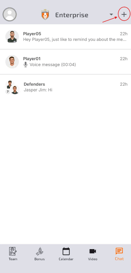
The **Chatting Tool** allows direct communication with players and other platform users.
You can create **individual chats** or **group conversations**, share attachments, and send reminders.
To start a new conversation, click the **+ icon** in the top-right corner and select the player or user you want to contact.
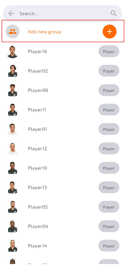
To create a group chat, select **Add New Group**, then choose the players or staff members you want to include.
- [What's New](https://support.iterpro.com/en/guide/whats-new?hsLang=en)
- [Quick Onboarding](https://support.iterpro.com/en/guide/quick-onboarding?hsLang=en)
- [Account set-up and other](https://support.iterpro.com/en/guide/account-set-up-and-other?hsLang=en#main-content)
- [Login & Iterpro overview](https://support.iterpro.com/en/guide/account-set-up-and-other?hsLang=en#login-iterpro-overview)
- [Settings](https://support.iterpro.com/en/guide/account-set-up-and-other?hsLang=en#settings)
- [Create, archive and delete players](https://support.iterpro.com/en/guide/account-set-up-and-other?hsLang=en#create-archive-and-delete-players)
- [Other](https://support.iterpro.com/en/guide/account-set-up-and-other?hsLang=en#other)
- [Manager](https://support.iterpro.com/en/guide/manager?hsLang=en#main-content)
- [Tactics](https://support.iterpro.com/en/guide/manager?hsLang=en#tactics)
- [Planning](https://support.iterpro.com/en/guide/manager?hsLang=en#planning)
- [Videogallery](https://support.iterpro.com/en/guide/manager?hsLang=en#videogallery)
- [Drills](https://support.iterpro.com/en/guide/manager?hsLang=en#drills)
- [Attendances](https://support.iterpro.com/en/guide/manager?hsLang=en#attendances)
- [Performance](https://support.iterpro.com/en/guide/performance?hsLang=en#main-content)
- [Session Analysis](https://support.iterpro.com/en/guide/performance?hsLang=en#session-analysis)
- [Workload Analysis](https://support.iterpro.com/en/guide/performance?hsLang=en#workload-analysis)
- [Assessments](https://support.iterpro.com/en/guide/performance?hsLang=en#assessments)
- [Readiness](https://support.iterpro.com/en/guide/performance?hsLang=en#readiness)
- [Medical](https://support.iterpro.com/en/guide/medical?hsLang=en#main-content)
- [Medical Records](https://support.iterpro.com/en/guide/medical?hsLang=en#medical-records)
- [Infirmary](https://support.iterpro.com/en/guide/medical?hsLang=en#infirmary)
- [Examinations](https://support.iterpro.com/en/guide/medical?hsLang=en#examinations)
- [Medical Statistics](https://support.iterpro.com/en/guide/medical?hsLang=en#medical-statistics)
- [Player](https://support.iterpro.com/en/guide/player?hsLang=en#main-content)
- [My Team](https://support.iterpro.com/en/guide/player?hsLang=en#my-team)
- [Scouting](https://support.iterpro.com/en/guide/player?hsLang=en#scouting)
- [Transfers](https://support.iterpro.com/en/guide/player?hsLang=en#transfers)
- [Administration](https://support.iterpro.com/en/guide/administration?hsLang=en#main-content)
- [Squads](https://support.iterpro.com/en/guide/administration?hsLang=en#squads)
- [Finance Overview](https://support.iterpro.com/en/guide/administration?hsLang=en#finance-overview)
- [Bonus Tracking](https://support.iterpro.com/en/guide/administration?hsLang=en#bonus-tracking)
- [Cash Flow](https://support.iterpro.com/en/guide/administration?hsLang=en#cash-flow)
- [Transactions](https://support.iterpro.com/en/guide/administration?hsLang=en#transactions)
- [Registrations](https://support.iterpro.com/en/guide/administration?hsLang=en#registrations)
- [Mobile apps](https://support.iterpro.com/en/guide/mobile-apps?hsLang=en#main-content)
- [Player App](https://support.iterpro.com/en/guide/mobile-apps?hsLang=en#player-app)
- [Coach App](https://support.iterpro.com/en/guide/mobile-apps?hsLang=en#coach-app)
- [Director App](https://support.iterpro.com/en/guide/mobile-apps?hsLang=en#director-app)
- [Iterpro Login Page](https://app.iterpro.com/auth/login)
- [Contact Support](https://share.hsforms.com/1rE7NvsvuTIWBm7WQ1dhslQ1uo0p)
- [Terms & Conditions](https://www.iubenda.com/terms-and-conditions/53739842)
- [Privacy Policy](https://www.iubenda.com/privacy-policy/53739842)
[](https://iterpro.com/)
Copyright © 2025, Iterpro Support Team