
This section is an important part of the Iterpro software as it allows users to customize the Go Score index and ensure that it is tailored to their specific needs and preferences.
Users can access the Go Score Preferences section to select and provide the weight to the tests whose data will be included in the Go Score calculation. This can help users to more effectively use the Iterpro software to track and analyze player readiness and make informed decisions about training and game participation.
First of all, it is important to notice that you will be able to change between the teams you have access to directly from the dropdown at the top, to be able to set up each one of your teams without having to leave the screen.
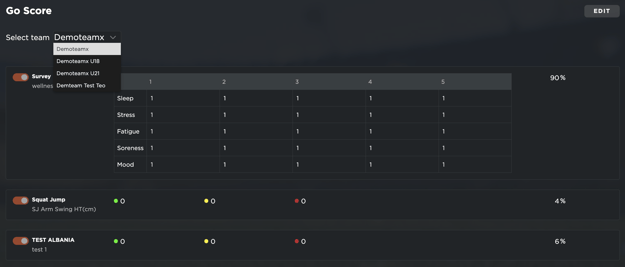
This said, when you are setting up the Go Score, it is important to understand the following things:
-
Users can decide to add as many Tests as they wish to impact their player's Go Scores. To do so, you will need to click on the
 and then Select the
  icon. This will allow you to include any of the tests that are currently created in your account.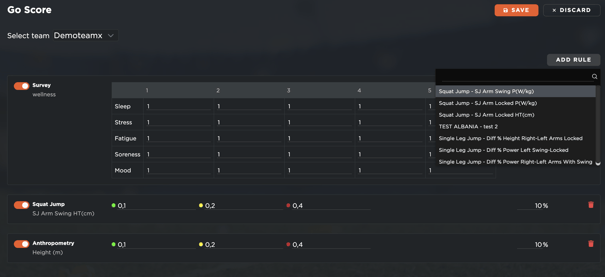
Additionally, you will be able to edit and delete the added tests, changing the weight each singular factor has on the final Go Score value.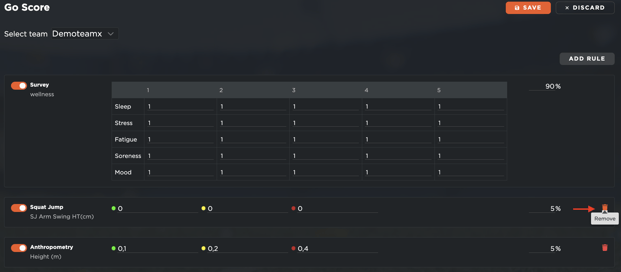
-
Users can set the percentage required to change the outcome of the score. What this means, is that they can individually change the importance each test has on the overall Go Score calculations. In the example below, the Squat Jump value represents 10% of the overall calculation.
The sum of all the tests you have activated needs to add up to 100% (and in case it isn't), the system will notify you.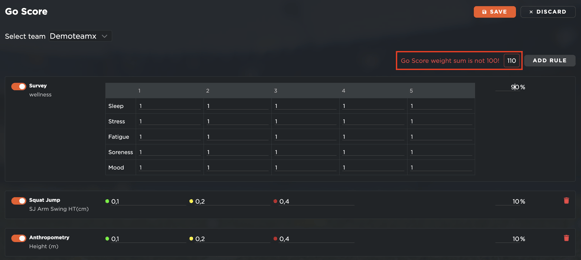
Once the tests’ metrics are added to the list, it is possible to weigh them in the calculation of the score.
Wellness Survey
The Wellness survey is a metric that has to be added when setting up the platform, as well as being one that can be removed. If added, it will automatically be included in the score. It can be excluded from the calculation by simply switching off the button next to it. You can also decide how sensitive you want the score to be for every question asked in the questionnaire.
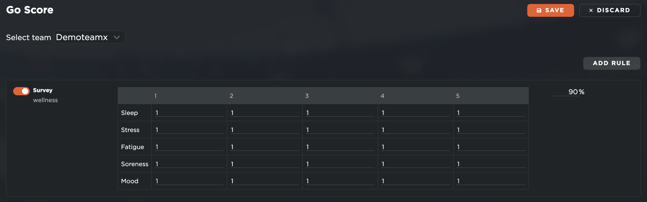
For example:
- For all the 5 questions, the players can always choose between 5 votes (from 1 to 5). That means, the user can set a specific "weight" for each vote,
- The "weight" goes from 0,1 until 1, and the logic applied is very simple: the lower the "weight", the lower the readiness.
- Below you can find a final example:
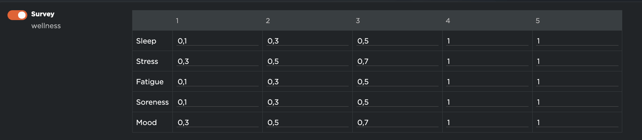
The players selected the following votes: Sleep (2) - Stress (4) - Fatigue (3) - Soreness (4) - Mood (5). Using the "weight" displayed in the table, the scores, for each vote, are:
- Sleep: 2 (vote) x 0,3 (weight) = 0,6
- Stress: 4 (vote) x 1 (weight) = 4
- Fatigue: 3 (vote) x 0,5 (weight) = 1,5
- Soreness: 4 (vote) x 1 (weight) = 4
- Mood: 5 (vote) x 1 (weight) = 5
In that case, the GoScore, if only the wellbeing survey is included, is: 60,4
Instead, if all the weight are 1, the scores are:
- Sleep: 2 (vote) x 1 (weight) = 2
- Stress: 4 (vote) x 1 (weight) = 4
- Fatigue: 3 (vote) x 1 (weight) = 3
- Soreness: 4 (vote) x 1 (weight) = 4
- Mood: 5 (vote) x 1 (weight) = 5
And, in this second scenario, the GoScore, if only the wellbeing survey is included, is: 72