
In the control panel on the right side, you can choose between different seasons and the game you would like to have displayed. At the bottom of the control panel, you can select the analysis to be performed.
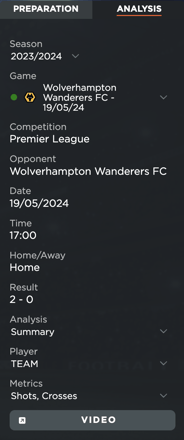
More specifically the functions that you can choose from are:
- Switch between the different seasons
- Select the game that you would like to analyze
- Switch between the different views of the analysis
- Summary
- Comparison
- Select if the whole team or individual players will be involved in each analysis (for the chart only)
- Select which metrics will be involved in each analysis (for the chart only)
Types of Analysis
The summary analysis is a dashboard that displays 3 different areas: Team Average, Game Summary, and the Last 6 games' comparison.
Team Average:
In the Radar chart, in the top left corner, the absolute number and the percentage as a representation of the percentage comparison to the Game Day Thresholds.
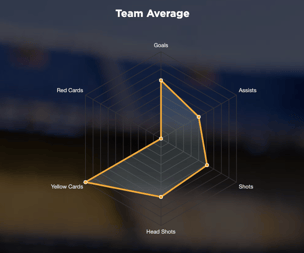
The metrics for this section are the active metrics that can be set in Settings > Teams > Metrics > Team Tactical Metrics where the first 6 selected metrics will be displayed in this section. The Game-day Threshold can be set in Settings > Thresholds for each of the desired metrics so that they are correctly displayed in the radar chart.
Game Summary:
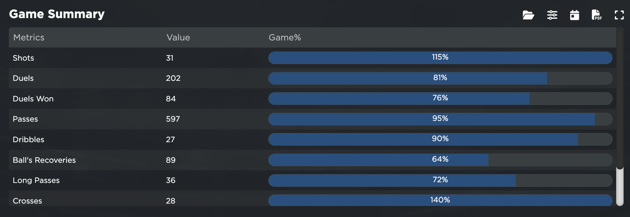
In the Game Summary section, all active metrics are displayed as absolute numbers, and the bar graph represents the percentage comparison to the Game Day Thresholds.
The metrics for this section are the active metrics that can be set in Settings > Teams > Metrics > Team Tactical Metrics.
Last 6 Games Comparison:
In this section, a comparison of the last 6 Games can be obtained. Up to two metrics are shown that can be selected from the list of active metrics in the control panel on the right. The bar graphs represent the absolute value, whereas the dotted line indicates the average for the corresponding metric. 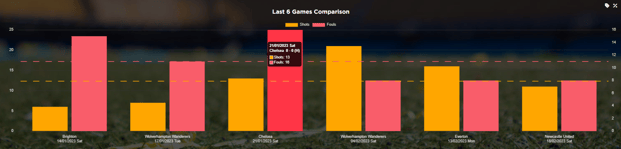
You will be able to view the Data Labels  , which will show the labels on each chart column with their respective information, and the Game Thresholds
  which will display the relationship between the value reached in the game and the game threshold.