---
title: How do I create a new custom treatment(s)?
description: This article explains how to create a new custom treatment from the settings section and display it within the Medical dpt Infirmary and Medical records
---
[Skip to content](https://support.iterpro.com/en/guide/how-do-i-create-new-custom-treatments#main-content)
- [English](https://support.iterpro.com/en/guide/how-do-i-create-new-custom-treatments)
- [Español](https://support.iterpro.com/es/guide/cómo-crear-tratamientos-personalizados)
- [Italiano](https://support.iterpro.com/it/guide/come-creare-trattamenti-personalizzati)
- [Nederlands](https://support.iterpro.com/nl/guide/hoe-maak-ik-aangepaste-behandelingen)
- [العربية - مصر](https://support.iterpro.com/ar-eg/guide/كيف-يمكنني-إنشاء-علاجات-مخصصة)
English
Show submenu for translations
[](https://app.iterpro.com/auth/login)
- [Iterpro Login Page](https://app.iterpro.com/auth/login)
- [Contact Support](https://share.hsforms.com/1rE7NvsvuTIWBm7WQ1dhslQ1uo0p)
Open main navigation
Close main navigation
- [Iterpro Login Page](https://app.iterpro.com/auth/login)
- [Contact Support](https://share.hsforms.com/1rE7NvsvuTIWBm7WQ1dhslQ1uo0p)
- - [English](https://support.iterpro.com/en/guide/how-do-i-create-new-custom-treatments)
- [Español](https://support.iterpro.com/es/guide/cómo-crear-tratamientos-personalizados)
- [Italiano](https://support.iterpro.com/it/guide/come-creare-trattamenti-personalizzati)
- [Nederlands](https://support.iterpro.com/nl/guide/hoe-maak-ik-aangepaste-behandelingen)
- [العربية - مصر](https://support.iterpro.com/ar-eg/guide/كيف-يمكنني-إنشاء-علاجات-مخصصة)
English
Show submenu for translations
How can we help you?
- There are no suggestions because the search field is empty.
1. [User Guide](https://support.iterpro.com/en/guide?hsLang=en)
2. [Medical](https://support.iterpro.com/en/guide/medical?hsLang=en)
3. [Medical Records](https://support.iterpro.com/en/guide/medical?hsLang=en#medical-records)
# How do I create a new custom treatment(s)?
## Learn how to create and manage custom medical treatments for your team in Iterpro.
Iterpro allows you to create custom medical treatments for each team, ensuring that all users with access to the team can utilize them in the Medical section, specifically in the Infirmary and Medical Certificates.
To create a new treatment, follow these steps:
1. Navigate to **Settings \> Team \> Metrics \> Team Metrics \> Treatments**.
2. Click on **Edit**.
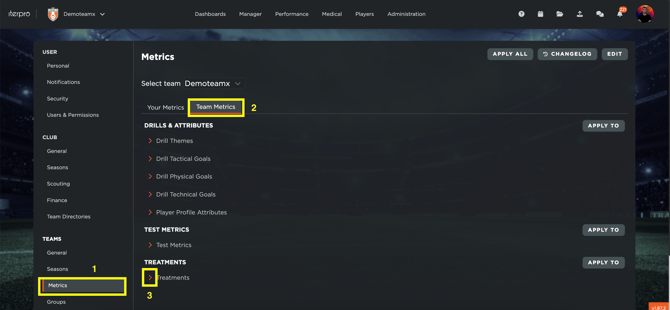
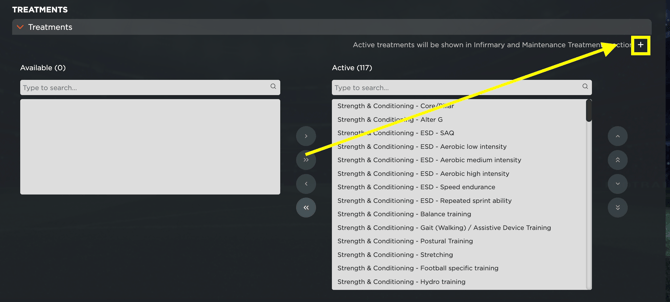
Now, you can activate/deactivate existing treatments or create new ones.
- **To activate or deactivate treatments**, select them and move them using the arrows in the Active Metrics or Available Metrics columns.
- **To create a new treatment**, click on the **+ icon** and enter all the necessary information:
- - Name of the treatment
- Name of the treatment in CSV downloads
- Type of treatment (Physiotherapy or S&C)
- Treatment category (if Physiotherapy - Bandaging, Injection, Manual Therapy, Instrumental Therapy, or Thermal Therapy)
- Optionally, add a protocol or any relevant videos.
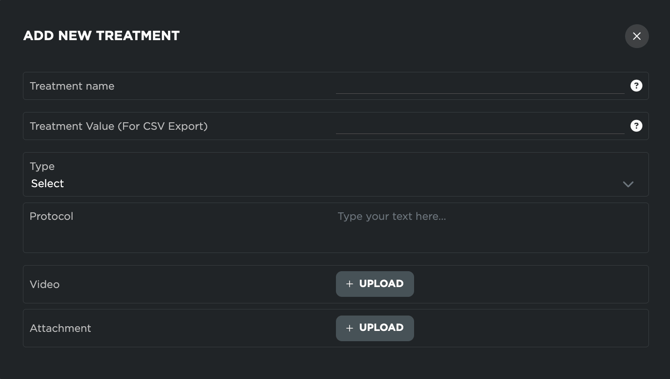
Once all information is entered, click **Save**.
After completing all operations, click **Save** again, and the new treatments will be visible in the Medical area.
**Note1:** Custom treatments cannot be created for the "Medical Treatments" category.
**Note2**: that the user can also apply the active treatment list (including new treatments created) to other teams, by clicking on APPLY TO, selecting the team(s) needed and clicking on SAVE.
- [What's New](https://support.iterpro.com/en/guide/whats-new?hsLang=en)
- [Quick Onboarding](https://support.iterpro.com/en/guide/quick-onboarding?hsLang=en)
- [Account set-up and other](https://support.iterpro.com/en/guide/account-set-up-and-other?hsLang=en#main-content)
- [Login & Iterpro overview](https://support.iterpro.com/en/guide/account-set-up-and-other?hsLang=en#login-iterpro-overview)
- [Settings](https://support.iterpro.com/en/guide/account-set-up-and-other?hsLang=en#settings)
- [Create, archive and delete players](https://support.iterpro.com/en/guide/account-set-up-and-other?hsLang=en#create-archive-and-delete-players)
- [Other](https://support.iterpro.com/en/guide/account-set-up-and-other?hsLang=en#other)
- [Manager](https://support.iterpro.com/en/guide/manager?hsLang=en#main-content)
- [Tactics](https://support.iterpro.com/en/guide/manager?hsLang=en#tactics)
- [Planning](https://support.iterpro.com/en/guide/manager?hsLang=en#planning)
- [Videogallery](https://support.iterpro.com/en/guide/manager?hsLang=en#videogallery)
- [Drills](https://support.iterpro.com/en/guide/manager?hsLang=en#drills)
- [Attendances](https://support.iterpro.com/en/guide/manager?hsLang=en#attendances)
- [Performance](https://support.iterpro.com/en/guide/performance?hsLang=en#main-content)
- [Session Analysis](https://support.iterpro.com/en/guide/performance?hsLang=en#session-analysis)
- [Workload Analysis](https://support.iterpro.com/en/guide/performance?hsLang=en#workload-analysis)
- [Assessments](https://support.iterpro.com/en/guide/performance?hsLang=en#assessments)
- [Readiness](https://support.iterpro.com/en/guide/performance?hsLang=en#readiness)
- [Medical](https://support.iterpro.com/en/guide/medical?hsLang=en#main-content)
- [Medical Records](https://support.iterpro.com/en/guide/medical?hsLang=en#medical-records)
- [Infirmary](https://support.iterpro.com/en/guide/medical?hsLang=en#infirmary)
- [Examinations](https://support.iterpro.com/en/guide/medical?hsLang=en#examinations)
- [Medical Statistics](https://support.iterpro.com/en/guide/medical?hsLang=en#medical-statistics)
- [Player](https://support.iterpro.com/en/guide/player?hsLang=en#main-content)
- [My Team](https://support.iterpro.com/en/guide/player?hsLang=en#my-team)
- [Scouting](https://support.iterpro.com/en/guide/player?hsLang=en#scouting)
- [Transfers](https://support.iterpro.com/en/guide/player?hsLang=en#transfers)
- [Administration](https://support.iterpro.com/en/guide/administration?hsLang=en#main-content)
- [Squads](https://support.iterpro.com/en/guide/administration?hsLang=en#squads)
- [Finance Overview](https://support.iterpro.com/en/guide/administration?hsLang=en#finance-overview)
- [Bonus Tracking](https://support.iterpro.com/en/guide/administration?hsLang=en#bonus-tracking)
- [Cash Flow](https://support.iterpro.com/en/guide/administration?hsLang=en#cash-flow)
- [Transactions](https://support.iterpro.com/en/guide/administration?hsLang=en#transactions)
- [Registrations](https://support.iterpro.com/en/guide/administration?hsLang=en#registrations)
- [Mobile apps](https://support.iterpro.com/en/guide/mobile-apps?hsLang=en#main-content)
- [Player App](https://support.iterpro.com/en/guide/mobile-apps?hsLang=en#player-app)
- [Coach App](https://support.iterpro.com/en/guide/mobile-apps?hsLang=en#coach-app)
- [Director App](https://support.iterpro.com/en/guide/mobile-apps?hsLang=en#director-app)
- [Iterpro Login Page](https://app.iterpro.com/auth/login)
- [Contact Support](https://share.hsforms.com/1rE7NvsvuTIWBm7WQ1dhslQ1uo0p)
- [Terms & Conditions](https://www.iubenda.com/terms-and-conditions/53739842)
- [Privacy Policy](https://www.iubenda.com/privacy-policy/53739842)
[](https://iterpro.com/)
Copyright © 2025, Iterpro Support Team