---
title: How do I create reports for my tests?
description: This article explains how the user can generate PDF or CSV reports regarding the tests that have been performed by athletes dynamic table performance medical
---
[Skip to content](https://support.iterpro.com/en/guide/how-do-i-create-reports-for-my-tests#main-content)
- [English](https://support.iterpro.com/en/guide/how-do-i-create-reports-for-my-tests)
- [Español](https://support.iterpro.com/es/guide/cómo-puedo-crear-informes-para-mis-pruebas)
- [Italiano](https://support.iterpro.com/it/guide/come-posso-creare-report-per-i-miei-test)
- [Nederlands](https://support.iterpro.com/nl/guide/cómo-puedo-crear-informes-para-mis-pruebas)
- [العربية - مصر](https://support.iterpro.com/ar-eg/guide/كيف-يمكنني-إنشاء-تقارير-لاختباراتي)
- [日本語](https://support.iterpro.com/ja/guide/テストレポートの作成方法)
English
Show submenu for translations
[](https://app.iterpro.com/auth/login)
- [Iterpro Login Page](https://app.iterpro.com/auth/login)
- [Contact Support](https://share.hsforms.com/1rE7NvsvuTIWBm7WQ1dhslQ1uo0p)
Open main navigation
Close main navigation
- [Iterpro Login Page](https://app.iterpro.com/auth/login)
- [Contact Support](https://share.hsforms.com/1rE7NvsvuTIWBm7WQ1dhslQ1uo0p)
- - [English](https://support.iterpro.com/en/guide/how-do-i-create-reports-for-my-tests)
- [Español](https://support.iterpro.com/es/guide/cómo-puedo-crear-informes-para-mis-pruebas)
- [Italiano](https://support.iterpro.com/it/guide/come-posso-creare-report-per-i-miei-test)
- [Nederlands](https://support.iterpro.com/nl/guide/cómo-puedo-crear-informes-para-mis-pruebas)
- [العربية - مصر](https://support.iterpro.com/ar-eg/guide/كيف-يمكنني-إنشاء-تقارير-لاختباراتي)
- [日本語](https://support.iterpro.com/ja/guide/テストレポートの作成方法)
English
Show submenu for translations
How can we help you?
- There are no suggestions because the search field is empty.
1. [User Guide](https://support.iterpro.com/en/guide?hsLang=en)
2. [Performance](https://support.iterpro.com/en/guide/performance?hsLang=en)
3. [Assessments](https://support.iterpro.com/en/guide/performance?hsLang=en#assessments)
# How do I create reports for my tests?
## This article explains how the user can generate PDF or CSV reports (in addition to the analysis charts) regarding the tests that have been performed by athletes.
When athletes are performing a test or multiple tests, values for different metrics are imported and stored into the system from Performance - Assessment - Test or Medical - Examinations.
The user can make analysis using the Analysis screens in Performance and Medical, but can also create dynamic table reports displaying the last values done from the players with the specific thresholds. This is quite useful when you need to report the result performed, for example, in the last test battery.
### MEDICAL - MEDICAL RECORDS - LIST VIEW
- Access Medical - Medical records and click on the list view (top right corner of the screen)
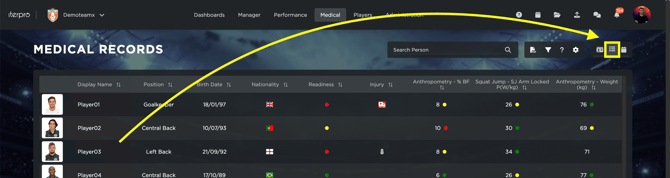
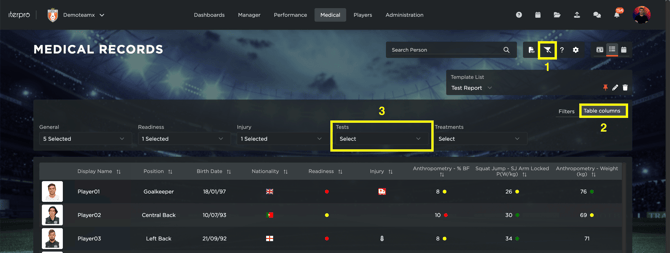
- Click on the filter icon and select the column section
- Select the columns needed, including the metrics of the active test from the Tests dropdown
- You can now display the dynamic table and download it in PDF or CSV
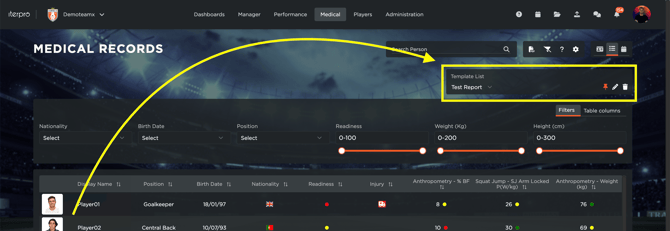
Remember that in this section the user can also save the template of the selected columns and Filter (max 3 templates), so he/she will display it automatically whenever he/she accesses such screen.
### PLAYERS - MY TEAM - LIST VIEW
- Access Players - My team and click on the list view (top right corner of the screen)
- Click on the filter icon and select the column section
- Select the columns needed, including the metrics of the active test from the Fitness dropdown
- You can now display the dynamic table and download it in PDF or CSV
- [What's New](https://support.iterpro.com/en/guide/whats-new?hsLang=en)
- [Quick Onboarding](https://support.iterpro.com/en/guide/quick-onboarding?hsLang=en)
- [Account set-up and other](https://support.iterpro.com/en/guide/account-set-up-and-other?hsLang=en#main-content)
- [Login & Iterpro overview](https://support.iterpro.com/en/guide/account-set-up-and-other?hsLang=en#login-iterpro-overview)
- [Settings](https://support.iterpro.com/en/guide/account-set-up-and-other?hsLang=en#settings)
- [Create, archive and delete players](https://support.iterpro.com/en/guide/account-set-up-and-other?hsLang=en#create-archive-and-delete-players)
- [Other](https://support.iterpro.com/en/guide/account-set-up-and-other?hsLang=en#other)
- [Manager](https://support.iterpro.com/en/guide/manager?hsLang=en#main-content)
- [Tactics](https://support.iterpro.com/en/guide/manager?hsLang=en#tactics)
- [Planning](https://support.iterpro.com/en/guide/manager?hsLang=en#planning)
- [Videogallery](https://support.iterpro.com/en/guide/manager?hsLang=en#videogallery)
- [Drills](https://support.iterpro.com/en/guide/manager?hsLang=en#drills)
- [Attendances](https://support.iterpro.com/en/guide/manager?hsLang=en#attendances)
- [Performance](https://support.iterpro.com/en/guide/performance?hsLang=en#main-content)
- [Session Analysis](https://support.iterpro.com/en/guide/performance?hsLang=en#session-analysis)
- [Workload Analysis](https://support.iterpro.com/en/guide/performance?hsLang=en#workload-analysis)
- [Assessments](https://support.iterpro.com/en/guide/performance?hsLang=en#assessments)
- [Readiness](https://support.iterpro.com/en/guide/performance?hsLang=en#readiness)
- [Medical](https://support.iterpro.com/en/guide/medical?hsLang=en#main-content)
- [Medical Records](https://support.iterpro.com/en/guide/medical?hsLang=en#medical-records)
- [Infirmary](https://support.iterpro.com/en/guide/medical?hsLang=en#infirmary)
- [Examinations](https://support.iterpro.com/en/guide/medical?hsLang=en#examinations)
- [Medical Statistics](https://support.iterpro.com/en/guide/medical?hsLang=en#medical-statistics)
- [Player](https://support.iterpro.com/en/guide/player?hsLang=en#main-content)
- [My Team](https://support.iterpro.com/en/guide/player?hsLang=en#my-team)
- [Scouting](https://support.iterpro.com/en/guide/player?hsLang=en#scouting)
- [Transfers](https://support.iterpro.com/en/guide/player?hsLang=en#transfers)
- [Administration](https://support.iterpro.com/en/guide/administration?hsLang=en#main-content)
- [Squads](https://support.iterpro.com/en/guide/administration?hsLang=en#squads)
- [Finance Overview](https://support.iterpro.com/en/guide/administration?hsLang=en#finance-overview)
- [Bonus Tracking](https://support.iterpro.com/en/guide/administration?hsLang=en#bonus-tracking)
- [Cash Flow](https://support.iterpro.com/en/guide/administration?hsLang=en#cash-flow)
- [Transactions](https://support.iterpro.com/en/guide/administration?hsLang=en#transactions)
- [Registrations](https://support.iterpro.com/en/guide/administration?hsLang=en#registrations)
- [Mobile apps](https://support.iterpro.com/en/guide/mobile-apps?hsLang=en#main-content)
- [Player App](https://support.iterpro.com/en/guide/mobile-apps?hsLang=en#player-app)
- [Coach App](https://support.iterpro.com/en/guide/mobile-apps?hsLang=en#coach-app)
- [Director App](https://support.iterpro.com/en/guide/mobile-apps?hsLang=en#director-app)
- [Iterpro Login Page](https://app.iterpro.com/auth/login)
- [Contact Support](https://share.hsforms.com/1rE7NvsvuTIWBm7WQ1dhslQ1uo0p)
- [Terms & Conditions](https://www.iubenda.com/terms-and-conditions/53739842)
- [Privacy Policy](https://www.iubenda.com/privacy-policy/53739842)
[](https://iterpro.com/)
Copyright © 2025, Iterpro Support Team