Inside Iterpro's platform, you have the option to upload 3 types of videos:
1. 'Game' videos
2. 'Training' videos
3. 'Other' videos
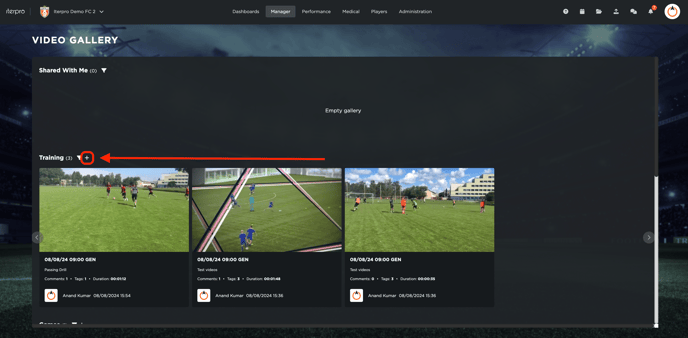
Whilst you are inside the Video Gallery section, you can simply choose to click on the  button next to relevant video type (Game, Training or Other) to start the process.
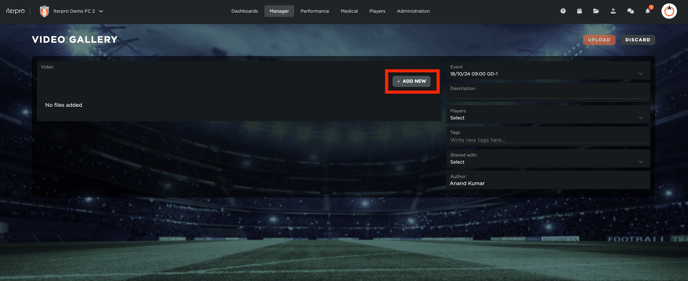
In the subsequent page that opens, you have the option to attach a new video(s) of your choice by clicking on  button. Keep in mind that are no limits on the number of videos or the size of the videos that you choose to upload on Iterpro.
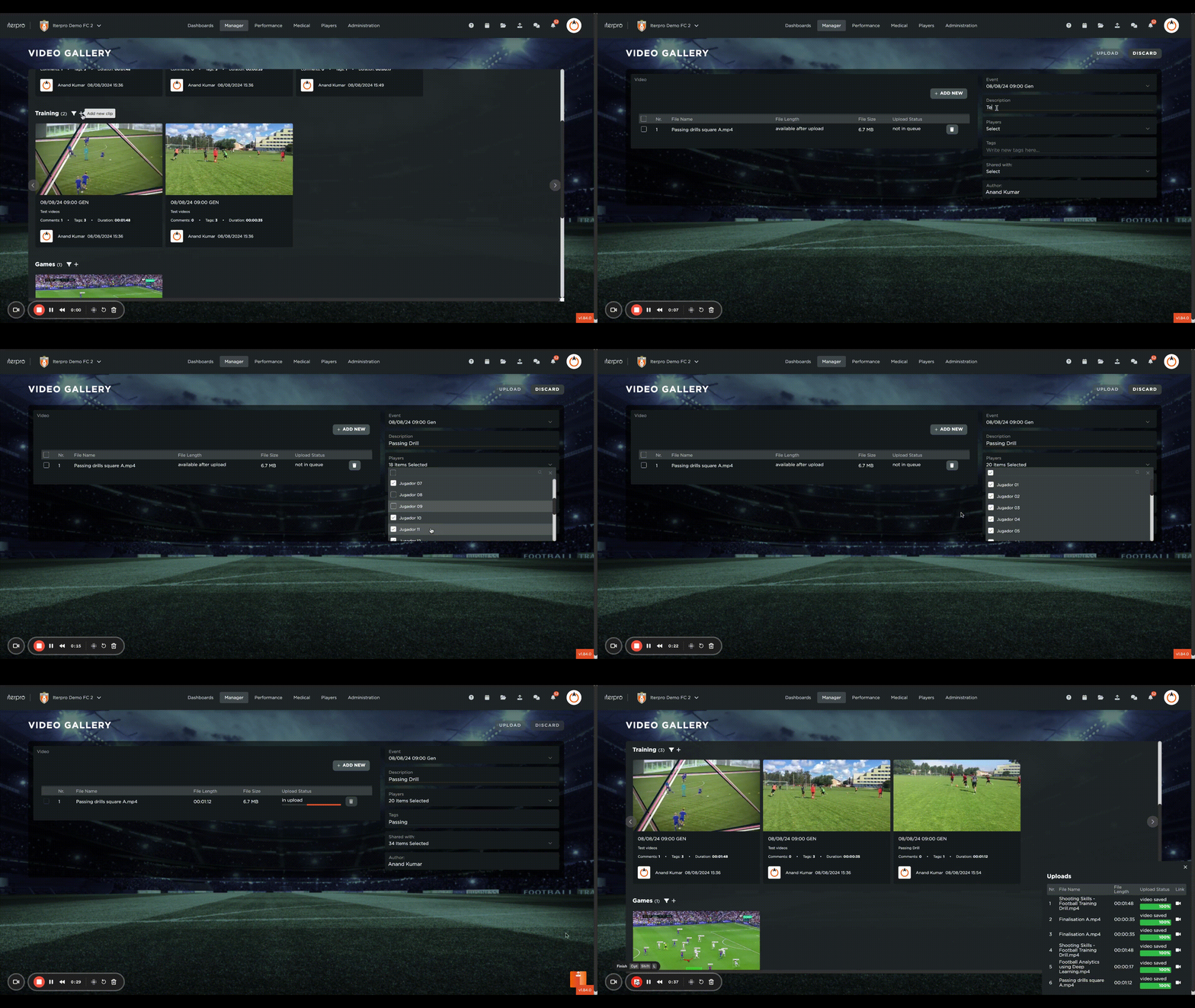
After you select the necessary video(s) that you want to upload, you have the option to add other information related to the video that you are about to upload. These are information such as:
- Event (Game or Training)
- Description
- Player(s) involved in the video
- Tags (Example: Shooting, Passing, Communication, etc.) *
- Shared with (Players & Staff)
Note: When adding Tags, please ensure to separate your tags with a comma (Example: Shooting, Passing, Communication)
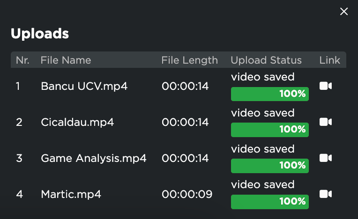
Finally, click on the  button to complete uploading the video(s). Once uploaded, you will receive confirmation messages on the bottom right of the screen that the video(s) have been successfully uploaded.