---
title: 5.2 How to access the players' passports of my team, displaying the Player report and doing a recap of the stats across seasons (tactical, physical and medical)
description: Player Game stats MyTeam Player report Passports Fitness Attributes Robustness
---
[Skip to content](https://support.iterpro.com/en/guide/how-to-access-the-players-passports-of-myteam-displaying-the-player-report-and-doing-a-recap-of-the-stats-across-seasons-tactical-physical-and-medical#main-content)
- [English](https://support.iterpro.com/en/guide/how-to-access-the-players-passports-of-myteam-displaying-the-player-report-and-doing-a-recap-of-the-stats-across-seasons-tactical-physical-and-medical)
- [Español](https://support.iterpro.com/es/guide/5.2-cómo-acceder-a-los-pasaportes-de-los-jugadores-de-mi-equipo-visualizar-el-informe-del-jugador-y-hacer-un-resumen-de-las-estadísticas-a-lo-largo-de-l-1741875319855)
- [Nederlands](https://support.iterpro.com/nl/guide/5.2-hoe-krijg-ik-toegang-tot-de-spelerspaspoorten-van-mijn-team-bekijk-ik-het-spelersrapport-en-maak-ik-een-samenvatting-van-de-statistieken-over-meerde-1739893152188)
- [العربية - مصر](https://support.iterpro.com/ar-eg/guide/5.2-كيفية-الوصول-إلى-جوازات-سفر-اللاعبين-في-فريقي-عرض-تقرير-اللاعب-وإجراء-ملخص-للإحصائيات-عبر-المواسم-التكتيكية-البدنية-والطبية)
- [日本語](https://support.iterpro.com/ja/guide/5.2-チームの選手パスポートへのアクセス方法プレイヤーレポートの表示と-戦術-フィジカル-メディカルデータのシーズン別サマリーの確認)
English
Show submenu for translations
[](https://app.iterpro.com/auth/login)
- [Iterpro Login Page](https://app.iterpro.com/auth/login)
- [Contact Support](https://share.hsforms.com/1rE7NvsvuTIWBm7WQ1dhslQ1uo0p)
Open main navigation
Close main navigation
- [Iterpro Login Page](https://app.iterpro.com/auth/login)
- [Contact Support](https://share.hsforms.com/1rE7NvsvuTIWBm7WQ1dhslQ1uo0p)
- - [English](https://support.iterpro.com/en/guide/how-to-access-the-players-passports-of-myteam-displaying-the-player-report-and-doing-a-recap-of-the-stats-across-seasons-tactical-physical-and-medical)
- [Español](https://support.iterpro.com/es/guide/5.2-cómo-acceder-a-los-pasaportes-de-los-jugadores-de-mi-equipo-visualizar-el-informe-del-jugador-y-hacer-un-resumen-de-las-estadísticas-a-lo-largo-de-l-1741875319855)
- [Nederlands](https://support.iterpro.com/nl/guide/5.2-hoe-krijg-ik-toegang-tot-de-spelerspaspoorten-van-mijn-team-bekijk-ik-het-spelersrapport-en-maak-ik-een-samenvatting-van-de-statistieken-over-meerde-1739893152188)
- [العربية - مصر](https://support.iterpro.com/ar-eg/guide/5.2-كيفية-الوصول-إلى-جوازات-سفر-اللاعبين-في-فريقي-عرض-تقرير-اللاعب-وإجراء-ملخص-للإحصائيات-عبر-المواسم-التكتيكية-البدنية-والطبية)
- [日本語](https://support.iterpro.com/ja/guide/5.2-チームの選手パスポートへのアクセス方法プレイヤーレポートの表示と-戦術-フィジカル-メディカルデータのシーズン別サマリーの確認)
English
Show submenu for translations
How can we help you?
- There are no suggestions because the search field is empty.
1. [User Guide](https://support.iterpro.com/en/guide?hsLang=en)
2. [Player](https://support.iterpro.com/en/guide/player?hsLang=en)
3. [My Team](https://support.iterpro.com/en/guide/player?hsLang=en#my-team)
# 5.2 How to access the players' passports of my team, displaying the Player report and doing a recap of the stats across seasons (tactical, physical and medical)
## This article explains how to access the full players' passports of my team, where you can access the Player report and display a recap of the stats across the seasons (tactical, physical and medical).
### INTRODUCTION AND OVERVIEW
- 00.00: introduction
- 00.12: overview section
### PLAYER REPORTS
- 00.07: attributes evaluations
- 00.24: description evaluations
- 00.31: development chart
- 00.40: videogallery
- 00.45: talent id chart
### GAME STATS, FITNESS & ROBUSTNESS
- 00.00: game stats section
- 00.29: fitness section
- 00.47: robustness section
### ***FEATURE DESCRIPTION***
**Accessing the Player Passport**
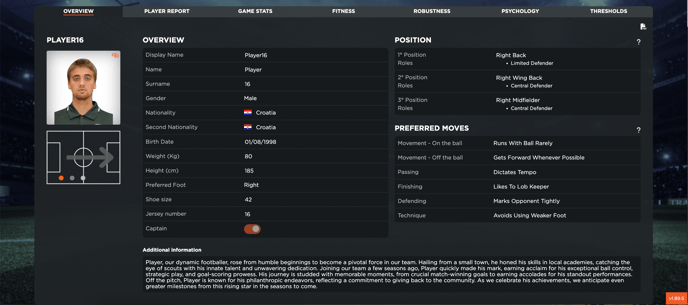
In the **Player** section, under **My Team**, users can access a player's **passport**, which provides a general overview of the athlete. The passport contains key details such as the overview, with: **general information, position, and preferred moves**. If necessary, users can **edit** certain fields by clicking the corresponding button. However, some fields may be locked and require modifications in the **Administration Squad** section.
**Player Report & Talent ID**
The **Player Report** section allows users to evaluate players from different perspectives:
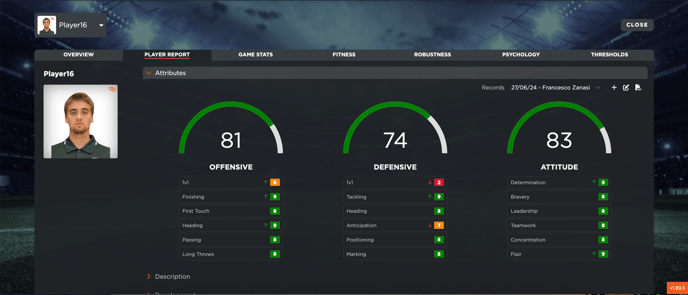
- Based on predefined **attributes**, users can **create new evaluations, edit existing ones, and view past assessments**. Remember that the user can customize the attributes options from **Settings** \> **Metrics \> Team metrics.**
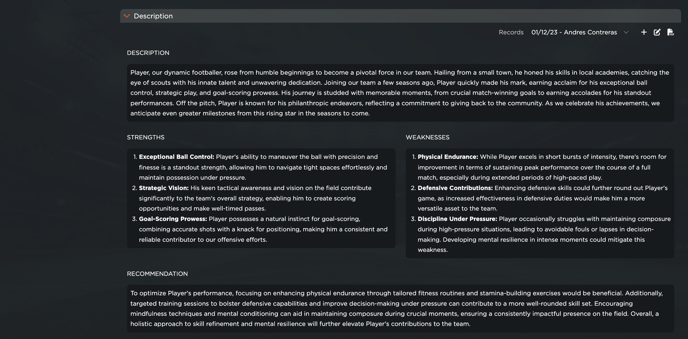
- A **descriptive section** is available to highlight the player's **strengths, weaknesses, and recommendations**.
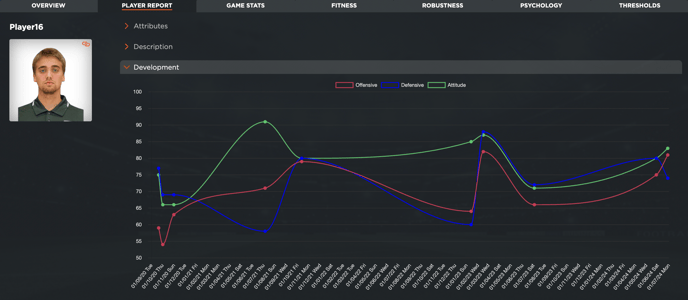
- A **development history** showcases the player's progress over time according to past evaluations.
- Users can **attach videos** related to the player for further analysis.
Additionally, the **Talent ID chart** provides a powerful tool to analyze players across the club:
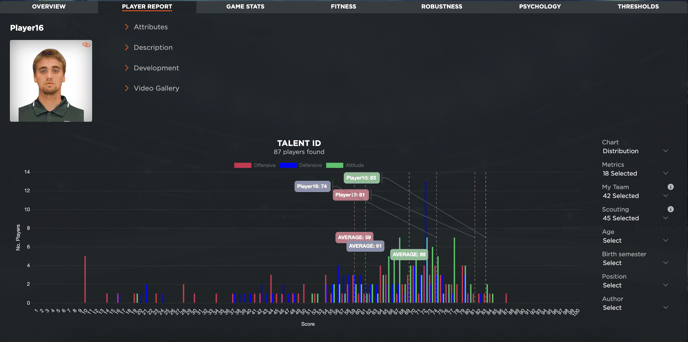
- Displays all players with a **Player Report evaluation**, as long as attributes are consistent across teams.
- Allows users to **filter players** based on different criteria.
- Offers various **visualization methods**, including a **Gaussian distribution** and a **scatter chart**.
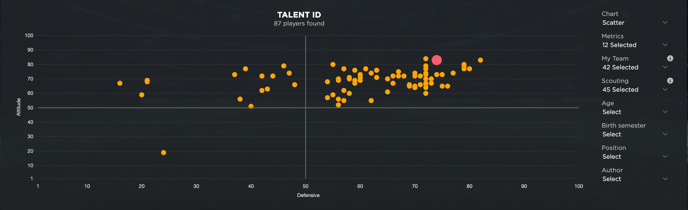
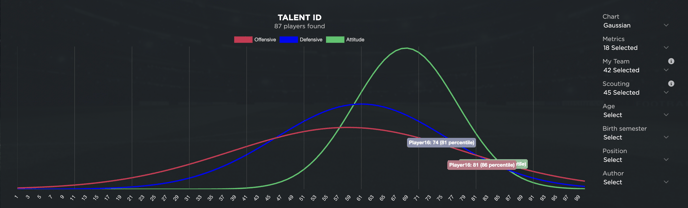
- The **top-right quadrant** of the scatter chart highlights the best players based on selected metrics (e.g., attitude and defense), while the **bottom-left quadrant** shows the lowest performers.
- If a third metric is included, the chart adjusts by **modifying the dot size** to reflect additional data points.
**Game Stats, Fitness & Robustness**
The **Game Stats** section provides a summary of the player's **performance data**, displaying:
- Statistics across different seasons.
- The ability to compare **one or two metrics** within a chart. Remember that if yu want to set your active metrics you can go to **Settings \> Metrics \> Your Metrics**
- Note: To access complete tactical data, users must integrate performance stats via **API** or **CSV import.** In case, there's the possibility to manually input limited stats (e.g., minutes played, goals, yellow cards).
The **Fitness** section provides a **recap of physical tests** based on:
- **Active metrics** set by the performance and medical department.
- Predefined **thresholds** to evaluate performance.
Finally, the **Robustness** section presents **medical statistics**, including:
- **Injury history** and **chronic issues** that may affect the player's availability and performance.
This comprehensive system enables clubs to effectively monitor player performance, development, and overall condition.
- [What's New](https://support.iterpro.com/en/guide/whats-new?hsLang=en)
- [Quick Onboarding](https://support.iterpro.com/en/guide/quick-onboarding?hsLang=en)
- [Account set-up and other](https://support.iterpro.com/en/guide/account-set-up-and-other?hsLang=en#main-content)
- [Login & Iterpro overview](https://support.iterpro.com/en/guide/account-set-up-and-other?hsLang=en#login-iterpro-overview)
- [Settings](https://support.iterpro.com/en/guide/account-set-up-and-other?hsLang=en#settings)
- [Create, archive and delete players](https://support.iterpro.com/en/guide/account-set-up-and-other?hsLang=en#create-archive-and-delete-players)
- [Other](https://support.iterpro.com/en/guide/account-set-up-and-other?hsLang=en#other)
- [Manager](https://support.iterpro.com/en/guide/manager?hsLang=en#main-content)
- [Tactics](https://support.iterpro.com/en/guide/manager?hsLang=en#tactics)
- [Planning](https://support.iterpro.com/en/guide/manager?hsLang=en#planning)
- [Videogallery](https://support.iterpro.com/en/guide/manager?hsLang=en#videogallery)
- [Drills](https://support.iterpro.com/en/guide/manager?hsLang=en#drills)
- [Attendances](https://support.iterpro.com/en/guide/manager?hsLang=en#attendances)
- [Performance](https://support.iterpro.com/en/guide/performance?hsLang=en#main-content)
- [Session Analysis](https://support.iterpro.com/en/guide/performance?hsLang=en#session-analysis)
- [Workload Analysis](https://support.iterpro.com/en/guide/performance?hsLang=en#workload-analysis)
- [Assessments](https://support.iterpro.com/en/guide/performance?hsLang=en#assessments)
- [Readiness](https://support.iterpro.com/en/guide/performance?hsLang=en#readiness)
- [Medical](https://support.iterpro.com/en/guide/medical?hsLang=en#main-content)
- [Medical Records](https://support.iterpro.com/en/guide/medical?hsLang=en#medical-records)
- [Infirmary](https://support.iterpro.com/en/guide/medical?hsLang=en#infirmary)
- [Examinations](https://support.iterpro.com/en/guide/medical?hsLang=en#examinations)
- [Medical Statistics](https://support.iterpro.com/en/guide/medical?hsLang=en#medical-statistics)
- [Player](https://support.iterpro.com/en/guide/player?hsLang=en#main-content)
- [My Team](https://support.iterpro.com/en/guide/player?hsLang=en#my-team)
- [Scouting](https://support.iterpro.com/en/guide/player?hsLang=en#scouting)
- [Transfers](https://support.iterpro.com/en/guide/player?hsLang=en#transfers)
- [Administration](https://support.iterpro.com/en/guide/administration?hsLang=en#main-content)
- [Squads](https://support.iterpro.com/en/guide/administration?hsLang=en#squads)
- [Finance Overview](https://support.iterpro.com/en/guide/administration?hsLang=en#finance-overview)
- [Bonus Tracking](https://support.iterpro.com/en/guide/administration?hsLang=en#bonus-tracking)
- [Cash Flow](https://support.iterpro.com/en/guide/administration?hsLang=en#cash-flow)
- [Transactions](https://support.iterpro.com/en/guide/administration?hsLang=en#transactions)
- [Registrations](https://support.iterpro.com/en/guide/administration?hsLang=en#registrations)
- [Mobile apps](https://support.iterpro.com/en/guide/mobile-apps?hsLang=en#main-content)
- [Player App](https://support.iterpro.com/en/guide/mobile-apps?hsLang=en#player-app)
- [Coach App](https://support.iterpro.com/en/guide/mobile-apps?hsLang=en#coach-app)
- [Director App](https://support.iterpro.com/en/guide/mobile-apps?hsLang=en#director-app)
- [Iterpro Login Page](https://app.iterpro.com/auth/login)
- [Contact Support](https://share.hsforms.com/1rE7NvsvuTIWBm7WQ1dhslQ1uo0p)
- [Terms & Conditions](https://www.iubenda.com/terms-and-conditions/53739842)
- [Privacy Policy](https://www.iubenda.com/privacy-policy/53739842)
[](https://iterpro.com/)
Copyright © 2025, Iterpro Support Team
```json
{
"@context" : "https://schema.org",
"@type" : "VideoObject",
"contentUrl" : "https://stream.mux.com/lcSnZtZeCGK1zH6QbLmYPsTfKQIGW01G1ozUJxkgbbYg/capped-1080p.mp4",
"dateModified" : "2025-02-04T13:53:21.939Z",
"duration" : "PT28S",
"height" : 1080,
"name" : "5.2 How to access the players passports of my team, displaying the Player report and doing a recap of the stats across seasons (tactical, physical and medical) - part1_ENG",
"thumbnailUrl" : "https://3110425.fs1.hubspotusercontent-na1.net/hubfs/3110425/5.2%20How%20to%20access%20the%20players%20passports%20of%20my%20team%2c%20displaying%20the%20Player%20report%20and%20doing%20a%20recap%20of%20the%20stats%20across%20seasons%20(tactical%2c%20physical%20and%20medical)%20-%20part1_ENG.mp4/medium.jpg",
"uploadDate" : "2025-02-04T13:53:21.933Z",
"width" : 1920
}
```
```json
{
"@context" : "https://schema.org",
"@type" : "VideoObject",
"contentUrl" : "https://stream.mux.com/QPPWDwg02r1CxNtnRQqxrWWiDbMpFb6gpSQT2EAqxGs8/capped-1080p.mp4",
"dateModified" : "2025-02-04T13:53:35.348Z",
"duration" : "PT2M8S",
"height" : 1080,
"name" : "5.2 How to access the players passports of my team, displaying the Player report and doing a recap of the stats across seasons (tactical, physical and medical) - part2_ENG",
"thumbnailUrl" : "https://3110425.fs1.hubspotusercontent-na1.net/hubfs/3110425/5.2%20How%20to%20access%20the%20players%20passports%20of%20my%20team%2c%20displaying%20the%20Player%20report%20and%20doing%20a%20recap%20of%20the%20stats%20across%20seasons%20(tactical%2c%20physical%20and%20medical)%20-%20part2_ENG.mp4/medium.jpg",
"uploadDate" : "2025-02-04T13:53:35.342Z",
"width" : 1920
}
```
```json
{
"@context" : "https://schema.org",
"@type" : "VideoObject",
"contentUrl" : "https://stream.mux.com/CbkY005024ou02RHPvIDCdiXpBR01PRB8Wppubkp4CR3C004/capped-1080p.mp4",
"dateModified" : "2025-02-04T13:53:29.942Z",
"duration" : "PT58S",
"height" : 1080,
"name" : "5.2 How to access the players passports of my team, displaying the Player report and doing a recap of the stats across seasons (tactical, physical and medical) - part3_ENG",
"thumbnailUrl" : "https://3110425.fs1.hubspotusercontent-na1.net/hubfs/3110425/5.2%20How%20to%20access%20the%20players%20passports%20of%20my%20team%2c%20displaying%20the%20Player%20report%20and%20doing%20a%20recap%20of%20the%20stats%20across%20seasons%20(tactical%2c%20physical%20and%20medical)%20-%20part3_ENG.mp4/medium.jpg",
"uploadDate" : "2025-02-04T13:53:29.937Z",
"width" : 1920
}
```