-
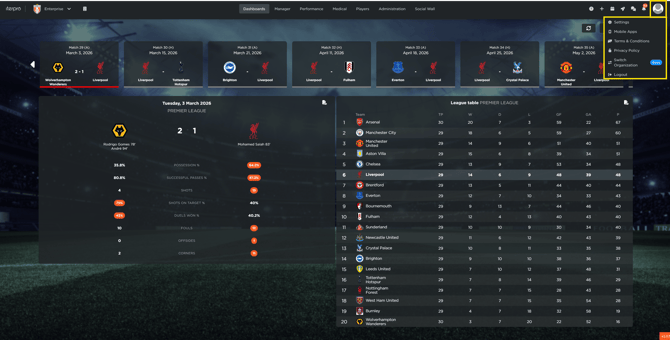
0.00 access quick action icons in the top right corner
-
0.49 click the profile icon for settings, app links, and logout
FEATURES DESCRIPTION
The top-right corner of the platform contains a suite of Quick Action icons. These tools are designed to streamline your daily workflow by providing one-click access to common tasks and support resources.
-
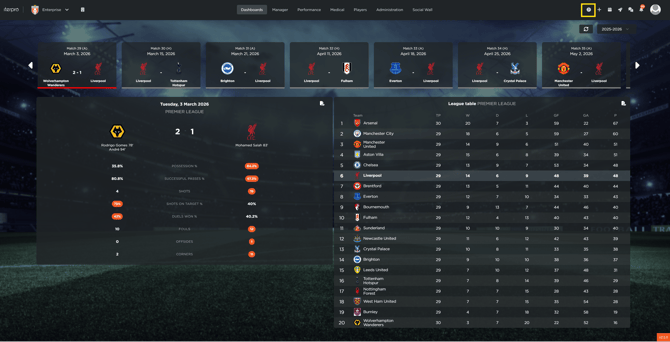
Support and Resources (?): The Question Mark icon connects you directly to the Iterpro support team. It also provides a direct link to the User Guide, where you can access detailed articles, video tutorials, and FAQs to maximize your use of the system.
-
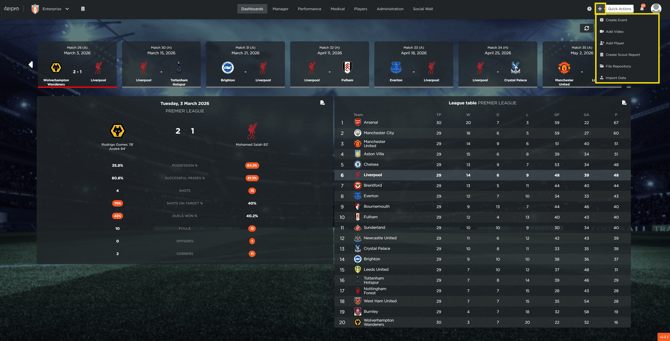
The Global "Plus" Shortcut (+): This is the primary tool for rapid data entry. From this single menu, you can create new events, add players to the roster, generate scouting reports, or initiate the upload of GPS and technical match data.
-
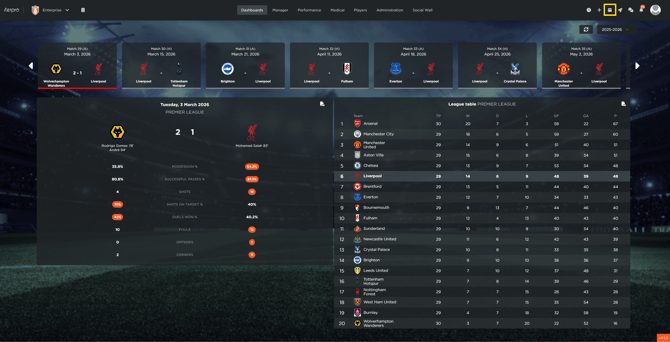
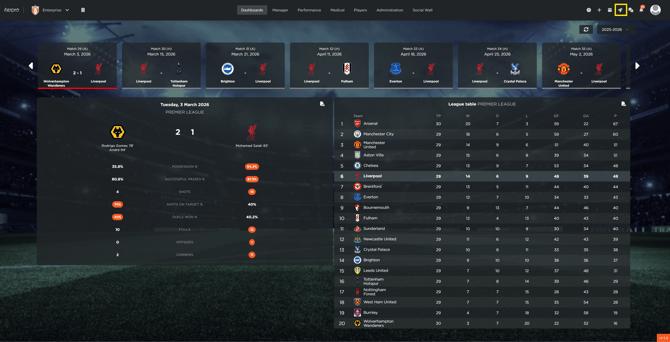
Navigation Shortcuts: Use the Planning icon for an immediate jump to your team's calendar overview.
-
The iReel icon allows you to launch the integrated video analysis platform instantly.
-
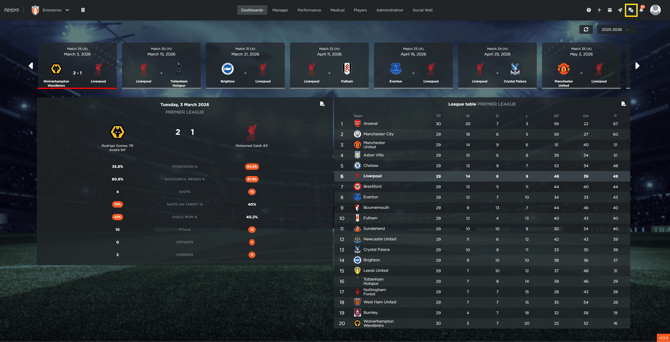
Communication and Alerts: The Chat icon enables real-time communication with players and staff without requiring external messaging apps,
-
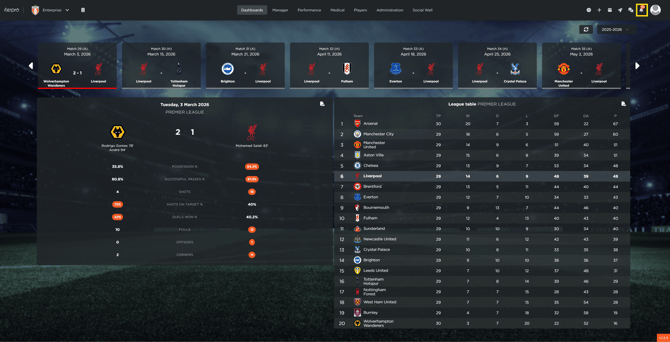
Notification: keeps you updated on system alerts, schedule changes, and pending tasks.
Profile Settings and System Management
Your Profile icon, located in the far top-right corner, serves as the gateway to personal and system-wide configurations.
Within this menu, you can access the Settings area to customize your platform experience. Additionally, this section provides direct download links for the Iterpro mobile applications, access to legal and privacy policies, and the option to securely log out of the platform.