---
title: How do I create, delete and archive players?
description: Administration, Squads, Create, New, Players, CSV, Wyscout, Manually
---
[Skip to content](https://support.iterpro.com/en/guide/how-to-create-a-new-player#main-content)
- [English](https://support.iterpro.com/en/guide/how-to-create-a-new-player)
- [Español](https://support.iterpro.com/es/guide/1.7comocrearaunnuevojugador)
- [Nederlands](https://support.iterpro.com/nl/guide/1.7-hoe-maak-je-nieuwe-spelers-aan)
- [العربية - مصر](https://support.iterpro.com/ar-eg/guide/1.7-كيفية-إنشاء-لاعبين-جدد)
- [日本語](https://support.iterpro.com/ja/guide/1.7-新しい選手の作成方法)
English
Show submenu for translations
[](https://app.iterpro.com/auth/login)
- [Iterpro Login Page](https://app.iterpro.com/auth/login)
- [Contact Support](https://share.hsforms.com/1rE7NvsvuTIWBm7WQ1dhslQ1uo0p)
Open main navigation
Close main navigation
- [Iterpro Login Page](https://app.iterpro.com/auth/login)
- [Contact Support](https://share.hsforms.com/1rE7NvsvuTIWBm7WQ1dhslQ1uo0p)
- - [English](https://support.iterpro.com/en/guide/how-to-create-a-new-player)
- [Español](https://support.iterpro.com/es/guide/1.7comocrearaunnuevojugador)
- [Nederlands](https://support.iterpro.com/nl/guide/1.7-hoe-maak-je-nieuwe-spelers-aan)
- [العربية - مصر](https://support.iterpro.com/ar-eg/guide/1.7-كيفية-إنشاء-لاعبين-جدد)
- [日本語](https://support.iterpro.com/ja/guide/1.7-新しい選手の作成方法)
English
Show submenu for translations
How can we help you?
- There are no suggestions because the search field is empty.
1. [User Guide](https://support.iterpro.com/en/guide?hsLang=en)
2. [Account set-up and other](https://support.iterpro.com/en/guide/account-set-up-and-other?hsLang=en)
3. [Create, archive and delete players](https://support.iterpro.com/en/guide/account-set-up-and-other?hsLang=en#create-archive-and-delete-players)
# How do I create, delete and archive players?
## This article explains how to create new players (using Wyscout, manually or uploading a CSV file) as well as archive or delete them.
- 00.05: add a player from Wyscout
- 00.29: add a player manually
- 00.45: create player(s) from CSV
- 01.16: archive and/or delete players
**[Here](https://support.iterpro.com/en/guide/how-can-i-add-players-in-bulk-via-csv?hsLang=en) is the article with all the rules and possibilities to fill the CSV file.**
### ***FEATURES DESCRIPTION***
#### 1. Adding a Player from Wyscout
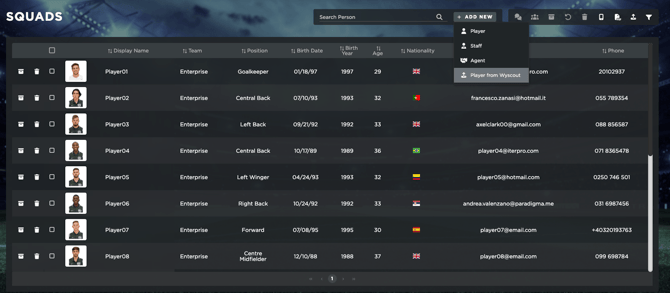
To create a new player, navigate to **Administration \> Squads**. Here, click on **"Add New"**, and you will have the option to import a player from the Wyscout database. However, keep in mind that this feature is only available if your team is covered by Wyscout and if your contract includes the Wyscout integration.
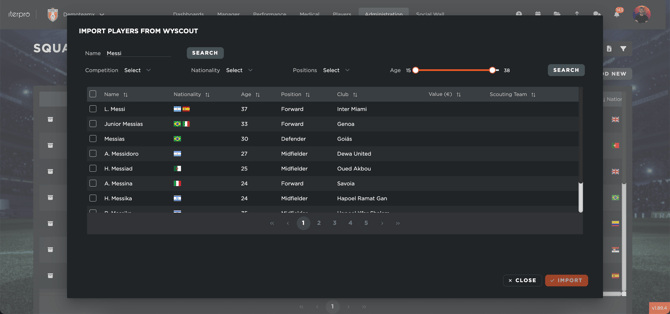
To proceed, simply type the player's name in the search bar. Once the system finds the player, a preview will be displayed. You can select the player and continue searching for additional players if needed. After selecting all the players you want to add, click **"Import"**. The system will then prompt you to assign the players to a specific team and season. Once confirmed, click **"Save"**, and the players will be added to your squad.
#### 2. Adding a Player Manually
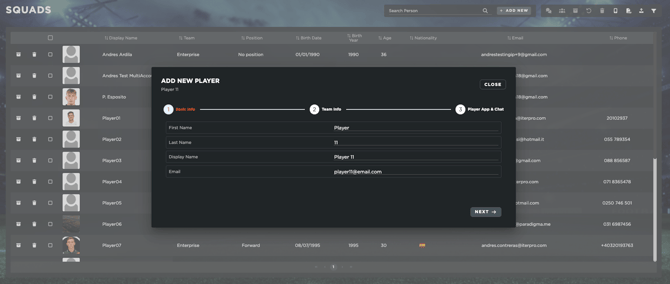
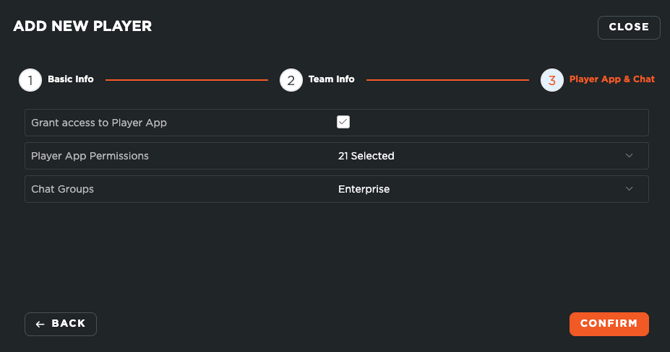
Alternatively, you can create a player manually. To do this, click on **"Add New"** and enter the required player details.
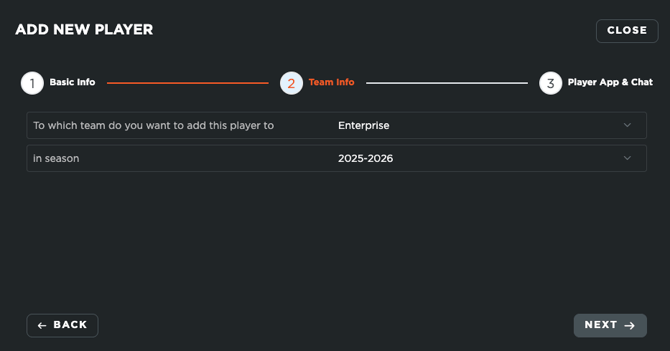
Just like with the Wyscout import, you will need to select the **team** and **season** for the player.
Finally, you will also be able to add the player app permissions to the PlayerApp and include him in your team chat groups.
#### 3. Bulk Import via CSV
The third option allows you to add multiple players at once using a **CSV file upload**. To do this:
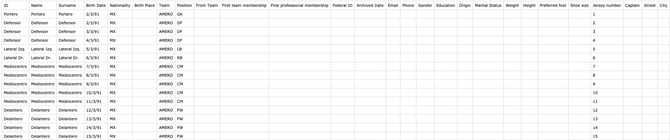
- Download the sample CSV template.
- Ensure that all data is formatted correctly. If necessary, adjust the settings in Excel to match the required format.
- Fill in the CSV file with the player details.
- Export file as CSV (very important).
- Refer to the [**CSV format guide**](https://support.iterpro.com/en/guide/how-can-i-add-players-in-bulk-via-csv?hsLang=en) to check the mandatory and correct format for each field.
Once the file is ready:
- Click on the upload button and select your CSV file.
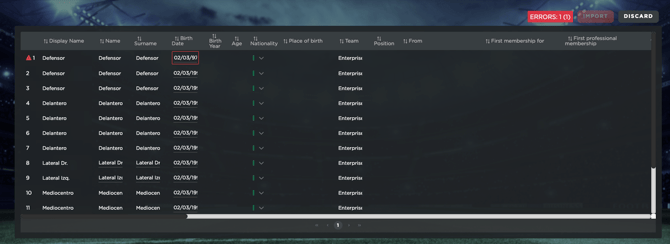
- The system will display a summary of the players to be imported.
- If any errors arise, the system will highlight them to you and allow you to edit. You won't be able to import until all errors are resolved.
- Click **"Import"**, and you will be asked to confirm whether the players should be added to the current season.
By following these steps, you can efficiently manage and update your player database using the method that best suits your needs.
#### 4. Archiving and/or Deleting Players
You will have the option to archive or delete the players inside your account. It's important to understand that:
- When we **archive** a player, we remove him from our active seasonal roster, but we keep him and all his data inside the system. This is highly recommended to maintain all the information collected before the player was archived (i.e., was sold, left the team, etc..)
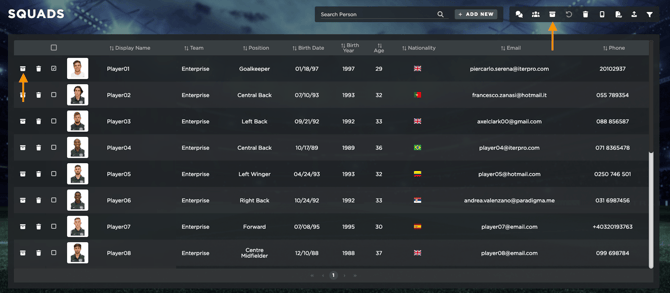
You will be able to review all the archived players of your team from within the Admin - Squads table by selecting the 'Archived' status in the filters. Within here, you will be able to reactivate the player's profile if needed.
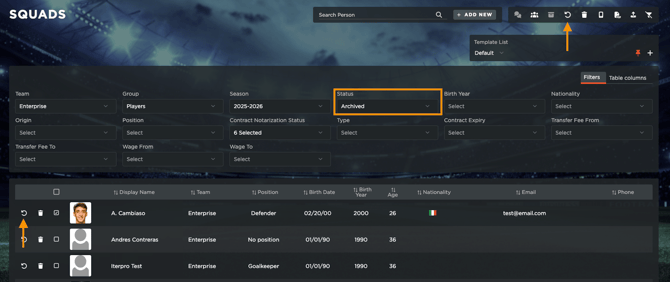
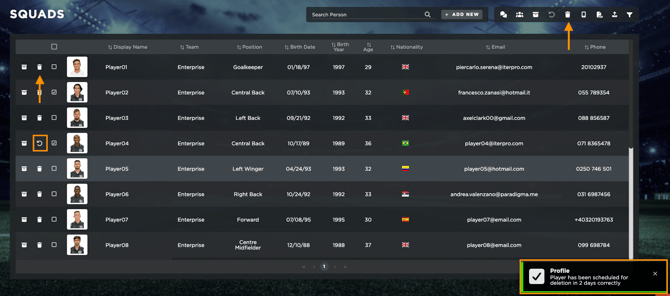
- When we **delete** a player, we are defenitely removing him from our system. This will delete any previous data collected on this player. Whenever you select the delete option, you will always have a 2-day grace period to undo the action.
#### 5. Move players to another team
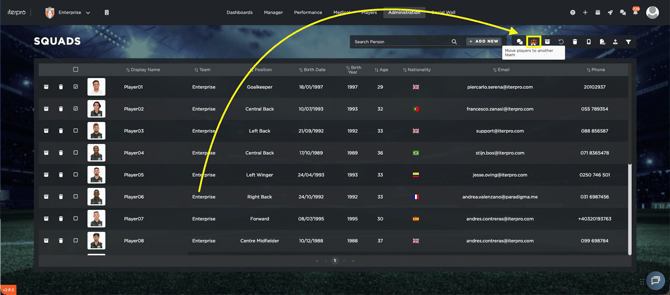
You have also the option to move player(s) to a different team. This operation is crucial when the previous season is ended and a new season is starting, with players that are moving from a squad to another one, for example, a player that belonged to the U17 and, for the current season, will be in the roster of the U19.
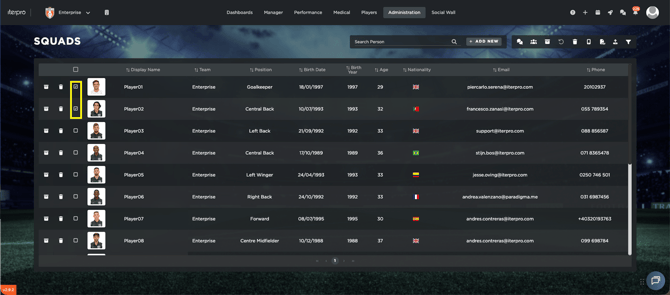
- Select the player(s) in the list
- Click on the icon "Move players to another team"
- [What's New](https://support.iterpro.com/en/guide/whats-new?hsLang=en)
- [Quick Onboarding](https://support.iterpro.com/en/guide/quick-onboarding?hsLang=en)
- [Account set-up and other](https://support.iterpro.com/en/guide/account-set-up-and-other?hsLang=en#main-content)
- [Login & Iterpro overview](https://support.iterpro.com/en/guide/account-set-up-and-other?hsLang=en#login-iterpro-overview)
- [Settings](https://support.iterpro.com/en/guide/account-set-up-and-other?hsLang=en#settings)
- [Create, archive and delete players](https://support.iterpro.com/en/guide/account-set-up-and-other?hsLang=en#create-archive-and-delete-players)
- [Other](https://support.iterpro.com/en/guide/account-set-up-and-other?hsLang=en#other)
- [Manager](https://support.iterpro.com/en/guide/manager?hsLang=en#main-content)
- [Tactics](https://support.iterpro.com/en/guide/manager?hsLang=en#tactics)
- [Planning](https://support.iterpro.com/en/guide/manager?hsLang=en#planning)
- [Videogallery](https://support.iterpro.com/en/guide/manager?hsLang=en#videogallery)
- [Drills](https://support.iterpro.com/en/guide/manager?hsLang=en#drills)
- [Attendances](https://support.iterpro.com/en/guide/manager?hsLang=en#attendances)
- [Performance](https://support.iterpro.com/en/guide/performance?hsLang=en#main-content)
- [Session Analysis](https://support.iterpro.com/en/guide/performance?hsLang=en#session-analysis)
- [Workload Analysis](https://support.iterpro.com/en/guide/performance?hsLang=en#workload-analysis)
- [Assessments](https://support.iterpro.com/en/guide/performance?hsLang=en#assessments)
- [Readiness](https://support.iterpro.com/en/guide/performance?hsLang=en#readiness)
- [Medical](https://support.iterpro.com/en/guide/medical?hsLang=en#main-content)
- [Medical Records](https://support.iterpro.com/en/guide/medical?hsLang=en#medical-records)
- [Infirmary](https://support.iterpro.com/en/guide/medical?hsLang=en#infirmary)
- [Examinations](https://support.iterpro.com/en/guide/medical?hsLang=en#examinations)
- [Medical Statistics](https://support.iterpro.com/en/guide/medical?hsLang=en#medical-statistics)
- [Player](https://support.iterpro.com/en/guide/player?hsLang=en#main-content)
- [My Team](https://support.iterpro.com/en/guide/player?hsLang=en#my-team)
- [Scouting](https://support.iterpro.com/en/guide/player?hsLang=en#scouting)
- [Transfers](https://support.iterpro.com/en/guide/player?hsLang=en#transfers)
- [Administration](https://support.iterpro.com/en/guide/administration?hsLang=en#main-content)
- [Squads](https://support.iterpro.com/en/guide/administration?hsLang=en#squads)
- [Finance Overview](https://support.iterpro.com/en/guide/administration?hsLang=en#finance-overview)
- [Bonus Tracking](https://support.iterpro.com/en/guide/administration?hsLang=en#bonus-tracking)
- [Cash Flow](https://support.iterpro.com/en/guide/administration?hsLang=en#cash-flow)
- [Transactions](https://support.iterpro.com/en/guide/administration?hsLang=en#transactions)
- [Registrations](https://support.iterpro.com/en/guide/administration?hsLang=en#registrations)
- [Mobile apps](https://support.iterpro.com/en/guide/mobile-apps?hsLang=en#main-content)
- [Player App](https://support.iterpro.com/en/guide/mobile-apps?hsLang=en#player-app)
- [Coach App](https://support.iterpro.com/en/guide/mobile-apps?hsLang=en#coach-app)
- [Director App](https://support.iterpro.com/en/guide/mobile-apps?hsLang=en#director-app)
- [Iterpro Login Page](https://app.iterpro.com/auth/login)
- [Contact Support](https://share.hsforms.com/1rE7NvsvuTIWBm7WQ1dhslQ1uo0p)
- [Terms & Conditions](https://www.iubenda.com/terms-and-conditions/53739842)
- [Privacy Policy](https://www.iubenda.com/privacy-policy/53739842)
[](https://iterpro.com/)
Copyright © 2025, Iterpro Support Team