---
title: How do I create a new staff member and link it to a specific Iterpro user?
description: Create staff member and link it to an existing user
---
[Skip to content](https://support.iterpro.com/en/guide/how-to-create-a-new-staff-member#main-content)
- [English](https://support.iterpro.com/en/guide/how-to-create-a-new-staff-member)
- [Español](https://support.iterpro.com/es/guide/1.8-como-crear-un-nuevo-miembro-del-staff)
- [Nederlands](https://support.iterpro.com/nl/guide/1.8-hoe-maak-je-een-nieuw-staflid-aan)
- [العربية - مصر](https://support.iterpro.com/ar-eg/guide/1.8-كيفية-إنشاء-عضو-جديد-في-الطاقم-الفني)
- [日本語](https://support.iterpro.com/ja/guide/1.8-新しいスタッフメンバーの作成方法)
English
Show submenu for translations
[](https://app.iterpro.com/auth/login)
- [Iterpro Login Page](https://app.iterpro.com/auth/login)
- [Contact Support](https://share.hsforms.com/1rE7NvsvuTIWBm7WQ1dhslQ1uo0p)
Open main navigation
Close main navigation
- [Iterpro Login Page](https://app.iterpro.com/auth/login)
- [Contact Support](https://share.hsforms.com/1rE7NvsvuTIWBm7WQ1dhslQ1uo0p)
- - [English](https://support.iterpro.com/en/guide/how-to-create-a-new-staff-member)
- [Español](https://support.iterpro.com/es/guide/1.8-como-crear-un-nuevo-miembro-del-staff)
- [Nederlands](https://support.iterpro.com/nl/guide/1.8-hoe-maak-je-een-nieuw-staflid-aan)
- [العربية - مصر](https://support.iterpro.com/ar-eg/guide/1.8-كيفية-إنشاء-عضو-جديد-في-الطاقم-الفني)
- [日本語](https://support.iterpro.com/ja/guide/1.8-新しいスタッフメンバーの作成方法)
English
Show submenu for translations
How can we help you?
- There are no suggestions because the search field is empty.
1. [User Guide](https://support.iterpro.com/en/guide?hsLang=en)
2. [Account set-up and other](https://support.iterpro.com/en/guide/account-set-up-and-other?hsLang=en)
3. [Create, archive and delete players](https://support.iterpro.com/en/guide/account-set-up-and-other?hsLang=en#create-archive-and-delete-players)
# How do I create a new staff member and link it to a specific Iterpro user?
## This article explains how to create a new staff member and link him/her to an existing user. This allows him/her to access the CoachApp, the Videogallery section and to be included in several "Shared with" lists within the system.
### HOW TO CREATE A STAFF MEMBER
- 00.23: The staff member is not a user
- 00.30: Create a new staff member
- 00.50: Link the staff member to an existing user
### ***FEATURE DESCRIPTION***
### Understanding Staff Profiles vs. Users
Before creating a new entry, it is important to understand the structural difference between a **Staff Member** and a **User**:
- **User Account:** The entity that allows you to login into the WebApp, CoachApp and DirectorApp. This may have permissions which will allow him/her to access or not specific areas of Iterpro. If you create a new user, as soon as you grand access to him/her to a team (just the first time), automatically, the system creates a linked staff member into Iterpro.
- **Staff Member Profile:** An internal profile representing an individual within the club's administration. This profile is used to include the staff member in different daily activities, such as training sessions, meetings, and club events. When you create a **Staff Member**, you are creating a profile within the system, not a **User Account** with login capabilities. Furthermore, when a new user is created, automatically a new staff member is generated and linked to that user.
### **Creating a New Staff Member in Iterpro**
First of all, it's important to highlight again that, when a new user has been created and he/she has granted the access to a team (just the first time),, the platform automaticaly create a linked staff member, so that youdon't need to create him/her manually.
Furthermore, if you need to create anyway a new staff member, you need to:
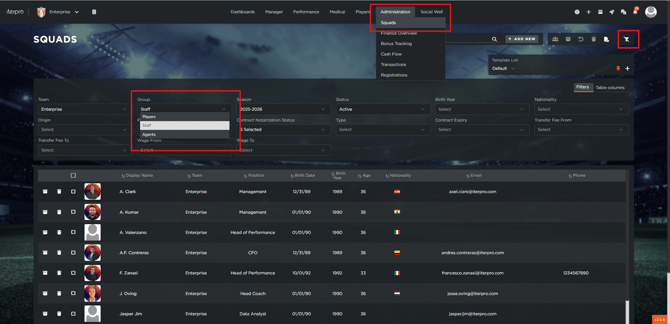
- Navigate to **Administration** in the main top menu.
- Select **Squads** from the submenu.
- Open the **Filters** menu on the page.
- Select **"Staff"** to filter the list and display only your active staff members.
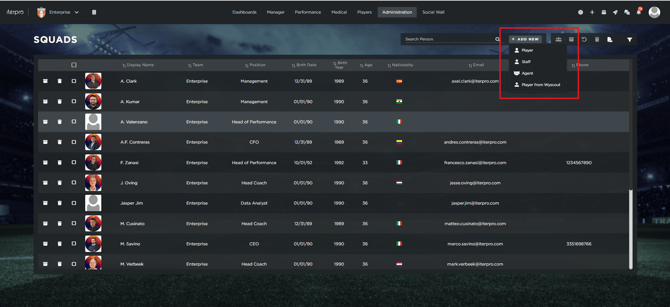
To create a new staff member:
1. Click **Add New**.
2. Select **Staff**.
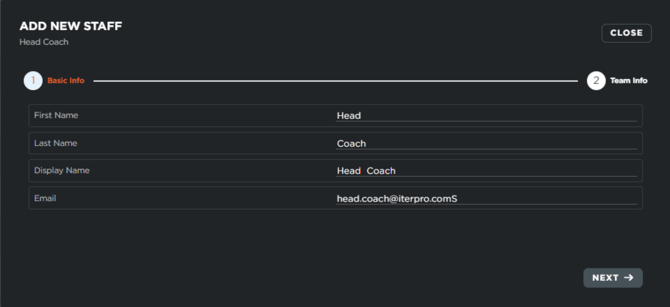
Enter the required information:
- **First name**
- **Last name**
- **Email** (optional)
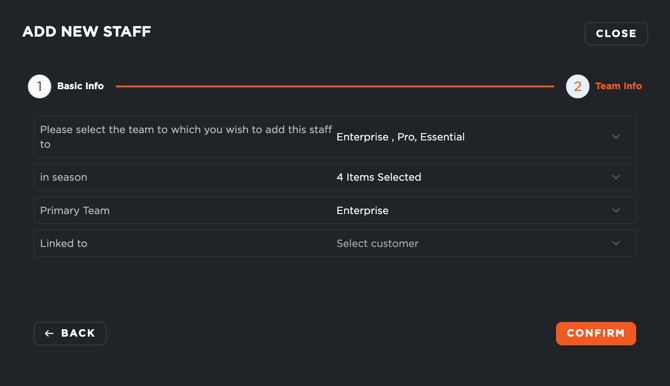
Click **"Next"**, then select:
- The **team(s)** you want to add the staff member to.
- The **season(s)** in which the staff member is involved.
- The **primary team** (the main squad they operate within).
- The corresponding **User account**, if applicable, to link the profile.
Finally, if you need to link an already existing staff member to a user, just move to the staff member profile and in the section TEAM, once you clicked on EDIT, you can select the option you want.
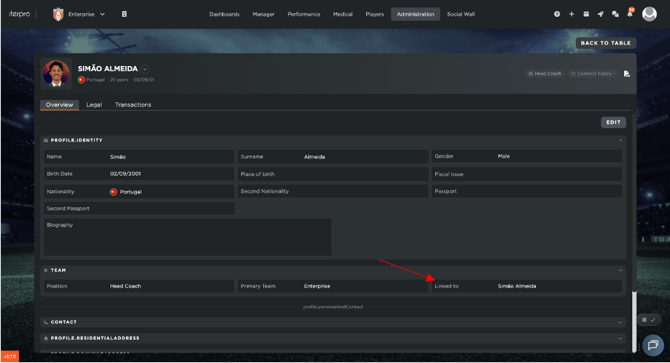
This link is essential for three key reasons:
#### 1. Coach App Integration
To log in and use the mobile **Coach App**, an individual must have an active Staff Member profile linked directly to their User account, configured with the correct permissions.
#### 2. Communication and Sharing ("Share With")
Once the Staff Member profile is linked to a User, they can be selected in **"Share With"** dropdown lists across the platform, allowing other team members to share reports, notes, and dashboards with them.
#### 3. Video Gallery Access
If a staff member is active in the current season and their linked User account has been granted Video Gallery permissions, they will automatically gain access to view and manage videos on that specific screen.
- [What's New](https://support.iterpro.com/en/guide/whats-new?hsLang=en)
- [Quick Onboarding](https://support.iterpro.com/en/guide/quick-onboarding?hsLang=en)
- [Account set-up and other](https://support.iterpro.com/en/guide/account-set-up-and-other?hsLang=en#main-content)
- [Login & Iterpro overview](https://support.iterpro.com/en/guide/account-set-up-and-other?hsLang=en#login-iterpro-overview)
- [Settings](https://support.iterpro.com/en/guide/account-set-up-and-other?hsLang=en#settings)
- [Create, archive and delete players](https://support.iterpro.com/en/guide/account-set-up-and-other?hsLang=en#create-archive-and-delete-players)
- [Other](https://support.iterpro.com/en/guide/account-set-up-and-other?hsLang=en#other)
- [Manager](https://support.iterpro.com/en/guide/manager?hsLang=en#main-content)
- [Tactics](https://support.iterpro.com/en/guide/manager?hsLang=en#tactics)
- [Planning](https://support.iterpro.com/en/guide/manager?hsLang=en#planning)
- [Videogallery](https://support.iterpro.com/en/guide/manager?hsLang=en#videogallery)
- [Drills](https://support.iterpro.com/en/guide/manager?hsLang=en#drills)
- [Attendances](https://support.iterpro.com/en/guide/manager?hsLang=en#attendances)
- [Performance](https://support.iterpro.com/en/guide/performance?hsLang=en#main-content)
- [Session Analysis](https://support.iterpro.com/en/guide/performance?hsLang=en#session-analysis)
- [Workload Analysis](https://support.iterpro.com/en/guide/performance?hsLang=en#workload-analysis)
- [Assessments](https://support.iterpro.com/en/guide/performance?hsLang=en#assessments)
- [Readiness](https://support.iterpro.com/en/guide/performance?hsLang=en#readiness)
- [Medical](https://support.iterpro.com/en/guide/medical?hsLang=en#main-content)
- [Medical Records](https://support.iterpro.com/en/guide/medical?hsLang=en#medical-records)
- [Infirmary](https://support.iterpro.com/en/guide/medical?hsLang=en#infirmary)
- [Examinations](https://support.iterpro.com/en/guide/medical?hsLang=en#examinations)
- [Medical Statistics](https://support.iterpro.com/en/guide/medical?hsLang=en#medical-statistics)
- [Player](https://support.iterpro.com/en/guide/player?hsLang=en#main-content)
- [My Team](https://support.iterpro.com/en/guide/player?hsLang=en#my-team)
- [Scouting](https://support.iterpro.com/en/guide/player?hsLang=en#scouting)
- [Transfers](https://support.iterpro.com/en/guide/player?hsLang=en#transfers)
- [Administration](https://support.iterpro.com/en/guide/administration?hsLang=en#main-content)
- [Squads](https://support.iterpro.com/en/guide/administration?hsLang=en#squads)
- [Finance Overview](https://support.iterpro.com/en/guide/administration?hsLang=en#finance-overview)
- [Bonus Tracking](https://support.iterpro.com/en/guide/administration?hsLang=en#bonus-tracking)
- [Cash Flow](https://support.iterpro.com/en/guide/administration?hsLang=en#cash-flow)
- [Transactions](https://support.iterpro.com/en/guide/administration?hsLang=en#transactions)
- [Registrations](https://support.iterpro.com/en/guide/administration?hsLang=en#registrations)
- [Mobile apps](https://support.iterpro.com/en/guide/mobile-apps?hsLang=en#main-content)
- [Player App](https://support.iterpro.com/en/guide/mobile-apps?hsLang=en#player-app)
- [Coach App](https://support.iterpro.com/en/guide/mobile-apps?hsLang=en#coach-app)
- [Director App](https://support.iterpro.com/en/guide/mobile-apps?hsLang=en#director-app)
- [Iterpro Login Page](https://app.iterpro.com/auth/login)
- [Contact Support](https://share.hsforms.com/1rE7NvsvuTIWBm7WQ1dhslQ1uo0p)
- [Terms & Conditions](https://www.iubenda.com/terms-and-conditions/53739842)
- [Privacy Policy](https://www.iubenda.com/privacy-policy/53739842)
[](https://iterpro.com/)
Copyright © 2025, Iterpro Support Team