---
title: How do I plan a training session?
description: Create Library Archive Exercises Darw Goals Age groups Drills Themes
---
[Skip to content](https://support.iterpro.com/en/guide/how-to-create-my-drill-library#main-content)
- [English](https://support.iterpro.com/en/guide/how-to-create-my-drill-library)
- [Español](https://support.iterpro.com/es/guide/2.2creartugaleriadeejercicios)
- [Nederlands](https://support.iterpro.com/nl/guide/2.2-hoe-maak-ik-mijn-drillbibliotheek)
- [العربية - مصر](https://support.iterpro.com/ar-eg/guide/2.2-كيفية-إنشاء-مكتبة-التدريبات-الخاصة-بي)
- [日本語](https://support.iterpro.com/ja/guide/2.2-自分のドリルライブラリを作成する方法)
English
Show submenu for translations
[](https://app.iterpro.com/auth/login)
- [Iterpro Login Page](https://app.iterpro.com/auth/login)
- [Contact Support](https://share.hsforms.com/1rE7NvsvuTIWBm7WQ1dhslQ1uo0p)
Open main navigation
Close main navigation
- [Iterpro Login Page](https://app.iterpro.com/auth/login)
- [Contact Support](https://share.hsforms.com/1rE7NvsvuTIWBm7WQ1dhslQ1uo0p)
- - [English](https://support.iterpro.com/en/guide/how-to-create-my-drill-library)
- [Español](https://support.iterpro.com/es/guide/2.2creartugaleriadeejercicios)
- [Nederlands](https://support.iterpro.com/nl/guide/2.2-hoe-maak-ik-mijn-drillbibliotheek)
- [العربية - مصر](https://support.iterpro.com/ar-eg/guide/2.2-كيفية-إنشاء-مكتبة-التدريبات-الخاصة-بي)
- [日本語](https://support.iterpro.com/ja/guide/2.2-自分のドリルライブラリを作成する方法)
English
Show submenu for translations
How can we help you?
- There are no suggestions because the search field is empty.
1. [User Guide](https://support.iterpro.com/en/guide?hsLang=en)
2. [Manager](https://support.iterpro.com/en/guide/manager?hsLang=en)
3. [Planning](https://support.iterpro.com/en/guide/manager?hsLang=en#planning)
# How do I plan a training session?
## This article explains how to plan your session for both a technical and an S&C training day, and how to track what has actually been done on the pitch.
### PLAN YOUR TECHNICAL SESSION IMPORTING DRILLS
- 0.00 introduction and opening a training event's technical plan
- 0.15 import existing drills from the drill library
- 0.42 save the current drills as a training plan template
- 1.00 additional options: importing training plans, drill statistics, and drill canvas
- 1.18 customize drill details like sets, repetitions, and duration
- 1.26 share specific drills with players or staff via the "share with" column
### TECHNICAL TRAINING PLAN CREATION
- 0.06 view previously created plans, including their specific drills and details
- 0.30 manage tags to group and filter plans, with options to remove or create new ones
- 0.44 click "add new" to create a new training plan, entering its title, tags, and assigned players
- 0.52 use the "share" button to make the training plan visible to selected staff members or players
- 1.07 use the "+" button to add more drills and modify their parameters as needed
- 1.13 click the checkbox and import the finished training plan into your session
### S&C DRILL IMPORT AND MEASUREMENT SYSTEM
- 0.00 set measurement system
- 0.16 access the S&C plan section
- 0.39 add exercises or training plans
- 0.44 create new exercises directly
- 0.50 define exercise parameters
- 0.57 apply exercise to multiple players
### S&C TRAINING PLAN AND INDIVIDUAL SESSION
- 0.00 import S&C exercises or plans
- 0.08 build multi-week training plans
- 0.40 manage plan exercises
- 1.01 import plans to sessions
- 1.09 create individual sessions
### AFTER TRAINING
- 0.00 move planned drills to actual
- 0.15 adjust real session duration
- 0.21 compare planned vs actual drills
- 0.32 track S&C progress via mobile app
### ***FEATURE DESCRIPTION***
#### Designing Technical Practice Sessions
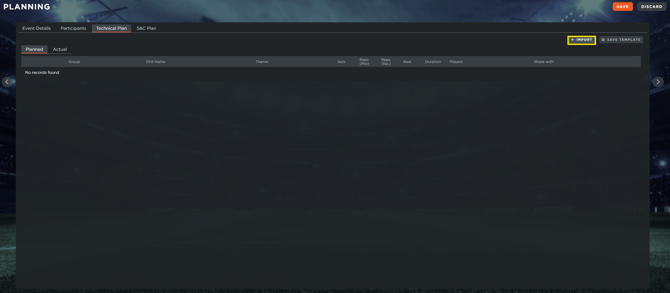
The transition from a scheduled event to a specific training plan begins within the **Technical Plan** tab of the event card. This section serves as your workspace for organizing the flow of a session.
- **Importing Library Content:** By selecting the **Import** function, you can access your entire drill library. Use the sidebar filters to locate specific exercises and use the checkboxes to select one or multiple drills for your session.
- **Previewing:** Before finalizing an import, the **Preview Icon** allows you to review the full details of a drill to ensure it meets the session's objectives.
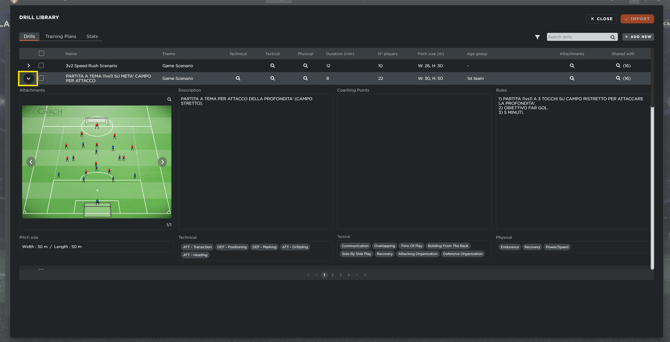
- **Selecting:** To import the drill click on the checkbox and click on import.
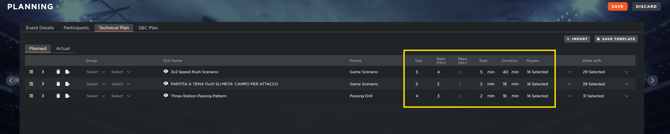
- **Refining Drill Parameters:** For each imported exercise, you can define specific operational parameters such as the number of sets, repetitions, rest periods, and the total duration.
- **Saving Workflows:** If the current sequence of drills is one you intend to reuse, you can save the entire selection as a **Training Plan** for future sessions.

- **Visibility Controls:** Using the **Share** button, you can determine which staff members or players can view the plan. Note that a drill or plan will only appear on an athlete's mobile app if they have been specifically granted access through this sharing list.

#### Managing and Sharing Training Plans
Training Plans allow you to group multiple drills into a single template, streamlining the preparation for future sessions.
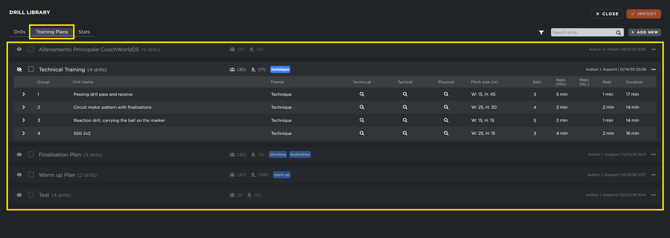
- **Importing Existing Plans:** Navigate to the **Training Plan** section within the import menu to view previously saved sequences. You can review the drills included in each plan before importing them into your active session.
- **Editing and Customizing:** The **Edit** function allows you to modify the internal structure of a plan—rearranging drills, adjusting physical parameters, or adding new exercises from the library.

- **Categorization with Tags:** To maintain an organized database, you can assign tags to your plans. These tags act as filters, allowing you to categorize plans by intensity, tactical focus, or phase of the season.

- **Visibility Controls:** Using the **Share** button, you can determine which staff members can view the plan
#### Strength & Conditioning (S&C) Configuration
The S&C module follows a specialized logic designed for high-precision physical programming.
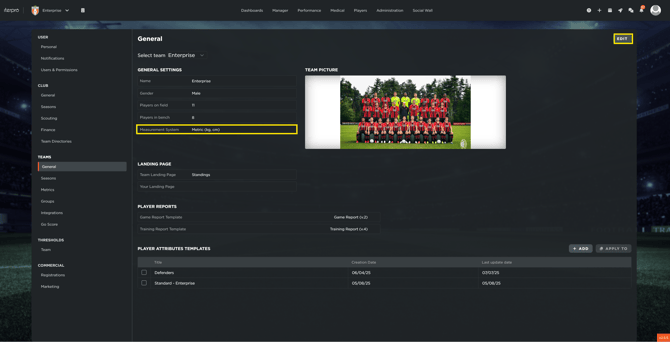
- **Global Measurement Settings:** Before planning S&C sessions, ensure your unit of measurement is correctly configured. Navigate to **Settings \> Teams \> General** to toggle between Metric (kg/cm) and Imperial (lbs/ft) systems.
- **Participant Prerequisites:** Athletes must be added to the event as participants before they appear in the S&C Plan section. This ensures that individual loads are tracked against the correct profiles.
- **Individualized Programming:** Within the **S&C Plan** tab, clicking on the **Plus (+) icon** you are able to add exercises, individual sessions or entire training plans for each player.
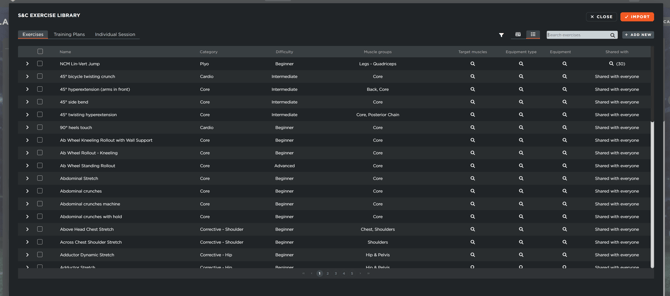
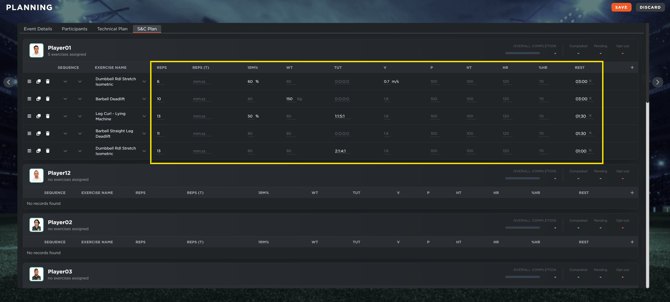
- **Exercise specifics:** For each entry, you can define precise metrics such as % of 1RM (One-Rep Max), Time Under Tension (TUT), and specific rest intervals.
- **Bulk Application:** To save time when programming for groups, click the plus icon, click on **Apply to Players** to copy an exercise and all its associated parameters from one athlete to multiple selected teammates simultaneously.
#### Long-Term S&C Programming
For comprehensive physical development, the system supports long-term programming that spans multiple weeks.
- **Training plan:** You can build a complete training plan and program it across various sessions within a single week or across multiple weeks.
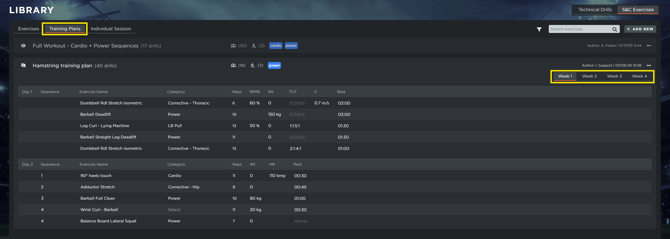
- **Duplicating Workloads:** When moving to a new week of training, the **Duplicate Week** function allows you to use the previous week’s workload as a baseline, which you can then adjust for progressive overload.
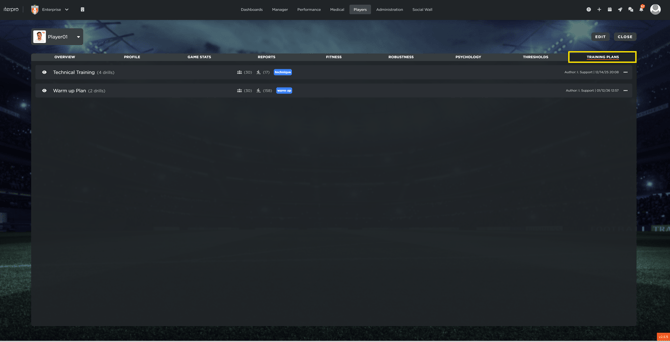
- **Direct Profile Integration:** Once assigned and shared, these plans appear directly on the athlete’s profile under **Players \> My Team \> Player Card \> Training Plan**, providing them with a clear roadmap of their physical requirements.
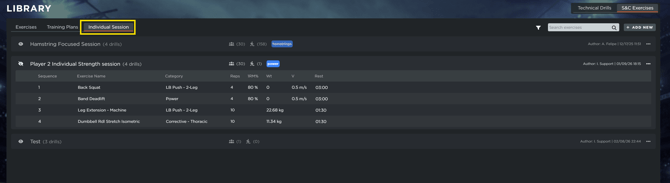
- **Individual session:** For non-recurring sessions, the **Individual Session** tool allows you to create and tag a single workout for specific players without building a full-scale plan.
#### Recording "Actual" Training and Real-Time Tracking
To maintain data integrity, the system distinguishes between what was *planned* and what was actually *performed*.
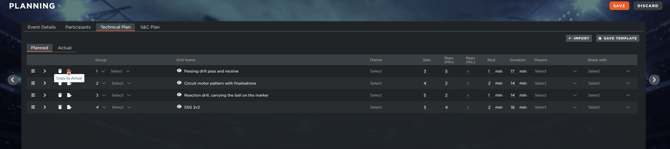
- **The "Actual" Section:** Once a technical session is finished, you can move planned drills into the **Actual** section by clicking **Edit** and selecting the **Copy to Actual** icon. This allows you to adjust the final duration of each drill to reflect the real time spent on the pitch.
**Comparison and Analytics:** This step is vital for accurate reporting, as it allows the **Drill Stats** section to compare the intended coaching focus against the actual execution.
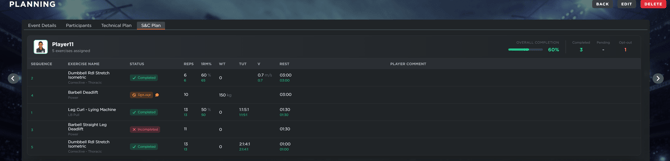
- **Real-Time Player Feedback:** In S&C sessions, players can use their mobile app to track progress as it happens. They can mark exercises as complete, adjust repetitions based on their performance, and leave notes for the coaching staff.
**Staff Monitoring:** Coaches can view this real-time data directly on the event card, allowing them to monitor compliance and adjust future programming based on the athlete's feedback and performance.
- [What's New](https://support.iterpro.com/en/guide/whats-new?hsLang=en)
- [Quick Onboarding](https://support.iterpro.com/en/guide/quick-onboarding?hsLang=en)
- [Account set-up and other](https://support.iterpro.com/en/guide/account-set-up-and-other?hsLang=en#main-content)
- [Login & Iterpro overview](https://support.iterpro.com/en/guide/account-set-up-and-other?hsLang=en#login-iterpro-overview)
- [Settings](https://support.iterpro.com/en/guide/account-set-up-and-other?hsLang=en#settings)
- [Create, archive and delete players](https://support.iterpro.com/en/guide/account-set-up-and-other?hsLang=en#create-archive-and-delete-players)
- [Other](https://support.iterpro.com/en/guide/account-set-up-and-other?hsLang=en#other)
- [Manager](https://support.iterpro.com/en/guide/manager?hsLang=en#main-content)
- [Tactics](https://support.iterpro.com/en/guide/manager?hsLang=en#tactics)
- [Planning](https://support.iterpro.com/en/guide/manager?hsLang=en#planning)
- [Videogallery](https://support.iterpro.com/en/guide/manager?hsLang=en#videogallery)
- [Drills](https://support.iterpro.com/en/guide/manager?hsLang=en#drills)
- [Attendances](https://support.iterpro.com/en/guide/manager?hsLang=en#attendances)
- [Performance](https://support.iterpro.com/en/guide/performance?hsLang=en#main-content)
- [Session Analysis](https://support.iterpro.com/en/guide/performance?hsLang=en#session-analysis)
- [Workload Analysis](https://support.iterpro.com/en/guide/performance?hsLang=en#workload-analysis)
- [Assessments](https://support.iterpro.com/en/guide/performance?hsLang=en#assessments)
- [Readiness](https://support.iterpro.com/en/guide/performance?hsLang=en#readiness)
- [Medical](https://support.iterpro.com/en/guide/medical?hsLang=en#main-content)
- [Medical Records](https://support.iterpro.com/en/guide/medical?hsLang=en#medical-records)
- [Infirmary](https://support.iterpro.com/en/guide/medical?hsLang=en#infirmary)
- [Examinations](https://support.iterpro.com/en/guide/medical?hsLang=en#examinations)
- [Medical Statistics](https://support.iterpro.com/en/guide/medical?hsLang=en#medical-statistics)
- [Player](https://support.iterpro.com/en/guide/player?hsLang=en#main-content)
- [My Team](https://support.iterpro.com/en/guide/player?hsLang=en#my-team)
- [Scouting](https://support.iterpro.com/en/guide/player?hsLang=en#scouting)
- [Transfers](https://support.iterpro.com/en/guide/player?hsLang=en#transfers)
- [Administration](https://support.iterpro.com/en/guide/administration?hsLang=en#main-content)
- [Squads](https://support.iterpro.com/en/guide/administration?hsLang=en#squads)
- [Finance Overview](https://support.iterpro.com/en/guide/administration?hsLang=en#finance-overview)
- [Bonus Tracking](https://support.iterpro.com/en/guide/administration?hsLang=en#bonus-tracking)
- [Cash Flow](https://support.iterpro.com/en/guide/administration?hsLang=en#cash-flow)
- [Transactions](https://support.iterpro.com/en/guide/administration?hsLang=en#transactions)
- [Registrations](https://support.iterpro.com/en/guide/administration?hsLang=en#registrations)
- [Mobile apps](https://support.iterpro.com/en/guide/mobile-apps?hsLang=en#main-content)
- [Player App](https://support.iterpro.com/en/guide/mobile-apps?hsLang=en#player-app)
- [Coach App](https://support.iterpro.com/en/guide/mobile-apps?hsLang=en#coach-app)
- [Director App](https://support.iterpro.com/en/guide/mobile-apps?hsLang=en#director-app)
- [Iterpro Login Page](https://app.iterpro.com/auth/login)
- [Contact Support](https://share.hsforms.com/1rE7NvsvuTIWBm7WQ1dhslQ1uo0p)
- [Terms & Conditions](https://www.iubenda.com/terms-and-conditions/53739842)
- [Privacy Policy](https://www.iubenda.com/privacy-policy/53739842)
[](https://iterpro.com/)
Copyright © 2025, Iterpro Support Team