---
title: How do I create new or past injuries?
description: New CSV Create Manually Medical Infirmary Injury Illness Complaint Past
---
[Skip to content](https://support.iterpro.com/en/guide/how-to-create-new-or-past-injuries#main-content)
- [English](https://support.iterpro.com/en/guide/how-to-create-new-or-past-injuries)
- [Español](https://support.iterpro.com/es/guide/4.1-como-crear-lesiones-nuevas-o-pasadas-o-quejas-o-enfermedad)
- [Nederlands](https://support.iterpro.com/nl/guide/4.1-hoe-maak-je-nieuwe-of-eerdere-blessures-of-ziektes-of-klachten-aan)
- [العربية - مصر](https://support.iterpro.com/ar-eg/guide/4.1-كيفية-إنشاء-إصابات-جديدة-أو-سابقة-أو-أمراض-أو-شكاوى)
- [日本語](https://support.iterpro.com/ja/guide/4.1-新しいまたは過去のケガ病気や不調を記録する方法)
English
Show submenu for translations
[](https://app.iterpro.com/auth/login)
- [Iterpro Login Page](https://app.iterpro.com/auth/login)
- [Contact Support](https://share.hsforms.com/1rE7NvsvuTIWBm7WQ1dhslQ1uo0p)
Open main navigation
Close main navigation
- [Iterpro Login Page](https://app.iterpro.com/auth/login)
- [Contact Support](https://share.hsforms.com/1rE7NvsvuTIWBm7WQ1dhslQ1uo0p)
- - [English](https://support.iterpro.com/en/guide/how-to-create-new-or-past-injuries)
- [Español](https://support.iterpro.com/es/guide/4.1-como-crear-lesiones-nuevas-o-pasadas-o-quejas-o-enfermedad)
- [Nederlands](https://support.iterpro.com/nl/guide/4.1-hoe-maak-je-nieuwe-of-eerdere-blessures-of-ziektes-of-klachten-aan)
- [العربية - مصر](https://support.iterpro.com/ar-eg/guide/4.1-كيفية-إنشاء-إصابات-جديدة-أو-سابقة-أو-أمراض-أو-شكاوى)
- [日本語](https://support.iterpro.com/ja/guide/4.1-新しいまたは過去のケガ病気や不調を記録する方法)
English
Show submenu for translations
How can we help you?
- There are no suggestions because the search field is empty.
1. [User Guide](https://support.iterpro.com/en/guide?hsLang=en)
2. [Medical](https://support.iterpro.com/en/guide/medical?hsLang=en)
3. [Infirmary](https://support.iterpro.com/en/guide/medical?hsLang=en#infirmary)
# How do I create new or past injuries?
## This article explains how to create new or past injuries (or illnesses or complaints), by manually adding them or by CSV import.
- 00.25: add injuries by CSV
- 00.39: create an injury manually
- 00.47: add all the injury's details
### ***FEATURE DESCRIPTION***
The **Infirmary Screen** is the central hub for managing injuries, illnesses, and complaints affecting your team’s players. Here, users can track and update medical issues efficiently.
#### **Adding a New Injury or Medical Issue**
There are **two ways** to add a new injury or issue:
1. **Manually** – Directly input the details into the system.
2. **CSV Import** – Export the CSV file (e.g. Download active injuries CSV, or any other option in the drowdown), fill in the necessary details taking inspiration from the data you find in the file, and upload it back into the system (remember to delete the past/old data before to do it).
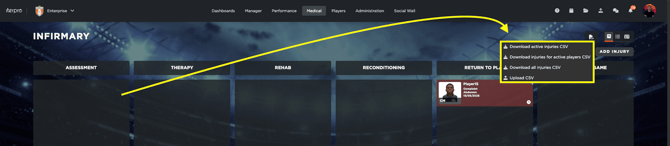
To manually add a new injury:
- Click the **"Add New Issue"** button.
- Select the affected **player**.
- A detailed **injury card** will appear, where you must enter key medical information, including:
- **Type of issue** (injury, complaint, or illness)
- **Injury date and time**
- **Link to a training session or match event** (if applicable)
- **Admission date**
- **Injury location** (both system-wide and anatomical details)
- **Injury type** (trauma or overuse)
- **Contact type** (contact or non-contact injury)
- **Injury mechanism and occurrence**
- **Severity level**
- **Diagnosis and notes**
- **Injury phase** (e.g., **Assessment**)
- **Expected recovery timeline**
- **Treatment instructions**
Once all relevant information is entered, click **Save** to store the injury.
- [What's New](https://support.iterpro.com/en/guide/whats-new?hsLang=en)
- [Quick Onboarding](https://support.iterpro.com/en/guide/quick-onboarding?hsLang=en)
- [Account set-up and other](https://support.iterpro.com/en/guide/account-set-up-and-other?hsLang=en#main-content)
- [Login & Iterpro overview](https://support.iterpro.com/en/guide/account-set-up-and-other?hsLang=en#login-iterpro-overview)
- [Settings](https://support.iterpro.com/en/guide/account-set-up-and-other?hsLang=en#settings)
- [Create, archive and delete players](https://support.iterpro.com/en/guide/account-set-up-and-other?hsLang=en#create-archive-and-delete-players)
- [Other](https://support.iterpro.com/en/guide/account-set-up-and-other?hsLang=en#other)
- [Manager](https://support.iterpro.com/en/guide/manager?hsLang=en#main-content)
- [Tactics](https://support.iterpro.com/en/guide/manager?hsLang=en#tactics)
- [Planning](https://support.iterpro.com/en/guide/manager?hsLang=en#planning)
- [Videogallery](https://support.iterpro.com/en/guide/manager?hsLang=en#videogallery)
- [Drills](https://support.iterpro.com/en/guide/manager?hsLang=en#drills)
- [Attendances](https://support.iterpro.com/en/guide/manager?hsLang=en#attendances)
- [Performance](https://support.iterpro.com/en/guide/performance?hsLang=en#main-content)
- [Session Analysis](https://support.iterpro.com/en/guide/performance?hsLang=en#session-analysis)
- [Workload Analysis](https://support.iterpro.com/en/guide/performance?hsLang=en#workload-analysis)
- [Assessments](https://support.iterpro.com/en/guide/performance?hsLang=en#assessments)
- [Readiness](https://support.iterpro.com/en/guide/performance?hsLang=en#readiness)
- [Medical](https://support.iterpro.com/en/guide/medical?hsLang=en#main-content)
- [Medical Records](https://support.iterpro.com/en/guide/medical?hsLang=en#medical-records)
- [Infirmary](https://support.iterpro.com/en/guide/medical?hsLang=en#infirmary)
- [Examinations](https://support.iterpro.com/en/guide/medical?hsLang=en#examinations)
- [Medical Statistics](https://support.iterpro.com/en/guide/medical?hsLang=en#medical-statistics)
- [Player](https://support.iterpro.com/en/guide/player?hsLang=en#main-content)
- [My Team](https://support.iterpro.com/en/guide/player?hsLang=en#my-team)
- [Scouting](https://support.iterpro.com/en/guide/player?hsLang=en#scouting)
- [Transfers](https://support.iterpro.com/en/guide/player?hsLang=en#transfers)
- [Administration](https://support.iterpro.com/en/guide/administration?hsLang=en#main-content)
- [Squads](https://support.iterpro.com/en/guide/administration?hsLang=en#squads)
- [Finance Overview](https://support.iterpro.com/en/guide/administration?hsLang=en#finance-overview)
- [Bonus Tracking](https://support.iterpro.com/en/guide/administration?hsLang=en#bonus-tracking)
- [Cash Flow](https://support.iterpro.com/en/guide/administration?hsLang=en#cash-flow)
- [Transactions](https://support.iterpro.com/en/guide/administration?hsLang=en#transactions)
- [Registrations](https://support.iterpro.com/en/guide/administration?hsLang=en#registrations)
- [Mobile apps](https://support.iterpro.com/en/guide/mobile-apps?hsLang=en#main-content)
- [Player App](https://support.iterpro.com/en/guide/mobile-apps?hsLang=en#player-app)
- [Coach App](https://support.iterpro.com/en/guide/mobile-apps?hsLang=en#coach-app)
- [Director App](https://support.iterpro.com/en/guide/mobile-apps?hsLang=en#director-app)
- [Iterpro Login Page](https://app.iterpro.com/auth/login)
- [Contact Support](https://share.hsforms.com/1rE7NvsvuTIWBm7WQ1dhslQ1uo0p)
- [Terms & Conditions](https://www.iubenda.com/terms-and-conditions/53739842)
- [Privacy Policy](https://www.iubenda.com/privacy-policy/53739842)
[](https://iterpro.com/)
Copyright © 2025, Iterpro Support Team
```json
{
"@context" : "https://schema.org",
"@type" : "VideoObject",
"contentUrl" : "https://stream.mux.com/GGa1Lh02mXskDRhkoFBmGweBU8YxfdVe014estDdRU6a8/capped-1080p.mp4",
"dateModified" : "2025-02-04T11:30:16.716Z",
"duration" : "PT1M38S",
"height" : 1080,
"name" : "4.1 How to create new or past injuries (or illnesses or complaints)_ENG",
"thumbnailUrl" : "https://3110425.fs1.hubspotusercontent-na1.net/hubfs/3110425/4.1%20How%20to%20create%20new%20or%20past%20injuries%20(or%20illnesses%20or%20complaints)_ENG.mp4/medium.jpg",
"uploadDate" : "2025-02-04T11:30:16.711Z",
"width" : 1920
}
```