---
title: 5.6 How to create scouting game reports and view them in the calendar
description: This article showcases an overview of how to create scouting game reports, assign them to your scouts, and manage them through the calendar. This means being able to complete and fill in the game reports, and analyze the work being doing by your scouts.
---
[Skip to content](https://support.iterpro.com/en/guide/how-to-create-scouting-game-reports-and-view-them-in-the-calendar#main-content)
- [English](https://support.iterpro.com/en/guide/how-to-create-scouting-game-reports-and-view-them-in-the-calendar)
- [Español](https://support.iterpro.com/es/guide/5.6-cómo-crear-informes-de-partidos-de-scouting-y-visualizarlos-en-el-calendario)
- [Nederlands](https://support.iterpro.com/nl/guide/5.6-hoe-scoutingwedstrijdrapporten-aan-te-maken-en-te-bekijken-in-de-kalender)
- [العربية - مصر](https://support.iterpro.com/ar-eg/guide/5.6-كيفية-إنشاء-تقارير-المباريات-الكشفية-وعرضها-في-التقويم)
- [日本語](https://support.iterpro.com/ja/guide/5.6-スカウティングの試合レポートを作成し-カレンダーで確認する方法)
English
Show submenu for translations
[](https://app.iterpro.com/auth/login)
- [Iterpro Login Page](https://app.iterpro.com/auth/login)
- [Contact Support](https://share.hsforms.com/1rE7NvsvuTIWBm7WQ1dhslQ1uo0p)
Open main navigation
Close main navigation
- [Iterpro Login Page](https://app.iterpro.com/auth/login)
- [Contact Support](https://share.hsforms.com/1rE7NvsvuTIWBm7WQ1dhslQ1uo0p)
- - [English](https://support.iterpro.com/en/guide/how-to-create-scouting-game-reports-and-view-them-in-the-calendar)
- [Español](https://support.iterpro.com/es/guide/5.6-cómo-crear-informes-de-partidos-de-scouting-y-visualizarlos-en-el-calendario)
- [Nederlands](https://support.iterpro.com/nl/guide/5.6-hoe-scoutingwedstrijdrapporten-aan-te-maken-en-te-bekijken-in-de-kalender)
- [العربية - مصر](https://support.iterpro.com/ar-eg/guide/5.6-كيفية-إنشاء-تقارير-المباريات-الكشفية-وعرضها-في-التقويم)
- [日本語](https://support.iterpro.com/ja/guide/5.6-スカウティングの試合レポートを作成し-カレンダーで確認する方法)
English
Show submenu for translations
How can we help you?
- There are no suggestions because the search field is empty.
1. [User Guide](https://support.iterpro.com/en/guide?hsLang=en)
2. [Player](https://support.iterpro.com/en/guide/player?hsLang=en)
3. [Scouting](https://support.iterpro.com/en/guide/player?hsLang=en#scouting)
# 5.6 How to create scouting game reports and view them in the calendar
## This article showcases an overview of how to create scouting game reports, assign them to your scouts, and manage them through the calendar.
### CREATING GAME REPORTS FROM CALENDAR
- 00.07: how to create a game event
- 00.13: selecting the game competitions
- 00.27: selecting the game
- 00.42: assigning the game to a scout
- 00.54: assigning the player(s) to monitor
- 01.10: completion of a game report
### COMPLETING GAME REPORTS
- 00.05: entering a game you have assigned
- 00.15: match details, lineup, and statistics
- 00.30: how to complete the game report
- 00.44: adding notes, videos, or documents about the game analyzed
- 00.50: marking the game report as complete
- 01.02: adding players into your scouting database directly from game reports
### ***FEATURE DESCRIPTION***
**Creating Game Reports from the Calendar**
In the scouting module, you can create game reports directly from the calendar view. Here, you will see your monthly calendar, allowing you to plan and assign matches to your scouts efficiently.
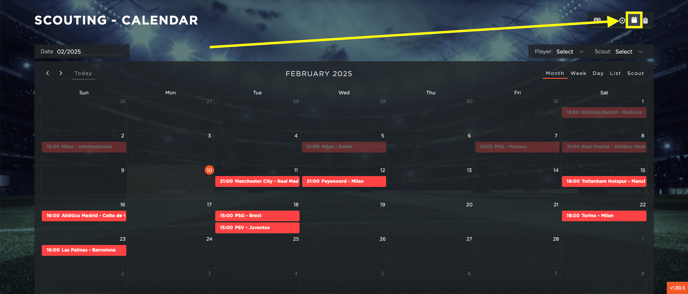
To create a new game event, simply click on the desired date. A panel will appear where you need to select the competition. For football-related teams, competitions covered by Wyscout will be available, thanks to our partnership with them. For other sports, you can create custom competitions. Once you select a competition, the system will automatically filter and display the relevant matches based on the chosen date.
Next, choose the match you wish to cover. You can then proceed to create game reports for the players. The first step is to assign the game report to a specific scout. The drop-down menu will list all users with the necessary permissions for the scouting module within your team.
After assigning the game, select the player or players to be evaluated. Once added, the reports will appear in the system, and only the designated scout will have the ability to edit them.
When the scout completes the report and assigns a rating, it is crucial to mark it as complete. Once all individual reports within an event are marked complete, the entire event will also be marked as complete.
**Completing Game Reports**
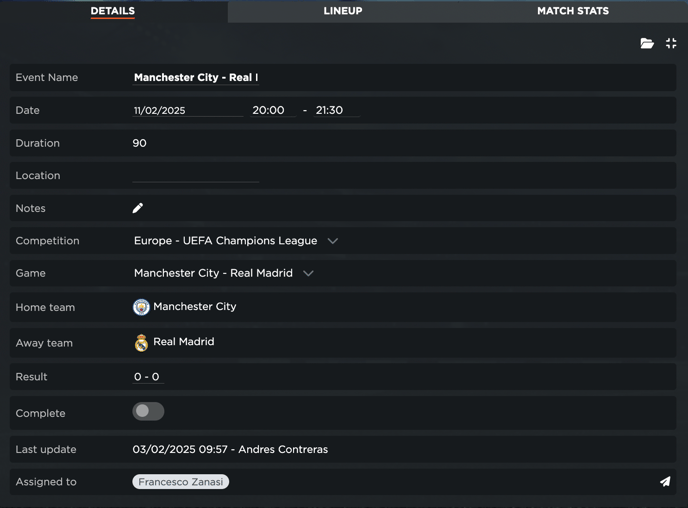
Once a game event has been created, you can fill in the game report for the designated players. Navigate to the calendar, select the match, and access all relevant details about the game and the players to be evaluated.
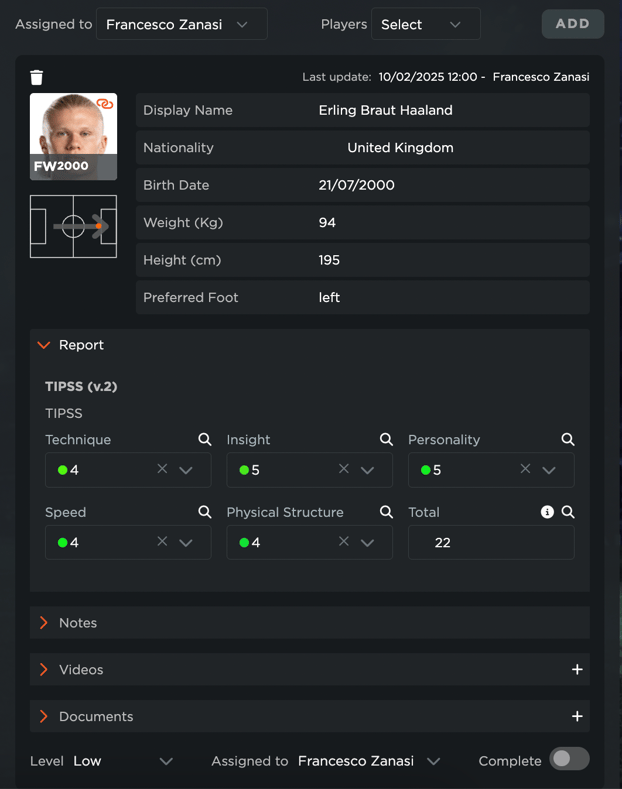
On the left side of the screen, you will find detailed match information, including team lineups, individual player statistics, and overall match statistics. To complete the report, use the right panel to input values for all the predefined metrics in your evaluation template.
You can add comments for each metric, along with notes, videos, or documents related to the match. Once the report is complete, click "Complete" to ensure that all data syncs correctly with the scouting reports and tables.
Always remember to save your progress to avoid losing any data. If you evaluate a player who is not already in your scouting database—perhaps a new talent that caught your eye—the system will prompt you for permission to add this player to the database. If you choose to do so, the player will be automatically included in your database for future reference.
- [What's New](https://support.iterpro.com/en/guide/whats-new?hsLang=en)
- [Quick Onboarding](https://support.iterpro.com/en/guide/quick-onboarding?hsLang=en)
- [Account set-up and other](https://support.iterpro.com/en/guide/account-set-up-and-other?hsLang=en#main-content)
- [Login & Iterpro overview](https://support.iterpro.com/en/guide/account-set-up-and-other?hsLang=en#login-iterpro-overview)
- [Settings](https://support.iterpro.com/en/guide/account-set-up-and-other?hsLang=en#settings)
- [Create, archive and delete players](https://support.iterpro.com/en/guide/account-set-up-and-other?hsLang=en#create-archive-and-delete-players)
- [Other](https://support.iterpro.com/en/guide/account-set-up-and-other?hsLang=en#other)
- [Manager](https://support.iterpro.com/en/guide/manager?hsLang=en#main-content)
- [Tactics](https://support.iterpro.com/en/guide/manager?hsLang=en#tactics)
- [Planning](https://support.iterpro.com/en/guide/manager?hsLang=en#planning)
- [Videogallery](https://support.iterpro.com/en/guide/manager?hsLang=en#videogallery)
- [Drills](https://support.iterpro.com/en/guide/manager?hsLang=en#drills)
- [Attendances](https://support.iterpro.com/en/guide/manager?hsLang=en#attendances)
- [Performance](https://support.iterpro.com/en/guide/performance?hsLang=en#main-content)
- [Session Analysis](https://support.iterpro.com/en/guide/performance?hsLang=en#session-analysis)
- [Workload Analysis](https://support.iterpro.com/en/guide/performance?hsLang=en#workload-analysis)
- [Assessments](https://support.iterpro.com/en/guide/performance?hsLang=en#assessments)
- [Readiness](https://support.iterpro.com/en/guide/performance?hsLang=en#readiness)
- [Medical](https://support.iterpro.com/en/guide/medical?hsLang=en#main-content)
- [Medical Records](https://support.iterpro.com/en/guide/medical?hsLang=en#medical-records)
- [Infirmary](https://support.iterpro.com/en/guide/medical?hsLang=en#infirmary)
- [Examinations](https://support.iterpro.com/en/guide/medical?hsLang=en#examinations)
- [Medical Statistics](https://support.iterpro.com/en/guide/medical?hsLang=en#medical-statistics)
- [Player](https://support.iterpro.com/en/guide/player?hsLang=en#main-content)
- [My Team](https://support.iterpro.com/en/guide/player?hsLang=en#my-team)
- [Scouting](https://support.iterpro.com/en/guide/player?hsLang=en#scouting)
- [Transfers](https://support.iterpro.com/en/guide/player?hsLang=en#transfers)
- [Administration](https://support.iterpro.com/en/guide/administration?hsLang=en#main-content)
- [Squads](https://support.iterpro.com/en/guide/administration?hsLang=en#squads)
- [Finance Overview](https://support.iterpro.com/en/guide/administration?hsLang=en#finance-overview)
- [Bonus Tracking](https://support.iterpro.com/en/guide/administration?hsLang=en#bonus-tracking)
- [Cash Flow](https://support.iterpro.com/en/guide/administration?hsLang=en#cash-flow)
- [Transactions](https://support.iterpro.com/en/guide/administration?hsLang=en#transactions)
- [Registrations](https://support.iterpro.com/en/guide/administration?hsLang=en#registrations)
- [Mobile apps](https://support.iterpro.com/en/guide/mobile-apps?hsLang=en#main-content)
- [Player App](https://support.iterpro.com/en/guide/mobile-apps?hsLang=en#player-app)
- [Coach App](https://support.iterpro.com/en/guide/mobile-apps?hsLang=en#coach-app)
- [Director App](https://support.iterpro.com/en/guide/mobile-apps?hsLang=en#director-app)
- [Iterpro Login Page](https://app.iterpro.com/auth/login)
- [Contact Support](https://share.hsforms.com/1rE7NvsvuTIWBm7WQ1dhslQ1uo0p)
- [Terms & Conditions](https://www.iubenda.com/terms-and-conditions/53739842)
- [Privacy Policy](https://www.iubenda.com/privacy-policy/53739842)
[](https://iterpro.com/)
Copyright © 2025, Iterpro Support Team
```json
{
"@context" : "https://schema.org",
"@type" : "VideoObject",
"contentUrl" : "https://stream.mux.com/WgwolJIgLVzk57VFeRxb11okHaYbMhlAkGBEN8uXTHc/capped-1080p.mp4",
"dateModified" : "2025-02-04T16:20:48.715Z",
"duration" : "PT1M24.843S",
"height" : 1080,
"name" : "5.6 How to create scouting game reports and view them in the calendar - part1_ENG",
"thumbnailUrl" : "https://3110425.fs1.hubspotusercontent-na1.net/hubfs/3110425/5.6%20How%20to%20create%20scouting%20game%20reports%20and%20view%20them%20in%20the%20calendar%20-%20part1_ENG.mp4/medium.jpg",
"uploadDate" : "2025-02-04T16:20:48.709Z",
"width" : 1920
}
```
```json
{
"@context" : "https://schema.org",
"@type" : "VideoObject",
"contentUrl" : "https://stream.mux.com/oz3czF00xCBfk02ofkRhEc01Y01QQBZTp3VuN00GhlIRLBfA/capped-1080p.mp4",
"dateModified" : "2025-02-04T16:20:48.813Z",
"duration" : "PT1M24S",
"height" : 1080,
"name" : "5.6 How to create scouting game reports and view them in the calendar - part2_ENG",
"thumbnailUrl" : "https://3110425.fs1.hubspotusercontent-na1.net/hubfs/3110425/5.6%20How%20to%20create%20scouting%20game%20reports%20and%20view%20them%20in%20the%20calendar%20-%20part2_ENG.mp4/medium.jpg",
"uploadDate" : "2025-02-04T16:20:48.808Z",
"width" : 1920
}
```