---
title: How do I create my video archive and upload all the videos I want, with no size limitation?
description: Manager Videogallery Import Video Training Game other
---
[Skip to content](https://support.iterpro.com/en/guide/how-to-create-your-video-archive-and-upload-all-the-video-you-want-no-size-limitation#main-content)
- [English](https://support.iterpro.com/en/guide/how-to-create-your-video-archive-and-upload-all-the-video-you-want-no-size-limitation)
- [Español](https://support.iterpro.com/es/guide/3.6comocreartugaleriadevideosycargartodoslosvideosquedesees)
- [Nederlands](https://support.iterpro.com/nl/guide/2.6-hoe-maak-je-je-videoarchief-en-upload-je-alle-gewenste-videos-geen-groottebeperking)
- [العربية - مصر](https://support.iterpro.com/ar-eg/guide/2.6-كيفية-إنشاء-أرشيف-الفيديو-الخاص-بك-وتحميل-جميع-الفيديوهات-التي-تريدها-بدون-حد-للحجم)
- [日本語](https://support.iterpro.com/ja/guide/2.6-動画アーカイブの作成方法と無制限の動画アップロード)
English
Show submenu for translations
[](https://app.iterpro.com/auth/login)
- [Iterpro Login Page](https://app.iterpro.com/auth/login)
- [Contact Support](https://share.hsforms.com/1rE7NvsvuTIWBm7WQ1dhslQ1uo0p)
Open main navigation
Close main navigation
- [Iterpro Login Page](https://app.iterpro.com/auth/login)
- [Contact Support](https://share.hsforms.com/1rE7NvsvuTIWBm7WQ1dhslQ1uo0p)
- - [English](https://support.iterpro.com/en/guide/how-to-create-your-video-archive-and-upload-all-the-video-you-want-no-size-limitation)
- [Español](https://support.iterpro.com/es/guide/3.6comocreartugaleriadevideosycargartodoslosvideosquedesees)
- [Nederlands](https://support.iterpro.com/nl/guide/2.6-hoe-maak-je-je-videoarchief-en-upload-je-alle-gewenste-videos-geen-groottebeperking)
- [العربية - مصر](https://support.iterpro.com/ar-eg/guide/2.6-كيفية-إنشاء-أرشيف-الفيديو-الخاص-بك-وتحميل-جميع-الفيديوهات-التي-تريدها-بدون-حد-للحجم)
- [日本語](https://support.iterpro.com/ja/guide/2.6-動画アーカイブの作成方法と無制限の動画アップロード)
English
Show submenu for translations
How can we help you?
- There are no suggestions because the search field is empty.
1. [User Guide](https://support.iterpro.com/en/guide?hsLang=en)
2. [Manager](https://support.iterpro.com/en/guide/manager?hsLang=en)
3. [Videogallery](https://support.iterpro.com/en/guide/manager?hsLang=en#videogallery)
# How do I create my video archive and upload all the videos I want, with no size limitation?
## This article explains how to import the videos into Iterpro and create your Videogallery.
### REQUIREMENTS TO ACCESS VIDEOGALLERY
### VIDEO CATEGORIES
### HOW TO UPLOAD A NEW VIDEO
### ***FEATURE DESCRIPTION***
#### Requirements to Access the Videogallery
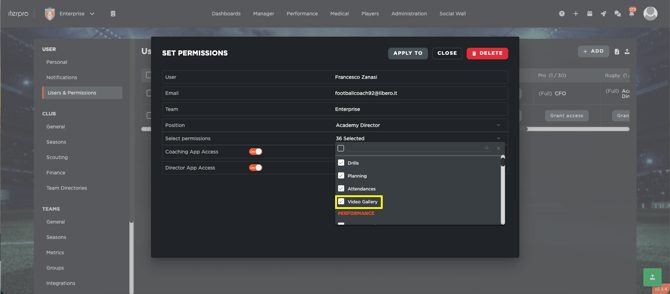
Access to the Videogallery requires three mandatory configurations.
**1. Enable Videogallery Permission**
An Admin user must grant you the permission to access the Videogallery.
1. Navigate to **Settings**
2. Open **Users and Permissions**
3. Select the relevant team
4. Enable **Videogallery access** for the specific user
**2. Link the User to a Staff Member**
The user must be associated with a Staff profile.
1. Go to **Administration**
2. Open **Squads**
3. Click **Add New** to create a Staff member
4. Open the created Staff profile
5. Click **Edit**
6. Expand the **Team** section
7. Use the **Linked to** field to associate the Staff member with the user
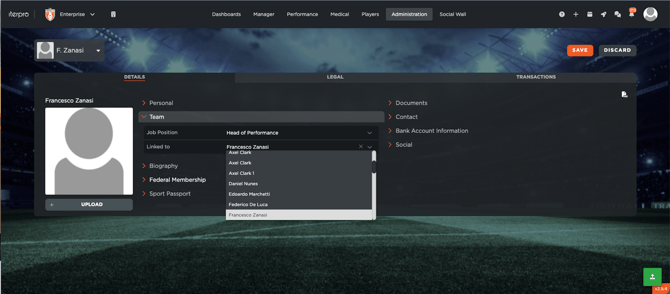
**IMPORTANT**: note that when a new user is create (and he/she has his/her first access to a team), the system automatically create a staff member linked to him/her, so you don't need to create it as new. For this reason, it's always important to check in Administration - Squads, within all the teams, if the staff member is already present in Iterpro, active or archived.
**3. Include the Staff Member in the Current Season**
The Staff member must be assigned to the active season.
1. Navigate to **Settings**
2. Select **Team**
3. Open **Season**
4. Select the current season
5. Click **Staff**
6. Use **Select Staff** to add the Staff member to the season
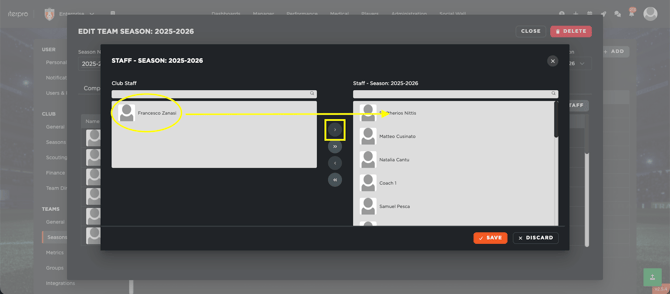
**IMPORTANT**: note that when a user has access to a specific team for the first time, the system will add his/her staff member automatically to the current seasonfor the current squads. This mean you need to check in Settings - Teams - Season if the staff member is already added in that season.
#### Understanding Videogallery Categories
Within the Videogallery, videos are organized by purpose. Each category connects to specific system areas.
**1. Game**
Contains match-related videos, used for preparation and post-match analysis. Each clip is linked to a specific game event in the calendar.
**2. Training**
Contains videos related to training sessions. Each clip is linked to a specific training event in planning
**3. My Players**
Contains videos linked to players within your squad. This section is connected to Players - My Team and clips can be uploaded both from Videogallery and directly from the Player profile.
**4. Scouted Player**
Contains videos linked to players in your scouting list. This section is connected to Players - Scouting and clips can be uploaded both from Videogallery and directly from Scouting.
**5. Others**
For videos not related to matches, training, or players. For example, Educational materials or General guidelines.
**6. Shared With Me**
Displays all videos that have been shared with you by other users
The Videogallery provides multiple filtering options. You can filter videos by:
- Search bar (keyword search)
- Tags
- Players
- Author
When viewing the **Game** category, additional filters are available:
- Home/Opponent
- Date
- Stage
These filters allow precise navigation within large video archives.
#### Uploading New Videos
To upload new content to the Videogallery, begin by clicking **Add New**. This action opens the file selection window, allowing you to browse your computer and choose the video file(s) you want to upload. You can select a single file or multiple files in the same operation. Once the files are selected, they are added to the upload interface where you can proceed with configuration.
After selecting the files, the system allows you to decide how to manage the upload process. You may upload all selected files simultaneously using the same configuration settings, or you can process them individually. Processing videos one by one is recommended when each clip requires specific details, such as different events, players, or tags. This approach ensures that every video is accurately categorized and linked within the system.
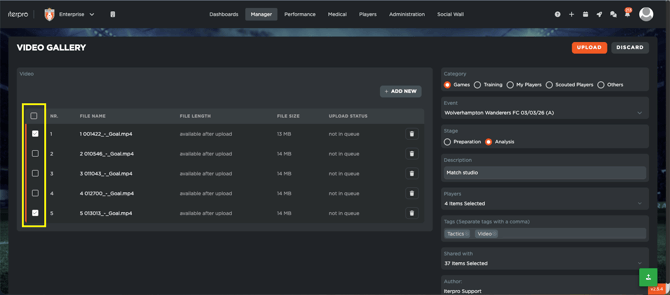
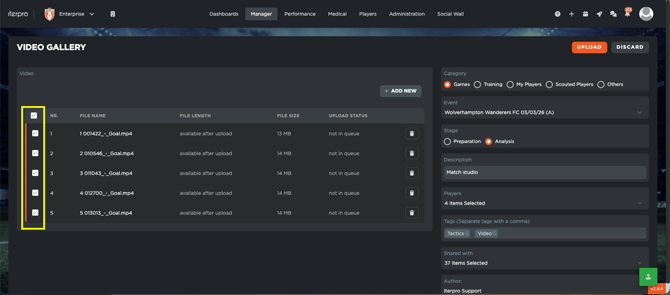
Before starting the upload, each video must be configured with the appropriate metadata. This step ensures that the content is correctly organized, searchable, and accessible to the right users.
For every video, you can define:
- The **Category**, which determines where the video will be stored (e.g., Game, Training, My Players).
- The related **Event**, linking the video to a specific match or training session.
- The **Stage**, available only when the selected category is Game. This allows further classification within match-related content.
- A **Description** to provide contextual information about the clip.
- The **Players included** in the video, enabling player-based filtering.
- Relevant **Tags** to improve searchability.
- The **Share with** list, which determines who will have access to the video. Players who are selected in the list can access the video through the **Player App**. Staff members included in the list can view the same content in the Web Application as well as in the **Coach** and **Director** mobile applications.
- The **Author**, automatically displayed as the creator of the content.
Once all required information has been entered, click **Upload** to begin transferring the video to the system.
If multiple files were selected and processed individually, repeat the configuration steps for each remaining video. This ensures that every clip has the correct category, event linkage, and sharing settings applied. Continue this process systematically until all selected files have been configured and uploaded.
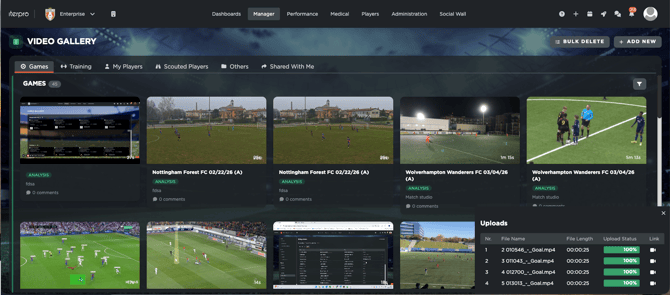
When the final upload is initiated, the upload window closes automatically. You may then continue navigating other areas of the system without interrupting the upload process.
While uploads are in progress, they remain visible in a dedicated section within the Videogallery. This area allows you to track the status of each file until the transfer is completed. This ensures that you can verify successful uploads without remaining on the configuration screen.
#### Viewing and Managing Uploaded Videos
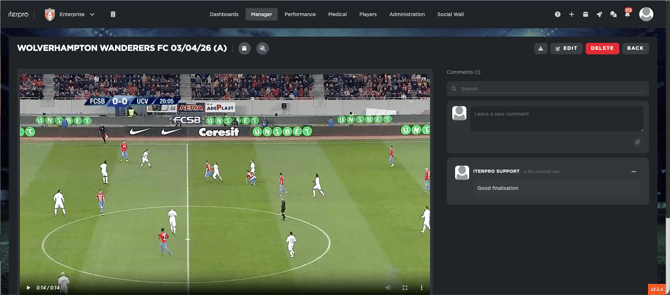
After a video has been successfully uploaded, it becomes accessible within its assigned category. Selecting a video opens the detailed view, where you can watch it in full using the integrated player.
From the same interface, you have the option to download the original file to your device if needed. The video detail page also includes a comments section. Here, you can write and save comments directly from the web application. Additionally, any comments created from the mobile applications are displayed in the same section, ensuring centralized communication around each video.
- [What's New](https://support.iterpro.com/en/guide/whats-new?hsLang=en)
- [Quick Onboarding](https://support.iterpro.com/en/guide/quick-onboarding?hsLang=en)
- [Account set-up and other](https://support.iterpro.com/en/guide/account-set-up-and-other?hsLang=en#main-content)
- [Login & Iterpro overview](https://support.iterpro.com/en/guide/account-set-up-and-other?hsLang=en#login-iterpro-overview)
- [Settings](https://support.iterpro.com/en/guide/account-set-up-and-other?hsLang=en#settings)
- [Create, archive and delete players](https://support.iterpro.com/en/guide/account-set-up-and-other?hsLang=en#create-archive-and-delete-players)
- [Other](https://support.iterpro.com/en/guide/account-set-up-and-other?hsLang=en#other)
- [Manager](https://support.iterpro.com/en/guide/manager?hsLang=en#main-content)
- [Tactics](https://support.iterpro.com/en/guide/manager?hsLang=en#tactics)
- [Planning](https://support.iterpro.com/en/guide/manager?hsLang=en#planning)
- [Videogallery](https://support.iterpro.com/en/guide/manager?hsLang=en#videogallery)
- [Drills](https://support.iterpro.com/en/guide/manager?hsLang=en#drills)
- [Attendances](https://support.iterpro.com/en/guide/manager?hsLang=en#attendances)
- [Performance](https://support.iterpro.com/en/guide/performance?hsLang=en#main-content)
- [Session Analysis](https://support.iterpro.com/en/guide/performance?hsLang=en#session-analysis)
- [Workload Analysis](https://support.iterpro.com/en/guide/performance?hsLang=en#workload-analysis)
- [Assessments](https://support.iterpro.com/en/guide/performance?hsLang=en#assessments)
- [Readiness](https://support.iterpro.com/en/guide/performance?hsLang=en#readiness)
- [Medical](https://support.iterpro.com/en/guide/medical?hsLang=en#main-content)
- [Medical Records](https://support.iterpro.com/en/guide/medical?hsLang=en#medical-records)
- [Infirmary](https://support.iterpro.com/en/guide/medical?hsLang=en#infirmary)
- [Examinations](https://support.iterpro.com/en/guide/medical?hsLang=en#examinations)
- [Medical Statistics](https://support.iterpro.com/en/guide/medical?hsLang=en#medical-statistics)
- [Player](https://support.iterpro.com/en/guide/player?hsLang=en#main-content)
- [My Team](https://support.iterpro.com/en/guide/player?hsLang=en#my-team)
- [Scouting](https://support.iterpro.com/en/guide/player?hsLang=en#scouting)
- [Transfers](https://support.iterpro.com/en/guide/player?hsLang=en#transfers)
- [Administration](https://support.iterpro.com/en/guide/administration?hsLang=en#main-content)
- [Squads](https://support.iterpro.com/en/guide/administration?hsLang=en#squads)
- [Finance Overview](https://support.iterpro.com/en/guide/administration?hsLang=en#finance-overview)
- [Bonus Tracking](https://support.iterpro.com/en/guide/administration?hsLang=en#bonus-tracking)
- [Cash Flow](https://support.iterpro.com/en/guide/administration?hsLang=en#cash-flow)
- [Transactions](https://support.iterpro.com/en/guide/administration?hsLang=en#transactions)
- [Registrations](https://support.iterpro.com/en/guide/administration?hsLang=en#registrations)
- [Mobile apps](https://support.iterpro.com/en/guide/mobile-apps?hsLang=en#main-content)
- [Player App](https://support.iterpro.com/en/guide/mobile-apps?hsLang=en#player-app)
- [Coach App](https://support.iterpro.com/en/guide/mobile-apps?hsLang=en#coach-app)
- [Director App](https://support.iterpro.com/en/guide/mobile-apps?hsLang=en#director-app)
- [Iterpro Login Page](https://app.iterpro.com/auth/login)
- [Contact Support](https://share.hsforms.com/1rE7NvsvuTIWBm7WQ1dhslQ1uo0p)
- [Terms & Conditions](https://www.iubenda.com/terms-and-conditions/53739842)
- [Privacy Policy](https://www.iubenda.com/privacy-policy/53739842)
[](https://iterpro.com/)
Copyright © 2025, Iterpro Support Team