---
title: How do I import the GPS data into the system?
description: This article explains how to import in Iterpro the data of the training sessions, by CSV or API.
---
[Skip to content](https://support.iterpro.com/en/guide/how-to-import-the-training-sessions-data#main-content)
- [English](https://support.iterpro.com/en/guide/how-to-import-the-training-sessions-data)
- [Español](https://support.iterpro.com/es/guide/3.3-como-importar-los-datos-de-las-sesiones-de-entrenamiento)
- [Nederlands](https://support.iterpro.com/nl/guide/3.3-hoe-de-trainingssessiegegevens-importeren)
- [العربية - مصر](https://support.iterpro.com/ar-eg/guide/3.3-كيفية-استيراد-بيانات-الحصص-التدريبية)
- [日本語](https://support.iterpro.com/ja/guide/3.3-トレーニングセッションデータのインポート方法)
English
Show submenu for translations
[](https://app.iterpro.com/auth/login)
- [Iterpro Login Page](https://app.iterpro.com/auth/login)
- [Contact Support](https://share.hsforms.com/1rE7NvsvuTIWBm7WQ1dhslQ1uo0p)
Open main navigation
Close main navigation
- [Iterpro Login Page](https://app.iterpro.com/auth/login)
- [Contact Support](https://share.hsforms.com/1rE7NvsvuTIWBm7WQ1dhslQ1uo0p)
- - [English](https://support.iterpro.com/en/guide/how-to-import-the-training-sessions-data)
- [Español](https://support.iterpro.com/es/guide/3.3-como-importar-los-datos-de-las-sesiones-de-entrenamiento)
- [Nederlands](https://support.iterpro.com/nl/guide/3.3-hoe-de-trainingssessiegegevens-importeren)
- [العربية - مصر](https://support.iterpro.com/ar-eg/guide/3.3-كيفية-استيراد-بيانات-الحصص-التدريبية)
- [日本語](https://support.iterpro.com/ja/guide/3.3-トレーニングセッションデータのインポート方法)
English
Show submenu for translations
How can we help you?
- There are no suggestions because the search field is empty.
1. [User Guide](https://support.iterpro.com/en/guide?hsLang=en)
2. [Performance](https://support.iterpro.com/en/guide/performance?hsLang=en)
3. [Session Analysis](https://support.iterpro.com/en/guide/performance?hsLang=en#session-analysis)
# How do I import the GPS data into the system?
## This article explains how to import in Iterpro the data of the training and game sessions, by CSV or API.
### GENERAL INTRODUCTION
- 00.12: overview of the training and game sessions
- 00.36: suggestions about which file/session you can import
### CSV AND API IMPORT
- 00.00: csv import
- 00.07: overview of the data
- 00.24: additional selections
- 00.35: importing game sessions
- 01.11: associate drills
- 01.43: API import
### ***FEATURE DESCRIPTION***
**Introduction**
Before you import the GPS data, remember ALWAYS first to set up the GPS integration and metrics, by following the links below:
1. https://support.iterpro.com/en/guide/performance-introduction-gps-data-integration-and-set-your-gps-metrics
2. https://support.iterpro.com/en/guide/how-to-set-the-thresholds-for-gps-metrics-and-test-metrics
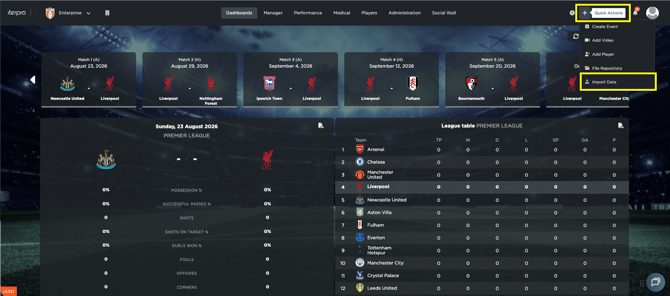
Now, navigate to Import data, after clicking on the + icon in the top-right corner (quick action menù).
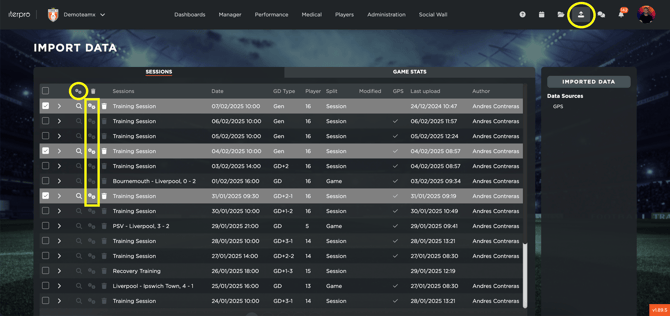
The main interface displays the list of training and game events related to the selected team. Within such a screen, you can also recalculate the thresholds or the default metrics by selecting the cog icon.
**CSV import**
To begin the import process, click on the **GPS** section.
- Start by selecting the file to import. The system allows you to upload multiple files or sessions contained within the same file. However, it is recommended to import a **maximum of 10 to 15 sessions at a time** to ensure smooth processing.
- Once the files have been selected, a menu will appear displaying one or different dropdowns, which include the contents of your CSV, such as **split names** and **drills**. If you do not display such table and an error appears in the system, check if you set up correctly all the settings to map the CSV, by following this article: https://support.iterpro.com/en/guide/performance-introduction-gps-data-integration-and-set-your-gps-metrics
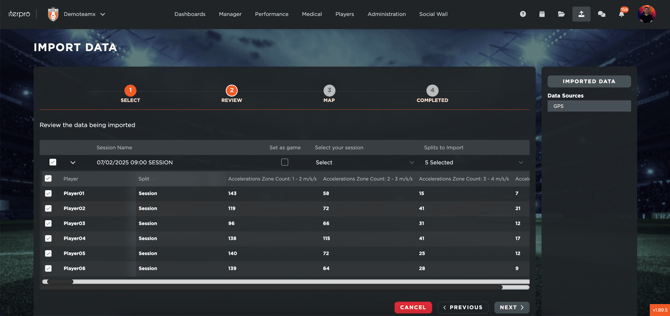
- You can **select or deselect** specific rows before importing.
- You can **link the data to an existing event**.
- If you are importing a **game event**, click on the designated icon. **Note that a game event must already exist in the system’s planning section before doing the import.**
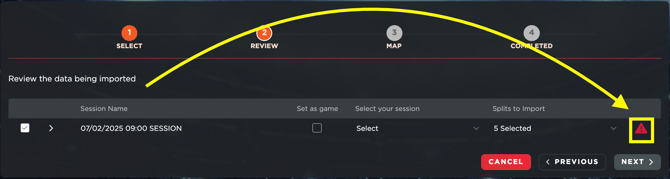
- If there are errors in the file, the system will notify you. For example, if players listed in the CSV are not found in the system, an error message will appear beside each session. You can review these issues before proceeding by clicking on the icon.
- After reviewing the data, click **Next**. At this stage, you will see a list of drills:
- You can **associate the drills** with existing ones in Manager - Drills - Technical drills
- - You can **create new drills** directly from this interface (a new drill will be created in Manager - Drills - Technical drills).
- You can **choose not to map a drill** if necessary.
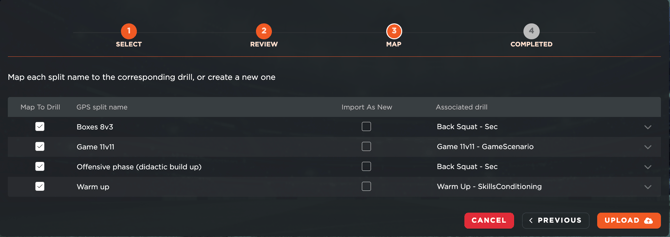
- Finally, clicking **Upload** will complete the import process.
- A specific icon allows you to **access the workload analysis** for the uploaded data.
- Another icon redirects you to the **events planning** section.
**Importing via API**
If using an **API**, the process is slightly different:
- The provider’s name appears instead of the GPS icon.
- You simply select a **date** and click **Search**.
- The system will retrieve all sessions for that date, following the same procedure as with a CSV file.
By following these steps, you can efficiently import and manage training session data, whether using CSV files or an API integration.
- [What's New](https://support.iterpro.com/en/guide/whats-new?hsLang=en)
- [Quick Onboarding](https://support.iterpro.com/en/guide/quick-onboarding?hsLang=en)
- [Account set-up and other](https://support.iterpro.com/en/guide/account-set-up-and-other?hsLang=en#main-content)
- [Login & Iterpro overview](https://support.iterpro.com/en/guide/account-set-up-and-other?hsLang=en#login-iterpro-overview)
- [Settings](https://support.iterpro.com/en/guide/account-set-up-and-other?hsLang=en#settings)
- [Create, archive and delete players](https://support.iterpro.com/en/guide/account-set-up-and-other?hsLang=en#create-archive-and-delete-players)
- [Other](https://support.iterpro.com/en/guide/account-set-up-and-other?hsLang=en#other)
- [Manager](https://support.iterpro.com/en/guide/manager?hsLang=en#main-content)
- [Tactics](https://support.iterpro.com/en/guide/manager?hsLang=en#tactics)
- [Planning](https://support.iterpro.com/en/guide/manager?hsLang=en#planning)
- [Videogallery](https://support.iterpro.com/en/guide/manager?hsLang=en#videogallery)
- [Drills](https://support.iterpro.com/en/guide/manager?hsLang=en#drills)
- [Attendances](https://support.iterpro.com/en/guide/manager?hsLang=en#attendances)
- [Performance](https://support.iterpro.com/en/guide/performance?hsLang=en#main-content)
- [Session Analysis](https://support.iterpro.com/en/guide/performance?hsLang=en#session-analysis)
- [Workload Analysis](https://support.iterpro.com/en/guide/performance?hsLang=en#workload-analysis)
- [Assessments](https://support.iterpro.com/en/guide/performance?hsLang=en#assessments)
- [Readiness](https://support.iterpro.com/en/guide/performance?hsLang=en#readiness)
- [Medical](https://support.iterpro.com/en/guide/medical?hsLang=en#main-content)
- [Medical Records](https://support.iterpro.com/en/guide/medical?hsLang=en#medical-records)
- [Infirmary](https://support.iterpro.com/en/guide/medical?hsLang=en#infirmary)
- [Examinations](https://support.iterpro.com/en/guide/medical?hsLang=en#examinations)
- [Medical Statistics](https://support.iterpro.com/en/guide/medical?hsLang=en#medical-statistics)
- [Player](https://support.iterpro.com/en/guide/player?hsLang=en#main-content)
- [My Team](https://support.iterpro.com/en/guide/player?hsLang=en#my-team)
- [Scouting](https://support.iterpro.com/en/guide/player?hsLang=en#scouting)
- [Transfers](https://support.iterpro.com/en/guide/player?hsLang=en#transfers)
- [Administration](https://support.iterpro.com/en/guide/administration?hsLang=en#main-content)
- [Squads](https://support.iterpro.com/en/guide/administration?hsLang=en#squads)
- [Finance Overview](https://support.iterpro.com/en/guide/administration?hsLang=en#finance-overview)
- [Bonus Tracking](https://support.iterpro.com/en/guide/administration?hsLang=en#bonus-tracking)
- [Cash Flow](https://support.iterpro.com/en/guide/administration?hsLang=en#cash-flow)
- [Transactions](https://support.iterpro.com/en/guide/administration?hsLang=en#transactions)
- [Registrations](https://support.iterpro.com/en/guide/administration?hsLang=en#registrations)
- [Mobile apps](https://support.iterpro.com/en/guide/mobile-apps?hsLang=en#main-content)
- [Player App](https://support.iterpro.com/en/guide/mobile-apps?hsLang=en#player-app)
- [Coach App](https://support.iterpro.com/en/guide/mobile-apps?hsLang=en#coach-app)
- [Director App](https://support.iterpro.com/en/guide/mobile-apps?hsLang=en#director-app)
- [Iterpro Login Page](https://app.iterpro.com/auth/login)
- [Contact Support](https://share.hsforms.com/1rE7NvsvuTIWBm7WQ1dhslQ1uo0p)
- [Terms & Conditions](https://www.iubenda.com/terms-and-conditions/53739842)
- [Privacy Policy](https://www.iubenda.com/privacy-policy/53739842)
[](https://iterpro.com/)
Copyright © 2025, Iterpro Support Team
```json
{
"@context" : "https://schema.org",
"@type" : "VideoObject",
"contentUrl" : "https://stream.mux.com/6JekJ8VAnT2PpwGy82vlpHQJxo76HLuiSS6I2QbnNSc/capped-1080p.mp4",
"dateModified" : "2025-02-04T10:08:48.406Z",
"duration" : "PT57S",
"height" : 1080,
"name" : "3.3 How to import the training sessions data - part1_ENG",
"thumbnailUrl" : "https://3110425.fs1.hubspotusercontent-na1.net/hubfs/3110425/3.3%20How%20to%20import%20the%20training%20sessions%20data%20-%20part1_ENG.mp4/medium.jpg",
"uploadDate" : "2025-02-04T10:08:48.401Z",
"width" : 1920
}
```
```json
{
"@context" : "https://schema.org",
"@type" : "VideoObject",
"contentUrl" : "https://stream.mux.com/EUklHoC2mNj677ooqKp9xaBVGgUbCe6VjkdY9lrg6b00/capped-1080p.mp4",
"dateModified" : "2025-02-04T10:31:16.047Z",
"duration" : "PT2M3S",
"height" : 1080,
"name" : "3.3 How to import the training sessions data - part2_ENG",
"thumbnailUrl" : "https://3110425.fs1.hubspotusercontent-na1.net/hubfs/3110425/3.3%20How%20to%20import%20the%20training%20sessions%20data%20-%20part2_ENG.mp4/medium.jpg",
"uploadDate" : "2025-02-04T10:31:16.041Z",
"width" : 1920
}
```