---
title: What's the Medical calendar and how does it work?
description: Planning Calendar Add Medical Treatments Records Events
---
[Skip to content](https://support.iterpro.com/en/guide/how-to-manage-the-medical-calendar#main-content)
- [English](https://support.iterpro.com/en/guide/how-to-manage-the-medical-calendar)
- [Español](https://support.iterpro.com/es/guide/4.4-cómo-utilizar-el-calendario-médico)
- [Nederlands](https://support.iterpro.com/nl/guide/4.4-hoe-gebruik-je-de-medische-kalender)
- [العربية - مصر](https://support.iterpro.com/ar-eg/guide/4.4)
- [日本語](https://support.iterpro.com/ja/guide/4.4-医療カレンダーの使用方法)
English
Show submenu for translations
[](https://app.iterpro.com/auth/login)
- [Iterpro Login Page](https://app.iterpro.com/auth/login)
- [Contact Support](https://share.hsforms.com/1rE7NvsvuTIWBm7WQ1dhslQ1uo0p)
Open main navigation
Close main navigation
- [Iterpro Login Page](https://app.iterpro.com/auth/login)
- [Contact Support](https://share.hsforms.com/1rE7NvsvuTIWBm7WQ1dhslQ1uo0p)
- - [English](https://support.iterpro.com/en/guide/how-to-manage-the-medical-calendar)
- [Español](https://support.iterpro.com/es/guide/4.4-cómo-utilizar-el-calendario-médico)
- [Nederlands](https://support.iterpro.com/nl/guide/4.4-hoe-gebruik-je-de-medische-kalender)
- [العربية - مصر](https://support.iterpro.com/ar-eg/guide/4.4)
- [日本語](https://support.iterpro.com/ja/guide/4.4-医療カレンダーの使用方法)
English
Show submenu for translations
How can we help you?
- There are no suggestions because the search field is empty.
1. [User Guide](https://support.iterpro.com/en/guide?hsLang=en)
2. [Medical](https://support.iterpro.com/en/guide/medical?hsLang=en)
3. [Medical Records](https://support.iterpro.com/en/guide/medical?hsLang=en#medical-records)
# What's the Medical calendar and how does it work?
## This article explains how to create medical events, such as treatments, from the medical calendar.
- 00.05: access the medical calendar
- 00.22: different calendar views and creating events
- 00.43: adding treatments to events
- 01.03: save the created medical event
### ***FEATURE DESCRIPTION***
In the **Medical Records** section, you can access the **Medical Calendar** by clicking on the designated icon.
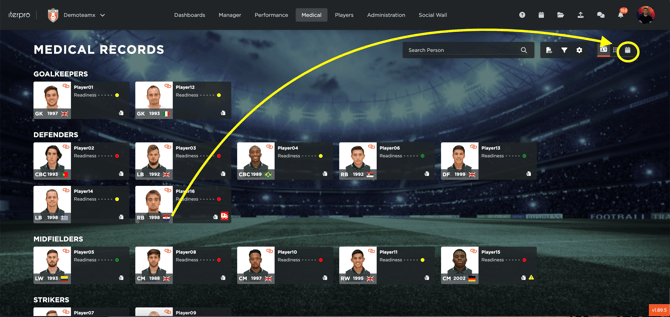
This calendar functions similarly to the one in the **Manager** section, displaying all scheduled events. However, in this view, only **medical events** can be created or edited, while other types of events remain read-only.
The calendar offers different views to help you manage medical events efficiently. One of the most useful is the **Player View**, which allows you to schedule treatments for individual players on specific days and times.
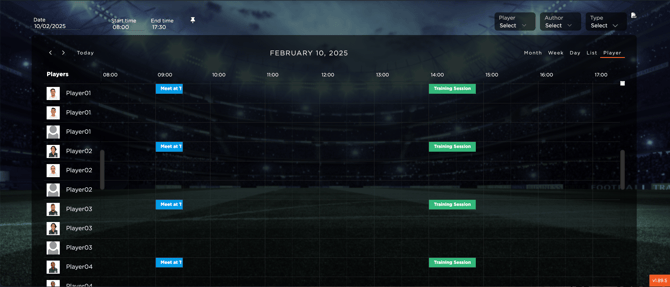
To create a new event, simply click on the desired date and time. A new medical event will be generated, and at the bottom of the screen, you will be able to **add a treatment** by filling in all the necessary details. Once the information is completed, you can **save the event**. Additionally, you have the option to **edit, duplicate, delete**, or **add more treatments** as needed.
After saving, the treatment will automatically be recorded in the **Medical Records** section. If the treatment is linked to a specific injury, it will also be available in the **Infirmary**.
- [What's New](https://support.iterpro.com/en/guide/whats-new?hsLang=en)
- [Quick Onboarding](https://support.iterpro.com/en/guide/quick-onboarding?hsLang=en)
- [Account set-up and other](https://support.iterpro.com/en/guide/account-set-up-and-other?hsLang=en#main-content)
- [Login & Iterpro overview](https://support.iterpro.com/en/guide/account-set-up-and-other?hsLang=en#login-iterpro-overview)
- [Settings](https://support.iterpro.com/en/guide/account-set-up-and-other?hsLang=en#settings)
- [Create, archive and delete players](https://support.iterpro.com/en/guide/account-set-up-and-other?hsLang=en#create-archive-and-delete-players)
- [Other](https://support.iterpro.com/en/guide/account-set-up-and-other?hsLang=en#other)
- [Manager](https://support.iterpro.com/en/guide/manager?hsLang=en#main-content)
- [Tactics](https://support.iterpro.com/en/guide/manager?hsLang=en#tactics)
- [Planning](https://support.iterpro.com/en/guide/manager?hsLang=en#planning)
- [Videogallery](https://support.iterpro.com/en/guide/manager?hsLang=en#videogallery)
- [Drills](https://support.iterpro.com/en/guide/manager?hsLang=en#drills)
- [Attendances](https://support.iterpro.com/en/guide/manager?hsLang=en#attendances)
- [Performance](https://support.iterpro.com/en/guide/performance?hsLang=en#main-content)
- [Session Analysis](https://support.iterpro.com/en/guide/performance?hsLang=en#session-analysis)
- [Workload Analysis](https://support.iterpro.com/en/guide/performance?hsLang=en#workload-analysis)
- [Assessments](https://support.iterpro.com/en/guide/performance?hsLang=en#assessments)
- [Readiness](https://support.iterpro.com/en/guide/performance?hsLang=en#readiness)
- [Medical](https://support.iterpro.com/en/guide/medical?hsLang=en#main-content)
- [Medical Records](https://support.iterpro.com/en/guide/medical?hsLang=en#medical-records)
- [Infirmary](https://support.iterpro.com/en/guide/medical?hsLang=en#infirmary)
- [Examinations](https://support.iterpro.com/en/guide/medical?hsLang=en#examinations)
- [Medical Statistics](https://support.iterpro.com/en/guide/medical?hsLang=en#medical-statistics)
- [Player](https://support.iterpro.com/en/guide/player?hsLang=en#main-content)
- [My Team](https://support.iterpro.com/en/guide/player?hsLang=en#my-team)
- [Scouting](https://support.iterpro.com/en/guide/player?hsLang=en#scouting)
- [Transfers](https://support.iterpro.com/en/guide/player?hsLang=en#transfers)
- [Administration](https://support.iterpro.com/en/guide/administration?hsLang=en#main-content)
- [Squads](https://support.iterpro.com/en/guide/administration?hsLang=en#squads)
- [Finance Overview](https://support.iterpro.com/en/guide/administration?hsLang=en#finance-overview)
- [Bonus Tracking](https://support.iterpro.com/en/guide/administration?hsLang=en#bonus-tracking)
- [Cash Flow](https://support.iterpro.com/en/guide/administration?hsLang=en#cash-flow)
- [Transactions](https://support.iterpro.com/en/guide/administration?hsLang=en#transactions)
- [Registrations](https://support.iterpro.com/en/guide/administration?hsLang=en#registrations)
- [Mobile apps](https://support.iterpro.com/en/guide/mobile-apps?hsLang=en#main-content)
- [Player App](https://support.iterpro.com/en/guide/mobile-apps?hsLang=en#player-app)
- [Coach App](https://support.iterpro.com/en/guide/mobile-apps?hsLang=en#coach-app)
- [Director App](https://support.iterpro.com/en/guide/mobile-apps?hsLang=en#director-app)
- [Iterpro Login Page](https://app.iterpro.com/auth/login)
- [Contact Support](https://share.hsforms.com/1rE7NvsvuTIWBm7WQ1dhslQ1uo0p)
- [Terms & Conditions](https://www.iubenda.com/terms-and-conditions/53739842)
- [Privacy Policy](https://www.iubenda.com/privacy-policy/53739842)
[](https://iterpro.com/)
Copyright © 2025, Iterpro Support Team
```json
{
"@context" : "https://schema.org",
"@type" : "VideoObject",
"contentUrl" : "https://stream.mux.com/o8imoq3e73mIQWcDoEpGCQQz8ogMVy6ZDUqQzcj6RuA/capped-1080p.mp4",
"dateModified" : "2025-02-04T12:40:56.313Z",
"duration" : "PT1M10.891S",
"height" : 1080,
"name" : "4.4 How to use the medical calendar_ENG",
"thumbnailUrl" : "https://3110425.fs1.hubspotusercontent-na1.net/hubfs/3110425/4.4%20How%20to%20use%20the%20medical%20calendar_ENG.mp4/medium.jpg",
"uploadDate" : "2025-02-04T12:40:56.308Z",
"width" : 1920
}
```