---
title: How do I create my drills library and generate my drill stats?
description: Planning Manager Training Session Add Plan drills
---
[Skip to content](https://support.iterpro.com/en/guide/how-to-plan-your-training-session-by-adding-drills-into-the-event#main-content)
- [English](https://support.iterpro.com/en/guide/how-to-plan-your-training-session-by-adding-drills-into-the-event)
- [Español](https://support.iterpro.com/es/guide/2.3-como-planificar-tus-sesiones-de-entrenamiento-y-agregar-ejercicios-a-los-eventos)
- [Italiano](https://support.iterpro.com/it/guide/2.3-come-pianificare-la-tua-sessione-di-allenamento-aggiungendo-esercitazioni-allevento)
- [Nederlands](https://support.iterpro.com/nl/guide/2.3-hoe-plan-je-je-trainingssessie-door-oefeningen-toe-te-voegen-aan-het-evenement)
- [العربية - مصر](https://support.iterpro.com/ar-eg/guide/2.3-كيفية-تخطيط-جلسة-التدريب-عن-طريق-إضافة-التدريبات-إلى-الحدث)
- [日本語](https://support.iterpro.com/ja/guide/2.3-トレーニングイベントにドリルを追加してトレーニングセッションを計画する方法)
English
Show submenu for translations
[](https://app.iterpro.com/auth/login)
- [Iterpro Login Page](https://app.iterpro.com/auth/login)
- [Contact Support](https://share.hsforms.com/1rE7NvsvuTIWBm7WQ1dhslQ1uo0p)
Open main navigation
Close main navigation
- [Iterpro Login Page](https://app.iterpro.com/auth/login)
- [Contact Support](https://share.hsforms.com/1rE7NvsvuTIWBm7WQ1dhslQ1uo0p)
- - [English](https://support.iterpro.com/en/guide/how-to-plan-your-training-session-by-adding-drills-into-the-event)
- [Español](https://support.iterpro.com/es/guide/2.3-como-planificar-tus-sesiones-de-entrenamiento-y-agregar-ejercicios-a-los-eventos)
- [Italiano](https://support.iterpro.com/it/guide/2.3-come-pianificare-la-tua-sessione-di-allenamento-aggiungendo-esercitazioni-allevento)
- [Nederlands](https://support.iterpro.com/nl/guide/2.3-hoe-plan-je-je-trainingssessie-door-oefeningen-toe-te-voegen-aan-het-evenement)
- [العربية - مصر](https://support.iterpro.com/ar-eg/guide/2.3-كيفية-تخطيط-جلسة-التدريب-عن-طريق-إضافة-التدريبات-إلى-الحدث)
- [日本語](https://support.iterpro.com/ja/guide/2.3-トレーニングイベントにドリルを追加してトレーニングセッションを計画する方法)
English
Show submenu for translations
How can we help you?
- There are no suggestions because the search field is empty.
1. [User Guide](https://support.iterpro.com/en/guide?hsLang=en)
2. [Manager](https://support.iterpro.com/en/guide/manager?hsLang=en)
3. [Drills](https://support.iterpro.com/en/guide/manager?hsLang=en#drills)
# How do I create my drills library and generate my drill stats?
## This article explains how to create new drills and analyse the drill stats.
### SET CUSTOM THEMES AND GOALS FOR DRILLS
- 0.06 overview of the drill attributes configuration
- 0.16 edit a specific category to manage themes
- 0.25 create a new custom theme
- 0.30 activate a theme via selection or drag-and-drop
### DRILL LIBRARY OVERVIEW
- 0.00 access the drill library from the Manager section
- 0.05 overview of the library page, including drills, training plans, and statistics
- 0.14 navigate between the "Technical Drills" and "S&C Exercises" sections
- 0.23 create a new technical drill by clicking on "Add New"
- 0.51 configure the "Share with" list to set who can view the exercise
- 1.18 create a new S&C exercise and fill in its specific fields (category, muscle groups, difficulty, etc.
### DRILL STATS SECTION
- 0.00 access the bulk share function within the drill library
- 0.27 drill stats section overview
- 0.37 define the time period, drills, and participants to get a detailed breakdown of the work performed
- 0.53 comparison section
- 0.58 trend section
### ***FEATURE DESCRIPTION***
#### Configuring Metrics and Drill Themes
Before building your exercise library, you must establish the foundational metrics that categorize your work. These settings ensure that every drill added to your library is searchable and reportable.
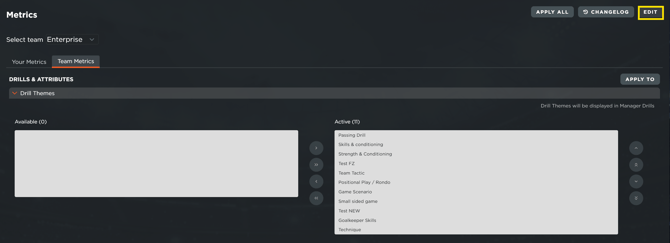
- **Accessing Settings:** Navigate to **Settings \> Metrics \> Team Metrics**. This area allows you to configure the specific information displayed on your drill cards, including Drill Themes and tactical, physical, or technical goals.
- **Managing Categories:** By selecting **Edit** on a specific category, you can manage active themes. These represent the labels available to you when creating a new drill.
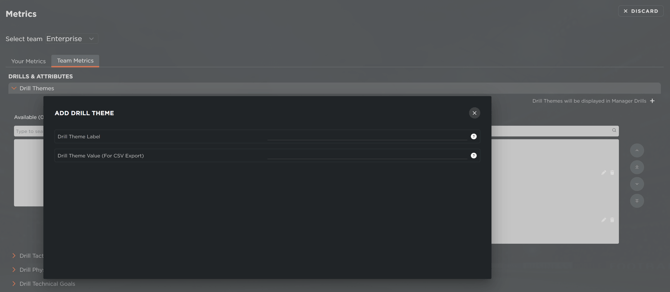
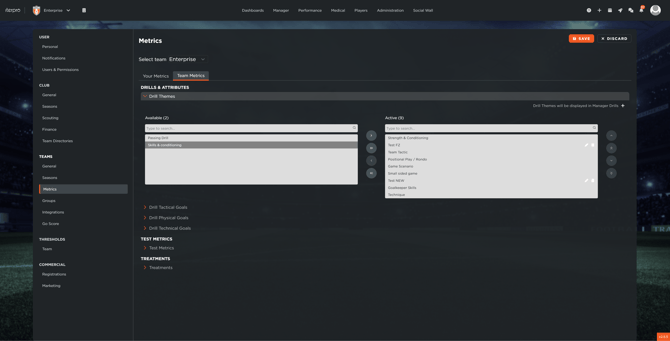
- **Customization:** You can create bespoke themes tailored to your club’s philosophy by clicking the **Plus (+)** icon. To activate a theme, simply select it and use the arrow icon or the drag-and-drop interface to move it into the active list.
- **Multi-Department Utility:** This setup is essential for internal alignment; fitness coaches can track drills by physical goals, while technical and medical staff can categorize them by their respective priorities. Once your configuration is complete, click **Save** to apply these metrics across the platform.
---
#### Creating Technical Drills
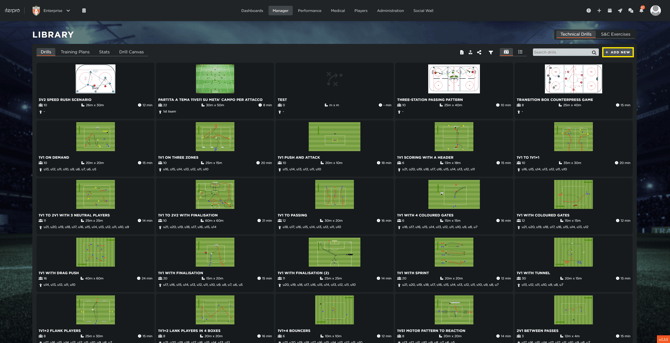
The Drill Library interface provides a unified view of all technical exercises, training plans, and statistics. It also serves as the entry point for the Drill Canvas and the Strength & Conditioning (S&C) section.
- **Adding a New Drill:** To begin, select **Add New** within the Technical Drill section. You will be required to fill in a comprehensive set of data points to ensure the drill is documented thoroughly.
- **Defining Core Data:** Enter the drill title and specify the target age group. You should then assign the relevant themes and goals based on the metrics configured in your settings.
- **Operational Details:** Specify the field size, number of players involved, and the estimated duration. You can also list required equipment and detail the setup, rules, description, and specific coaching points or variations.
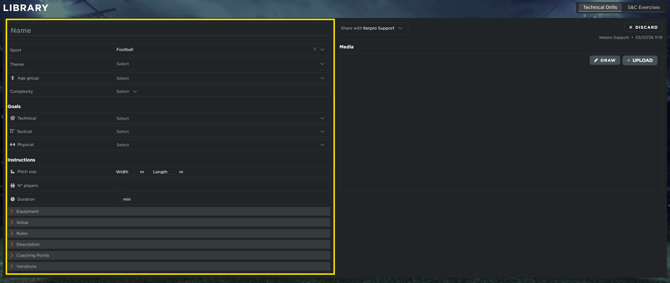
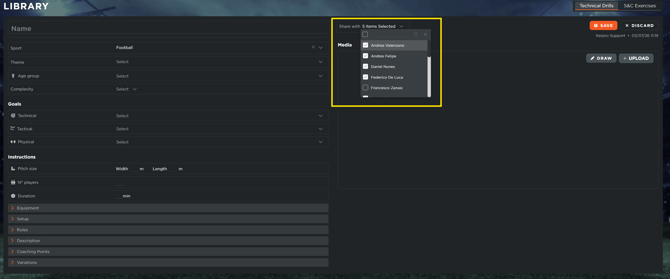
- **Visibility and Sharing:** The **Share With** list is a critical field that determines which staff members can view the exercise. It is essential to include all relevant coaches or analysts to ensure the drill is accessible in both the Library and the Planning section.
**IMPORTANT**: Drills in the library are only visible to users they have been shared with and who have the appropriate permissions to access the drills section. If you’re unable to see a specific drill, we recommend reaching out to the team Admin or the drill creator to confirm that you’ve been added to the shared list.
%20-%20Share%20drill%20with%20users%20(1).gif?width=565&height=318&name=Drills%20(KB)%20-%20Share%20drill%20with%20users%20(1).gif)
Keep in mind that if a drill hasn’t been shared with you, you won’t be able to view it in the training plan or add it to a session.
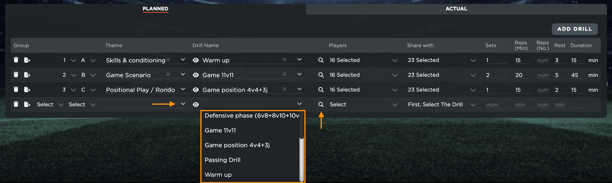
Additionally, when a new user is added to the system, it’s essential to manually share the relevant drills with them. Otherwise, they won’t have access to those drills in the library or while planning sessions.
- **Media:** Below the "share with" list, you can utilize the Drill Canvas to draw tactical setups or upload external files, such as PDFs and video clips, to provide visual context for the staff and players.
#### Strength & Conditioning (S&C) Exercises
While the logic for creating S&C exercises remains consistent with technical drills, the data fields are specifically tailored for physical preparation and rehabilitation.
- **Categorization:** When adding an S&C exercise, you must select the appropriate category (e.g., Strength, Power, Mobility) and identify the primary muscle groups and specific target muscles.
- **Execution Details:** You can specify the difficulty level and the equipment needed (e.g., dumbbells, resistance bands).
- **Athlete Instructions:** Provide clear, step-by-step instructions for the athletes to follow, ensuring they can execute the movements correctly when viewing the exercise on their mobile devices.
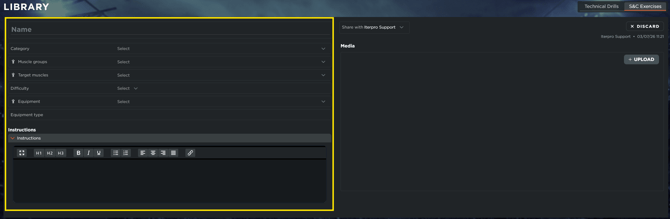
- **Visibility and Sharing:** The **Share With** list is a critical field that determines which staff members can view the exercise. It is essential to include all relevant coaches or analysts to ensure the drill is accessible in both the Library and the Planning section.
- **Media:** Below the "share with" list, you can utilize the Drill Canvas to draw tactical setups or upload external files, such as PDFs and video clips, to provide visual context for the staff and players.
#### Utilizing the Bulk Share Function
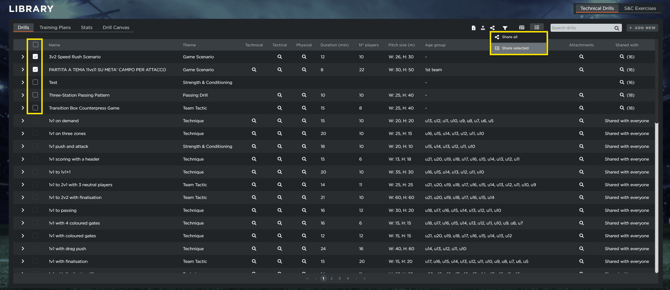
To facilitate collaboration across large coaching departments, the system includes a **Bulk Share** feature within the Drill Library.
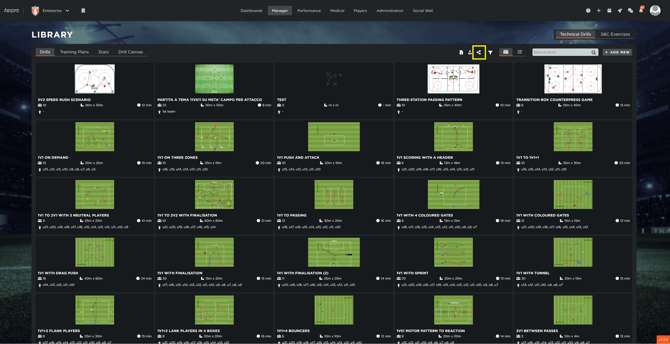
This tool allows you to update permissions for multiple exercises simultaneously. By clicking the **Share Icon**, you can choose to share your entire library or only specific drills selected via the checkboxes in the list view. Once you have selected the recipients and clicked **Save**, the sharing settings are instantly updated for all chosen items, ensuring the right staff members have immediate access to the required content.
#### Analyzing Drill Statistics
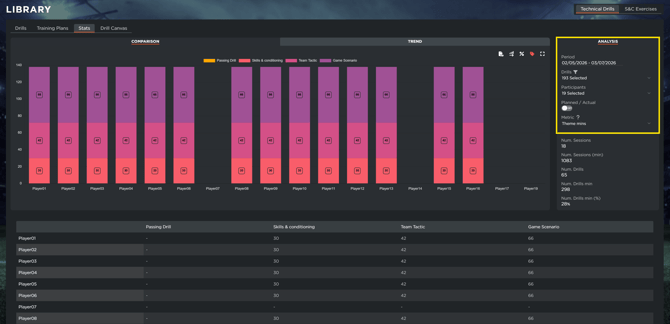
The **Stats** section allows you to perform a quantitative analysis of your training methodology, helping you understand the "DNA" of your coaching over a defined period. In other words, you are able to see if you are planning in the right direction or if you are coaching in the right direction, according to your needs.
- **Filtering Data:** Define a specific time period, select the drills to analyze, and choose the participants involved to generate a detailed breakdown of the work performed.
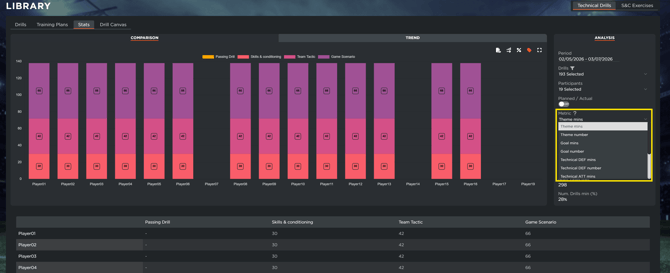
- **Metric Selection:** You can analyze the training volume by **Total Duration** (how much time was spent on a theme) or **Frequency** (how many times a specific theme or goal was practiced).
**Comparison and Trends:**
- The **Comparison** section provides a visual breakdown of cumulative totals for each goal, allowing you to see if you are meeting your technical or physical targets.
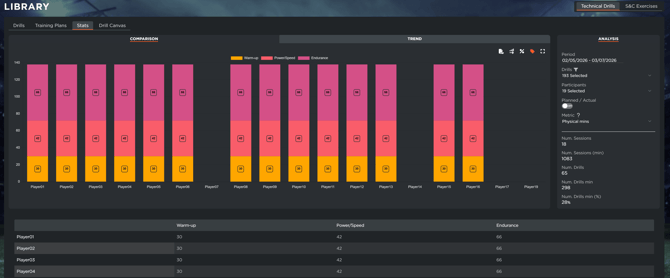
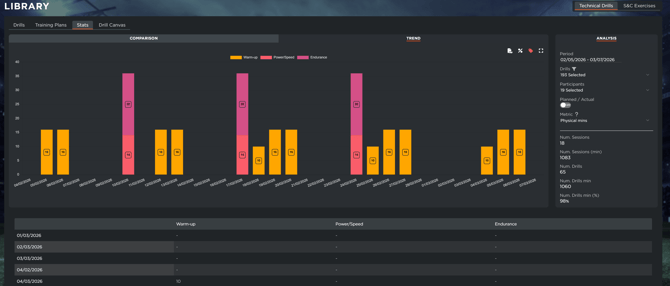
- The **Trend** section tracks the evolution of your training selections day by day, highlighting shifts in coaching focus throughout the season.
- [What's New](https://support.iterpro.com/en/guide/whats-new?hsLang=en)
- [Quick Onboarding](https://support.iterpro.com/en/guide/quick-onboarding?hsLang=en)
- [Account set-up and other](https://support.iterpro.com/en/guide/account-set-up-and-other?hsLang=en#main-content)
- [Login & Iterpro overview](https://support.iterpro.com/en/guide/account-set-up-and-other?hsLang=en#login-iterpro-overview)
- [Settings](https://support.iterpro.com/en/guide/account-set-up-and-other?hsLang=en#settings)
- [Create, archive and delete players](https://support.iterpro.com/en/guide/account-set-up-and-other?hsLang=en#create-archive-and-delete-players)
- [Other](https://support.iterpro.com/en/guide/account-set-up-and-other?hsLang=en#other)
- [Manager](https://support.iterpro.com/en/guide/manager?hsLang=en#main-content)
- [Tactics](https://support.iterpro.com/en/guide/manager?hsLang=en#tactics)
- [Planning](https://support.iterpro.com/en/guide/manager?hsLang=en#planning)
- [Videogallery](https://support.iterpro.com/en/guide/manager?hsLang=en#videogallery)
- [Drills](https://support.iterpro.com/en/guide/manager?hsLang=en#drills)
- [Attendances](https://support.iterpro.com/en/guide/manager?hsLang=en#attendances)
- [Performance](https://support.iterpro.com/en/guide/performance?hsLang=en#main-content)
- [Session Analysis](https://support.iterpro.com/en/guide/performance?hsLang=en#session-analysis)
- [Workload Analysis](https://support.iterpro.com/en/guide/performance?hsLang=en#workload-analysis)
- [Assessments](https://support.iterpro.com/en/guide/performance?hsLang=en#assessments)
- [Readiness](https://support.iterpro.com/en/guide/performance?hsLang=en#readiness)
- [Medical](https://support.iterpro.com/en/guide/medical?hsLang=en#main-content)
- [Medical Records](https://support.iterpro.com/en/guide/medical?hsLang=en#medical-records)
- [Infirmary](https://support.iterpro.com/en/guide/medical?hsLang=en#infirmary)
- [Examinations](https://support.iterpro.com/en/guide/medical?hsLang=en#examinations)
- [Medical Statistics](https://support.iterpro.com/en/guide/medical?hsLang=en#medical-statistics)
- [Player](https://support.iterpro.com/en/guide/player?hsLang=en#main-content)
- [My Team](https://support.iterpro.com/en/guide/player?hsLang=en#my-team)
- [Scouting](https://support.iterpro.com/en/guide/player?hsLang=en#scouting)
- [Transfers](https://support.iterpro.com/en/guide/player?hsLang=en#transfers)
- [Administration](https://support.iterpro.com/en/guide/administration?hsLang=en#main-content)
- [Squads](https://support.iterpro.com/en/guide/administration?hsLang=en#squads)
- [Finance Overview](https://support.iterpro.com/en/guide/administration?hsLang=en#finance-overview)
- [Bonus Tracking](https://support.iterpro.com/en/guide/administration?hsLang=en#bonus-tracking)
- [Cash Flow](https://support.iterpro.com/en/guide/administration?hsLang=en#cash-flow)
- [Transactions](https://support.iterpro.com/en/guide/administration?hsLang=en#transactions)
- [Registrations](https://support.iterpro.com/en/guide/administration?hsLang=en#registrations)
- [Mobile apps](https://support.iterpro.com/en/guide/mobile-apps?hsLang=en#main-content)
- [Player App](https://support.iterpro.com/en/guide/mobile-apps?hsLang=en#player-app)
- [Coach App](https://support.iterpro.com/en/guide/mobile-apps?hsLang=en#coach-app)
- [Director App](https://support.iterpro.com/en/guide/mobile-apps?hsLang=en#director-app)
- [Iterpro Login Page](https://app.iterpro.com/auth/login)
- [Contact Support](https://share.hsforms.com/1rE7NvsvuTIWBm7WQ1dhslQ1uo0p)
- [Terms & Conditions](https://www.iubenda.com/terms-and-conditions/53739842)
- [Privacy Policy](https://www.iubenda.com/privacy-policy/53739842)
[](https://iterpro.com/)
Copyright © 2025, Iterpro Support Team