---
title: 5.1 How to set the profile attributes for the player report of MyTeam and Scouting
description: Players Settings Teams Scouting Metrics Profile attributes Offensive Defensive Attitude Player report
---
[Skip to content](https://support.iterpro.com/en/guide/how-to-set-the-profile-attributes-for-the-player-report-of-myteam-and-scouting#main-content)
- [English](https://support.iterpro.com/en/guide/how-to-set-the-profile-attributes-for-the-player-report-of-myteam-and-scouting)
- [Español](https://support.iterpro.com/es/guide/5.1-myteamとスカウティングの選手レポート用プロフィール属性の設定方法)
- [Nederlands](https://support.iterpro.com/nl/guide/5.1-hoe-stel-je-de-profielattributen-in-voor-het-spelersrapport-van-myteam-en-scouting)
- [العربية - مصر](https://support.iterpro.com/ar-eg/guide/5.1-كيفية-تعيين-خصائص-الملف-الشخصي-لتقرير-اللاعب-في-myteam-والاستكشاف)
- [日本語](https://support.iterpro.com/ja/guide/5.1-myteamとスカウティングの選手レポート用プロフィール属性の設定方法)
English
Show submenu for translations
[](https://app.iterpro.com/auth/login)
- [Iterpro Login Page](https://app.iterpro.com/auth/login)
- [Contact Support](https://share.hsforms.com/1rE7NvsvuTIWBm7WQ1dhslQ1uo0p)
Open main navigation
Close main navigation
- [Iterpro Login Page](https://app.iterpro.com/auth/login)
- [Contact Support](https://share.hsforms.com/1rE7NvsvuTIWBm7WQ1dhslQ1uo0p)
- - [English](https://support.iterpro.com/en/guide/how-to-set-the-profile-attributes-for-the-player-report-of-myteam-and-scouting)
- [Español](https://support.iterpro.com/es/guide/5.1-myteamとスカウティングの選手レポート用プロフィール属性の設定方法)
- [Nederlands](https://support.iterpro.com/nl/guide/5.1-hoe-stel-je-de-profielattributen-in-voor-het-spelersrapport-van-myteam-en-scouting)
- [العربية - مصر](https://support.iterpro.com/ar-eg/guide/5.1-كيفية-تعيين-خصائص-الملف-الشخصي-لتقرير-اللاعب-في-myteam-والاستكشاف)
- [日本語](https://support.iterpro.com/ja/guide/5.1-myteamとスカウティングの選手レポート用プロフィール属性の設定方法)
English
Show submenu for translations
How can we help you?
- There are no suggestions because the search field is empty.
1. [User Guide](https://support.iterpro.com/en/guide?hsLang=en)
2. [Player](https://support.iterpro.com/en/guide/player?hsLang=en)
3. [My Team](https://support.iterpro.com/en/guide/player?hsLang=en#my-team)
# 5.1 How to set the profile attributes for the player report of MyTeam and Scouting
## This article explains how to set the template for the Player report that can be used in MyTeam and Scouting.
- 0:00 introduction
- 0:32 create a new game attributes template
- 1:07 apply the template to multiple teams
### ***FEATURE DESCRIPTION***
Before diving into the details of the **Players** section—namely **My Team** and **Scouting**—it’s important to understand how to configure and manage **Player Report Templates**. These templates define the structure used to evaluate individual players, and can be applied to both internal team members and scouted athletes.
To begin customizing your player evaluation templates:
1. Go to **Settings** → **Teams** → **General**
2. Scroll to the bottom of the page to locate the **Player Attributes Template** section.
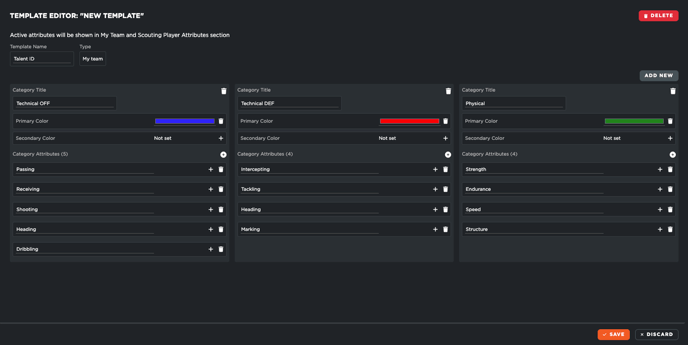
Here, you will find any **existing templates**, including the default one, which typically includes categories such as **Defensive**, **Offensive**, and **General Attributes**. If you want to create a new template, just follow these instructions:
- Click on the **“Add”** button.
- Assign a **name** to the template.
- Define as many **categories** as you need—there is no limit. For example, you may include categories like:
- Technical
- Tactical
- Physical
- Mental
- Psychological
- For each category, click the **“+”** button to add individual attributes.
- These could include metrics or skills such as “Passing,” “Decision Making,” or “Speed.”
- Once you’ve configured your categories and attributes, click **“Save.”**
After saving your template, you can apply it to any number of teams:
- Select one or multiple teams from both **My Team** and **Scouting**.
- Apply the template to the selected teams by clicking **“Save.”**
This ensures consistency in how players are evaluated across different teams and departments.
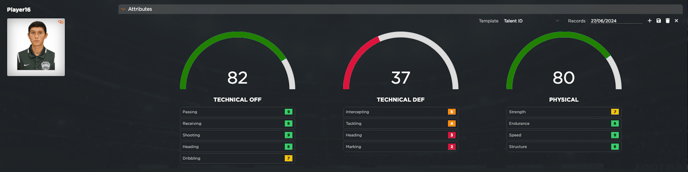
Once applied, the selected template will automatically appear in the player profiles: You will see the custom **evaluation model** when viewing both **My Team** players and **Scouting** players.
- [What's New](https://support.iterpro.com/en/guide/whats-new?hsLang=en)
- [Quick Onboarding](https://support.iterpro.com/en/guide/quick-onboarding?hsLang=en)
- [Account set-up and other](https://support.iterpro.com/en/guide/account-set-up-and-other?hsLang=en#main-content)
- [Login & Iterpro overview](https://support.iterpro.com/en/guide/account-set-up-and-other?hsLang=en#login-iterpro-overview)
- [Settings](https://support.iterpro.com/en/guide/account-set-up-and-other?hsLang=en#settings)
- [Create, archive and delete players](https://support.iterpro.com/en/guide/account-set-up-and-other?hsLang=en#create-archive-and-delete-players)
- [Other](https://support.iterpro.com/en/guide/account-set-up-and-other?hsLang=en#other)
- [Manager](https://support.iterpro.com/en/guide/manager?hsLang=en#main-content)
- [Tactics](https://support.iterpro.com/en/guide/manager?hsLang=en#tactics)
- [Planning](https://support.iterpro.com/en/guide/manager?hsLang=en#planning)
- [Videogallery](https://support.iterpro.com/en/guide/manager?hsLang=en#videogallery)
- [Drills](https://support.iterpro.com/en/guide/manager?hsLang=en#drills)
- [Attendances](https://support.iterpro.com/en/guide/manager?hsLang=en#attendances)
- [Performance](https://support.iterpro.com/en/guide/performance?hsLang=en#main-content)
- [Session Analysis](https://support.iterpro.com/en/guide/performance?hsLang=en#session-analysis)
- [Workload Analysis](https://support.iterpro.com/en/guide/performance?hsLang=en#workload-analysis)
- [Assessments](https://support.iterpro.com/en/guide/performance?hsLang=en#assessments)
- [Readiness](https://support.iterpro.com/en/guide/performance?hsLang=en#readiness)
- [Medical](https://support.iterpro.com/en/guide/medical?hsLang=en#main-content)
- [Medical Records](https://support.iterpro.com/en/guide/medical?hsLang=en#medical-records)
- [Infirmary](https://support.iterpro.com/en/guide/medical?hsLang=en#infirmary)
- [Examinations](https://support.iterpro.com/en/guide/medical?hsLang=en#examinations)
- [Medical Statistics](https://support.iterpro.com/en/guide/medical?hsLang=en#medical-statistics)
- [Player](https://support.iterpro.com/en/guide/player?hsLang=en#main-content)
- [My Team](https://support.iterpro.com/en/guide/player?hsLang=en#my-team)
- [Scouting](https://support.iterpro.com/en/guide/player?hsLang=en#scouting)
- [Transfers](https://support.iterpro.com/en/guide/player?hsLang=en#transfers)
- [Administration](https://support.iterpro.com/en/guide/administration?hsLang=en#main-content)
- [Squads](https://support.iterpro.com/en/guide/administration?hsLang=en#squads)
- [Finance Overview](https://support.iterpro.com/en/guide/administration?hsLang=en#finance-overview)
- [Bonus Tracking](https://support.iterpro.com/en/guide/administration?hsLang=en#bonus-tracking)
- [Cash Flow](https://support.iterpro.com/en/guide/administration?hsLang=en#cash-flow)
- [Transactions](https://support.iterpro.com/en/guide/administration?hsLang=en#transactions)
- [Registrations](https://support.iterpro.com/en/guide/administration?hsLang=en#registrations)
- [Mobile apps](https://support.iterpro.com/en/guide/mobile-apps?hsLang=en#main-content)
- [Player App](https://support.iterpro.com/en/guide/mobile-apps?hsLang=en#player-app)
- [Coach App](https://support.iterpro.com/en/guide/mobile-apps?hsLang=en#coach-app)
- [Director App](https://support.iterpro.com/en/guide/mobile-apps?hsLang=en#director-app)
- [Iterpro Login Page](https://app.iterpro.com/auth/login)
- [Contact Support](https://share.hsforms.com/1rE7NvsvuTIWBm7WQ1dhslQ1uo0p)
- [Terms & Conditions](https://www.iubenda.com/terms-and-conditions/53739842)
- [Privacy Policy](https://www.iubenda.com/privacy-policy/53739842)
[](https://iterpro.com/)
Copyright © 2025, Iterpro Support Team