---
title: How do I set the thresholds for test metrics?
description: Settings GPS Thresholds Metrics performance Active test
---
[Skip to content](https://support.iterpro.com/en/guide/how-to-set-the-thresholds-for-gps-metrics-and-test-metrics-0#main-content)
English
Show submenu for translations
[](https://app.iterpro.com/auth/login)
- [Iterpro Login Page](https://app.iterpro.com/auth/login)
- [Contact Support](https://share.hsforms.com/1rE7NvsvuTIWBm7WQ1dhslQ1uo0p)
Open main navigation
Close main navigation
- [Iterpro Login Page](https://app.iterpro.com/auth/login)
- [Contact Support](https://share.hsforms.com/1rE7NvsvuTIWBm7WQ1dhslQ1uo0p)
- English
Show submenu for translations
How can we help you?
- There are no suggestions because the search field is empty.
1. [User Guide](https://support.iterpro.com/en/guide?hsLang=en)
2. [Performance](https://support.iterpro.com/en/guide/performance?hsLang=en)
3. [Assessments](https://support.iterpro.com/en/guide/performance?hsLang=en#assessments)
# How do I set the thresholds for test metrics?
## This article explains how to set the thresholds for test metrics, allowing the user to display colour-coded feedback and percentage data.
### TEST THRESHOLDS
- 00.00: set active test metrics
- 00.31: set test metrics' thresholds
- 00.44: choose the interval of confidence and add the baseline
- 01.33: apply thresholds to players
### ***FEATURE DESCRIPTION***
**Test Thresholds Configuration**
Before configuring test thresholds (similar to performance metrics), navigate to:
- **Settings → Teams → Metrics**
- Move to **Team Metrics** section.
- Click on **Edit**.
- Set your test active metrics (the metrics you need to set the thresholds for).
- Click on **Save**.
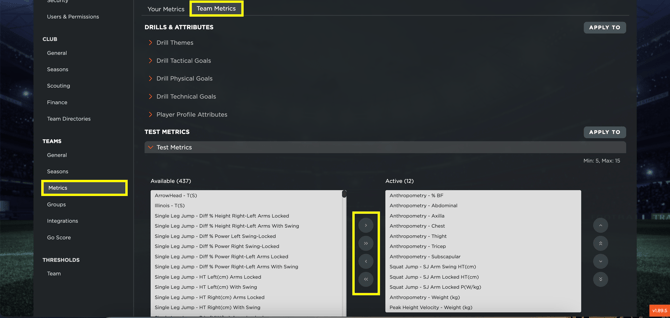
Keep in mind that these settings apply to **all users** with access to the team, not just the current user.
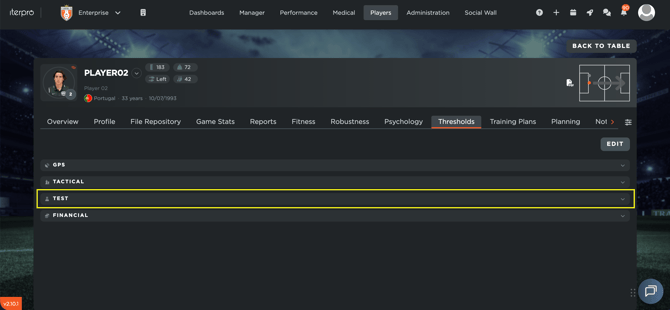
Next, go to **Players \> My Team \> Player's card \> Thresholds \> Test** and you will see the active metrics for testing. Click **Edit** to set thresholds for a specific metric.
There are **three threshold options**, each with its own confidence interval:
- **Type 1**
- **Type 2**
- **Type 3**
**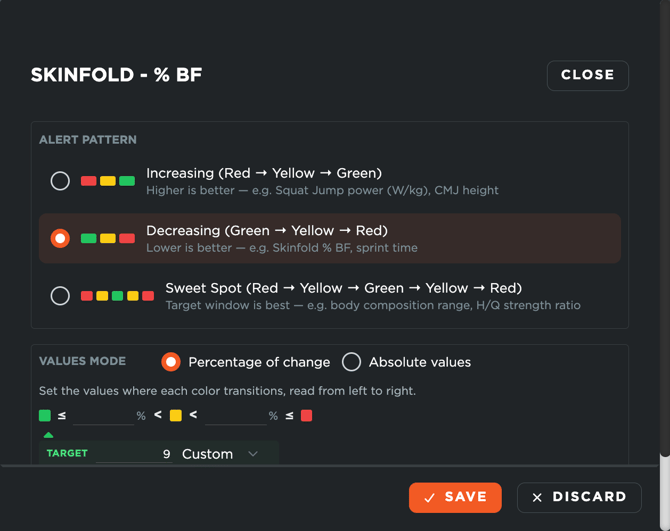**
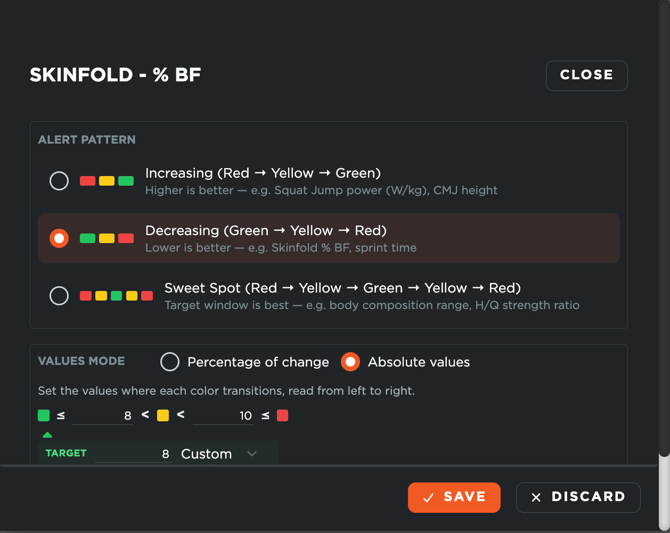
It is recommended to use **absolute values** (clicking the icon on the top-right corner) and manually define the thresholds.
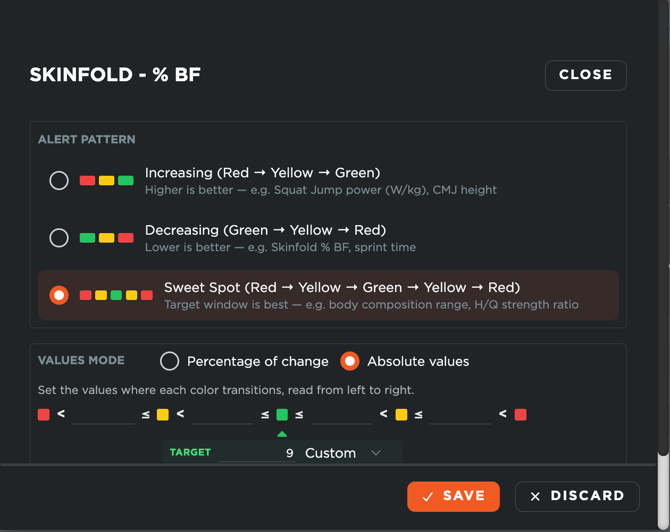
For example:
- Red: Above **10**
- Yellow: Between **8 and 10**
- Green: Below **8**
Ensure to add the closest value to the green threshold on the field named "Thresholds". For example, in the picture below, add 5,99 because the green threshold is 6:
The same procedure can be applied to **Type 1 and Type 3** thresholds.
After defining the thresholds, click **Save**. Once all thresholds are set, they need to be **applied to one or multiple players**, with both **custom values** and **threshold types** .
- [What's New](https://support.iterpro.com/en/guide/whats-new?hsLang=en)
- [Quick Onboarding](https://support.iterpro.com/en/guide/quick-onboarding?hsLang=en)
- [Account set-up and other](https://support.iterpro.com/en/guide/account-set-up-and-other?hsLang=en#main-content)
- [Login & Iterpro overview](https://support.iterpro.com/en/guide/account-set-up-and-other?hsLang=en#login-iterpro-overview)
- [Settings](https://support.iterpro.com/en/guide/account-set-up-and-other?hsLang=en#settings)
- [Create, archive and delete players](https://support.iterpro.com/en/guide/account-set-up-and-other?hsLang=en#create-archive-and-delete-players)
- [Other](https://support.iterpro.com/en/guide/account-set-up-and-other?hsLang=en#other)
- [Manager](https://support.iterpro.com/en/guide/manager?hsLang=en#main-content)
- [Tactics](https://support.iterpro.com/en/guide/manager?hsLang=en#tactics)
- [Planning](https://support.iterpro.com/en/guide/manager?hsLang=en#planning)
- [Videogallery](https://support.iterpro.com/en/guide/manager?hsLang=en#videogallery)
- [Drills](https://support.iterpro.com/en/guide/manager?hsLang=en#drills)
- [Attendances](https://support.iterpro.com/en/guide/manager?hsLang=en#attendances)
- [Performance](https://support.iterpro.com/en/guide/performance?hsLang=en#main-content)
- [Session Analysis](https://support.iterpro.com/en/guide/performance?hsLang=en#session-analysis)
- [Workload Analysis](https://support.iterpro.com/en/guide/performance?hsLang=en#workload-analysis)
- [Assessments](https://support.iterpro.com/en/guide/performance?hsLang=en#assessments)
- [Readiness](https://support.iterpro.com/en/guide/performance?hsLang=en#readiness)
- [Medical](https://support.iterpro.com/en/guide/medical?hsLang=en#main-content)
- [Medical Records](https://support.iterpro.com/en/guide/medical?hsLang=en#medical-records)
- [Infirmary](https://support.iterpro.com/en/guide/medical?hsLang=en#infirmary)
- [Examinations](https://support.iterpro.com/en/guide/medical?hsLang=en#examinations)
- [Medical Statistics](https://support.iterpro.com/en/guide/medical?hsLang=en#medical-statistics)
- [Player](https://support.iterpro.com/en/guide/player?hsLang=en#main-content)
- [My Team](https://support.iterpro.com/en/guide/player?hsLang=en#my-team)
- [Scouting](https://support.iterpro.com/en/guide/player?hsLang=en#scouting)
- [Transfers](https://support.iterpro.com/en/guide/player?hsLang=en#transfers)
- [Administration](https://support.iterpro.com/en/guide/administration?hsLang=en#main-content)
- [Squads](https://support.iterpro.com/en/guide/administration?hsLang=en#squads)
- [Finance Overview](https://support.iterpro.com/en/guide/administration?hsLang=en#finance-overview)
- [Bonus Tracking](https://support.iterpro.com/en/guide/administration?hsLang=en#bonus-tracking)
- [Cash Flow](https://support.iterpro.com/en/guide/administration?hsLang=en#cash-flow)
- [Transactions](https://support.iterpro.com/en/guide/administration?hsLang=en#transactions)
- [Registrations](https://support.iterpro.com/en/guide/administration?hsLang=en#registrations)
- [Mobile apps](https://support.iterpro.com/en/guide/mobile-apps?hsLang=en#main-content)
- [Player App](https://support.iterpro.com/en/guide/mobile-apps?hsLang=en#player-app)
- [Coach App](https://support.iterpro.com/en/guide/mobile-apps?hsLang=en#coach-app)
- [Director App](https://support.iterpro.com/en/guide/mobile-apps?hsLang=en#director-app)
- [Iterpro Login Page](https://app.iterpro.com/auth/login)
- [Contact Support](https://share.hsforms.com/1rE7NvsvuTIWBm7WQ1dhslQ1uo0p)
- [Terms & Conditions](https://www.iubenda.com/terms-and-conditions/53739842)
- [Privacy Policy](https://www.iubenda.com/privacy-policy/53739842)
[](https://iterpro.com/)
Copyright © 2025, Iterpro Support Team
```json
{
"@context" : "https://schema.org",
"@type" : "VideoObject",
"contentUrl" : "https://stream.mux.com/zTGPk5Fjj02W2kh00QG01TtXxacoy16eJdJf2bmVo5hcfA/capped-1080p.mp4",
"dateModified" : "2025-02-04T10:01:48.199Z",
"duration" : "PT1M51S",
"height" : 1080,
"name" : "3.2 How to set the thresholds for GPS metrics and test metrics - part2_ENG",
"thumbnailUrl" : "https://3110425.fs1.hubspotusercontent-na1.net/hubfs/3110425/3.2%20How%20to%20set%20the%20thresholds%20for%20GPS%20metrics%20and%20test%20metrics%20-%20part2_ENG.mp4/medium.jpg",
"uploadDate" : "2025-02-04T10:01:48.194Z",
"width" : 1920
}
```