---
title: How do I set the thresholds for my GPS active metrics?
description: Settings GPS Thresholds Metrics performance Active test
---
[Skip to content](https://support.iterpro.com/en/guide/how-to-set-the-thresholds-for-gps-metrics-and-test-metrics#main-content)
- [English](https://support.iterpro.com/en/guide/how-to-set-the-thresholds-for-gps-metrics-and-test-metrics)
- [Español](https://support.iterpro.com/es/guide/3.2como-ajustar-y-gestionar-los-umbrales-para-las-metricas-de-gps-y-de-tests)
- [Nederlands](https://support.iterpro.com/nl/guide/3.2-hoe-stel-je-de-drempelwaarden-in-voor-gps-en-testmetrics)
- [العربية - مصر](https://support.iterpro.com/ar-eg/guide/3.2-كيفية-ضبط-العتبات-لمقاييس-gps-ومقاييس-الاختبار)
- [日本語](https://support.iterpro.com/ja/guide/3.2-gps指標とテスト指標のしきい値の設定方法)
English
Show submenu for translations
[](https://app.iterpro.com/auth/login)
- [Iterpro Login Page](https://app.iterpro.com/auth/login)
- [Contact Support](https://share.hsforms.com/1rE7NvsvuTIWBm7WQ1dhslQ1uo0p)
Open main navigation
Close main navigation
- [Iterpro Login Page](https://app.iterpro.com/auth/login)
- [Contact Support](https://share.hsforms.com/1rE7NvsvuTIWBm7WQ1dhslQ1uo0p)
- - [English](https://support.iterpro.com/en/guide/how-to-set-the-thresholds-for-gps-metrics-and-test-metrics)
- [Español](https://support.iterpro.com/es/guide/3.2como-ajustar-y-gestionar-los-umbrales-para-las-metricas-de-gps-y-de-tests)
- [Nederlands](https://support.iterpro.com/nl/guide/3.2-hoe-stel-je-de-drempelwaarden-in-voor-gps-en-testmetrics)
- [العربية - مصر](https://support.iterpro.com/ar-eg/guide/3.2-كيفية-ضبط-العتبات-لمقاييس-gps-ومقاييس-الاختبار)
- [日本語](https://support.iterpro.com/ja/guide/3.2-gps指標とテスト指標のしきい値の設定方法)
English
Show submenu for translations
How can we help you?
- There are no suggestions because the search field is empty.
1. [User Guide](https://support.iterpro.com/en/guide?hsLang=en)
2. [Performance](https://support.iterpro.com/en/guide/performance?hsLang=en)
3. [Session Analysis](https://support.iterpro.com/en/guide/performance?hsLang=en#session-analysis)
# How do I set the thresholds for my GPS active metrics?
## This article explains how to set the thresholds for the active GPS metrics, allowing the user to display colour-coded feedback and percentage data.
### GPS THRESHOLDS
- 00.00: where the user can set thresholds
- 00.17: select the day-type for the thresholds
- 00.23: select the thresholds type
- 00.58: apply the thresholds
- 01.28: final suggestions
### ***FEATURE DESCRIPTION***
Before importing data into the system, you can configure the GPS thresholds for your active performance GPS metrics. To do this:
- Navigate to **Players \> My Team** and select the relevant player's card.
- Open the **Thresholds** section.
- Choose the specific **type of day** for which you want to set thresholds. This is quote relevant because later, you will be able to see the Game day % or even the % related to specific types (for example, GD+3-1, GD+2-1.. etc).
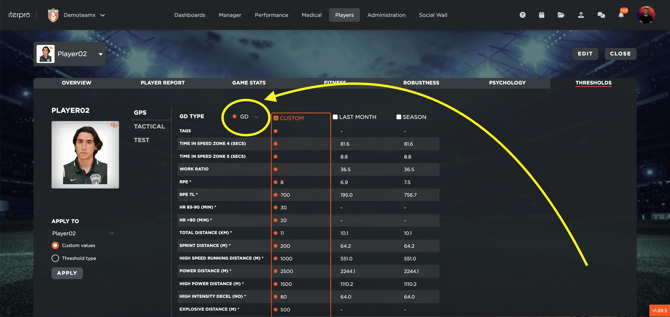
- Select one of the three available options for setting thresholds:
- - **Custom**: Manually enter and edit the threshold values for the player (for GD types different from GD, like GD+1-4 or GD+2-3, for example, this is the only option that can be selected. For GD, instead, also the Last month and Season are working). It's importante to note that, in this case, the user must type the thresholds within the field for each specific metric.
- **Last Month**: The system will calculate the average values from matches in which the player played more than 85 minutes in the last month.
- **Season**: The system will calculate the average values from all matches in the current season in which the player played more than 85 minutes.
Once the preferred threshold type is selected (and, in case of Custom option, the values have been filled out):
- Click **Save** to confirm.
- Apply the threshold value (numbers included in the selected option) to one or multiple players by selecting them and clicking on **Custom Values \> Apply**.
- Apply the threshold type (the option selected - Custom, Last month or Season) to one or multiple players by selecting them and clicking on **Threshold type \> Apply**.
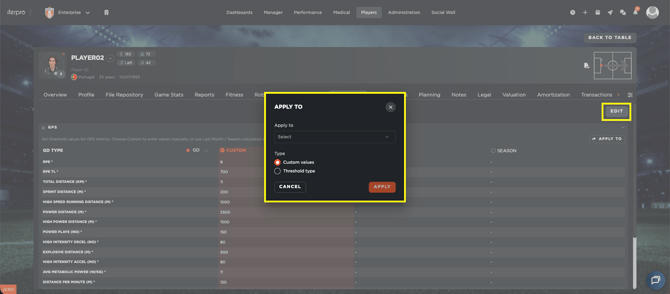
- The system will then assign the selected threshold values to the chosen players.
**Important Notes:**
- Players who have not played more than 85 minutes will not have valid "Last Month" or "Season" thresholds. Using **Custom** values is recommended in such cases.
- Applied thresholds are **not retroactive**, meaning they will only take effect from the moment they are set. So in case, you edited the thresholds but you do not see any value ion Session analysis, remember to recalculate the sessions of the past trainings/games to have the data updated in Import data.
- [What's New](https://support.iterpro.com/en/guide/whats-new?hsLang=en)
- [Quick Onboarding](https://support.iterpro.com/en/guide/quick-onboarding?hsLang=en)
- [Account set-up and other](https://support.iterpro.com/en/guide/account-set-up-and-other?hsLang=en#main-content)
- [Login & Iterpro overview](https://support.iterpro.com/en/guide/account-set-up-and-other?hsLang=en#login-iterpro-overview)
- [Settings](https://support.iterpro.com/en/guide/account-set-up-and-other?hsLang=en#settings)
- [Create, archive and delete players](https://support.iterpro.com/en/guide/account-set-up-and-other?hsLang=en#create-archive-and-delete-players)
- [Other](https://support.iterpro.com/en/guide/account-set-up-and-other?hsLang=en#other)
- [Manager](https://support.iterpro.com/en/guide/manager?hsLang=en#main-content)
- [Tactics](https://support.iterpro.com/en/guide/manager?hsLang=en#tactics)
- [Planning](https://support.iterpro.com/en/guide/manager?hsLang=en#planning)
- [Videogallery](https://support.iterpro.com/en/guide/manager?hsLang=en#videogallery)
- [Drills](https://support.iterpro.com/en/guide/manager?hsLang=en#drills)
- [Attendances](https://support.iterpro.com/en/guide/manager?hsLang=en#attendances)
- [Performance](https://support.iterpro.com/en/guide/performance?hsLang=en#main-content)
- [Session Analysis](https://support.iterpro.com/en/guide/performance?hsLang=en#session-analysis)
- [Workload Analysis](https://support.iterpro.com/en/guide/performance?hsLang=en#workload-analysis)
- [Assessments](https://support.iterpro.com/en/guide/performance?hsLang=en#assessments)
- [Readiness](https://support.iterpro.com/en/guide/performance?hsLang=en#readiness)
- [Medical](https://support.iterpro.com/en/guide/medical?hsLang=en#main-content)
- [Medical Records](https://support.iterpro.com/en/guide/medical?hsLang=en#medical-records)
- [Infirmary](https://support.iterpro.com/en/guide/medical?hsLang=en#infirmary)
- [Examinations](https://support.iterpro.com/en/guide/medical?hsLang=en#examinations)
- [Medical Statistics](https://support.iterpro.com/en/guide/medical?hsLang=en#medical-statistics)
- [Player](https://support.iterpro.com/en/guide/player?hsLang=en#main-content)
- [My Team](https://support.iterpro.com/en/guide/player?hsLang=en#my-team)
- [Scouting](https://support.iterpro.com/en/guide/player?hsLang=en#scouting)
- [Transfers](https://support.iterpro.com/en/guide/player?hsLang=en#transfers)
- [Administration](https://support.iterpro.com/en/guide/administration?hsLang=en#main-content)
- [Squads](https://support.iterpro.com/en/guide/administration?hsLang=en#squads)
- [Finance Overview](https://support.iterpro.com/en/guide/administration?hsLang=en#finance-overview)
- [Bonus Tracking](https://support.iterpro.com/en/guide/administration?hsLang=en#bonus-tracking)
- [Cash Flow](https://support.iterpro.com/en/guide/administration?hsLang=en#cash-flow)
- [Transactions](https://support.iterpro.com/en/guide/administration?hsLang=en#transactions)
- [Registrations](https://support.iterpro.com/en/guide/administration?hsLang=en#registrations)
- [Mobile apps](https://support.iterpro.com/en/guide/mobile-apps?hsLang=en#main-content)
- [Player App](https://support.iterpro.com/en/guide/mobile-apps?hsLang=en#player-app)
- [Coach App](https://support.iterpro.com/en/guide/mobile-apps?hsLang=en#coach-app)
- [Director App](https://support.iterpro.com/en/guide/mobile-apps?hsLang=en#director-app)
- [Iterpro Login Page](https://app.iterpro.com/auth/login)
- [Contact Support](https://share.hsforms.com/1rE7NvsvuTIWBm7WQ1dhslQ1uo0p)
- [Terms & Conditions](https://www.iubenda.com/terms-and-conditions/53739842)
- [Privacy Policy](https://www.iubenda.com/privacy-policy/53739842)
[](https://iterpro.com/)
Copyright © 2025, Iterpro Support Team
```json
{
"@context" : "https://schema.org",
"@type" : "VideoObject",
"contentUrl" : "https://stream.mux.com/wU6RiIYJqkA4GPsRUzWxwkDMDt86xfzmNqxKLirju3A/capped-1080p.mp4",
"dateModified" : "2025-02-04T10:01:48.857Z",
"duration" : "PT1M46S",
"height" : 1080,
"name" : "3.2 How to set the thresholds for GPS metrics and test metrics - part1_ENG",
"thumbnailUrl" : "https://3110425.fs1.hubspotusercontent-na1.net/hubfs/3110425/3.2%20How%20to%20set%20the%20thresholds%20for%20GPS%20metrics%20and%20test%20metrics%20-%20part1_ENG.mp4/medium.jpg",
"uploadDate" : "2025-02-04T10:01:48.852Z",
"width" : 1920
}
```