General File Repository
With the new version 1.70 of the Iterpro software, you will now be able to view all the files uploaded into the system, in a single list view, accessed by the hamburger menu on the top right side of the Iterpro dashboard.
The files that you are able to view are only the files that have been uploaded in sections that you already have access to as a user. For example, if you have access just to the performance section, you will not see on this list the files uploaded in the ‘Manager’ or ‘Medical’ area.
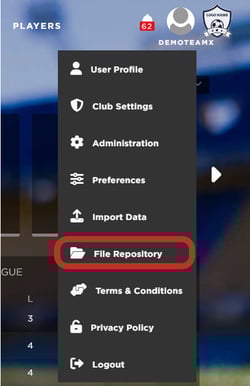
When pressing the button above you will be redirected to the file repository list view:
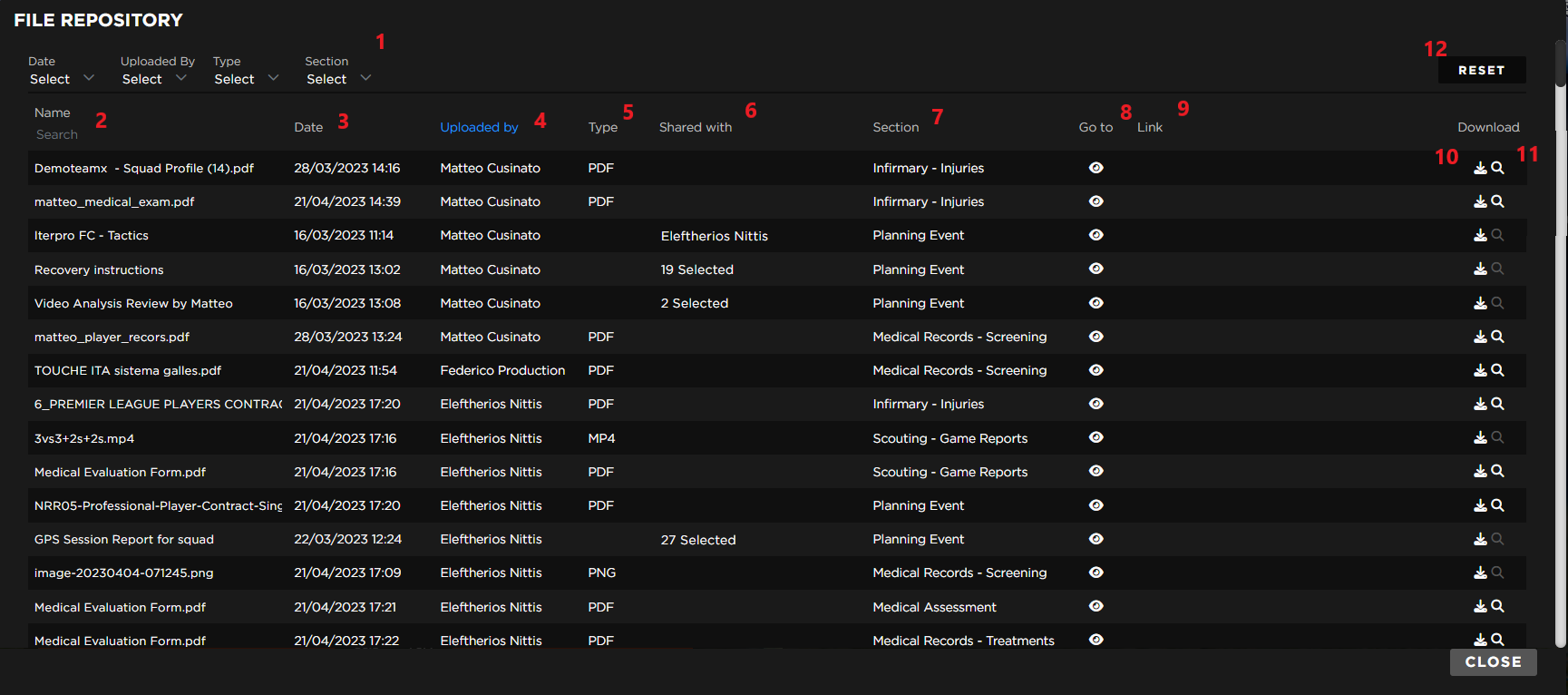
- You can filter the files according to the date, the user that uploaded them, the type of file, and which section you can find the file in.
- You can see the name of each file uploaded in the first column and also search for the name of a specific file
- You can see the date of each file uploaded in the second column and also sort the files according to it from the most recent to the oldest, and vice versa
- In the third column, you can see which user the file has been uploaded by and also sort the files by user
- In the fourth column, you will see the type of each file and also be able to sort the files by type
- The ‘Shared with’ column works only for the files uploaded in a planning event, where you have the option to share each file with a specific player/ staff or group of players/ staff.
- In the ‘Section’ column you can see in which area this file has been uploaded on
- From the ‘Go to’ column you can redirect to the area each file has been uploaded on
- If there is a link also uploaded on the file repository for each individual file you can view it here
- You can download the file from here
- You can preview the file from here
Planning - Player's daily timeline
Also, in this new version, you will be able to display a brand new view of the calendar events in the ‘Planning’ area, which is the player’s daily timeline.
In order to access this view you just need to click on the ‘Player’ button which is located on the far right of the available views, in the top right corner of the calendar.
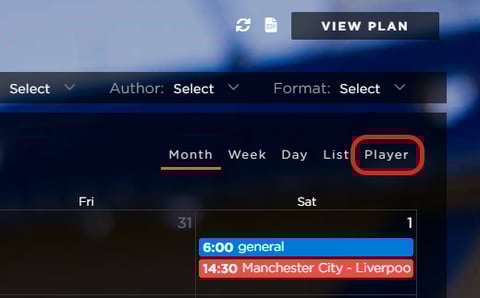
When pressing the button above you will be redirected to the player’s daily timeline view:
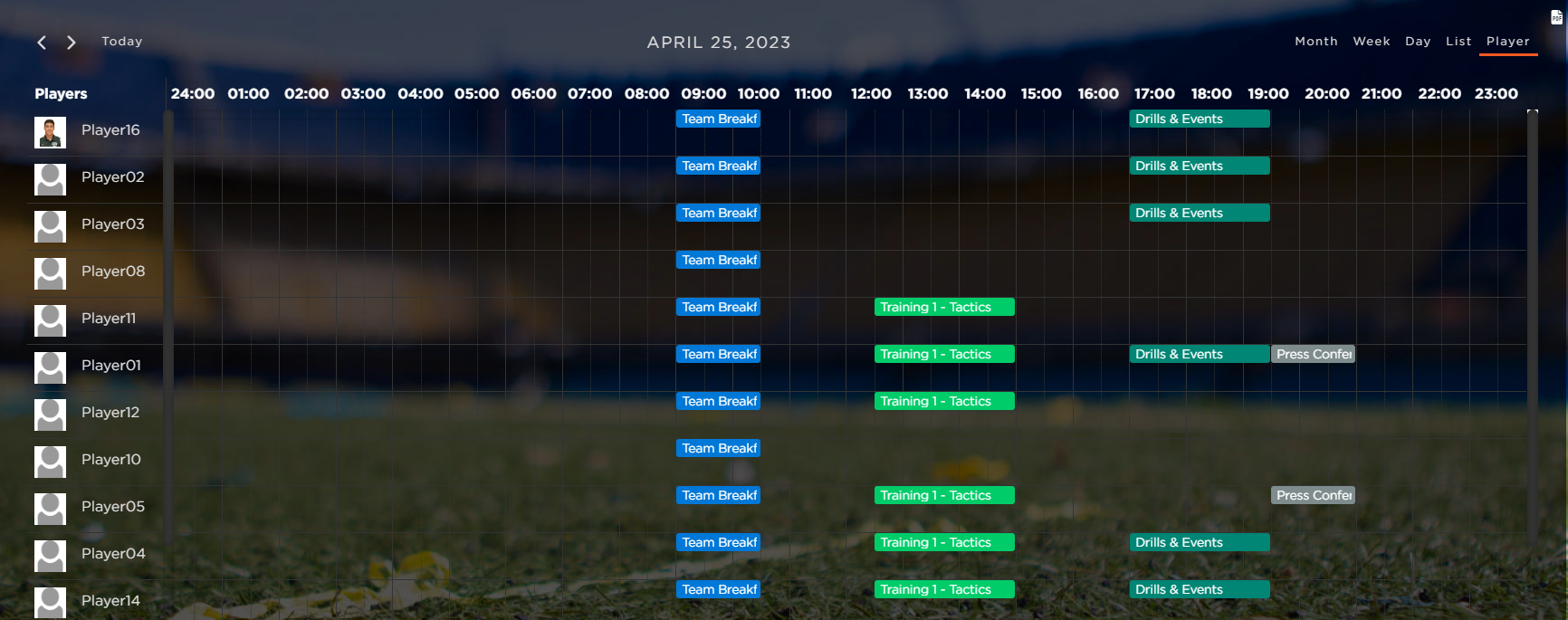
In this view, you can see what each player has planned for the current day, and the exact duration of each event, giving you a clear idea of the daily schedule of your team.
Planning - Filters retained when navigating
When you are selecting one or more filters, in the ‘Planning’ section, and then navigate to a different month the filters are now retained in your current view.
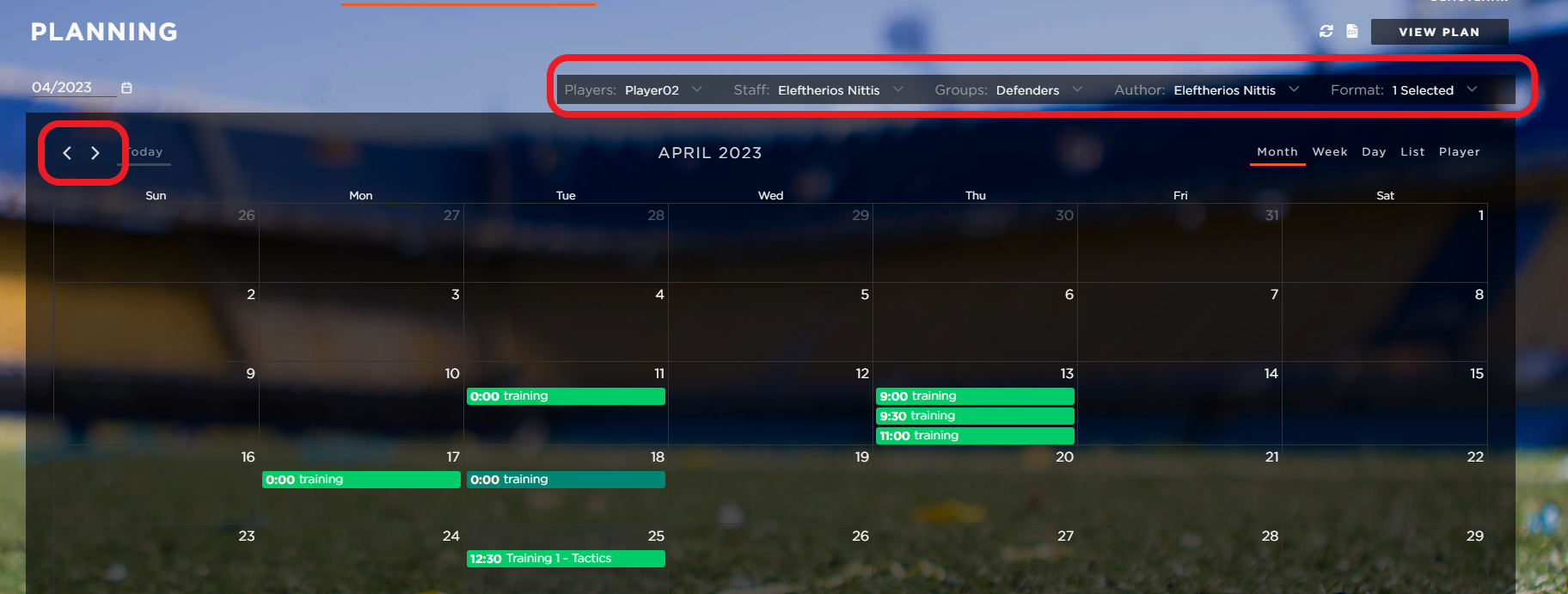
Infirmary - Assessments records timeline
In the ‘Infirmary’ section and under the ‘Assessment’ tab you will now see an improved display of the assessment records for each injury. Instead of switching between the assessments from a dropdown, preventing you to compare one or more on the same screen, no you can just view and open any of them through an accordion, allowing you to display a timeline of the records.
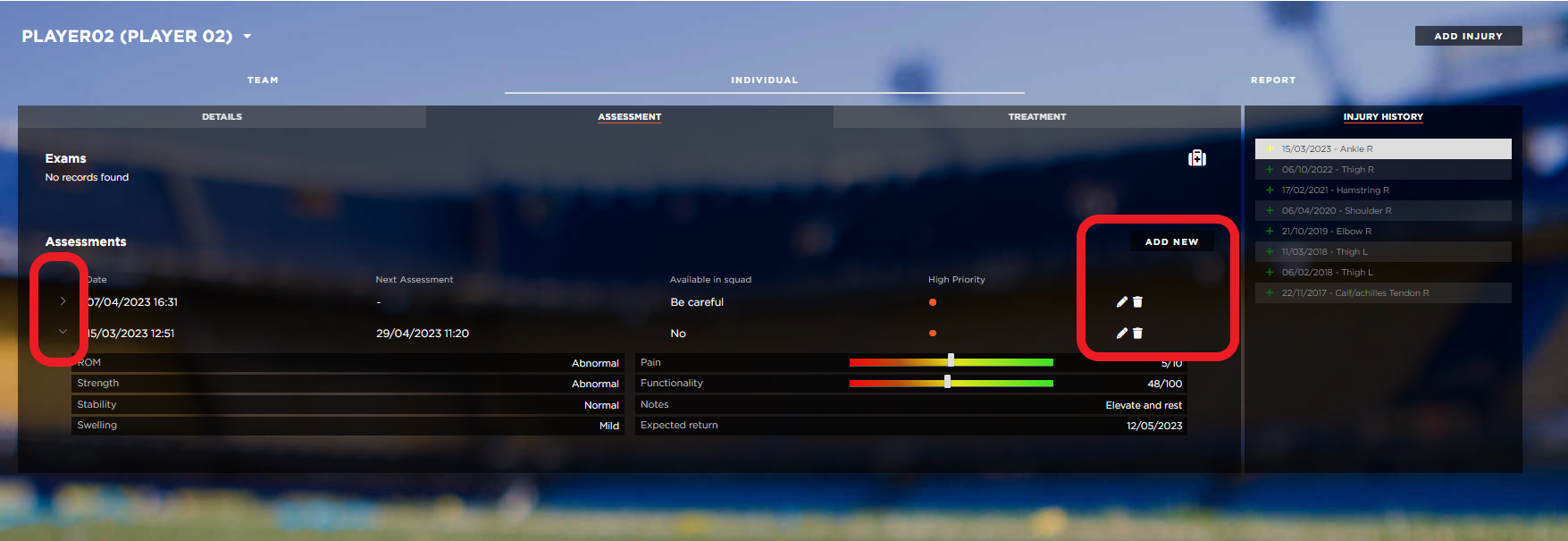
You can open and close the assessments from the arrow on the left side of each record, and add new, edit, or delete them from the far right side.
Medical Records - Assessment changelog
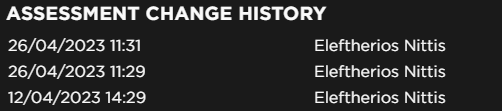
In the ‘Medical Records’ section and under the ‘Assessment’ tab you now have the option to edit records that have already been completed.

On top of that, once you edit an existing record you will see the changelog icon appearing on the right side indicating that changes have been made and allowing you to track who did them and when.
PDF Export - Preview added
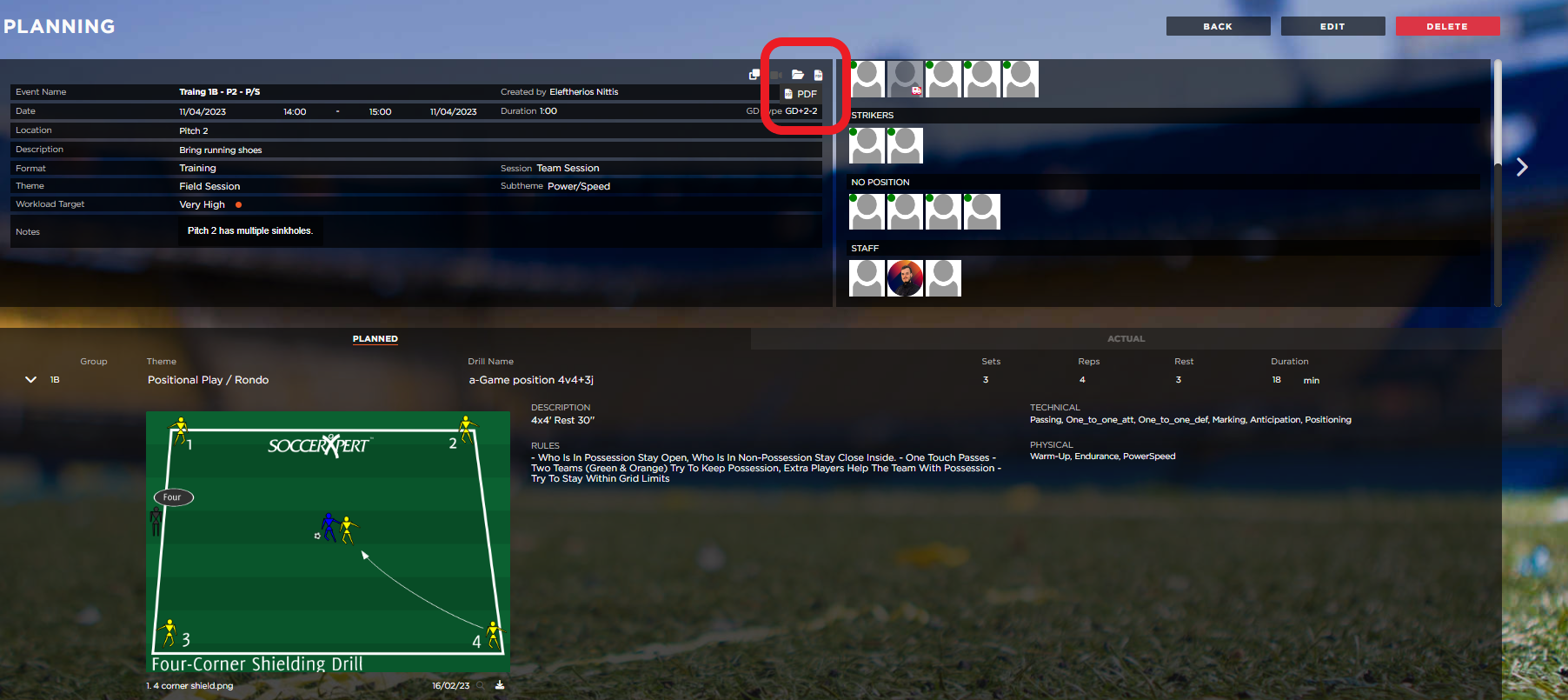
This new feature allows you to always be provided with a preview of the PDF export before you download it, giving you the opportunity to make sure you are exporting the right file, in the right format.
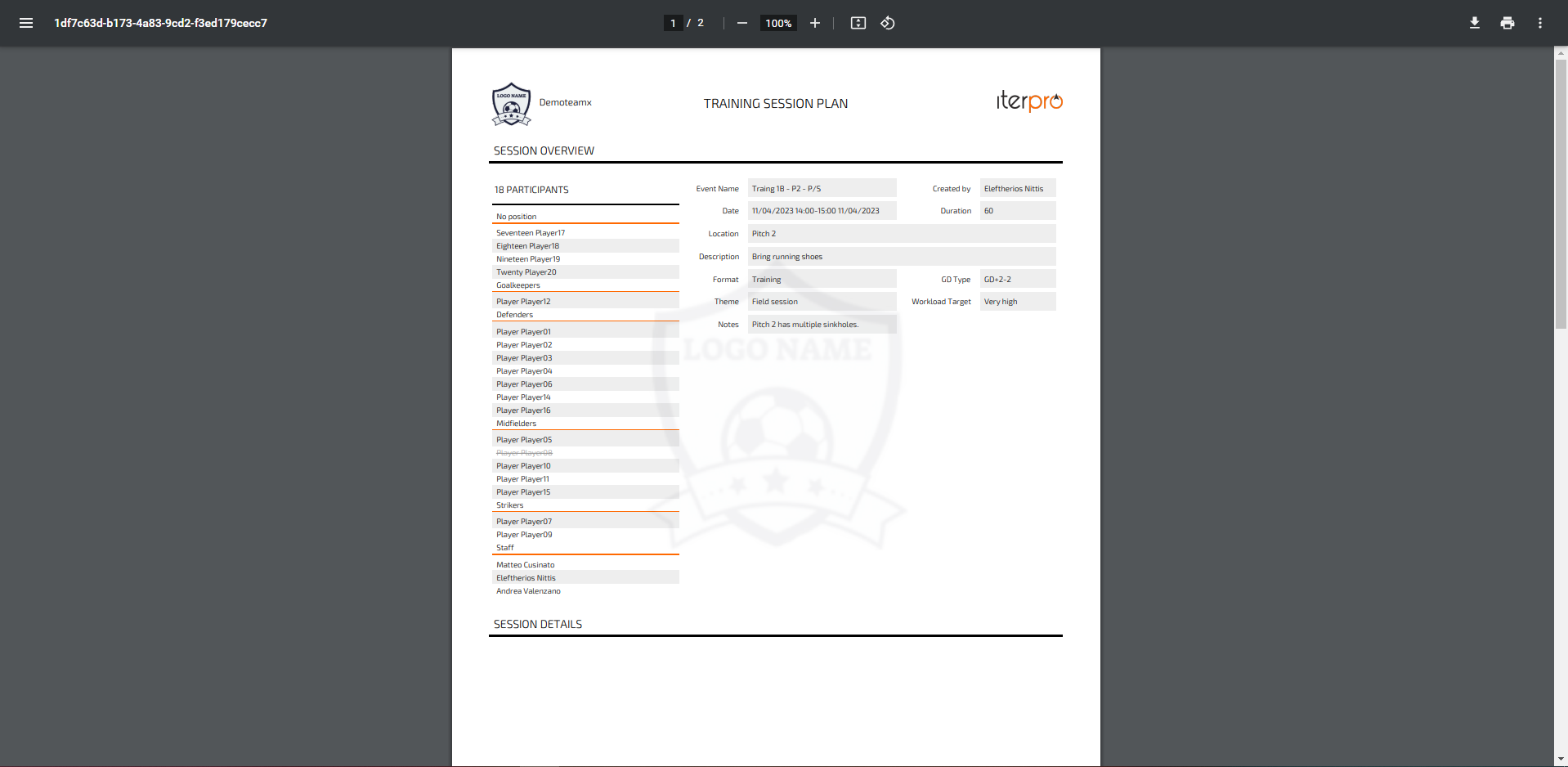
In order to see the preview you just need to click on the PDF export, same as before, but this time the PDF won’t be automatically downloaded, but will be opened in a new tab where you can preview it first and then choose if you would like to download.
Game Reports list - Change of redirect UX/UI
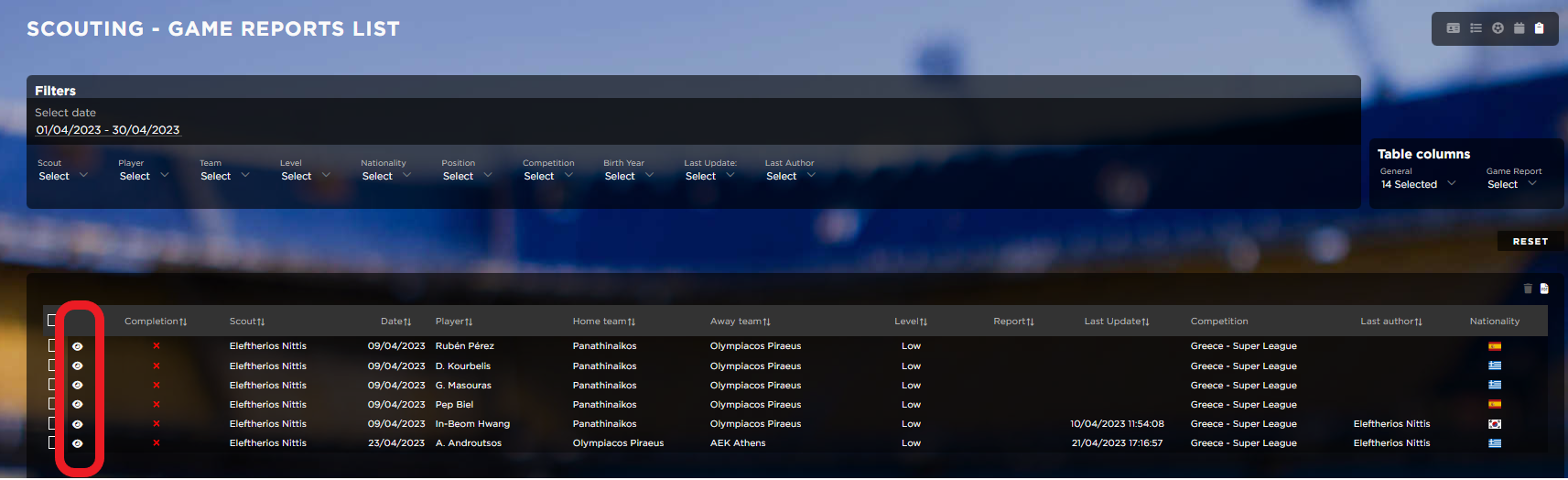
When viewing the game reports list in the ‘Scouting’ section and you would like to redirect to as specific game report, on the scouting calendar, you now just have to click on the ‘eye’ icon on the far left of the row, instead of anywhere on the row.
Workload Analysis - Expand chart
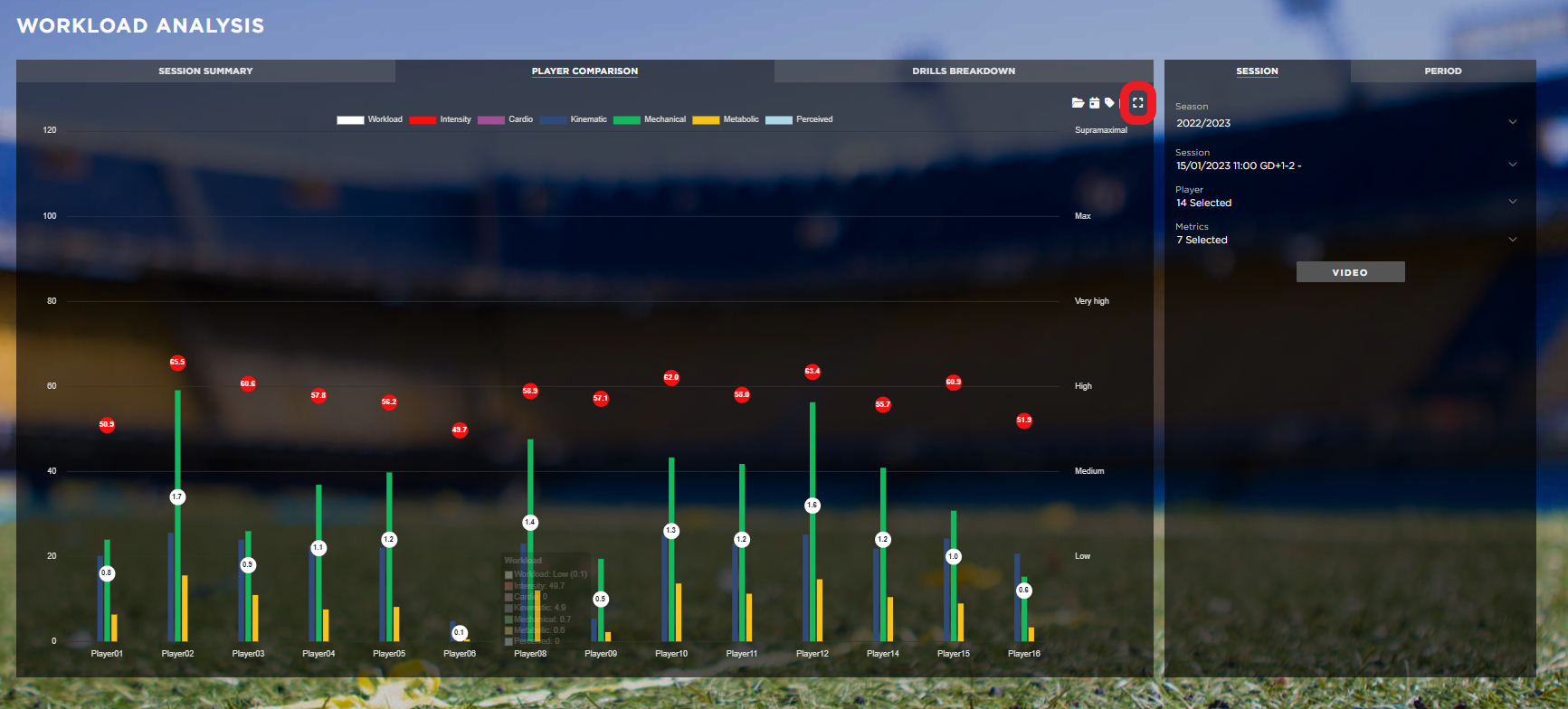
In the ‘Wokrload Analysis’ area you now have the option to expand the chart in all sections included in the ‘Session’ & ‘Period’ tabs.
Legal - Mandatory gross amounts
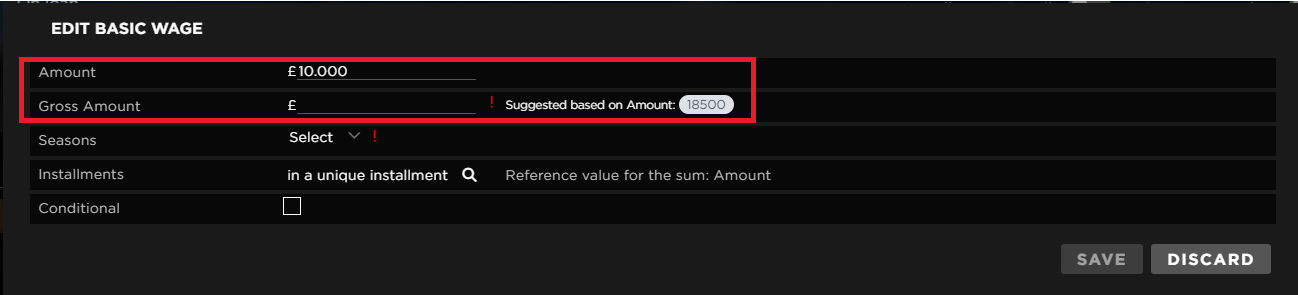
In the ‘ Legal’ section, on top of the net amounts, you will now have to also fill out the gross amounts as a prerequisite. You can use the suggested value displayed on the right side of the box simply by clicking on it.