
FEATURES DESCRIPTION
Iterpro’s Scouting module helps you build a structured scouting database, evaluate players consistently, and turn reports into actionable insights that can be analyzed and exported.
Create your scouting player database
To start scouting, you first need player profiles. You can create your scouting player database in three ways within the Scouting Table or Card view:
- Manual creation: add a player manually by adding their personal details and editing their profile.
- Wyscout import (recommended for football/soccer): search for your players inside the Wyscout database, and import to Iterpro. Imported players are linked to Wyscout, meaning you will have career and match details, making the profile richer and easier to maintain.
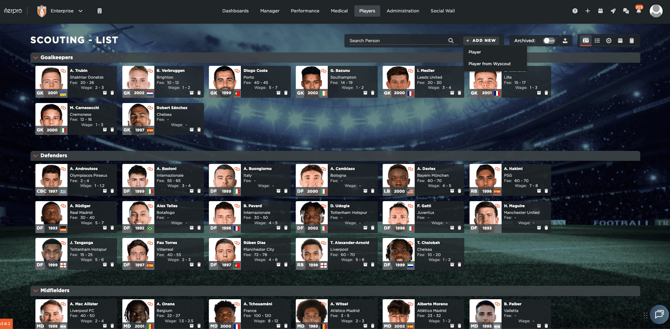
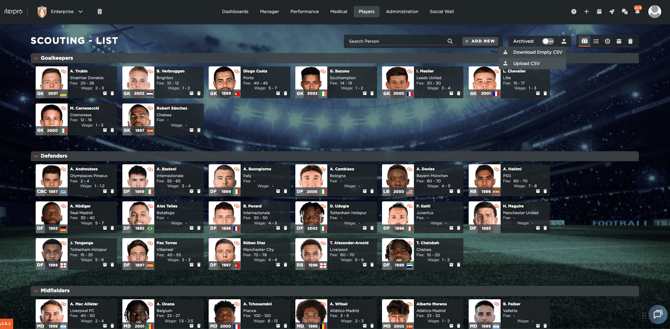
- Bulk CSV import: if you already have a scouting list of your own, you can upload many players at once using a CSV file to populate your database quickly. Simply export the empty CSV template from the Iterpro platform, add your information, and upload again.
For more detailed information about these methods, please consult the following article.
Add details and evaluations to each player
Once profiles exist, scouts can open any player and add the most relevant information, from personal details to evaluations.
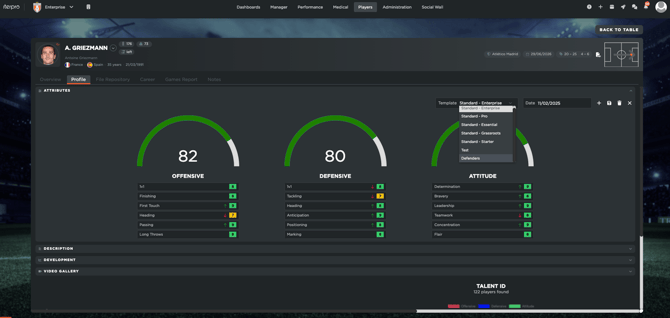
In the Profile tab, you can evaluate the player using Attribute Evaluations. These are designed to capture a general, overall view of the player (technical, tactical, physical, and more—depending on your setup). Attribute evaluations are also available for My Team players, which allows you to compare external scouting targets with players already inside your club.
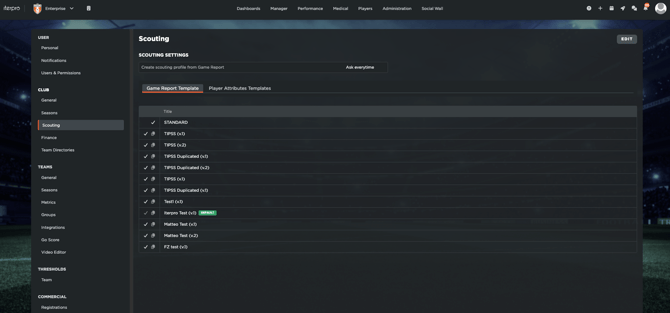
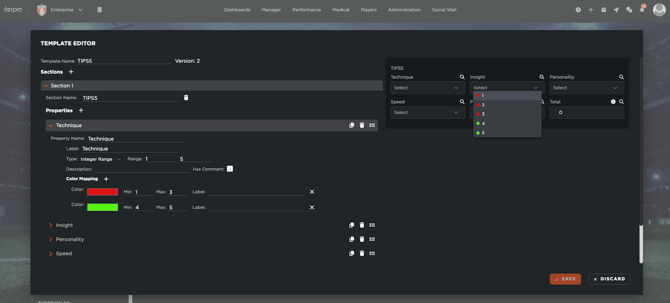
Your organization can fully customize the attribute framework from Settings → Club → Scouting, so the evaluation model matches your methodology.
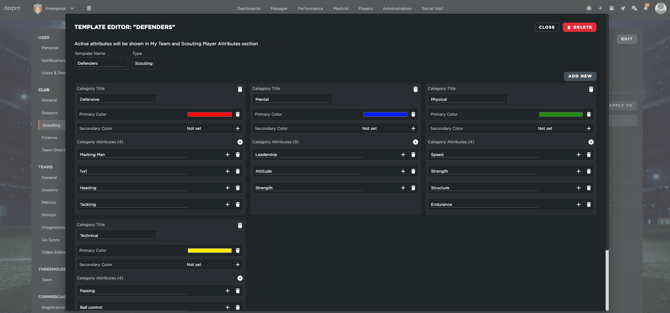
For more information, please visit the following article, which goes into detail on how to create your custom templates.
Create and manage game reports
Game-specific evaluations are handled through Game Reports. Scouts can manage these reports:
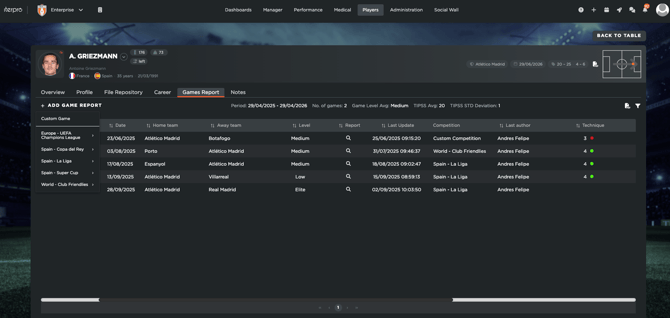
- directly inside the player profile (Game Reports), or
- through the Scouting Calendar.
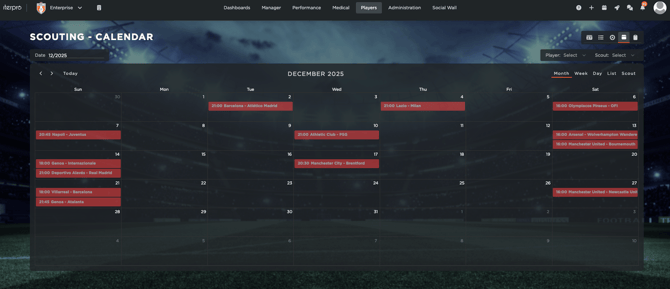
Game reports are linked to specific matches or events, which can be created manually or imported from Wyscout (football/soccer). Reports can be assigned to specific scouts, ensuring clear ownership and consistency.
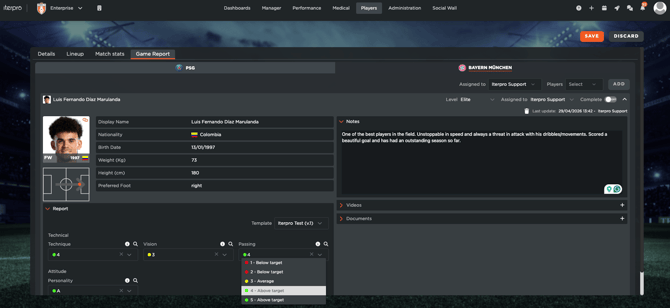
Just like attributes, game report templates are customizable from the Settings area, so Iterpro adapts to your club’s processes—not the other way around.
Analyze and export scouting insights
All evaluations—attributes and game reports—can be reviewed, analyzed, and exported within Iterpro.
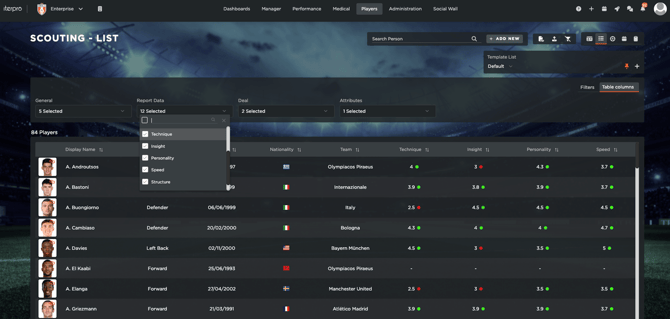
The attributes can be analyzed within the table view of the scouting database (where you can also customize the columns and filters to show in your report).
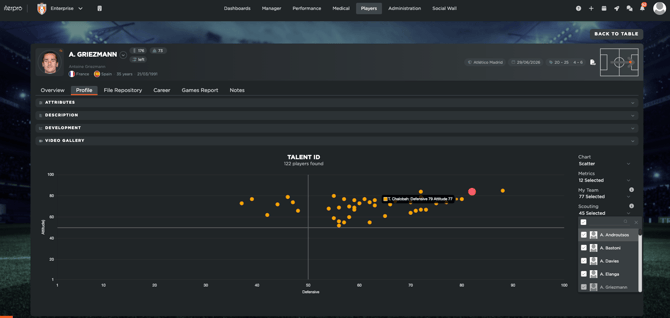
Apart from this, you can also compare and see the player attributes distrubution within the Talent ID chart inside their Profile. Through there you can customize the table to compare between your team players as well as scouting players, enabling you to position and analyze reports in an easy and ituitive way.
For the game reports, instead, within each player profile, you will be able to see all the reports made by each scout for each game analyzed.
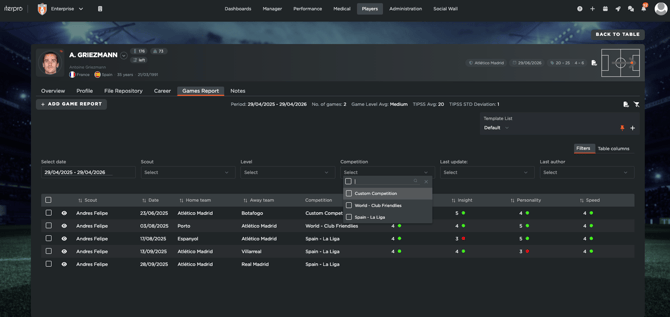
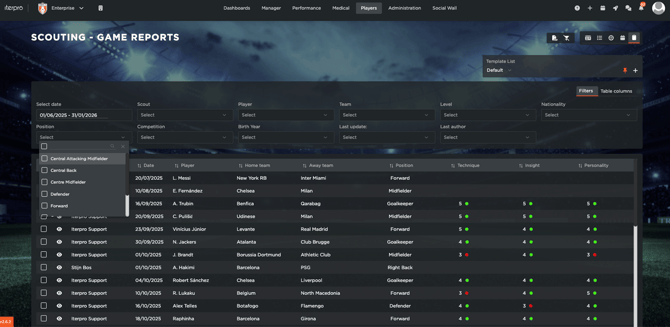
Additionally, for Scouting Admins, there will also be the possibility to visualize the Game Reports table, which showcases the entirety of game reports created by your scouts. You can customize and filter the table as you wish, allowing you to create custom reports about all your scouting players.
This helps scouts present detailed, consistent, and high-value scouting information to support recruitment decisions.