---
title: Players, how to manage My Team players and evaluate their information
description: This article explains the main operations within the scouting department to allow you to create your player database and evaluate them accordingly.
---
[Skip to content](https://support.iterpro.com/en/guide/scouting-how-to-create-your-database-and-evaluate-your-players-0#main-content)
English
Show submenu for translations
[](https://app.iterpro.com/auth/login)
- [Iterpro Login Page](https://app.iterpro.com/auth/login)
- [Contact Support](https://share.hsforms.com/1rE7NvsvuTIWBm7WQ1dhslQ1uo0p)
Open main navigation
Close main navigation
- [Iterpro Login Page](https://app.iterpro.com/auth/login)
- [Contact Support](https://share.hsforms.com/1rE7NvsvuTIWBm7WQ1dhslQ1uo0p)
- English
Show submenu for translations
How can we help you?
- There are no suggestions because the search field is empty.
1. [User Guide](https://support.iterpro.com/en/guide?hsLang=en)
2. [Quick Onboarding](https://support.iterpro.com/en/guide/quick-onboarding?hsLang=en)
# Players, how to manage My Team players and evaluate their information
## This article explains the main operations within the scouting department to allow you to create your player database and evaluate them accordingly.
### ***FEATURES DESCRIPTION***
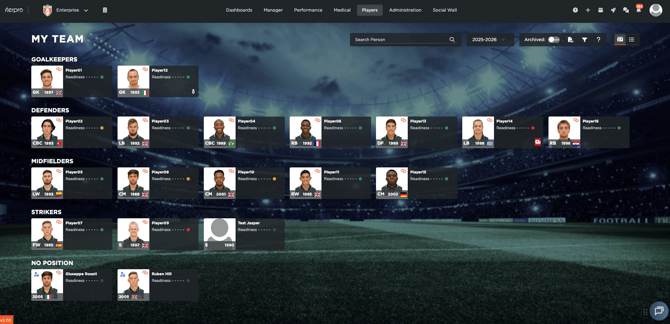
Iterpro helps you manage every player profile in one place, with information coming from all departments. To get started, go to **Players → My Team** and open a player to access their **Player Passport**.
#### 
#### Player Passport: one profile, all departments
The Player Passport is the player’s central hub. It gives you a clear overview of the data collected across your club, including:
- **Administrative details** (personal and contract-related information)
- **Game statistics**
- **Fitness and performance reports**
- **Medical history and documents**
- **Coaches’ reporting and evaluations**
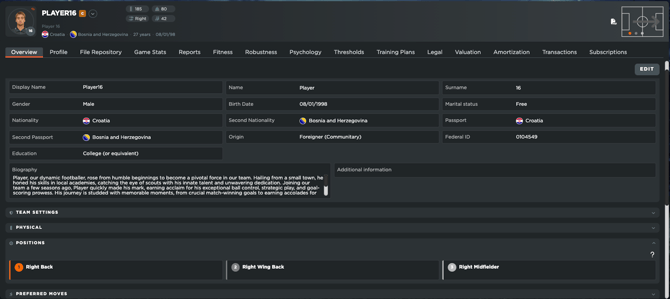
This makes it easy to understand a player’s status without switching between multiple tools or spreadsheets. Keep in mind, however, that the information displayed within the player profile will vary depending on the **permissions of each user** to ensure everyone sees what's relevant to them.
#### Attributes Evaluations in the Profile tab
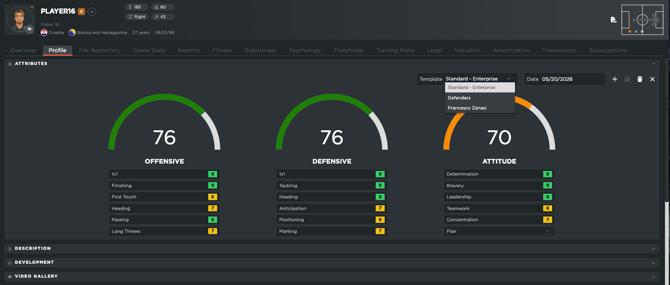
Inside each player’s **Profile** tab, you’ll find **Attributes Evaluations**. These are general evaluations that coaches can use to track performance, progress, and development over time.
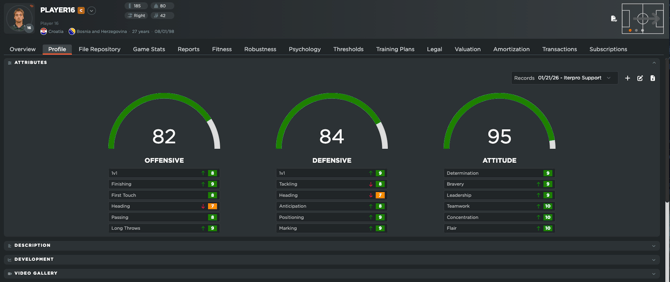
Any coach can submit an evaluation, and all entries contribute to a shared, overall picture of the player’s growth. Evaluations are visible to the whole team, so coaches and staff stay aligned on how a player is performing.
##### Customize your evaluation templates
Each team can customize evaluation templates to match existing methodologies—such as different templates for defenders, midfielders, or strikers.
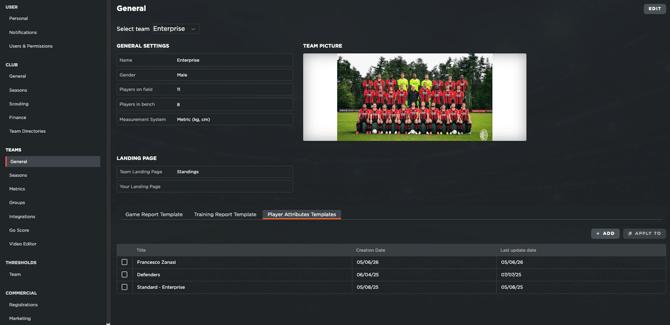
To create or edit templates, go to **Settings → Team → General**. From there, you can define:
- the **attributes and parameters**
- **descptions**
- **color rules**
- and any values you want your coaches to evaluate
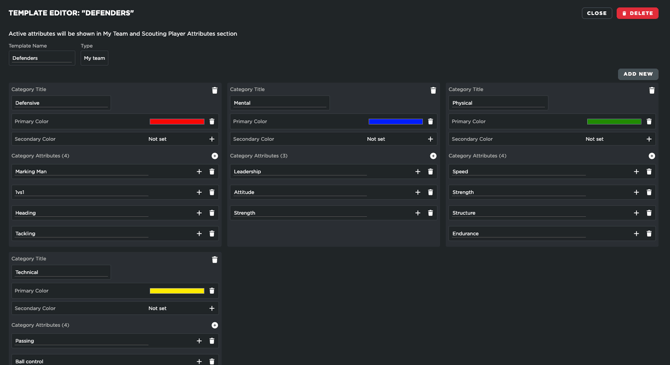
Once saved, these templates are available for all users in the team, and can also be applied amognst other teams to standardize methodologies.
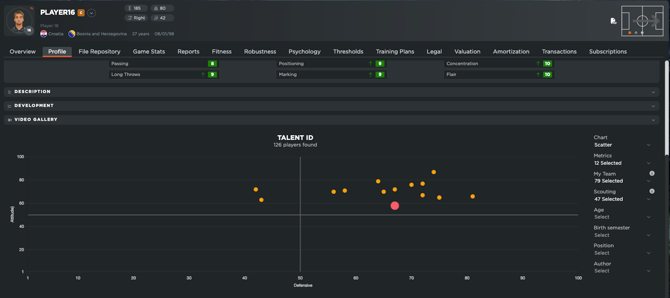
##### Talent ID and fast filtering
After evaluations are completed, results become available in **Talent ID** within the player’s Profile tab. Talent ID helps you compare evaluation outcomes across your squad and quickly filter players based on the criteria that matters most—making decisions faster and more consistent.
- [What's New](https://support.iterpro.com/en/guide/whats-new?hsLang=en)
- [Quick Onboarding](https://support.iterpro.com/en/guide/quick-onboarding?hsLang=en)
- [Account set-up and other](https://support.iterpro.com/en/guide/account-set-up-and-other?hsLang=en#main-content)
- [Login & Iterpro overview](https://support.iterpro.com/en/guide/account-set-up-and-other?hsLang=en#login-iterpro-overview)
- [Settings](https://support.iterpro.com/en/guide/account-set-up-and-other?hsLang=en#settings)
- [Create, archive and delete players](https://support.iterpro.com/en/guide/account-set-up-and-other?hsLang=en#create-archive-and-delete-players)
- [Other](https://support.iterpro.com/en/guide/account-set-up-and-other?hsLang=en#other)
- [Manager](https://support.iterpro.com/en/guide/manager?hsLang=en#main-content)
- [Tactics](https://support.iterpro.com/en/guide/manager?hsLang=en#tactics)
- [Planning](https://support.iterpro.com/en/guide/manager?hsLang=en#planning)
- [Videogallery](https://support.iterpro.com/en/guide/manager?hsLang=en#videogallery)
- [Drills](https://support.iterpro.com/en/guide/manager?hsLang=en#drills)
- [Attendances](https://support.iterpro.com/en/guide/manager?hsLang=en#attendances)
- [Performance](https://support.iterpro.com/en/guide/performance?hsLang=en#main-content)
- [Session Analysis](https://support.iterpro.com/en/guide/performance?hsLang=en#session-analysis)
- [Workload Analysis](https://support.iterpro.com/en/guide/performance?hsLang=en#workload-analysis)
- [Assessments](https://support.iterpro.com/en/guide/performance?hsLang=en#assessments)
- [Readiness](https://support.iterpro.com/en/guide/performance?hsLang=en#readiness)
- [Medical](https://support.iterpro.com/en/guide/medical?hsLang=en#main-content)
- [Medical Records](https://support.iterpro.com/en/guide/medical?hsLang=en#medical-records)
- [Infirmary](https://support.iterpro.com/en/guide/medical?hsLang=en#infirmary)
- [Examinations](https://support.iterpro.com/en/guide/medical?hsLang=en#examinations)
- [Medical Statistics](https://support.iterpro.com/en/guide/medical?hsLang=en#medical-statistics)
- [Player](https://support.iterpro.com/en/guide/player?hsLang=en#main-content)
- [My Team](https://support.iterpro.com/en/guide/player?hsLang=en#my-team)
- [Scouting](https://support.iterpro.com/en/guide/player?hsLang=en#scouting)
- [Transfers](https://support.iterpro.com/en/guide/player?hsLang=en#transfers)
- [Administration](https://support.iterpro.com/en/guide/administration?hsLang=en#main-content)
- [Squads](https://support.iterpro.com/en/guide/administration?hsLang=en#squads)
- [Finance Overview](https://support.iterpro.com/en/guide/administration?hsLang=en#finance-overview)
- [Bonus Tracking](https://support.iterpro.com/en/guide/administration?hsLang=en#bonus-tracking)
- [Cash Flow](https://support.iterpro.com/en/guide/administration?hsLang=en#cash-flow)
- [Transactions](https://support.iterpro.com/en/guide/administration?hsLang=en#transactions)
- [Registrations](https://support.iterpro.com/en/guide/administration?hsLang=en#registrations)
- [Mobile apps](https://support.iterpro.com/en/guide/mobile-apps?hsLang=en#main-content)
- [Player App](https://support.iterpro.com/en/guide/mobile-apps?hsLang=en#player-app)
- [Coach App](https://support.iterpro.com/en/guide/mobile-apps?hsLang=en#coach-app)
- [Director App](https://support.iterpro.com/en/guide/mobile-apps?hsLang=en#director-app)
- [Iterpro Login Page](https://app.iterpro.com/auth/login)
- [Contact Support](https://share.hsforms.com/1rE7NvsvuTIWBm7WQ1dhslQ1uo0p)
- [Terms & Conditions](https://www.iubenda.com/terms-and-conditions/53739842)
- [Privacy Policy](https://www.iubenda.com/privacy-policy/53739842)
[](https://iterpro.com/)
Copyright © 2025, Iterpro Support Team