
API integration
At the moment, the user can import GPS data by API with the following providers:
- STATSport
- Catapult
- GPEXE
- Wimu
To set up such integrations, the user needs to reach out to the Customer Success team. Below is the info requested for each provider, but a call with an expert is always suggested, to avoid misunderstanding:
STATSPORT
|
Sonra Third Party Id |
This needs to be generated by the user on the STATSport software. |
|
Main Training Split Name |
The label used to name ALL the trainings (e.g. "Full Training" or "Session"). |
|
Main Game Split Name |
The label used to name ALL the games (e.g. "Full game" or "Game"). |
CATAPULT
|
Token |
This needs to be generated by the user on the Catapult software. |
|
Team Name |
The team name displayed in the catapult software. |
|
Game Category Name |
The tag used for game sessions. |
GPEXE
|
Server Address |
The link used to access the GPEXE software. |
|
|
Email address to login into the GPEXE software. |
|
Password |
Password to login into the GPEXE software. |
|
Template |
The ID of the templated with all the metrics that need to be imported. |
|
Gpexe Team Id |
This can be extracted only when the server is up and ready. It's in the web URL when the user goes to Settings - team - Select the team. E.g.: https://e15-ui.gpexe.com/teams/392?tab=athletes |
|
Father Training categories: |
The list of trainings father categories. E.g.: Full Training, Rehab, Return to Play. |
|
Father Game categories |
The list of games father categories. E.g: Friendly Match, Official Match. |
|
Father/Son categories |
The list of the father categories with the linked son categories. E.g.: Full Training:Full Training Exercise, Rehab:Rehab Exercise, Official Match:Official Match Exercises. |
WIMU
|
Username |
The username of the user. |
|
Password |
The password for the API, not the web platform one. |
|
WimuID |
Optional, if they can ask Wimu directly |
Once the Customer Success team collects all the information and sets the integration, will test the import and confirm you everything is working fine.
CVS integration
Unlike the API, the CSV integration can be done directly by the user from the Settings section (Team - Integration - Third parties). Anyway, we always suggest contacting the Customer Success team for any support.
Let's go step by step:
-
CSV Separator - The CSV Separator is the method by which each column is separated within the CSV that you are importing onto the Iterpro Software.
The most commonly used is the "comma", but it may change according to the settings of your provider. If you don't know which is your separator, open the CSV as a text and you will see it immediately. Below is an example with "comma":
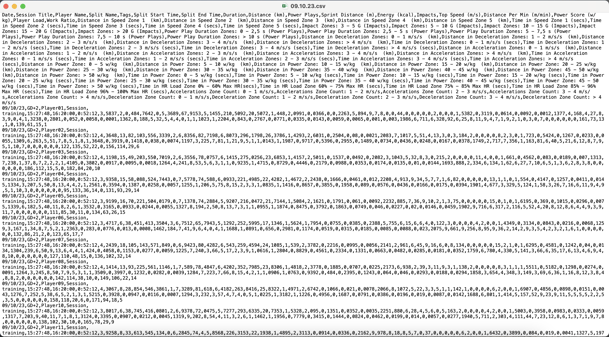
- Training Main Split Name - The Training Main Split Name is the name given to the training session main split. For example, could be "Session", "Full training" or "Full session". In other words, is the split that contains all the data of the session (differently from the drills split). Note that capital and small letters are important.
- Game Main Split Name - The Game Main Split Name is the name given to the game session main split. For example, could be "Game", "Full game" or "Full match". In other words, is the split that contains all the data of the session (differently from the drills split). Note that capital and small letters are important.
- CSV Timezone - The CSV Timezone allows you to select the timezone in which the data is set.
Once all such info has been selected, the user can directly upload his/her new template and set the new sample:
- Primary Settings (We always suggest not using any preset template to map your GPS provider CSV, considering that the clients now may edit their file template easily) - Upload the new sample and select the mandatory fields requested.
Note that:
- The name of the columns in your CSV file may change, the important factors to keep in mind are that:
- The date contains the date of the session/drill,
- The player name contains the player display name (in that case, note that must be exactly the same in Iterpro and in the CSV, to let the system map it in the right way),
- Split name contains the name of the split. Remember that there must be always one unique main split (or the training one or the game one),
- Split start time contains when the selected split starts,
- Split end time contains when the selected split ends,
- Duration contains the total time of the selected split.
- The format selected needs to be aligned with the one you have in the CSV (e.g. Split start time: 10:46:37 --> HH:MM:SS)
- It's important to set the format for each raw metric as shown in the last part of the video.
Below you find an example of what the CSV file should look like as well as the data needed to successfully import all the necessary data.

You are now able to import GPS data with CSV. You can find more details about how to do it in this article.