---
title: Why can't I see the radar chart in the Drills section?
description: Hhow to display the data into the radar chart in the Drills section, activating the GPS metrics and setting thresholds. Because sometimes no data are displayed or the values are too big and the radar chart display wrong values
---
[Skip to content](https://support.iterpro.com/en/guide/why-i-cant-see-the-radar-chart-in-the-drills-section#main-content)
- [English](https://support.iterpro.com/en/guide/why-i-cant-see-the-radar-chart-in-the-drills-section)
- [العربية - مصر](https://support.iterpro.com/ar-eg/guide/لماذا-لا-أستطيع-رؤية-مخطط-الرادار-في-قسم-التدريبات)
English
Show submenu for translations
[](https://app.iterpro.com/auth/login)
- [Iterpro Login Page](https://app.iterpro.com/auth/login)
- [Contact Support](https://share.hsforms.com/1rE7NvsvuTIWBm7WQ1dhslQ1uo0p)
Open main navigation
Close main navigation
- [Iterpro Login Page](https://app.iterpro.com/auth/login)
- [Contact Support](https://share.hsforms.com/1rE7NvsvuTIWBm7WQ1dhslQ1uo0p)
- - [English](https://support.iterpro.com/en/guide/why-i-cant-see-the-radar-chart-in-the-drills-section)
- [العربية - مصر](https://support.iterpro.com/ar-eg/guide/لماذا-لا-أستطيع-رؤية-مخطط-الرادار-في-قسم-التدريبات)
English
Show submenu for translations
How can we help you?
- There are no suggestions because the search field is empty.
1. [User Guide](https://support.iterpro.com/en/guide?hsLang=en)
2. [Manager](https://support.iterpro.com/en/guide/manager?hsLang=en)
3. [Drills](https://support.iterpro.com/en/guide/manager?hsLang=en#drills)
# Why can't I see the radar chart in the Drills section?
## This article explains how to display the data into the radar chart in the Drills section, activating the GPS metrics and setting thresholds.
On each drill's card, the user can display a radar chart regarding the GPS data:
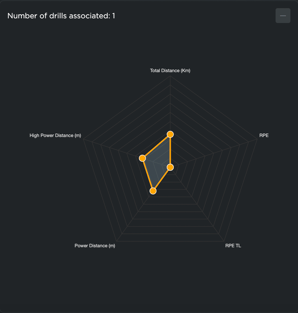
Here you can display the average of the values done by the players for the selected drill during trainings and games, in both absolute and %. To display this chart correctly, you need to follow the steps below:
- Access Settings - Teams - Metrics - GPS Metrics and set as active the metrics you want. Remember that the first 5 metrics in the list will be displayed in the radar chart. In this [article,](https://support.iterpro.com/en/guide/performance-introduction-gps-data-integration-and-set-your-gps-metrics?hsLang=en) you can find all the information regarding how to do this operation.
- Access Players - My team - Thresholds - GPS and set the thresholds for your active metrics for all your players. In this [article](https://support.iterpro.com/en/guide/how-to-set-the-thresholds-for-gps-metrics-and-test-metrics?hsLang=en), you can find all the information regarding how to do this operation.
- Now, you need to import the GPS data and link them with the drills already created (or create new drills). Doing that, the radar chart will display the average of the data done by the players whenever you associate the split with that drill. In this [article](https://support.iterpro.com/en/guide/how-to-import-the-training-sessions-data?hsLang=en), you can find all the information regarding how to do this operation.
- [What's New](https://support.iterpro.com/en/guide/whats-new?hsLang=en)
- [Quick Onboarding](https://support.iterpro.com/en/guide/quick-onboarding?hsLang=en)
- [Account set-up and other](https://support.iterpro.com/en/guide/account-set-up-and-other?hsLang=en#main-content)
- [Login & Iterpro overview](https://support.iterpro.com/en/guide/account-set-up-and-other?hsLang=en#login-iterpro-overview)
- [Settings](https://support.iterpro.com/en/guide/account-set-up-and-other?hsLang=en#settings)
- [Create, archive and delete players](https://support.iterpro.com/en/guide/account-set-up-and-other?hsLang=en#create-archive-and-delete-players)
- [Other](https://support.iterpro.com/en/guide/account-set-up-and-other?hsLang=en#other)
- [Manager](https://support.iterpro.com/en/guide/manager?hsLang=en#main-content)
- [Tactics](https://support.iterpro.com/en/guide/manager?hsLang=en#tactics)
- [Planning](https://support.iterpro.com/en/guide/manager?hsLang=en#planning)
- [Videogallery](https://support.iterpro.com/en/guide/manager?hsLang=en#videogallery)
- [Drills](https://support.iterpro.com/en/guide/manager?hsLang=en#drills)
- [Attendances](https://support.iterpro.com/en/guide/manager?hsLang=en#attendances)
- [Performance](https://support.iterpro.com/en/guide/performance?hsLang=en#main-content)
- [Session Analysis](https://support.iterpro.com/en/guide/performance?hsLang=en#session-analysis)
- [Workload Analysis](https://support.iterpro.com/en/guide/performance?hsLang=en#workload-analysis)
- [Assessments](https://support.iterpro.com/en/guide/performance?hsLang=en#assessments)
- [Readiness](https://support.iterpro.com/en/guide/performance?hsLang=en#readiness)
- [Medical](https://support.iterpro.com/en/guide/medical?hsLang=en#main-content)
- [Medical Records](https://support.iterpro.com/en/guide/medical?hsLang=en#medical-records)
- [Infirmary](https://support.iterpro.com/en/guide/medical?hsLang=en#infirmary)
- [Examinations](https://support.iterpro.com/en/guide/medical?hsLang=en#examinations)
- [Medical Statistics](https://support.iterpro.com/en/guide/medical?hsLang=en#medical-statistics)
- [Player](https://support.iterpro.com/en/guide/player?hsLang=en#main-content)
- [My Team](https://support.iterpro.com/en/guide/player?hsLang=en#my-team)
- [Scouting](https://support.iterpro.com/en/guide/player?hsLang=en#scouting)
- [Transfers](https://support.iterpro.com/en/guide/player?hsLang=en#transfers)
- [Administration](https://support.iterpro.com/en/guide/administration?hsLang=en#main-content)
- [Squads](https://support.iterpro.com/en/guide/administration?hsLang=en#squads)
- [Finance Overview](https://support.iterpro.com/en/guide/administration?hsLang=en#finance-overview)
- [Bonus Tracking](https://support.iterpro.com/en/guide/administration?hsLang=en#bonus-tracking)
- [Cash Flow](https://support.iterpro.com/en/guide/administration?hsLang=en#cash-flow)
- [Transactions](https://support.iterpro.com/en/guide/administration?hsLang=en#transactions)
- [Registrations](https://support.iterpro.com/en/guide/administration?hsLang=en#registrations)
- [Mobile apps](https://support.iterpro.com/en/guide/mobile-apps?hsLang=en#main-content)
- [Player App](https://support.iterpro.com/en/guide/mobile-apps?hsLang=en#player-app)
- [Coach App](https://support.iterpro.com/en/guide/mobile-apps?hsLang=en#coach-app)
- [Director App](https://support.iterpro.com/en/guide/mobile-apps?hsLang=en#director-app)
- [Iterpro Login Page](https://app.iterpro.com/auth/login)
- [Contact Support](https://share.hsforms.com/1rE7NvsvuTIWBm7WQ1dhslQ1uo0p)
- [Terms & Conditions](https://www.iubenda.com/terms-and-conditions/53739842)
- [Privacy Policy](https://www.iubenda.com/privacy-policy/53739842)
[](https://iterpro.com/)
Copyright © 2025, Iterpro Support Team