
PANELS AND ACTIONS MANAGEMENT
CREATE NEW USERS (ONLY FOR ADMIN)
CREATE CLUBS/OPPONENTS
FEATURES DESCRIPTION
1. Creating and Managing Tags (Actions)
Once your personal settings are configured, open the menu and click on "Panels". You will see two sections: "Panels" and "Action".
Start by visiting the Action area, where you’ll find the list of available tags.
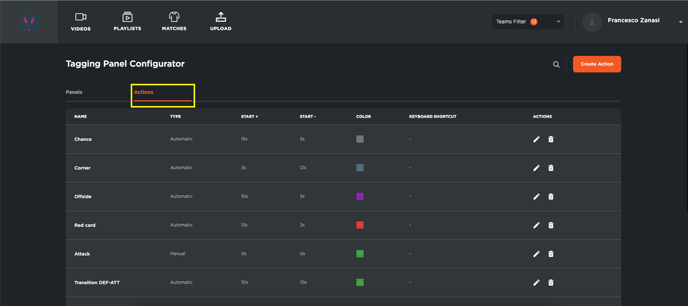
To create a custom tag:
-
Click "Create Action"
-
Enter the tag name
-
Choose the type:
-
Automatic: define fixed seconds before/after the tag
-
Manual: define start and end manually
-
-
Set a color for the tag
-
(Optional) Add a keyboard shortcut
-
Click "Create"
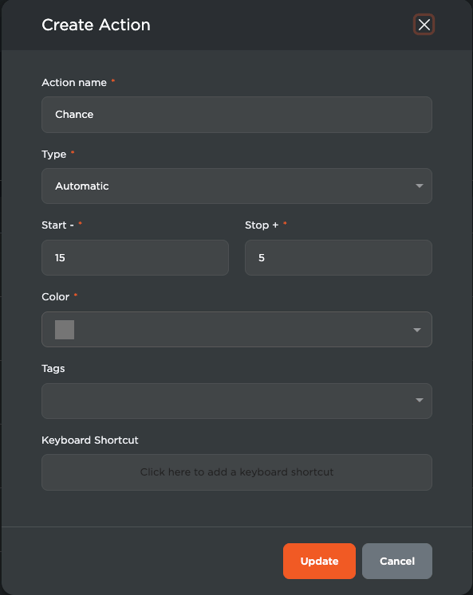
Your new action will appear in the list. You can edit, delete, or add more actions as needed.
2. Creating Panels (Tag Categories)
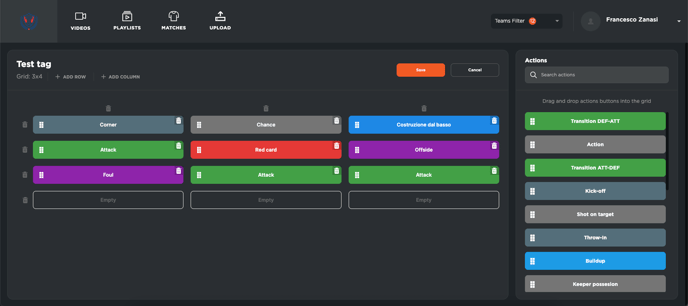
Move to the Panels section to create categories where you can organize your tags.
To create a panel:
-
Click "Create Panel"
-
Set the panel name and the grid size
-
You can have a maximum of 3 columns
-
Rows can be added freely
-
-
Click "Create"
Once created, you can:
-
Edit, delete, or click the panel to add tags
-
Use drag and drop to place tags inside the grid
-
Add extra rows if needed
-
When done, click "Save"
3. User Management (Admin Only)
This section is available only to admin users. From the menu, go to "Users" to manage user accounts.
To create a new user:
-
Click "Add User"
-
Fill in all fields: name, email, role, language, and password
-
Assign access permissions to teams
-
Click "Add"
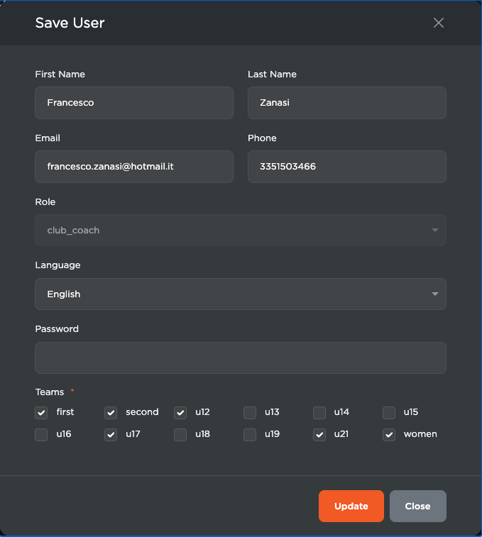
You can also edit or delete existing users.
4. Adding Opponent Clubs
It’s essential to input all the opponent clubs your teams will face.
From the "Clubs" section in the menu:
-
Click the add icon to enter a new club
-
This is important for tagging match videos, where you’ll need to select both your team and the opponent, along with their categories
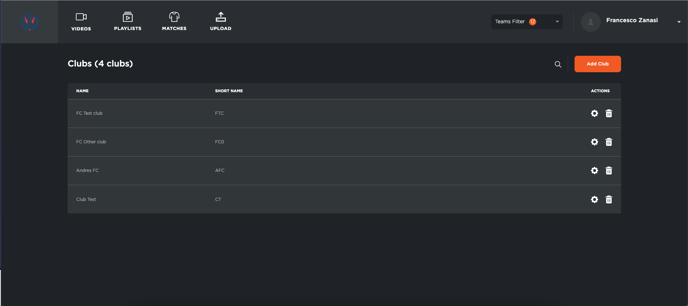
Once a club is created, it can be edited or deleted as needed.