
FEATURES DESCRIPTION
Uploading a Video
To begin, click on Upload. You can then select one or multiple video files from your device.
After choosing the files, fill in the required fields:
-
Video name
-
Date
-
Match (optional)
-
Team category involved in the video
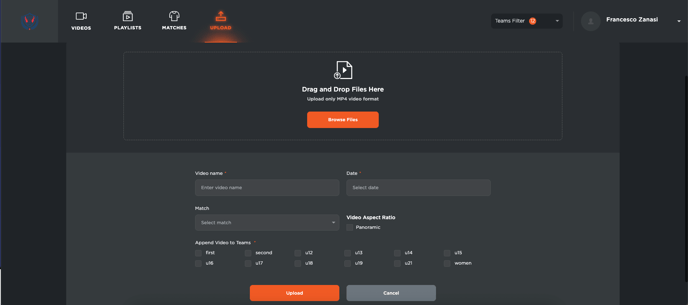
Once all fields are completed, click on Upload.
⚠️ The upload time will vary based on the video size and your internet speed.
During the upload process, you can continue to navigate through the platform without interruptions.
Where to Find Uploaded Videos
Once the upload is finished, the videos will appear in the Videos section, which is divided into three tabs:
-
Videos: contains all videos not linked to a specific match
-
Pending: shows videos that are still uploading
-
Matches: lists all videos that are linked to a specific match
The video you just uploaded will appear in the appropriate section based on the details you provided.