
FEATURES DESCRIPTION
Start by selecting a video from either the Matches or Videos section.
At the bottom of the video player, you will find the playback controls (play, pause, speed, etc.).
Activating the Drawing Tool
To begin drawing:
-
Click on the pencil icon or drawing icon to open the drawing toolbar.
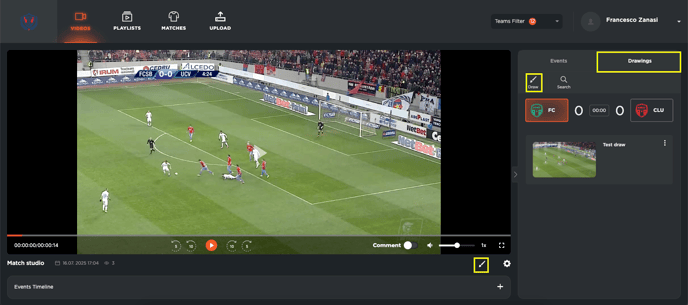
-
A menu will appear with various options to insert lines, arrows, circles, or other shapes.
-
Choose whether to draw a solid or dashed line, then start drawing directly on the video.
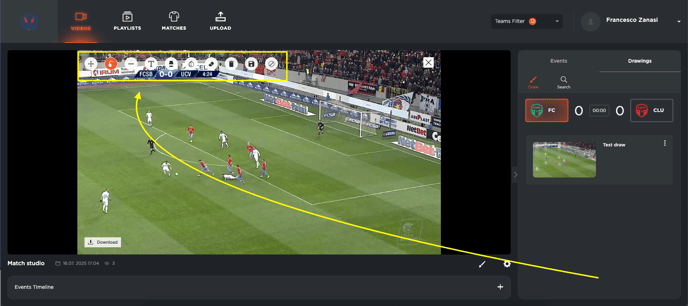
Editing the Drawing
After drawing, you can:
-
Select an element
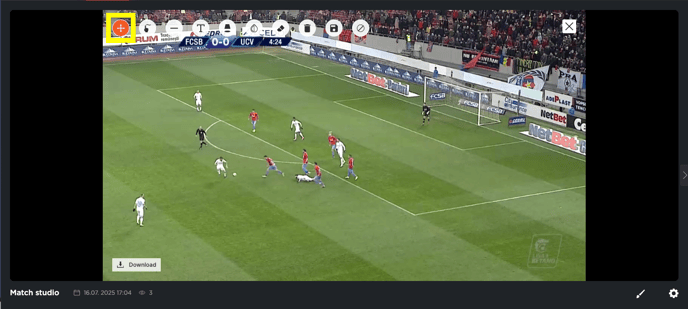
-
Change its colour
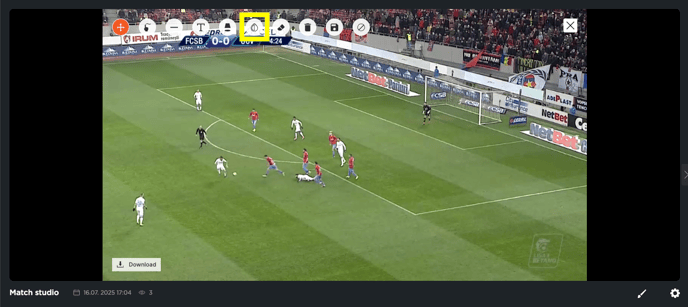
-
Delete it if needed
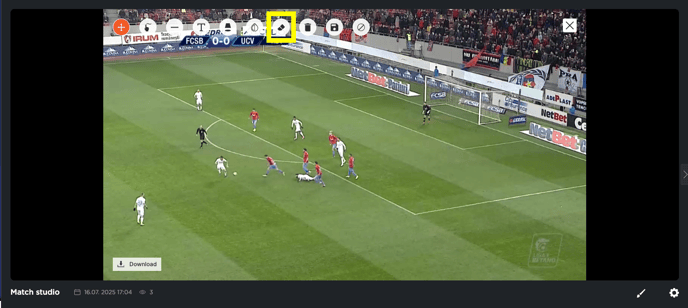
-
Add text
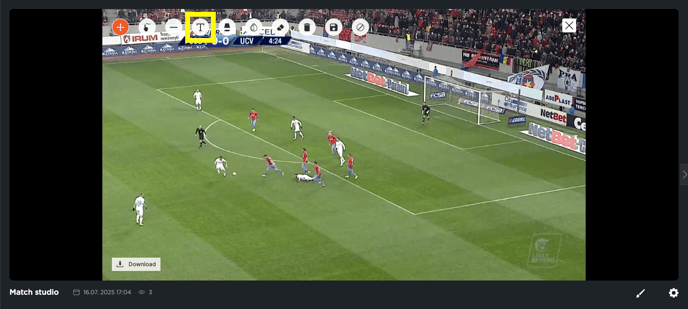
-
Highlight a player by clicking directly on their position in the video
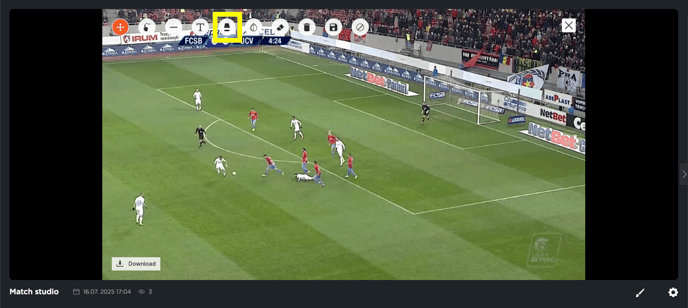
Saving the Drawing
Click on the save icon:
-
You can enter a name for the drawing and add notes
-
Once saved, the drawing will be stored in the Drawings section
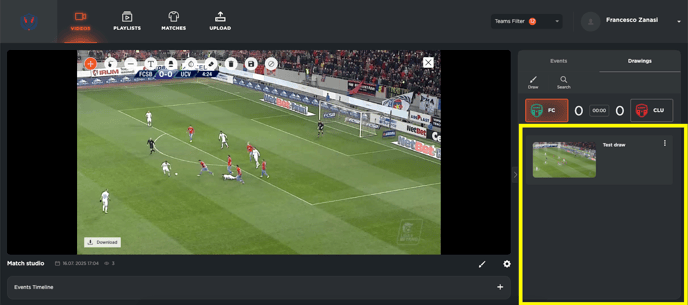
Clicking on a saved drawing allows you to view it again at any time.
📌 Note: each drawing will appear for a standard duration of 5 seconds.