
FEATURES DESCRIPTION
First, click on Tag and select the desired panel.
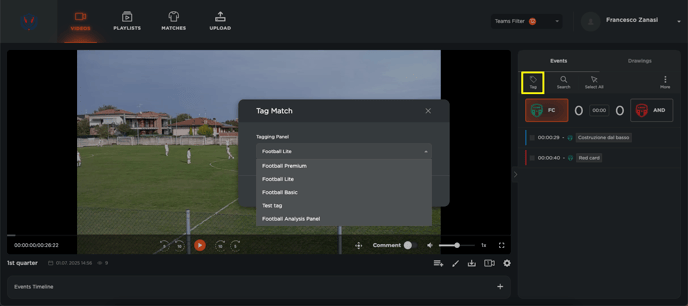
Once selected, all available actions in that panel will appear on the right side of the screen.
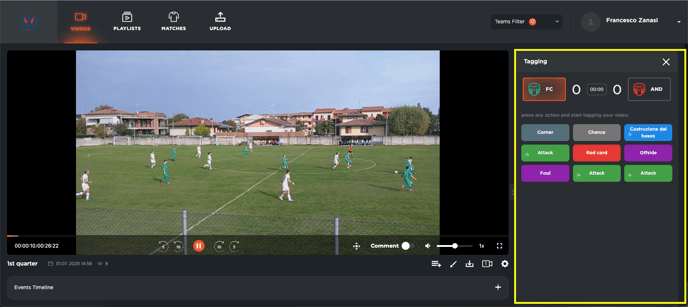
Tagging Actions in the Video
Click Play to start the video and begin tagging actions:
-
For manual actions (e.g., "Build-up play"): you decide the start and end of the clip by clicking twice — once to start, once to end.
-
For automatic actions (e.g., "Red Card"): a single click will automatically generate a clip using the pre-set number of seconds before and after the event.
After tagging, close this section to view all the clips you’ve created.
Creating and Managing Playlists
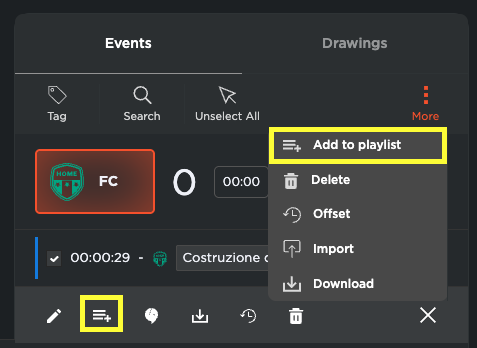
To add a clip to a playlist:
-
Select the desired clip
-
Click Add to Playlist
-
You can either create a new playlist or add it to an existing one
In the Playlist section, you’ll find:
-
A complete list of all your playlists
-
Clips organized in chronological order
-
The ability to play them in sequence or on loop
-
The option to download the playlist as a single video file by clicking on Download