
WHAT'S THE GO SCORE
- 0:00 what's the GO score
- 0:35 how to display the GO score
- 1:09 custom algorithm
HOW TO CALCULATE THE GO SCORE (part1)
- 0:00 introduction
- 0:20 add a rule in the GO score
- 0:41 how the score for each metric is calculated
HOW TO CALCULATE THE GO SCORE (part2)
- 0:00 set % of relevance
- 0:39 daily calculation
- 0:46 no mandatory metrics
HOW TO CALCULATE SCORE FOR THE WELLBEING QUESTIONNAIRE
- 0:00 recap of well-being questionnaire
- 0:21 set weights for the votes
- 0:58 how we suggest to weight the votes
- 1:31 how the score is calculated
HOW TO ANALYSE THE GO SCORE
FEATURES DESCRIPTION
What's the GO Score
The GO Score is a proprietary algorithm developed by the Iterpro team to help clients evaluate the readiness status of their athletes. It generates a daily percentage score that reflects how prepared each player is for trainings and games. Based on this score, players are classified as having:
-
Poor readiness (Red)
-
Moderate readiness (Yellow)
-
Optimal readiness (Green)
This feedback is shared across all departments within the Iterpro system, ensuring that everyone—from performance staff to coaches—has access to real-time readiness insights.
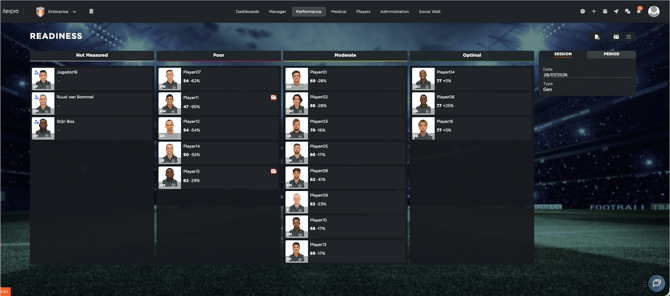
You can find the GO Score in the Readiness section under Performance. There, you will see:
-
A daily overview of player readiness
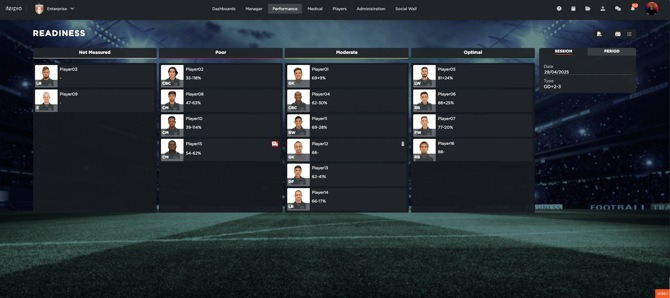
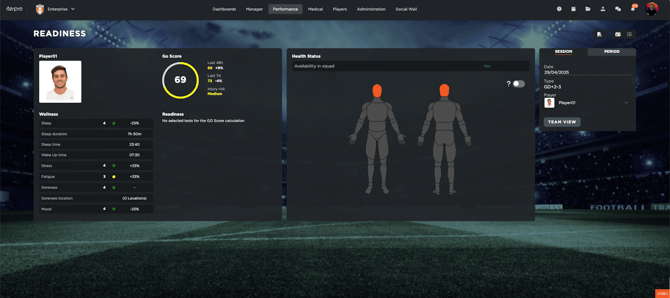
- The ability to click on individual athletes to view:
-
-
Details on how the score is calculated
-
Data from the last 48 hours or 7 days
-
Injury risk indicators
-
The tests that contributed to the score
-
How to calculate the GO score
The GO Score can be taylor-made based to your specific methodology, deciding which metrics include in the calculation and which is their importance within the score:
-
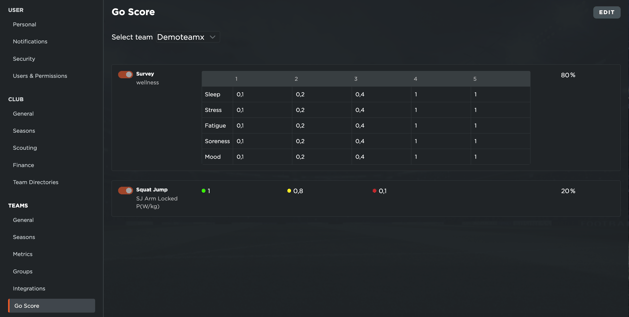
Go to Settings → Team → GO Score
-
Click Edit to manage which metrics are included.
-
by click on ADD RULE you will see the list of active metrics (e.g. Survey, Squat Jump) within the dropdown.
-
To include a new metric, make sure it is set as “active” in Settings
-
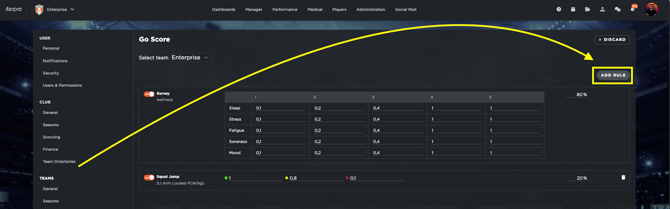
For each metric, yiu can decide the % of relevance to contributes to the final score (the sum of the percentage must be 100). This is important if some test are more crucial than others.
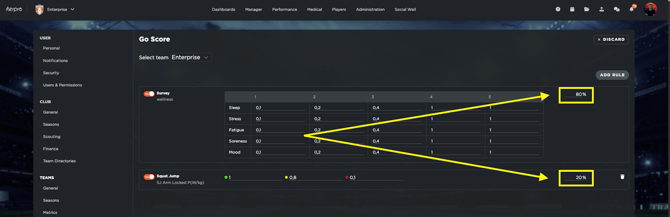
For example, if the Survey is more relevant, its score will weigh more heavily in the final result.
Based on the thresholds previously configured (green/yellow/red), wihtin Players - My team - Player's card - thresholds - Test, you can assign a specific weight to each colour. For example:
-
Green = 1.0 (->100%)
-
Yellow = 0.8 (->80%)
-
Red = 0.1 (->10%)
These values are fully customizable, allowing you to define how much each test metric affects the overall readiness score.
Important: The GO Score is calculated daily, based on the metrics submitted on that specific day. If only one test is submitted, the score will be calculated using that test alone.
Special Case: Wellness Survey Scoring
The Well-being questionnaire is calculated using a separate logic:
-
As we know, there are 5 questions, each rated from 1 to 5 (1 = very poor, 5 = very good).
-
For each vote, you can assign a weight (between 0.1 and 1.0).
The score for each question is calculated by:
- Vote × Weight
- Then, the sum of all question scores is multiplied by 100, and divided by 25 to normalize the result.
- Now you have the final percentage of Wellness Score, which isis then factored into the overall GO Score based on its assigned relevance.
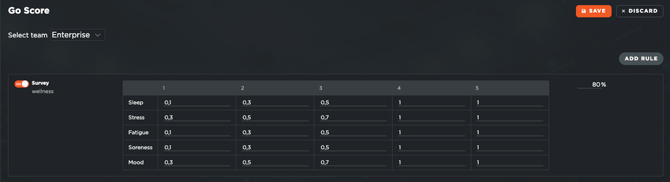
Below you can find a final example:
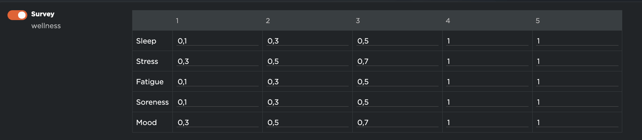
The players selected the following votes: Sleep (2) - Stress (4) - Fatigue (3) - Soreness (4) - Mood (5). Using the "weight" displayed in the table, the scores, for each vote, are:
- Sleep: 2 (vote) x 0,3 (weight) = 0,6
- Stress: 4 (vote) x 1 (weight) = 4
- Fatigue: 3 (vote) x 0,5 (weight) = 1,5
- Soreness: 4 (vote) x 1 (weight) = 4
- Mood: 5 (vote) x 1 (weight) = 5
In that case, the GoScore, if only the wellbeing survey is included, is: 60,4
Instead, if all the weight are 1, the scores are:
- Sleep: 2 (vote) x 1 (weight) = 2
- Stress: 4 (vote) x 1 (weight) = 4
- Fatigue: 3 (vote) x 1 (weight) = 3
- Soreness: 4 (vote) x 1 (weight) = 4
- Mood: 5 (vote) x 1 (weight) = 5
And, in this second scenario, the GoScore, if only the wellbeing survey is included, is: 72
Analyzing GO Score Data
Once your test data is uploaded and your calculation rules are set, you can analyze the GO Score from several perspectives:
In the Performance → Readiness → Session : view daily readiness and each player’s GO Score card
Within Performance > Readiness, users can access the Period tab to analyze Readiness scores over a custom time frame. There are no restrictions on the period length, though keep in mind that selecting a very large range may make the chart less readable.
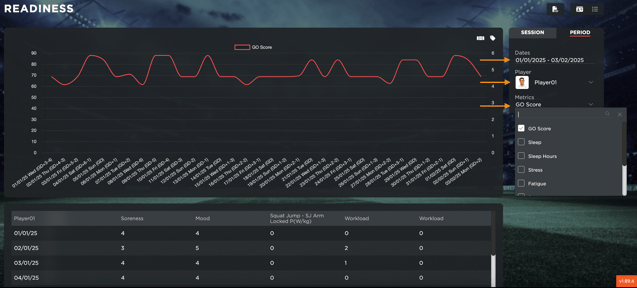
Once a time period is selected, users can choose a specific player to analyze. Additionally, they can select up to two metrics to compare over the chosen period. The available metrics are those configured as rules within Settings > Go Score.
For a deeper understanding of how these metrics are set and influence the Readiness analysis, refer to this guide.
This tool allows users to track trends in player Readiness across multiple sessions, helping them make informed decisions based on performance patterns over time.
- In Performance → Workload Analysis → Period → Stress Balance:
- Compare Workload metrics with Readiness data for a complete overview