PLAYER REGISTRATION - PLAYER APP
- 00.05: app setup introduction
- 00.20: accessing players' profiles through squads
- 00.23: adding player's email addresses
- 00.39: creating new players, adding their email, and providing permissions to the player app
PLAYER INVITATION - PLAYER APP
- 00.04: accessing player app management panel through squads
- 00.09: admin permission recommendations
- 00.17: explanation of basic actions in the player app panel
- 00.22: how to activate a player in the player app
- 00.49: how to provide custom permissions to players for the player app
- 01.01: how to send the registration emails to the players
- 01.15: how to track and manage players accesses and logins
FEATURE DESCRIPTION
To ensure that players can access the Player App, administrators must first register them in the system. The process consists of two main steps: Player Registration and Player Invitation.
1. Player Registration
The first step is to activate the players by associating their email addresses with their profiles. To do this:
- Navigate to Administration - Squads.
- Open the profile of the player you want to activate.
- Go to the Contact Section and enter the player’s email address.
- Save the changes.
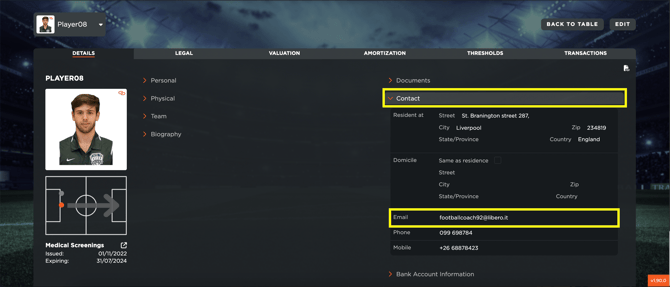
Once the email address has been added, you can return to the Squads table for the next step.
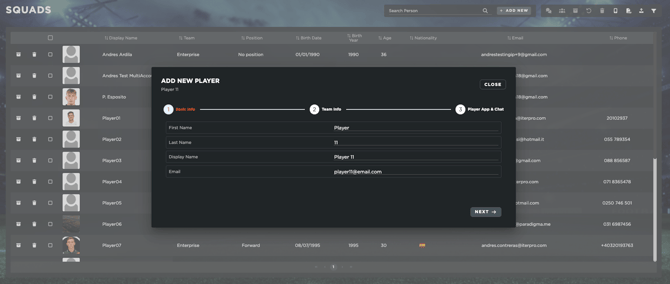
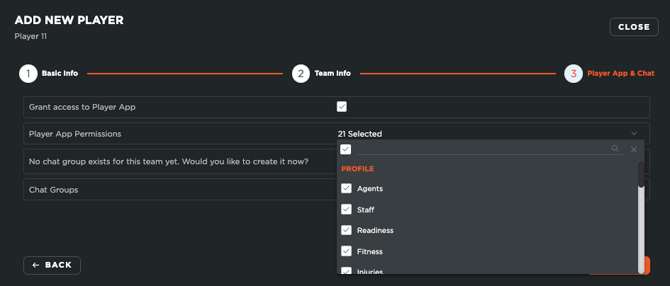
This same operation can also be done when you are creating your players, where inside the creation panel, you will see the possibility to add the player's email address, as well as directly providing them permissions to the Player App.
2. Player Invitation
After registering the players’ email addresses, proceed to the Player App Management Module. Note that this module is only accessible to admin users. If you do not have access, please contact your account administrator.
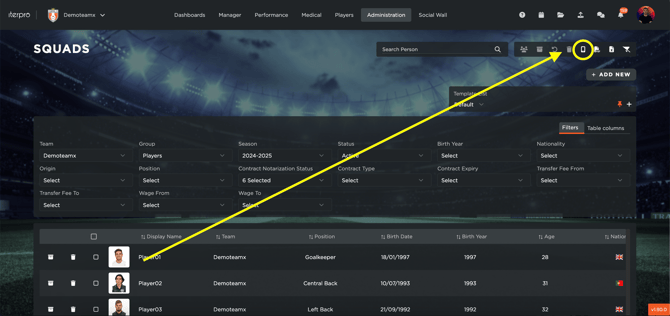
Inside the Player App Management Module, you can:
- Select the team(s) you have access to.
- Activate the players who should receive permissions for the Player App.
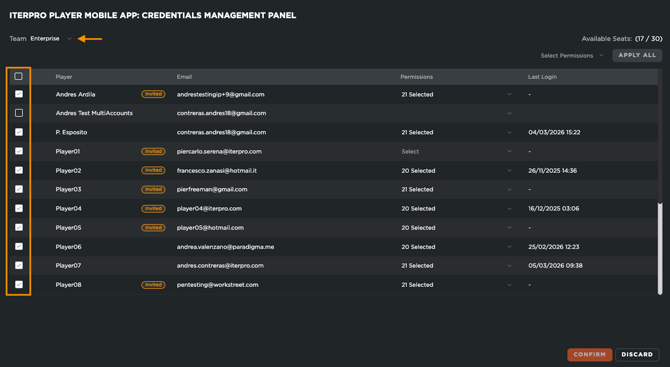
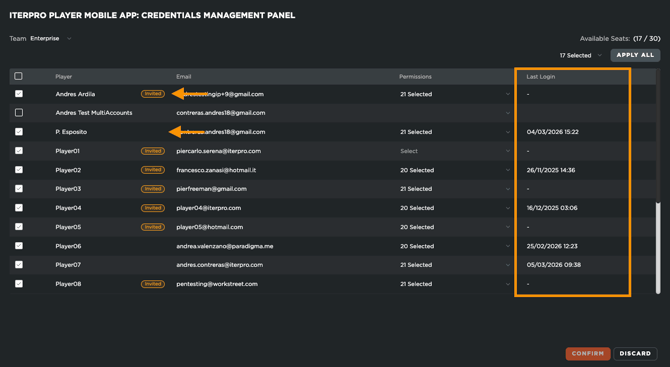
Each player’s permission status is indicated by a checkmark on the left side of the panel:
✅ If the checkmark is active, the player has access to the app and will receive a registration email.
❌ If the checkmark is inactive, the player will not receive the email and will not be able to log in.
Keep in mind that the check must ALWAYS remain selected for the players you wish to have access. If you deselect them at any point, they will lose their access and will have to be invited again.
Additionally, the module allows you to customize permissions for each player. This means you can restrict access to specific sections of the system as needed. Permissions can be applied:
- To all players at once, ensuring consistency across the team.
- Individually, for cases where personalized access levels are required.
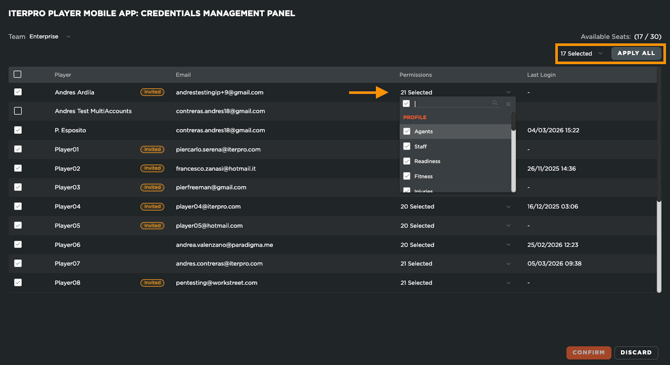
Once all necessary players have been activated and their permissions set, click Confirm. This action will trigger the system to send a registration email to each player, allowing them to set up their account.
Monitoring Player Access
After players receive the email and accept the invitation, admin users can track their access status through the same module. The panel provides insights on:
- Invited players, where you see a label for players invited but that haven't accepted.
- Active players, where you won't see the 'invited' label anymore (showing you they have accepted the registration).
- The last time each player logged in.