HOW TO LOGIN & SETTINGS
- 00.06: how to login
- 00.20: magic link login
- 00.40: google/apple authentication method
- 00.52: coach app general settings
Landing Page
- 00.05: tactical board/ list view
- 00.20: fixtures tab
- 00.38: seasonal statistics
- 00.46: check readiness
- 01:03: team infirmary
PLAYER PROFILE
- 00.11: player card
- 00.22: readiness of a player
- 00.27: fitness tests and analyse
- 00.38: medical information about the player
- 00.48: player robustness
- 00:55: player reports and videos
CALENDAR
- 00.05: different views
- 00.14: event types
- 00.20: training event details
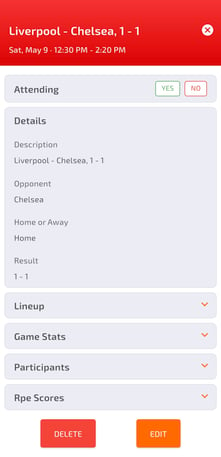
- 00.30: game event details
- 00.50: create events
VIDEO GALLERY & CHATTING TOOL
- 00.12: video gallery tabs
- 00.12: search for video name/ apply filters
- 00.30: download and comment videos
- 00.45: chatting tool
FEATURE DESCRIPTION
How to login
Once you entered your account on the web platform, you can proceed to log into the mobile Coach App.
There are two methods available to log in:
-
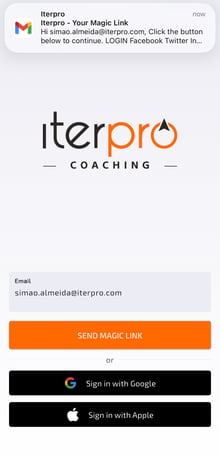
Email Magic Link: Enter your registered email address and click "Send Magic Link". You will receive an automated email containing a secure link. Simply click the "Login" button within that email to automatically open and authenticate the app.
-
Google / Apple Authentication: Select either the Google or Apple sign-in option. Log in using your existing Google or Apple account credentials. Ensure the email address of the provider you select matches the email address registered to your Iterpro account.
General Settings
To access and customize your personal account preferences:
-
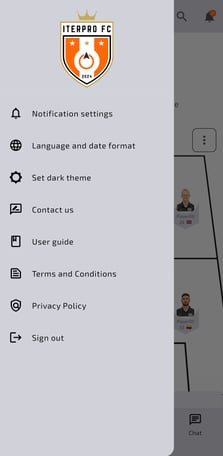
Click on your User Photo located in the top left corner of the screen.
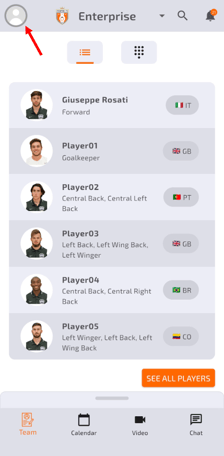
Once inside your personal settings, you can manage the following options:
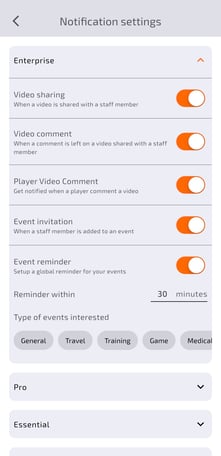
- Notifications Settings: Customise your alert and notification preferences individually for all the teams you have access to.
- Select your preferred Language and Date Format.
- Toggle between Dark Mode and Light Mode themes.
- Support: Contact the support team directly for assistance.
- Access the official User Guide for detailed platform tutorials.
Landing Page
Upon accessing the Iterpro Coach App, users will first encounter the Team View. This section provides an overview of the team, displaying players in both list and lineup formats, along with seasonal statistics.
Key features include:
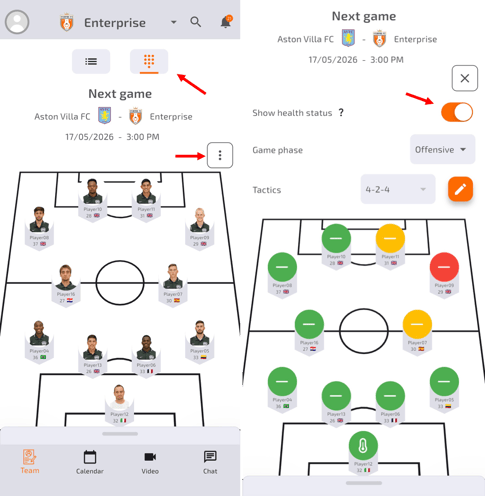
- Editable lineup: from within the app, coaches will be able to edit the team's lineup/formation and move players between positions. This enables users to have direct control of the preparation directly in their pockets.
-
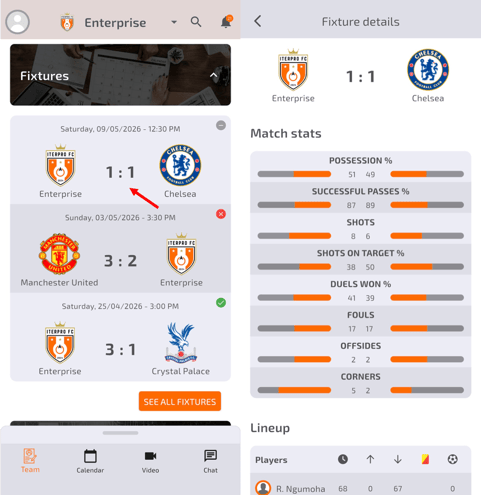
Fixtures & Match Statistics: Users can view past and upcoming fixtures. Once a game has taken place, detailed match statistics, sourced from Wyscout, become available.
-
Team & Opponent Insights: View information on both your team and upcoming opponents.
-
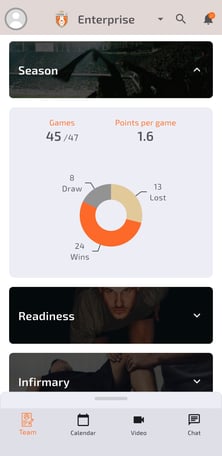
Seasonal Statistics: Track and analyse match statistics for the season.
-
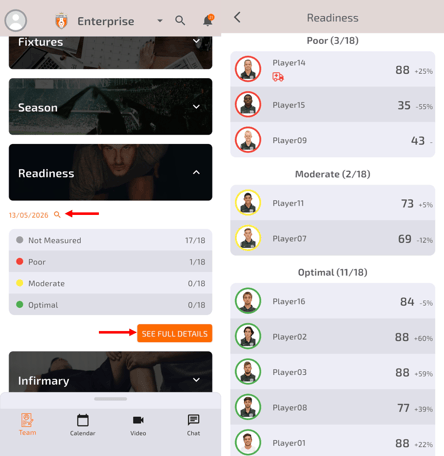
Readiness Metrics: Browse and analyse player readiness data over time, understanding each player's status.
-
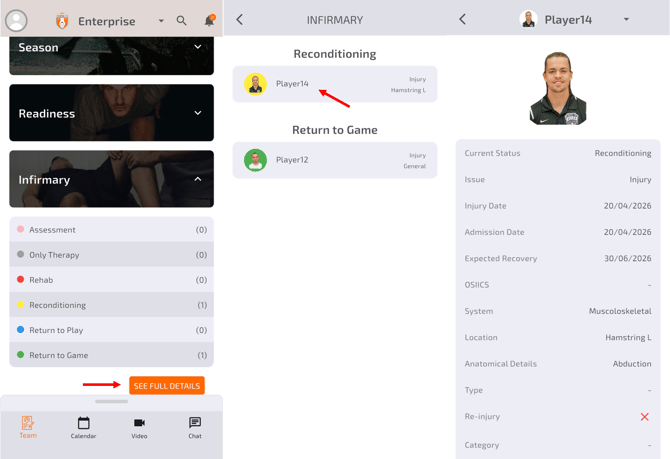
Injury Tracking: Access injury details from the Infirmary section, viewing recovery stages and medical records.
-
Health Status Monitoring: Player health indicators are available in both the lineup and list views, aiding in informed decision-making.
Player Profile
Players' individual profiles can be accessed from either the list or lineup view. Within each profile, users can:
-
View personal details and seasonal KPIs.
-
Analyse readiness scores over time and the components used for calculating Goscore.
-
Review performance and medical tests.
-
Track injury history, including active and past medical data.
-
Assess availability statistics for the season.
-
Access coaches’ reports, including feedback, attributes, and videos.
Calendar
The Calendar feature allows team staff to efficiently manage and review scheduled events.
-
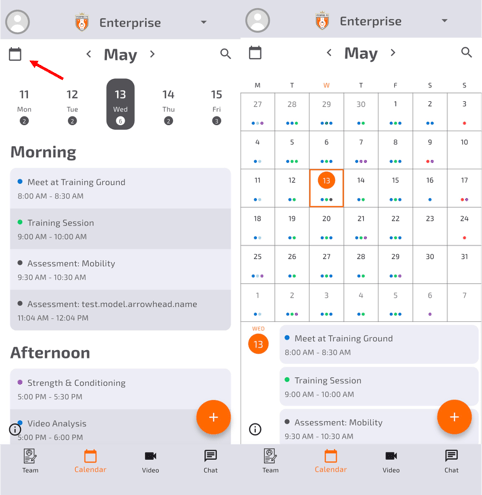
View events in a weekly or monthly format.
-
Select a date to access specific events, such as training sessions or matches.
-
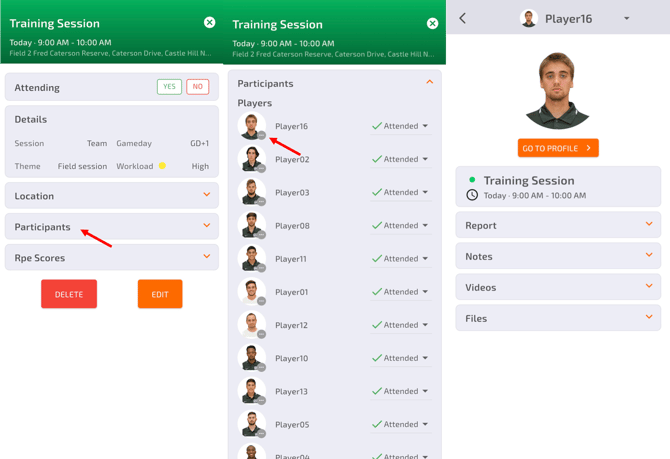
Training events display session details, drills, and participants.
- Update player reports and attach notes, videos, or files directly from the player's profile inside training or game events in your calendar.
-
Game events provide lineups, match statistics, and RPE scores submitted by players.
- Match Statistics can be manually edited directly from the game event in the calendar, allowing users to add match information about their team and the opponents directly from the app.
-
Events are color-coded for easy identification, with a legend to guide users.
To create a event using the Coach App:
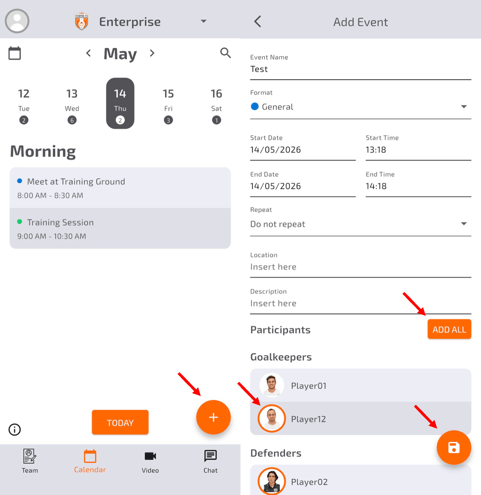
- Click the "+" icon on the bottom right.
- Fill in the details - the are multiple formats that have different requirements.
- Add the participants one by one, or use the "Add All" button to select all the same time
- Click "Save"
Note: Please keep in mind that while the Mobile Apps are great for quick access, the Web Platform provides the depth needed for advanced management. For detailed operations—such as creating Training Plans or managing Medical Treatments—we recommend using the Web App. It offers the complete interface required to edit existing events or build new ones with all the necessary details.
Video Gallery & Chatting Tool
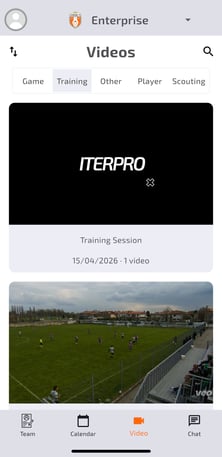
The Video Gallery enables users to:
-
Access shared game, training, other, Player, and Scouting.
-
Analyse videos in-depth, including opponent details (if applicable).
-
Download videos and add comments, facilitating discussions among staff and players.
-
Link videos to specific events for better organisation.
The Chatting Tool facilitates internal communication:
-
One-on-one and group chats can be created with staff and players.
-
Share pictures, locations, and files directly within chats.
-
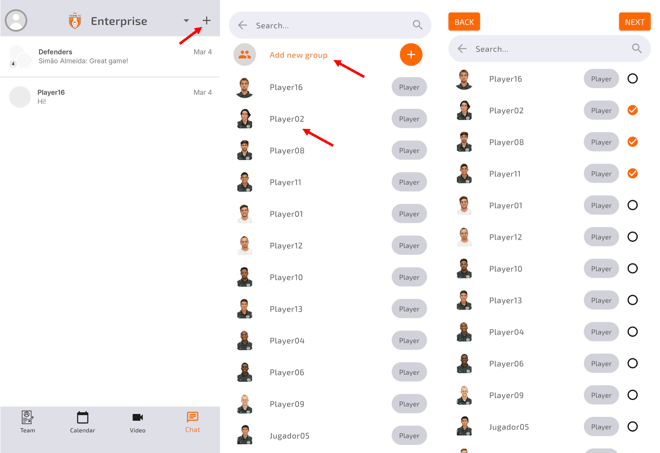
Create a new chat by selecting players or staff members from the plus icon.
-
Set up group chats through the multi-select feature.