
FEATURE DESCRIPTION
Once a user completes their registration and proceeds with the purchase of memberships or products, all related information is collected and displayed in the Administration > Transaction section.
In this section, you will find a summary table that clearly and comprehensively shows:
-
Purchased products
-
Selected memberships
-
Paid amounts
-
Any additional information linked to each individual registration
This allows you to always keep track of all financial activities related to the registration process.
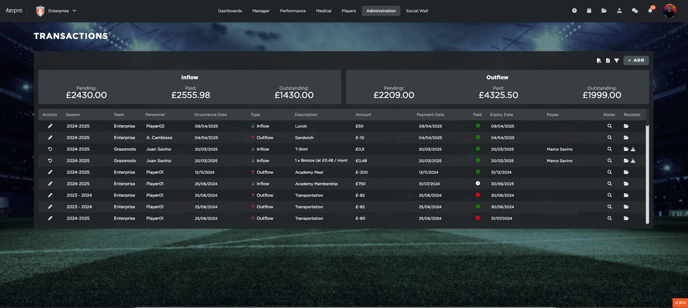
Manual Addition of Expenses or Details
If you need to manually add a transaction or include further details (such as extra costs, adjustments, or notes), you can easily do so by:
-
Clicking the “Add” button
-
Filling in the required fields related to the transaction
-
Clicking “Save”
The information will be immediately stored in the system and will appear in the table alongside transactions automatically generated by user registrations. For additional information, you can read this article.