
In each drill's card, custom fields can be decided by the users. In this article, we speak about the Technical goals. To set the option included in this dropdown, just you need to follow the steps below:
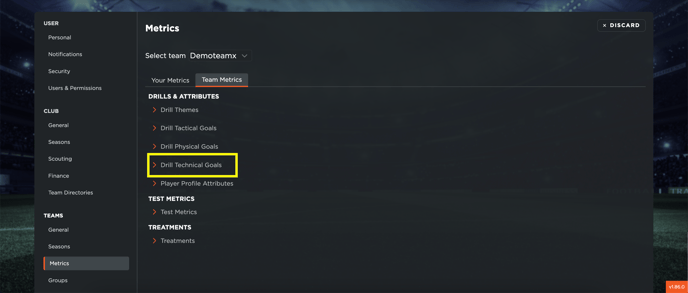
- Go to Settings - Team - Metrics,
- Access the Team metrics section,
- Click on EDIT,
- Open the accordion named "Technical goals",
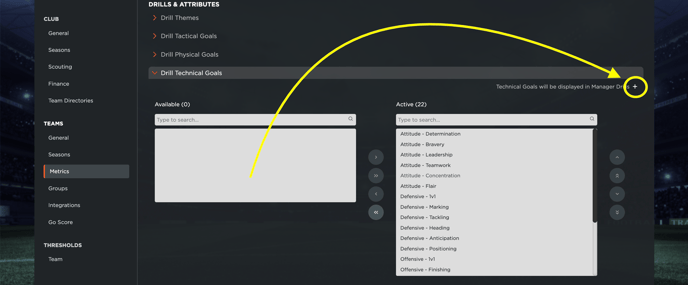
On the right box are displayed the active Technical goals, in the left one, the not active ones. If you want to activate or deactivate them, you can do it with a drag and drop, or by selecting one or more option and moving them from one box to the other. Note that if you select the icon with 1 arrow, only the selected metrics are moved, while if you select the icon with 2 arrow, all the metrics are moved, not only the selected ones.
If you want to create a new metric, you need to follow the steps below:
- Click on the + icon in the top-right corner,
- Fill in the required information:
- Technical Goal Label: the name of the metric,
- Technical Goal Value (For CSV Export): the name of the metric in the CSV export
- Category: choose between Offensive, Defensive (note that the user can select also the Attribute category, but this can't be displayed in the Drills section, it's important ONLY for the Player Profile Attributes),
- Description: description of the metric.
- Click on SAVE
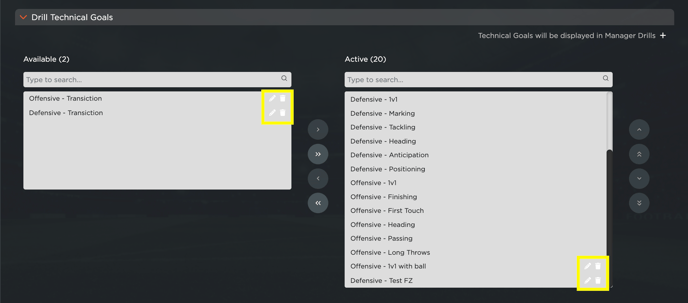
If you want to edit or delete a new metric (this cannot be done for the default ones), you need to click on the pen or trash icon respectively.
Finally, note that for any operation that has been done, the user must select the SAVE button in the top right corner of the Metrics section. Remember that all the metrics must be set according to the limits, otherwise, the system will notify you of an error.