
Setting Up the CSV Model in Iterpro
Before uploading match data, it's important to distinguish between team tactical metrics and individual metrics. To ensure a smooth import process, the CSV file must be aligned with the predefined model in the system.
To define the CSV model:
-
Navigate to Settings > Integrations > Third-Party.
-
Configure the sections for Team Game Stats and Individual Game Stats.
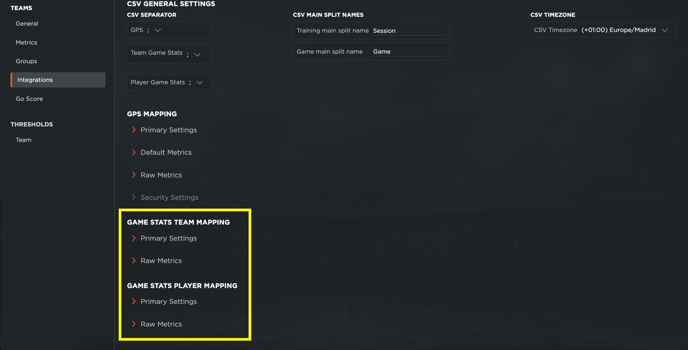
It's crucial that the CSV files you will import in the system match with the file format established in this section (both column names and the number of columns).
Team Game Stats
Required fields
The CSV file must include the following mandatory fields:
-
Team name
-
Match details
-
Event date
-
Goals or points scored
-
Goals or points conceded
The column names can be customized, but the content is essential.
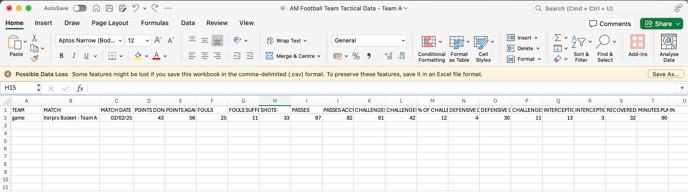
Thereafter, the user can add all the tactical metrics needed. Below is an example:
Mapping Fields
-
Open the Primary Settings accordion.
-
Click Edit to upload the CSV model.
-
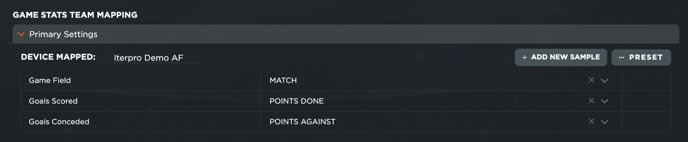
Map the required fields:
-
Game field: Associates the match descriptor (e.g., Team A vs Team B).
-
Goals scored: Associates the field indicating goals/points scored.
-
Goals conceded: Associates the field indicating goals/points conceded.
-
-
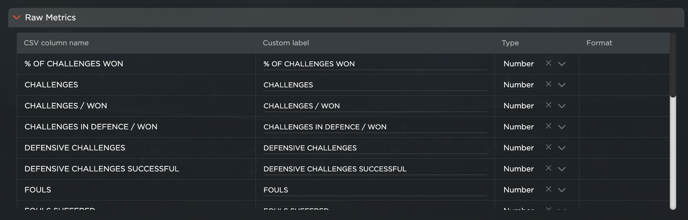
In the Raw Metrics section, select the type and format for each metric.
-
Click Save once all fields are mapped.
Once set, this process does not need to be repeated unless you modify the file model.
Individual Game Stats
Required Fields
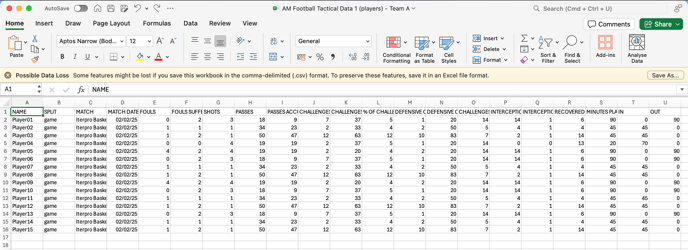
The CSV file must include the following mandatory fields:
-
Team name
-
Match details
-
Split name
-
Event date
-
Player display name
-
Minutes played
-
Entry minute
-
Exit minute
As with team stats, column names are customizable, but the content must be present.
Thereafter, the user can add all the tactical metrics needed. Below is an example:
Mapping Fields
-
Open the Main Settings accordion.
-
Click Edit to upload the CSV model.
-
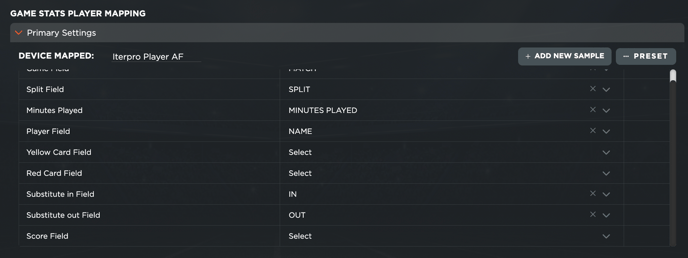
Map the required fields:
-
Game field: Associates the match descriptor.
-
Split field: Associates the main split name.
-
Minutes played: Associates the minutes played.
-
Player field: Associates the player display name (must match the name used in Iterpro exactly).
-
Yellow card field (optional): Associates the yellow card count.
-
Red card field (optional): Associates the red card count.
-
Substitute in field: Associates the entry minute.
-
Substitute out field: Associates the exit minute.
-
Score field (optional): Associates the goals scored.
-
-
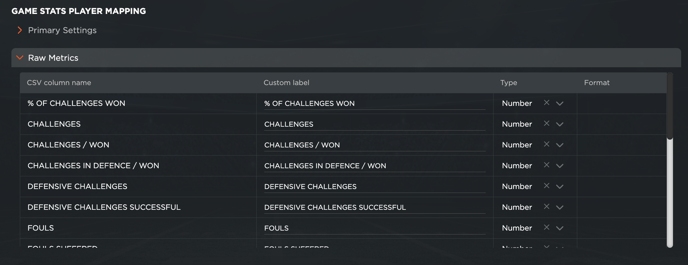
In the Raw Metrics section, select the type and format for each metric.
-
Click Save once all fields are mapped.
As with team stats, once set, this process does not need to be repeated unless you modify the file model.
Importing Data into the System
Once the CSV model is set up:
-
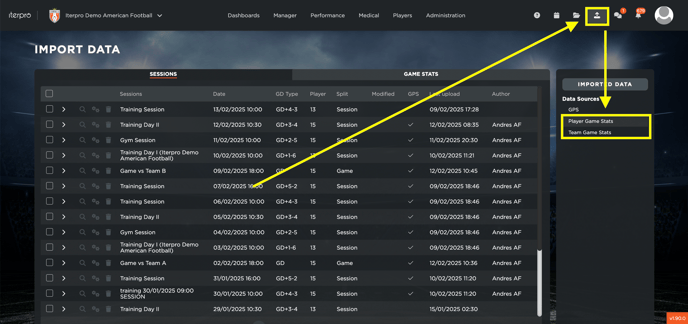
Click on the Import Data icon.
-
Select Player Match Stats or Team Match Stats.
-
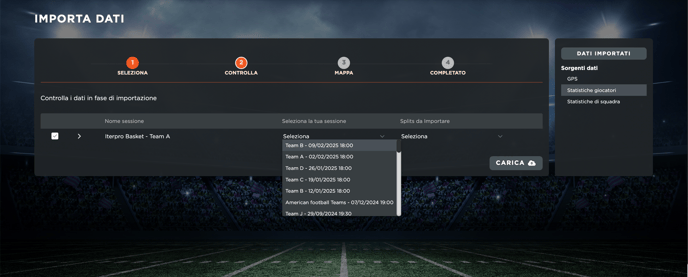
Choose the CSV file corresponding to a specific match.
-
Fill in the required fields.
Important: Ensure that a match event is created in the system before importing tactical data (both team and individual).
Following these steps, you will be able to efficiently upload match data into the Iterpro system using CSV files.