
CREATING SHADOW TEAM LINE-UP
- 00.04: how to access the scouting field view
- 00.09: how to create new scouting scenarios
- 00.14: how to add scouted players into the scenarios
- 00.39: how to share the scenario with users
- 00.44: how to customize the tactical formation
- 00.48: how to view the shadow team formation
- 00.54: how to add attachments to the scenario
- 01.00: how to share the scenario with the Director App users
CREATE A REPORT FOR YOUR SHADOW TEAM
- 00.07: explanation of scouting shadow player reports
- 00.18: how to use the filters to customize the reports
- 00.37: PDF export of the scouting shadow players
FEATURE DESCRIPTION
Creating a Shadow Team and Line-up
To explore potential scenarios with scouted players from your database, you can create and manage them directly from the field view. This feature allows you to generate new scenarios and keep track of all the ones you have previously created.
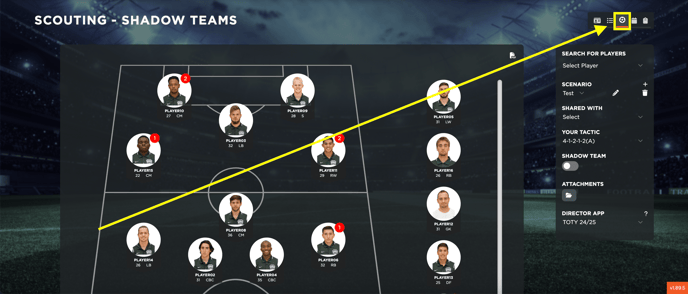
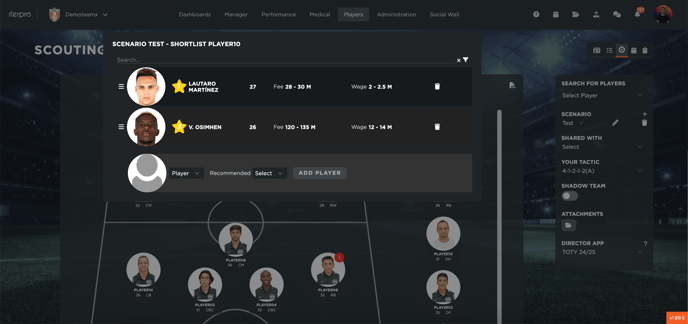
Once a scenario is created, you can add players from your scouting database and place them into the selected scenario. Additionally, within the lineup, you have the option to select a player profile and replace it with a scouted player from your database. After selecting the players, you can freely position them on the field according to your preferences and apply filters based on various metrics available to you.
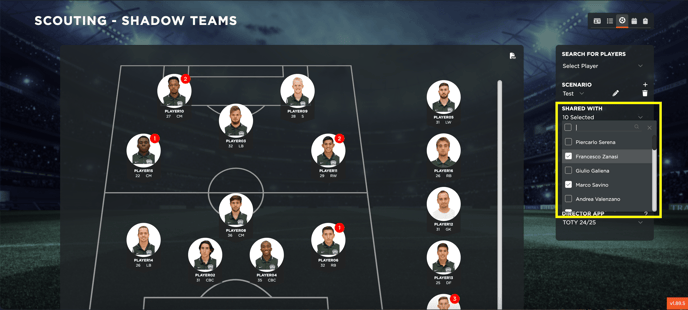
You can also share the created scenario with specific users within your account.
Furthermore, you can choose the tactics and formations to be used in the scenario. By toggling the switch, you can easily display all selected shadow players. Additionally, you can attach relevant files related to the transfer scenario and manage who has access to the associated documentation.
Lastly, you have the option to decide which of your created scenarios should be shared with all Director App users. The chosen scenario will then be the formation visible in the Director App.
Creating a Report for Your Shadow Team
Once you have set up your scouting scenarios and linked scouted players to your current formation, you can generate dynamic reports. By scrolling to the bottom of the page, you will find each player in your formation along with their assigned shadow players.
A dynamic table displays relevant data, and by clicking the filter icon, you can customize the table's content. You can simply select or deselect options, and the report will automatically update accordingly. This feature applies to all team players who have a shadow player assigned, allowing you to tailor the report as needed.
Finally, by scrolling to the top of the page, you can download a PDF report. This document includes the lineup, shadow team, and customized table, providing a complete overview of your scouting scenario.