
EVENTS' DESCRIPTION
- 00.08: Planning view
- 00.17: events' formats
EVENTS CREATION
- 00.06: select or change the format of your event(s)
- 00.23: repeat your event(s)
- 00.37: set the participant(s) of your event(s)
- 00.55: Keep track of participant(s) of your event(s)
ADDITIONAL FUNCTIONS WITHIN THE EVENT
- 00.02: duplicate event(s)
- 00.07: attach a file to the event(s)
- 00.20: add a brief description to the event(s)
TRAINING & GAME REPORTS
- 00.02: fill out training or game report(s)
- 00.34: access the data of the event(s)
- 00.50: modify or duplicate the template(s)
FEATURE DESCRIPTION
PLANNING CALENDAR OVERVIEW
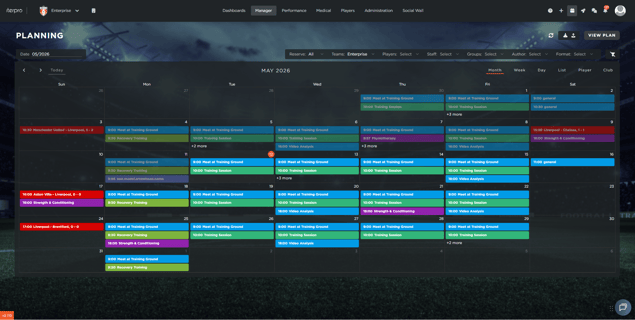
The Planning section is the central hub for team scheduling. It allows you to visualize all activities for the teams you have access to in a unified calendar view.
-
View Team Events: The calendar displays all scheduled events. Each event is color-coded by format to ensure quick identification (e.g., Training, Game, or Medical).
-
Filter Results: Use the sidebar filters to narrow the calendar view by all category types such as (Reserve, Teams, Players, Staff, Groups, Author, and Format).
-
Access Event Cards: Click any event to open its specific Event Card. The layout of the card automatically adapts based on the event format (General, Training, Game, Medical, Travel, Administration, International Duty, Day Off, Assessments & Examination) to show relevant data fields.

EVENT CREATION AND RECURRENCE
Creating and organizing events is a streamlined process that ensures all staff and players are aligned.
- Initiate Creation: Click on the desired day in the calendar and select the target team.
- Select Theme and Layout: Choose the event theme from the dropdown menu. The interface will refresh to show the specific fields required for that theme.
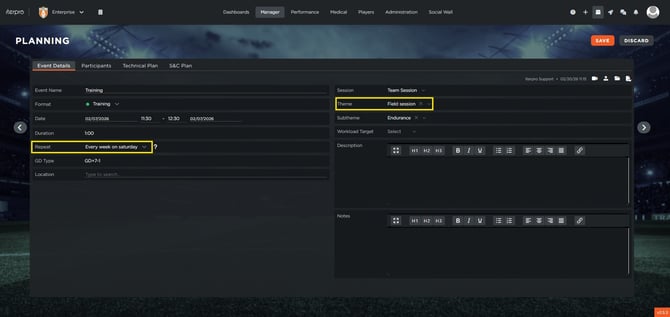
- Configure Recurrence: To schedule repeated sessions, enable the repetition setting. You can choose to repeat the event:
- Every day
- Every week
- On specific selected days
- Via a custom recurring schedule
- Populate Details: Enter the time, location, and specific session details within the provided fields.
- Finalize: Click Save to publish the event to the calendar and the mobile applications of assigned staff and players.
PARTICIPANT MANAGEMENT AND ATTENDANCE
Tracking who is present at a session is critical for accurate performance and medical monitoring.
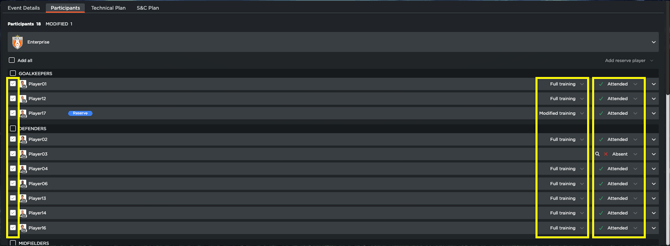
- Assign Participants: Navigate to the Participants section of the Event Card to select the athletes and staff members involved.
- Log Attendance Status: * If an athlete is absent, select a reason from the dropdown menu or write a custom description.
- For athletes who cannot complete the full session, select Modified Training instead of "Full Training" to record partial participation.
- Mobile Synchronization: Any person set as a participant will immediately see the event and its details on their mobile app.
ADDITIONAL FUNCTIONALITIES WITHIN THE EVENT
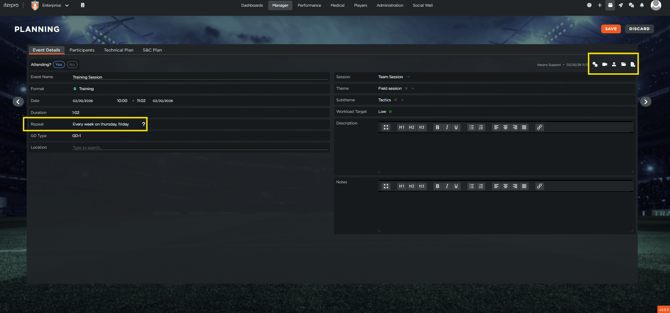
- Duplicate Events: Use the duplicate icon to quickly copy an existing event and its settings to a new date.
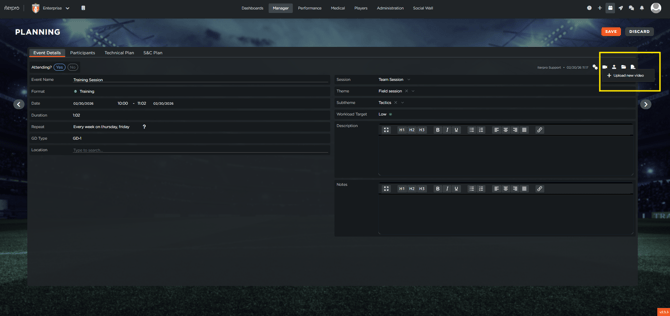
- Attach Documentation: Click the Folder Icon to upload files, documents, or PDFs related to the session.
- Select a category (Training, Game, or Other).
- Add a description and tag specific players or tags to define the video's focus.
- Select only the players or staff members who should have access to the file. If a user is not selected, they will not see the content in their web or mobile app.
- Background Processing: Once you click Upload, the system handles the file in the background, allowing you to continue other tasks.
Upload Videos: * Click the Video Icon to upload media. There are no limits on file size or quantity.
TRAINING AND GAME REPORTS
You can generate detailed reports for each participant or for the entire team, to track development and performance during games and trainings.
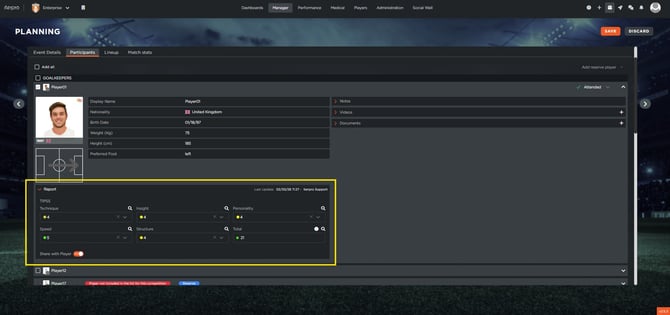
- Access Individual Reports: Open the Event Card, go to the Participants section, and click the dropdown menu next to a player's name.
- Enter Evaluation Data: Fill in the performance metrics for that specific session or game.
- Enable Player Visibility: Use the Share with Player toggle to make the report instantly visible to the athlete in their mobile app. If this is disabled, the data remains accessible only to staff.
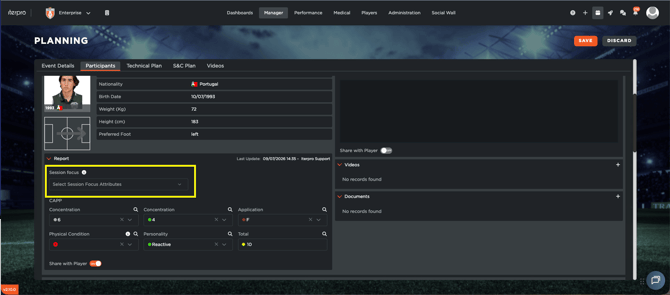
- Define the IDP (Individual Development Plan) for each player for the selected session, by opening the menù Session focus and selecting the available options. The options you can find here are all the attributes created in Settings - Club - Attributes definition for your player evaluations.
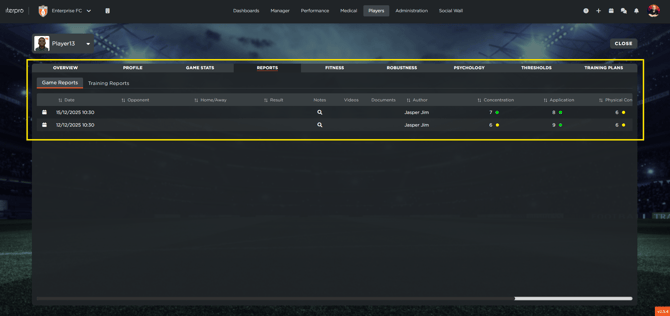
- Review Historical Data: You can view these reports later by navigating to Players > My Team, opening the Player Card, and selecting the Report section.
CUSTOMIZING REPORT TEMPLATES
Administrators can create custom game and training report template to be use within the events.
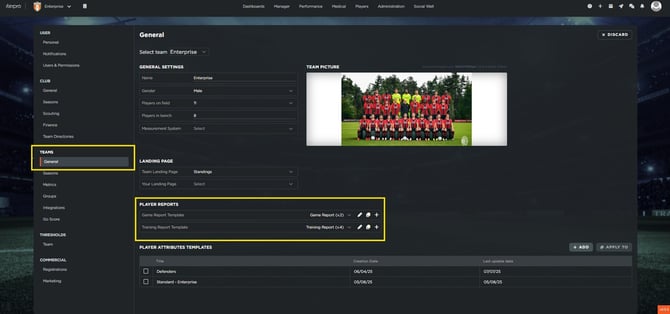
- Go to Settings > Teams > General and click Edit.
- Click the Plus (+) icon to create a new template or select an existing one to modify or duplicate.
- Integer/Decimal: For numerical ranges.
- String: For alphabetical lists or text.
- Boolean: For Yes/No choices.
- Choices: For predefined dropdown lists.
- Functions: To automatically calculate sums, averages, or occurrences
Build your report by adding various sections and property types:
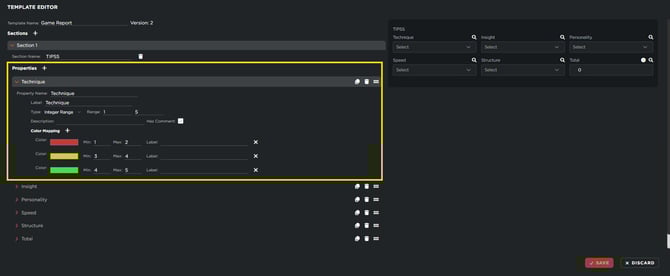
- Visual Indicators: Assign colors to specific values to create visual heatmaps of your data.
- Save and Apply: Click Save to make the template available for use in the Planning section.