
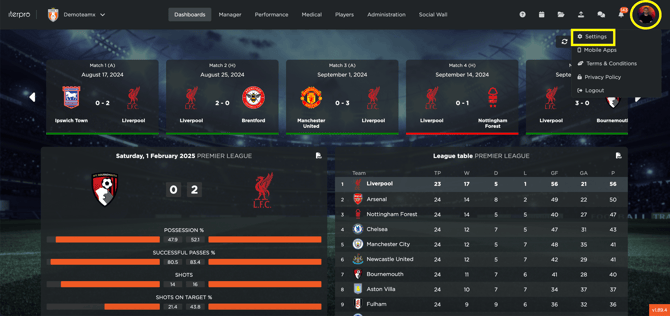
Before you start using Iterpro, we recommend configuring some basic settings to personalize your experience. Go to Settings by clicking on the icon in the top-right corner.
1. Updating Your Personal Information
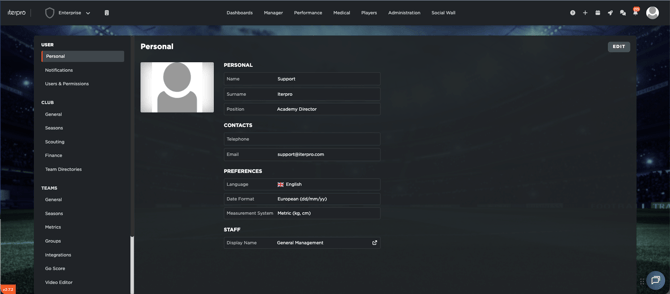
Navigate to the Personal section and click on Edit. Here, you can update your:
- First name and surname
- Telephone number
- Email address
- Preferred language
- Date format
- Measurement system
- Profile picture
2. Managing Notifications
Go to the Notification section and click Edit to enable or disable system notifications. You can choose which alerts you want to receive for different actions within Iterpro. Keep in mind that:
- You will only receive notifications that are included in your subscription and access level.
- Even if you activate all notifications, you will not receive alerts for features that are not part of your contract.
- Active notifications will appear in the top right corner of the screen.
Furthermore, please note that you can apply your notification settings to other users within a specific team by clicking the APPLY ALL button and selecting the desired team(s). Once you click SAVE, all users with permission to access the selected team(s) will have the same notification settings enabled as the selected user.