INTRODUCTION TO THE GAME REPORTS
- 00.00: player report for scouting
- 00.22: game report description
CREATE A NEW GAME REPORT TEMPLATE
- 00.07: explanation of sections and properties in the template
- 00.17: adding the different properties and formats
- 00.36: previewing template that is being created
- 00.42: colour-coding the different properties
- 01.00: saving the created templated
- 01.13: managing the created game reports
FEATURE DESCRIPTION
In this guide, we will explore how to create and manage Game Reports, which allow you to evaluate players based on specific match events. Previously, we covered how to create player profiles and display them within scouting sessions. We also saw how to generate player reports, which are evaluations not tied to a specific match. Game Reports, on the other hand, are directly linked to a game event, offering a structured way to assess performance in a match context.
Customizing a Game Report Template
To create a Game Report, you first need to set up a custom template. You can do this by navigating to Settings > Scouting, where you can edit and configure your Game Report template according to your specific needs.
Creating a New Game Report Template
-
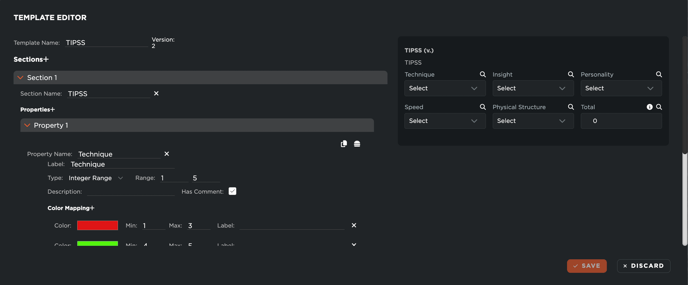
Open the Template Editor
You can decide to Edit or Duplicate an already existing template, or to Create a new one. Once inside the editor, you can start customizing your report by adding relevant sections and properties. -
Define Report Sections and Metrics
- Each section can focus on a specific aspect of the player's performance (e.g., technical skills, physical attributes, tactical awareness).
- Within each section, you can define individual metrics that you wish to evaluate.
- Each metric can be assessed using different formats such as numbers, letters, dropdown selections, or other predefined scales.
-
Customize the Visual Representation
- You can assign colors to different value ranges to make the report visually intuitive.
- Labels and comments can also be added to provide context for each evaluation.
- A live preview of the report layout is available to help you refine the structure.
-
Save and Manage Templates
- Once your template is finalized, click Save to store your progress.
- You can access and manage all previously created templates, edit them, or duplicate them for future use.
- The saved template will then be available under Scouting > Game Reports, ready for use in match evaluations.