---
title: Performance, how to track and analyze performance data (GPS, Tests, Readiness)
description: Performance, how to track performance data and analyze it (GPS, Tests, Surveys, Readiness)
---
[Skip to content](https://support.iterpro.com/en/guide/manager-how-to-create-events-and-import-videos-1#main-content)
English
Show submenu for translations
[](https://app.iterpro.com/auth/login)
- [Iterpro Login Page](https://app.iterpro.com/auth/login)
- [Contact Support](https://share.hsforms.com/1rE7NvsvuTIWBm7WQ1dhslQ1uo0p)
Open main navigation
Close main navigation
- [Iterpro Login Page](https://app.iterpro.com/auth/login)
- [Contact Support](https://share.hsforms.com/1rE7NvsvuTIWBm7WQ1dhslQ1uo0p)
- English
Show submenu for translations
How can we help you?
- There are no suggestions because the search field is empty.
1. [User Guide](https://support.iterpro.com/en/guide?hsLang=en)
2. [Quick Onboarding](https://support.iterpro.com/en/guide/quick-onboarding?hsLang=en)
# Performance, how to track and analyze performance data (GPS, Tests, Readiness)
## This article quickly summarizes how to import, track, and analyze your team's performance data (GPS, Tests, Readiness, Surveys).
### IMPORT AND ANALYZE DATA FROM SESSIONS
### TRACK TESTS AND SURVEY DATA
### SETUP READINESS CALCULATION AND APP VISUALIZATION
### ***FEATURES DESCRIPTION***
Iterpro’s Performance workflows start in **Manager → Planning**, where clubs create and schedule **training sessions and games**. Once an event has taken place, performance staff can upload the effective data collected for that session and make it available for analysis.
#### Importing Performance Data (API or CSV)
Session data can be imported in two main ways:
- **API Integration (recommended):** Iterpro connects to your GPS or performance provider, allowing data to flow automatically into the platform.
- **CSV Import (fully supported):** If an API connection isn’t available, Iterpro can provide **customizable CSV templates** so you can upload data quickly—also in bulk. This approach keeps the system aligned with your club’s data structure and operational needs.
For GPS integrations, we recommend reviewing the dedicated [article](https://support.iterpro.com/en/guide/whats-needed-to-integrate-my-gps-data?hsLang=en) on **GPS provider integration requirements**.
To import your sessions, simply go to Import Data, select GPS (or your provider's label), and proceed with the steps on the screen.
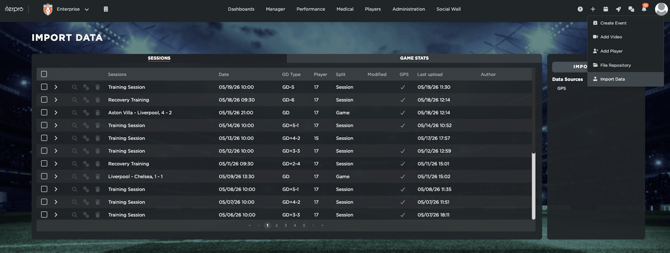
You will be able to select the specific session(s) to import, as well as visualize all the respective players, splits, and drills linked to them.
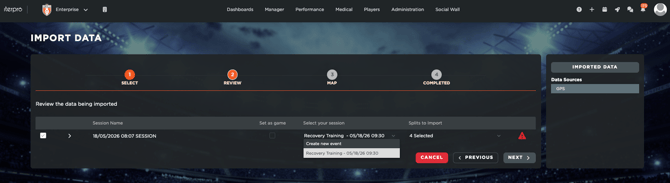
Once imported, you will receive a confirmation message in the screen, and the session(s) will be accessible to you from Session Analysis.
### Session Analysis and Reporting
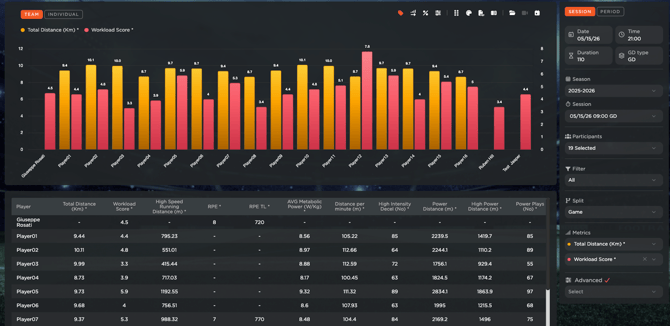
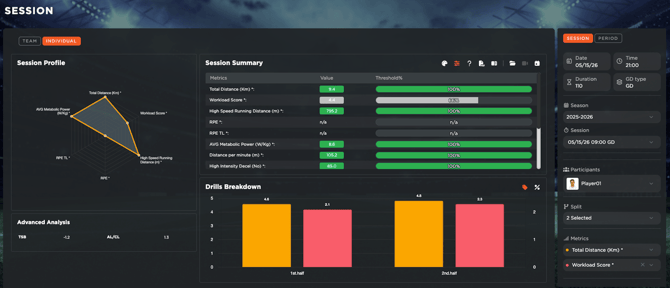
All imported session data is available in **Session Analysis**, where performance coaches can review and customize reporting for trainings and games. Users can:
- analyze **team and individual** performance
- set **thresholds per player and parameter**
- build reports across a **selected time period**
- adjust views and outputs to match your internal methodology
### Tests and Surveys: Collection and Analysis
#### Tests (Performance and Medical)
In **Assessments → Tests** (or Medical → Examinations for Medical staff), users can view all tests available for their team. By default, Iterpro includes a **300+ test library**, with descriptions, setup instructions, and required equipment.
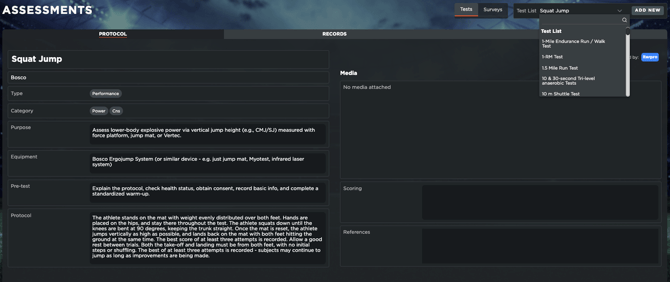
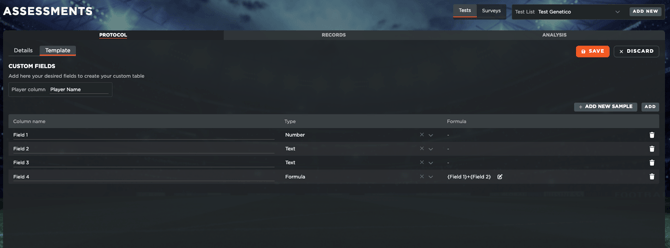
Clubs can also create custom tests by clicking on Add New. These can be:
- manually created, filling in all the relevant information and test metrics/parameters, or
- by uploading a **CSV template** based on an existing test protocol (to auto-populate test structure and fields).
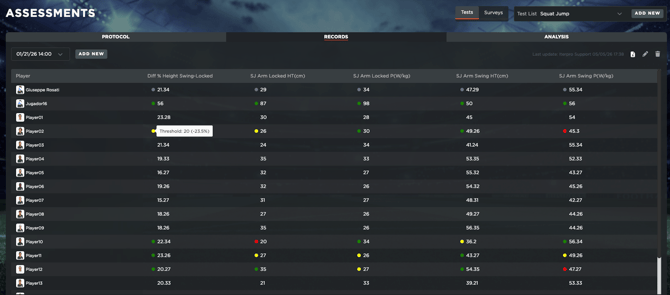
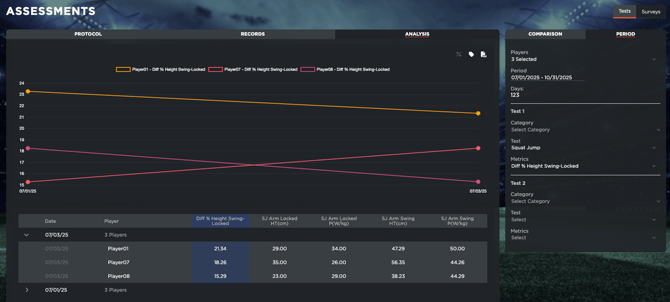
Once tests are created, results can be entered **manually** or imported via **CSV**. For best formatting, download the **empty CSV template from Iterpro**, fill in your results, and upload it. Test data can then be analyzed similarly to Session Analysis.
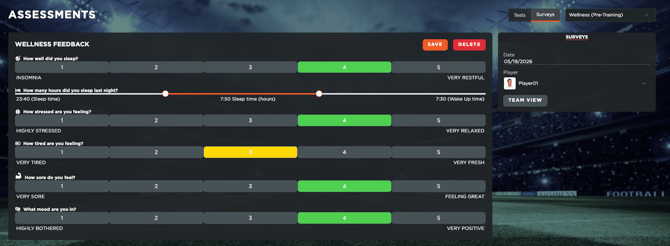
#### Surveys (Wellness and RPE)
Wellness and RPE collection is designed to be automatic and mobile-first:
- Players submit surveys directly in the **Player App**
- **Wellness** notifications can be scheduled per team via **Settings → Notifications → Advanced → Wellness Survey**
- **RPE** is automatically sent to event participants after a training or game ends
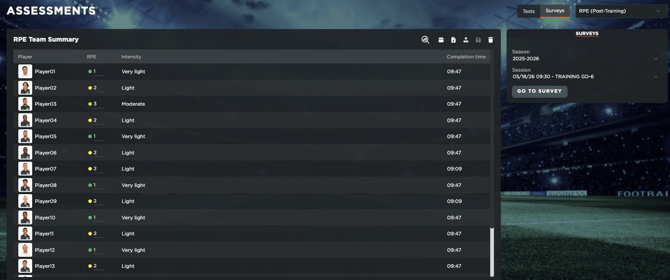
This said, all of the information can also be collected from the platform, allowing more control from each of the coaches with regards to the response from the players.
#### Readiness and Mobile Access
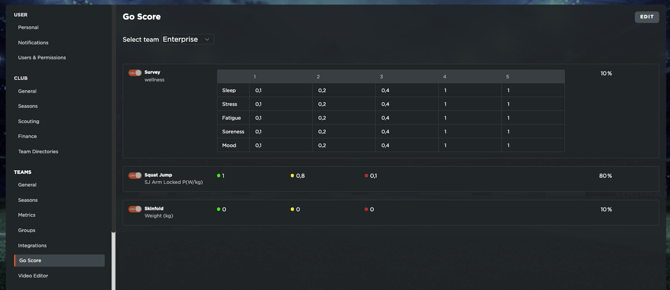
Tests, surveys, and performance metrics can feed into the **Readiness/Go Score** (valued from 0–100), which indicates the player’s current status based on those parameters.
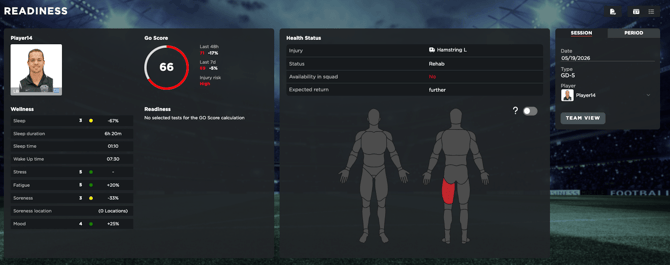
By default, only the Wellness Survey will be weighted into the calculation, but clubs can choose which variables influence the score in **Settings → Team → Go Score**, including medical context such as injuries or examinations.
Finally, all of the information covered (all test results, fitness trends, and readiness information) are also accessible from the **Player App, Coach App, and Director App** for on-the-go decision making.
ADMIN users will be able to decide which information is displayed for each, to ensure a secure and unbiased environment and data movement. For more information, please have a look at the following [article](https://support.iterpro.com/en/guide/how-to-create-new-users-and-provide-permissions?hsLang=en).
- [What's New](https://support.iterpro.com/en/guide/whats-new?hsLang=en)
- [Quick Onboarding](https://support.iterpro.com/en/guide/quick-onboarding?hsLang=en)
- [Account set-up and other](https://support.iterpro.com/en/guide/account-set-up-and-other?hsLang=en#main-content)
- [Login & Iterpro overview](https://support.iterpro.com/en/guide/account-set-up-and-other?hsLang=en#login-iterpro-overview)
- [Settings](https://support.iterpro.com/en/guide/account-set-up-and-other?hsLang=en#settings)
- [Create, archive and delete players](https://support.iterpro.com/en/guide/account-set-up-and-other?hsLang=en#create-archive-and-delete-players)
- [Other](https://support.iterpro.com/en/guide/account-set-up-and-other?hsLang=en#other)
- [Manager](https://support.iterpro.com/en/guide/manager?hsLang=en#main-content)
- [Tactics](https://support.iterpro.com/en/guide/manager?hsLang=en#tactics)
- [Planning](https://support.iterpro.com/en/guide/manager?hsLang=en#planning)
- [Videogallery](https://support.iterpro.com/en/guide/manager?hsLang=en#videogallery)
- [Drills](https://support.iterpro.com/en/guide/manager?hsLang=en#drills)
- [Attendances](https://support.iterpro.com/en/guide/manager?hsLang=en#attendances)
- [Performance](https://support.iterpro.com/en/guide/performance?hsLang=en#main-content)
- [Session Analysis](https://support.iterpro.com/en/guide/performance?hsLang=en#session-analysis)
- [Workload Analysis](https://support.iterpro.com/en/guide/performance?hsLang=en#workload-analysis)
- [Assessments](https://support.iterpro.com/en/guide/performance?hsLang=en#assessments)
- [Readiness](https://support.iterpro.com/en/guide/performance?hsLang=en#readiness)
- [Medical](https://support.iterpro.com/en/guide/medical?hsLang=en#main-content)
- [Medical Records](https://support.iterpro.com/en/guide/medical?hsLang=en#medical-records)
- [Infirmary](https://support.iterpro.com/en/guide/medical?hsLang=en#infirmary)
- [Examinations](https://support.iterpro.com/en/guide/medical?hsLang=en#examinations)
- [Medical Statistics](https://support.iterpro.com/en/guide/medical?hsLang=en#medical-statistics)
- [Player](https://support.iterpro.com/en/guide/player?hsLang=en#main-content)
- [My Team](https://support.iterpro.com/en/guide/player?hsLang=en#my-team)
- [Scouting](https://support.iterpro.com/en/guide/player?hsLang=en#scouting)
- [Transfers](https://support.iterpro.com/en/guide/player?hsLang=en#transfers)
- [Administration](https://support.iterpro.com/en/guide/administration?hsLang=en#main-content)
- [Squads](https://support.iterpro.com/en/guide/administration?hsLang=en#squads)
- [Finance Overview](https://support.iterpro.com/en/guide/administration?hsLang=en#finance-overview)
- [Bonus Tracking](https://support.iterpro.com/en/guide/administration?hsLang=en#bonus-tracking)
- [Cash Flow](https://support.iterpro.com/en/guide/administration?hsLang=en#cash-flow)
- [Transactions](https://support.iterpro.com/en/guide/administration?hsLang=en#transactions)
- [Registrations](https://support.iterpro.com/en/guide/administration?hsLang=en#registrations)
- [Mobile apps](https://support.iterpro.com/en/guide/mobile-apps?hsLang=en#main-content)
- [Player App](https://support.iterpro.com/en/guide/mobile-apps?hsLang=en#player-app)
- [Coach App](https://support.iterpro.com/en/guide/mobile-apps?hsLang=en#coach-app)
- [Director App](https://support.iterpro.com/en/guide/mobile-apps?hsLang=en#director-app)
- [Iterpro Login Page](https://app.iterpro.com/auth/login)
- [Contact Support](https://share.hsforms.com/1rE7NvsvuTIWBm7WQ1dhslQ1uo0p)
- [Terms & Conditions](https://www.iubenda.com/terms-and-conditions/53739842)
- [Privacy Policy](https://www.iubenda.com/privacy-policy/53739842)
[](https://iterpro.com/)
Copyright © 2025, Iterpro Support Team