---
title: How do I create my custom dashboards with PowerBI and display them within Iterpro?
description: In this article, we show all the steps to connect Iterpro to Power BI via API, allowing you to independently create dashboards and view them within our system.
---
[Skip to content](https://support.iterpro.com/en/guide/10.2-how-to-integrate-iterpro-with-powerbi-and-display-custom-dashboard-into-our-business-intelligence-system#main-content)
- [English](https://support.iterpro.com/en/guide/10.2-how-to-integrate-iterpro-with-powerbi-and-display-custom-dashboard-into-our-business-intelligence-system)
- [Italiano](https://support.iterpro.com/it/guide/10.2-come-integrare-iterpro-con-powerbi-e-visualizzare-dashboard-custom-allinterno-del-nostro-sistema-di-business-intelligence)
English
Show submenu for translations
[](https://app.iterpro.com/auth/login)
- [Iterpro Login Page](https://app.iterpro.com/auth/login)
- [Contact Support](https://share.hsforms.com/1rE7NvsvuTIWBm7WQ1dhslQ1uo0p)
Open main navigation
Close main navigation
- [Iterpro Login Page](https://app.iterpro.com/auth/login)
- [Contact Support](https://share.hsforms.com/1rE7NvsvuTIWBm7WQ1dhslQ1uo0p)
- - [English](https://support.iterpro.com/en/guide/10.2-how-to-integrate-iterpro-with-powerbi-and-display-custom-dashboard-into-our-business-intelligence-system)
- [Italiano](https://support.iterpro.com/it/guide/10.2-come-integrare-iterpro-con-powerbi-e-visualizzare-dashboard-custom-allinterno-del-nostro-sistema-di-business-intelligence)
English
Show submenu for translations
How can we help you?
- There are no suggestions because the search field is empty.
1. [User Guide](https://support.iterpro.com/en/guide?hsLang=en)
2. [Account set-up and other](https://support.iterpro.com/en/guide/account-set-up-and-other?hsLang=en)
3. [Other](https://support.iterpro.com/en/guide/account-set-up-and-other?hsLang=en#other)
# How do I create my custom dashboards with PowerBI and display them within Iterpro?
## In this article, we show all the steps to connect Iterpro to Power BI via API, allowing you to independently create dashboards and view them within our system.
### SETUP ITERPRO POWERBI CONNECTOR
- 0:00 select the PowerBi connector
- 0:56 activate the PowerBi connect
- 1:12 Add API credentials
### GET DATA FROM ITERPRO API CONNECTOR
- 0:00 Get data from Iterpro
- 0:24 How to manage API calls and upload data to Power BI
- 1:44 How to visualize data and create dashboards
### CREATE A DASHBOARD
- 0:00 introduction
- 0:15 dashboard creation example
- 1:06 adding filters
### SHARE THE DASHBOARD IN POWERBI SERVICE
### IMPORT THE REPORT IN ITERPRO
### DOWNLOAD THE PDF REPORT
### **HOW TO CREATE A MICROSOFT ACCOUNT**
### HOW TO ACCEPT THE ITERPRO INVITATION
### HOW TO REQUEST ACCESS TO THE DASHBOARD
### ***FEATURE DESCRIPTION***
**1. Configuring the Iterpro Connector**
To start, you need to configure the Iterpro connector in Power BI:
- **Open the file:** After opening Power BI Desktop, locate the file `IterproPowerBIconnector.mez` received via email.
- **Place the file:** Move this file to the `Custom Connectors` folder located at `Documents > Power BI Desktop`.
- If the folder doesn’t exist, create it manually and name it exactly `Custom Connectors`.
****
- **Connector recognition:** After pasting the file, wait a few seconds. Then, in Power BI, click **Get Data \> More**, search for “Iterpro” and select the connector.
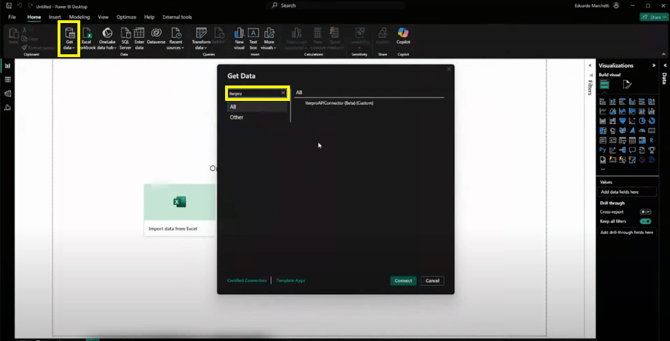
- **Enter credentials:** On the first connection, enter the credentials provided. Make sure the formatting is correct: `username [space] : [space] API Key`.
**2. Importing Data via the Connector**
Once configured, you can import data from Iterpro:
- Go to **Home \> Transform Data** to open Power Query Editor.
- Click **New Source \> More** and search again for “Iterpro”.
- After selecting the connector, you will see the list of available API calls.
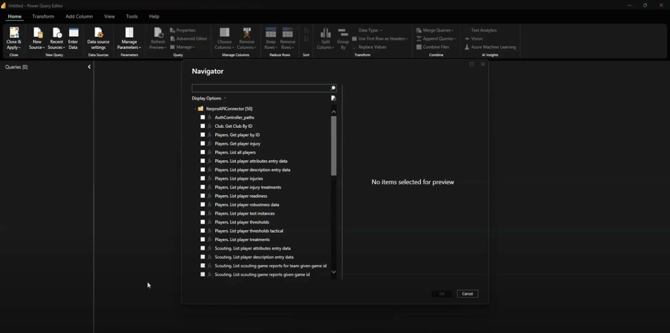
- Select, for example, **Teams List Events**, check the box, and enter the parameters in the right panel.
- Click **Apply** to preview the data. If correct, press **OK**.
- You can transform the data by selecting only the desired events (e.g., a specific match) and filter further (e.g., `session players` column) to expand player-level details.
**3. Creating the First Dashboard**
Now that the data is imported, here’s an example:
- Use the table **Teams List Events** to create a visualization (e.g., Stacked Column Chart).
- Drag **Player Name** to the X-axis and **Total Distance** to the Y-axis.
- To split distances by first half, second half, and full game, add **Split Name** as a legend.
- To display only the full game, apply the filter `Split Name = Game`.
- Customize the chart using the visualization panel (colors, axes, titles, etc.).
**4. Publishing the Report to Power BI Service**
Once the dashboard is ready:
- Go to **Home \> Publish** in Power BI Desktop.
- Select the target workspace and click **Select**.
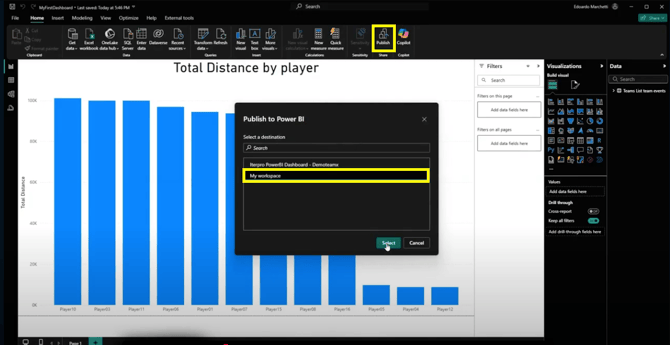
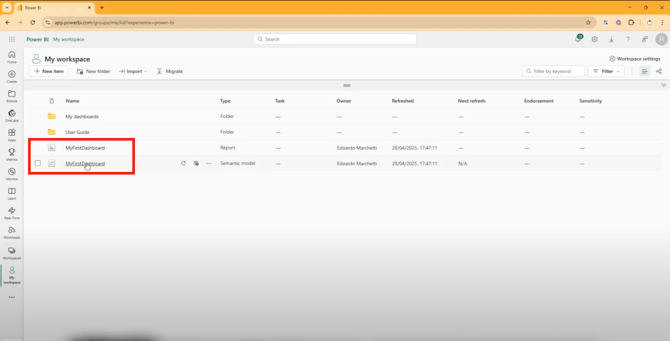
- After uploading, check in Power BI Service that the report and dataset were published correctly.
**5. Importing the Dashboard into Iterpro WebApp**
To integrate the report into the Iterpro WebApp:
- Access **Power BI Service**, open the report, and go to **File \> Embed Report \> Website or Portal**.
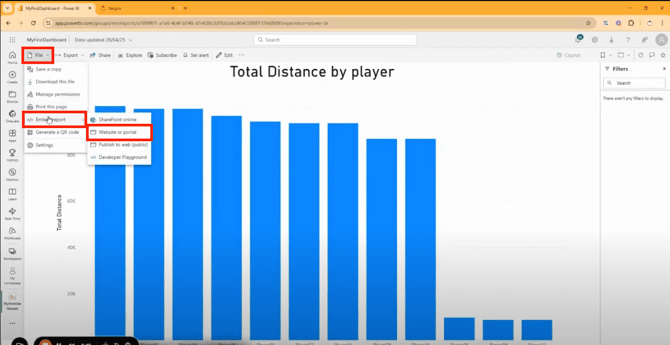
- Copy the link from the first section.
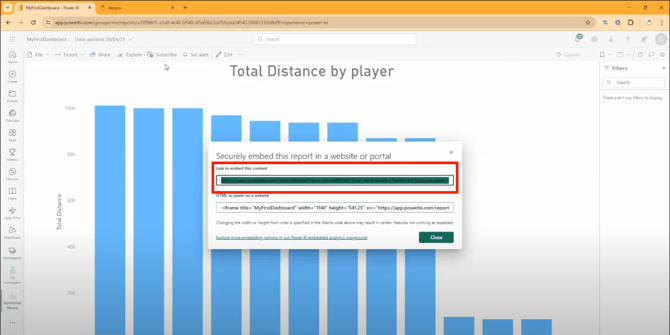
- In the Iterpro WebApp, go to **Custom Dashboard**, click **Add**, enter a name, and paste the URL. Save to make the dashboard visible in your Iterpro account.
**6. Exporting the Dashboard as PDF**
To save the dashboard as a PDF:
- In the Iterpro WebApp, go to **Custom Dashboard** and open the desired dashboard.
- Right-click and select **Print**.
- Select only the first page, click **Save**, choose the file name and folder.
- The PDF will be saved and ready for sharing or printing.
Start by visiting [account.microsoft.com/account](https://account.microsoft.com/account) and clicking the blue button to create a new account.
If you do not already have a Microsoft account, select the option **"Create a new account"**.
You will then be asked to enter a personal email address, which must be valid and active, as a verification code will be sent to it.After receiving the code, enter it on the next screen and continue by filling in the required fields with your personal information, including first and last name.
Finally, complete the security verification and click **"OK"** to finish creating the account.
**7. Accept the Iterpro's invitation**
After creating your Microsoft account, you will receive an email from Iterpro support with an invitation.
Within the email, click **"Accept invitation"**.Authentication will be done via the email provider you used (for example, Google if you used a Gmail account).
After selecting the correct account and confirming your identity, click **"Continue"**, then **"Accept"** to complete the invitation.
**8. Request access to the dashboard**
Next, access the Iterpro web app, navigate to **Dashboards \> Custom**, and select the desired dashboard.
A login screen will appear: click the green button and authenticate using the Microsoft account you used to accept the invitation.
Once logged in, click **"Request access"**.
You will be asked to enter the email used for the invitation; after entering it, click **"Submit"** and then the green button to send the request.
The request will be reviewed by the Iterpro team, who will approve access as soon as possible.
- [What's New](https://support.iterpro.com/en/guide/whats-new?hsLang=en)
- [Quick Onboarding](https://support.iterpro.com/en/guide/quick-onboarding?hsLang=en)
- [Account set-up and other](https://support.iterpro.com/en/guide/account-set-up-and-other?hsLang=en#main-content)
- [Login & Iterpro overview](https://support.iterpro.com/en/guide/account-set-up-and-other?hsLang=en#login-iterpro-overview)
- [Settings](https://support.iterpro.com/en/guide/account-set-up-and-other?hsLang=en#settings)
- [Create, archive and delete players](https://support.iterpro.com/en/guide/account-set-up-and-other?hsLang=en#create-archive-and-delete-players)
- [Other](https://support.iterpro.com/en/guide/account-set-up-and-other?hsLang=en#other)
- [Manager](https://support.iterpro.com/en/guide/manager?hsLang=en#main-content)
- [Tactics](https://support.iterpro.com/en/guide/manager?hsLang=en#tactics)
- [Planning](https://support.iterpro.com/en/guide/manager?hsLang=en#planning)
- [Videogallery](https://support.iterpro.com/en/guide/manager?hsLang=en#videogallery)
- [Drills](https://support.iterpro.com/en/guide/manager?hsLang=en#drills)
- [Attendances](https://support.iterpro.com/en/guide/manager?hsLang=en#attendances)
- [Performance](https://support.iterpro.com/en/guide/performance?hsLang=en#main-content)
- [Session Analysis](https://support.iterpro.com/en/guide/performance?hsLang=en#session-analysis)
- [Workload Analysis](https://support.iterpro.com/en/guide/performance?hsLang=en#workload-analysis)
- [Assessments](https://support.iterpro.com/en/guide/performance?hsLang=en#assessments)
- [Readiness](https://support.iterpro.com/en/guide/performance?hsLang=en#readiness)
- [Medical](https://support.iterpro.com/en/guide/medical?hsLang=en#main-content)
- [Medical Records](https://support.iterpro.com/en/guide/medical?hsLang=en#medical-records)
- [Infirmary](https://support.iterpro.com/en/guide/medical?hsLang=en#infirmary)
- [Examinations](https://support.iterpro.com/en/guide/medical?hsLang=en#examinations)
- [Medical Statistics](https://support.iterpro.com/en/guide/medical?hsLang=en#medical-statistics)
- [Player](https://support.iterpro.com/en/guide/player?hsLang=en#main-content)
- [My Team](https://support.iterpro.com/en/guide/player?hsLang=en#my-team)
- [Scouting](https://support.iterpro.com/en/guide/player?hsLang=en#scouting)
- [Transfers](https://support.iterpro.com/en/guide/player?hsLang=en#transfers)
- [Administration](https://support.iterpro.com/en/guide/administration?hsLang=en#main-content)
- [Squads](https://support.iterpro.com/en/guide/administration?hsLang=en#squads)
- [Finance Overview](https://support.iterpro.com/en/guide/administration?hsLang=en#finance-overview)
- [Bonus Tracking](https://support.iterpro.com/en/guide/administration?hsLang=en#bonus-tracking)
- [Cash Flow](https://support.iterpro.com/en/guide/administration?hsLang=en#cash-flow)
- [Transactions](https://support.iterpro.com/en/guide/administration?hsLang=en#transactions)
- [Registrations](https://support.iterpro.com/en/guide/administration?hsLang=en#registrations)
- [Mobile apps](https://support.iterpro.com/en/guide/mobile-apps?hsLang=en#main-content)
- [Player App](https://support.iterpro.com/en/guide/mobile-apps?hsLang=en#player-app)
- [Coach App](https://support.iterpro.com/en/guide/mobile-apps?hsLang=en#coach-app)
- [Director App](https://support.iterpro.com/en/guide/mobile-apps?hsLang=en#director-app)
- [Iterpro Login Page](https://app.iterpro.com/auth/login)
- [Contact Support](https://share.hsforms.com/1rE7NvsvuTIWBm7WQ1dhslQ1uo0p)
- [Terms & Conditions](https://www.iubenda.com/terms-and-conditions/53739842)
- [Privacy Policy](https://www.iubenda.com/privacy-policy/53739842)
[](https://iterpro.com/)
Copyright © 2025, Iterpro Support Team