
1.5 How to set up Club & Teams General settings and Seasons (only for ADMIN users)
This article explains how to set up General settings (such as the club's name and logo) and Seasons at both the Club and Team levels.
CLUB SETTINGS (General & Seasons)
- 00:10 - club General Settings;
- 00:26 - seasons tab;
- 00:30 - configure new season;
- 00:40 - market window explanation
TEAM SETTINGS (General)
- 00:04 - team General Settings;
- 00:28 - how to add team photo.
TEAM SETTINGS (Seasons)
- 00:20 - set season timelines;
- 00:28 - manage season line-up;
- 00:42 - manage season staff;
- 00:48 - manage season competitions.
FEATURES DESCRIPTION
Club General Settings
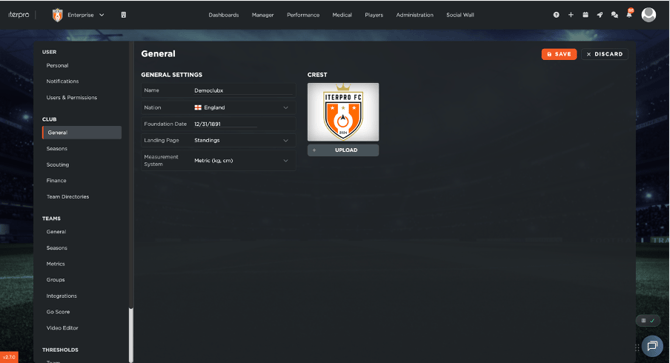
To edit your club General Settings, go to:
- Settings → Club → General, and click "Edit".
- Enter your club's official Name, Nationality, and Foundation Date.
- Upload your official club Logos to customize the interface.
- Set the default Landing Page and the preferred Measurement System (e.g., Metric or Imperial) for your organization.
- Click "Save".
Defining Club Seasons
Defining your club seasons is a critical step that establishes the core logical timeline for the entire platform.
- Navigate to the Seasons tab under the Club menu.
- Click the "Add" button to open the season configuration window.
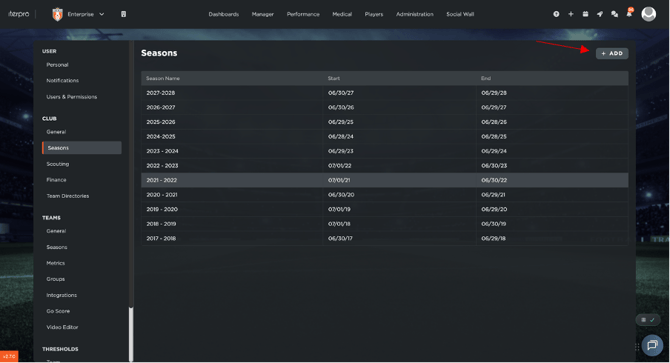
- Enter the official Season Name along with the precise Start Date and End Date.
- Configure the Market Window
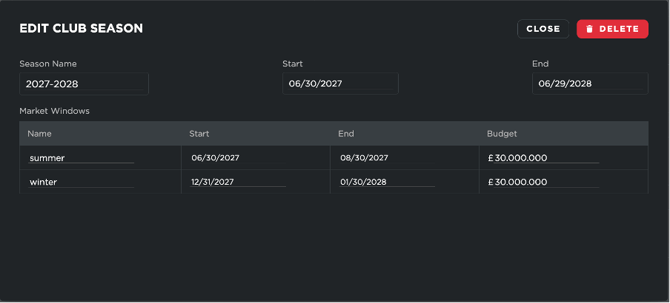
Note : The Market Window fields are strictly required by the system. If your club does not utilise transfer market windows for its daily operations, you can enter arbitrary placeholder dates to complete the setup.
Managing Team Settings
You can customise specific configurations for each squad in your organization.
- Navigate to Settings → Teams → General.
- Click the "Edit"
- Select the team you wish to configure from the dropdown menu of squads you have access to.
- Update the Team Name, Gender, and define the default number of field and bench players.
- Configure landing page preferences:
- Team Landing Page: Set a unified default landing page for the entire squad.
- Your Landing Page: Set your own personal landing page for when you log in.
- Upload a Team Picture.
- Assign specific Report Templates (Game and Training reports) and Player Attributes Templates to ensure the team utilises the correct evaluation data structures across the platform.
- Click "Save".

Setting Up a Team Season
A Team Season links a specific squad to a Club Season and defines the operational phases of their yearly calendar.
- Navigate to the Seasons tab under the Teams menu.
- Click "Add".

- Optional: You can copy settings from your current active season if preferred. To create a configuration from scratch:
- Enter the Season Name.
- Define the specific date ranges for each phase: Off-season, Pre-season, and In-season.
- Link the Team Season directly to the corresponding Club Season you created previously.

The second step is setting the season line-up players. Just go to Line-up and click on Select player. On the left side, you will see all available players in your club, along with their assigned team, while on the right side you will see the players already added to the current season's team.

Players marked with a blue icon are reserves (explained in detail in chapter 1.8). To add a player to the season, simply click on their name and use the arrow icon to move them to the right column of active players.
It is important to note the difference between a player being part of a season’s roster and belonging to a specific team.
-
The team label (defined in Administration > Squads) indicates the player’s default team, which determines their availability in the Player App.
-
Adding a player to the season roster allows them to appear across all screens of the selected team for that season.
Once your selection is complete, click Save.
The same process applies to staff members:
-
On the left, you will find all available staff within the club.
-
On the right, you will see the staff assigned to the season.
Select the staff members you want to include and move them to the right column.
When all information is set, click Save to confirm the season setup.
The last step is to configure the competitons.
Using the Wyscout Integration
If your club has the Wyscout integration enabled, you can import your league and cup schedules directly:
- Go to the Competitions
- Search for and select your Gerographical Area .
- Choose the Competitions.
- Link the corresponding Wyscout Season in the settings.
- Enable the Events Sync This ensures your upcoming fixtures, matches, and event data are automatically populated and updated within your planning calendar.

Creating a Custom Competition
If your team is playing in a competition or friendly tournament not covered by Wyscout:
- Click to add a Custom Competition
- Enter the competition name, save, and select it from the list. As you see in the screenshot below I created a competition called “Not Covered by Wyscout” as reference.

Note: When you successfully add a competition, all players currently assigned to your team lineup are added to the competition's roster by default. You can manually adjust and edit this tournament roster at any time.