1.5 How to set up Club & Teams General settings and Seasons (only for ADMIN users)
This article explains how to set up General settings (such as the club's name and logo) and Seasons at both the Club and Team levels.
CLUB SETTING (General & Seasons)
- 00.08: club general setting
- 00.23: club seasons
TEAM SETTING (General)
TEAM SETTING (Seasons - Part 1)
- 00.20: set the timeline for the season
- 00.40: add the competitions of the season
TEAM SETTING (Seasons - Part 2)
FEATURES DESCRIPTION
Club Settings (General & Season)
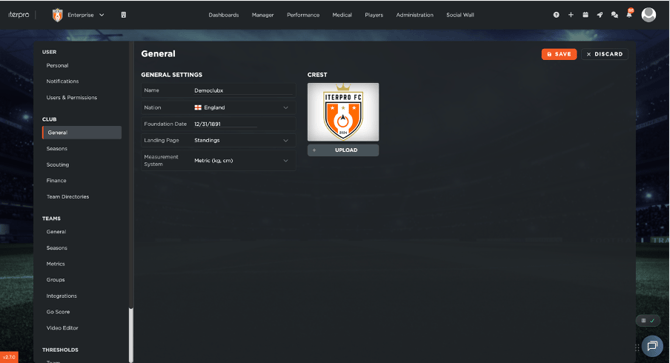
Once the basic settings are configured, you can proceed with the advanced options. Start by accessing the Club General Settings, where you can enter key information such as the club’s name, nationality, foundation date, images, and set the landing page for the club. After saving these details, move on to setting up the season, which is essential for managing the club’s activities.
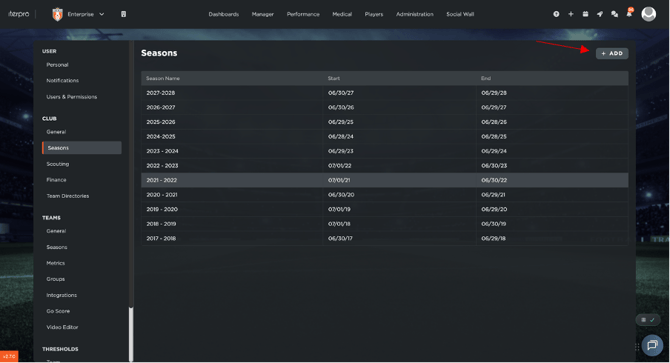
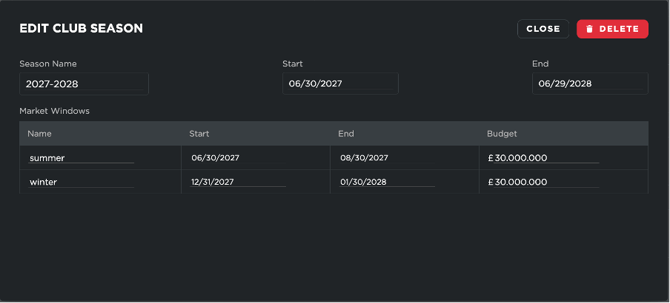
To add a new season, simply click on "Add", and a setup window will appear. Here, you need to enter the season name, the start and end dates, and optionally configure market windows. If your club does not use market windows, you can leave the default values or set similar ones for reference.

Team Settings (General)
Under the Team Settings, clicking on "Edit" allows you to select a team from the list of teams available to you. Once a team is selected, you can modify details such as the team name, gender, landing page, and even set a personalized landing page for specific profiles.
Team Settings (Season)
Next, you need to configure the season settings for each team. Click on "Add", where you will have the option to either copy the previous season or create a new one from scratch. If copying, the system will duplicate the existing season details, allowing you to adjust the season name and period. The two most relevant phases to define are Off-Season and In-Season.

The second step is setting the season line-up players. Just go to Line-up and click on Select player. On the left side, you will see all available players in your club, along with their assigned team, while on the right side you will see the players already added to the current season's team.

Players marked with a blue icon are reserves (explained in detail in chapter 1.8). To add a player to the season, simply click on their name and use the arrow icon to move them to the right column of active players.
It is important to note the difference between a player being part of a season’s roster and belonging to a specific team.
-
The team label (defined in Administration > Squads) indicates the player’s default team, which determines their availability in the Player App.
-
Adding a player to the season roster allows them to appear across all screens of the selected team for that season.
Once your selection is complete, click Save.
The same process applies to staff members:
-
On the left, you will find all available staff within the club.
-
On the right, you will see the staff assigned to the season.
Select the staff members you want to include and move them to the right column.
When all information is set, click Save to confirm the season setup.
Finally, to setting the competitions, for full functionality, ensure that the club season is properly linked to the team season. If your system integrates with Wyscout, you can:
- Select the geographical area of the competition.
- Choose a competition based on the geographical area.

If there is no Wyscout integration, you can manually add custom competitions that are not covered by Wyscout. These can be linked to the National League and National Cup.
Additionally, you can select the Wyscout season, and by clicking the corresponding icon, the events in planning will be automatically generated.
Finally, the system allows you to select players for participation in competitions, ensuring that team rosters are properly aligned with the tournament structure.