
DETAILS
- 00.10: editing player, staff, or agent personal and administrative details
- 00.18: listing various categories within the details section
- 00.52: adding player pictures
- 00.58: export details in PDF format
VALUATION
- 00.10: setting player's market value type
- 00.19: adding market value records
- 00.27: analyzing value trends
- 00.34: analyzing the latest transfers and career statistics
- 00.41: export details in PDF format
AMORTIZATION
- 00.03: explanation of contract details that go into the simulation
- 00.14: actions panel to customize amortization simulation
- 00.30: explanation of capillarity options for the chart
- 00.39: explanation of capillarity options for the table
- 00.54: purchase contract bonuses impacting amortization
THRESHOLDS
- 00.07: explanation of different thresholds that can be set
- 00.18: edit the thresholds for each respective KPI
- 00.31: applying thresholds to other players
TRANSACTIONS
- 00.05: explanation of costs and subscriptions
- 00.21: adding new transaction records
- 00.48: explanation of expiry date and notification to receive
- 01.03: saving, duplicating, or deleting recorded transactions
- 01.11: exporting as PDF or CSV
- 01.15: bulk import transactions via CSV
Feature Description
This guide provides step-by-step instructions on how to navigate and use the different sections of the Player Management System effectively. Below are the key functionalities available in each section.
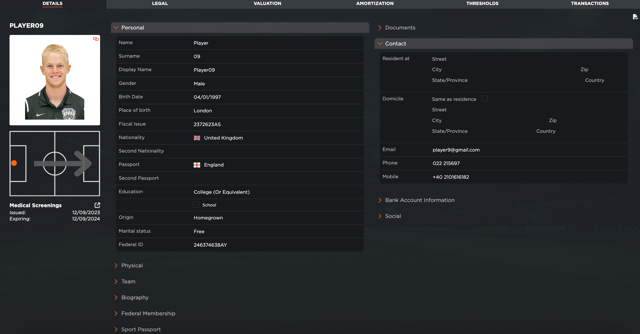
Once inside a player's profile, the Details section is the first tab available. This section allows you to input, edit, and manage all administrative information related to the player.
Operations:
-
Add or modify personal details (name, date of birth, nationality, etc.).
-
Update team-related information such as position, jersey number, and federal memberships.
-
Attach and categorize documents, including the player’s sport passport and other relevant files.
-
Include contact information for the player and any third-party connections.
-
Enter bank details and social information.
-
Upload or update the player's profile picture.
-
Export all data in PDF format.
Remember to save changes after making modifications
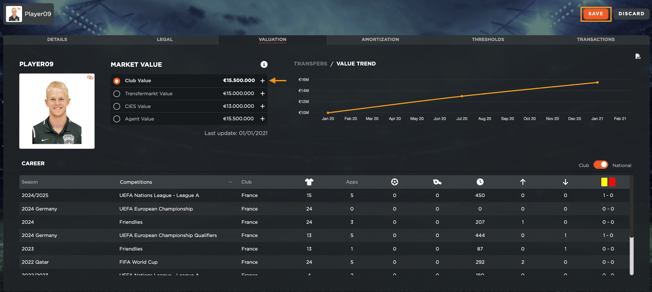
The Valuation section is where you set up the player's market value, a crucial metric for financial KPIs across various system modules.
Operations:
-
Define and update the player's market value records, selecting between Club value, Transfermarket value, Agent value, and CIES value.
-
Track the player's value trend over time, based on each record you create for the market value.
-
View the latest transfers (if the player is linked to WyScout).
-
Access and analyze career statistics imported from WyScout.
-
Export all valuation records and statistics in PDF format.
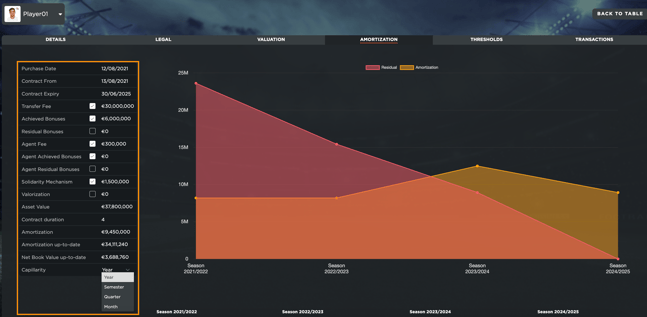
The Amortization tab provides a simulation of amortization based on the player's purchase and employment contracts.
Operations:
-
Ensure contract details (start and end dates) are entered.
-
Customize amortization details by selecting:
- Transfer fees
-
Achieved bonuses
-
Bonuses yet to achieve
-
Agent fees
-
Other applicable fees
-
Analyze amortization data using different capillarity levels for detailed insights.
-
Monitor when specific bonuses are achieved and their impact on amortization.
-
Track the progress of purchase contract bonuses using the percentage tracker at the bottom of the section.
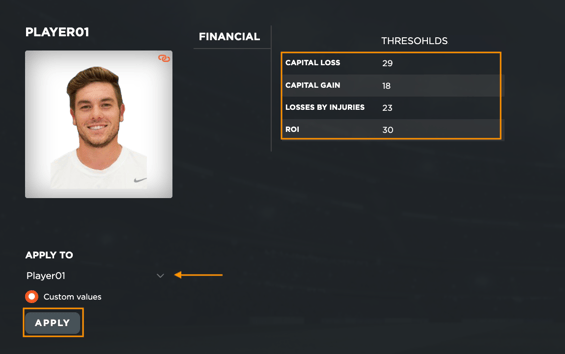
The Thresholds section allows users to configure financial and performance-related benchmarks for each player.
Operations:
-
Set thresholds for:
-
Capital loss
-
Capital gain
-
Losses due to injuries
-
Return on investment (ROI)
-
-
Manually edit threshold values by specifying the percentage amounts.
-
Save and apply thresholds to selected players or all players in the system.
-
Enable system notifications when a player exceeds or falls below the defined thresholds.
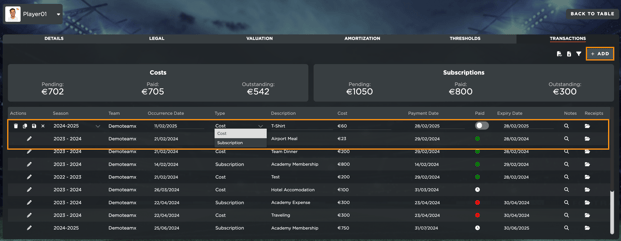
The Transactions tab is used for tracking financial movements related to the player, including payments and costs.
Operations:
-
Record new financial transactions by entering:
-
Transaction date
-
Type (e.g., player payments, agent fees, subscriptions, etc.)
-
Description and amount
-
Payment status (paid or pending)
-
Expiry date (to trigger notifications for overdue payments)
-
-
Attach supporting documents (e.g., invoices, receipts).
-
Add custom notes for each transaction.
-
Save, duplicate, or delete transaction records.
-
Export transaction data in PDF or CSV format.
-
Bulk import transactions:
-
Download an empty CSV template.
-
Fill in the required columns.
-
Upload the completed CSV file back into the system.
-