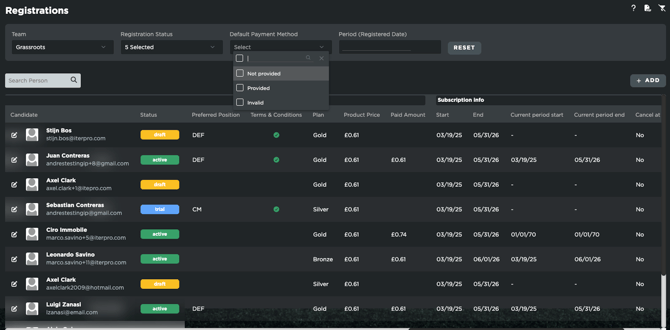
- 0:00 – Viewing the list of candidates who completed the registration
- 0:20 – Candidate statuses
- 0:42 – How to accept or reject a candidate
- 1:20 – Manually adding a candidate
FEATURE DESCRIPTION
Once the registration program has been configured and the relevant link has been shared with users, you can monitor and manage registrations by accessing Administration > Registration.
Viewing Registration Statuses
This section displays the full list of candidates, along with their registration status. You can distinguish between:
-
Pending candidate – Has completed registration but has not yet been accepted.
-
Accepted candidate – Has been approved and officially entered into the system.
-
Trial candidate - Free trial has been approved and has officially entered the system. Can then be accepted or rejected to officialize registration.
-
Incomplete registration – The form was either not completed correctly or was abandoned.
-
Draft registration - Has completed registration but has not provided a payment method.
-
Rejected registration - Has been rejected and won't participate to program.
-
Cancelled registration - Has been cancelled by the candidate.
-
Expired registration - Has expired based on the duration of the program or payment options.
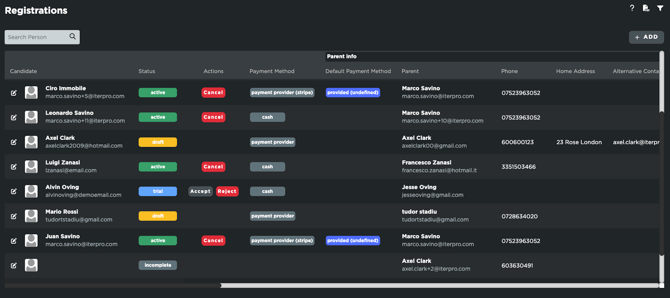
For all candidate registrations, you will always have the final word on each operation. In fact, when they register, you will be able to edit the details in case any errors with the program or information have been created.
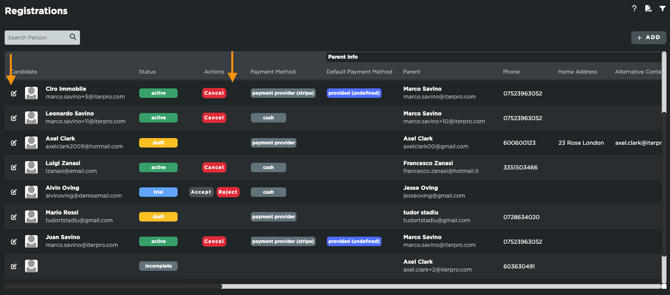
This also applies to the action buttons, which will allow you to accept, reject, provide a trial, or cancel the registrations available.
For candidates with a pending status, by clicking “Accept”, the system will:
-
Automatically convert the candidate into an active player
-
Assign them to the selected team and season
-
Send:
-
A welcome email with credentials to access the Player App
-
A confirmation email to the parent, notifying them that the registration has been accepted
- An email with the invoice(s) to the parent, notifying them of the memberships and/or products purchased.
-
For candidates with an active status, by clicking “Cancel”, the system will:
-
Ask you if you wish cancel at the end of the registered period OR if you wish to cancel immediately and refund the candidate for the remaining amount/period.
-
Remove them from the selected team and season
-
Send:
-
A confirmation email to the parent and candidate informing the membership has been cancelled
-
Manually Creating a Registration
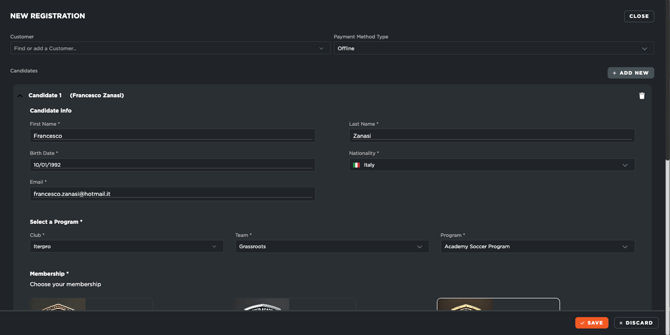
If a candidate is unable to complete the registration independently or wishes to do it in person, an administrator can manually add a new registration:
-
Clicking on the “Add” button
-
Fill in all required fields, including:
-
Customer/Parent details
-
Payment Method (Cash, Bank Transfer, or Payment provider)
-
Personal information of the candidate
-
Membership program
-
Products or merchandising
-
-
Click “Save”
The candidate will then be automatically added to the squad list, with all data correctly associated.
Candidate Registration Details
Once a candidate registration is created, you will begin to collect data about the customers/parents as well as candidates/players. All of this will be displayed within the registrations table, which will allow you to:
-
Filter information based on your needs (Teams, Status, Payment method, Period range)
-
See all the details filled in from the registration form (default and custom fields)
- See all the details related to the subscriptions, products, and details related to the candidate's membership