
HOW TO CREATE A STAFF MEMBER
- 00.23: The staff member is not a user
- 00.30: Create a new staff member
- 00.50: Link the staff member to an existing user
FEATURE DESCRIPTION
Understanding Staff Profiles vs. Users
Before creating a new entry, it is important to understand the structural difference between a Staff Member and a User:
- User Account: A set of login credentials (email and password) that grants a person secure access to login to the platform and apps.
- Staff Member Profile: An internal profile representing an individual within the club's administration. This profile is used to include the staff member in different daily activities, such as training sessions, meetings, and club events.
- When you create a Staff Member, you are creating a profile within the system, not a User Account with login capabilities.
Creating a New Staff Member in Iterpro
Access the Staff Section
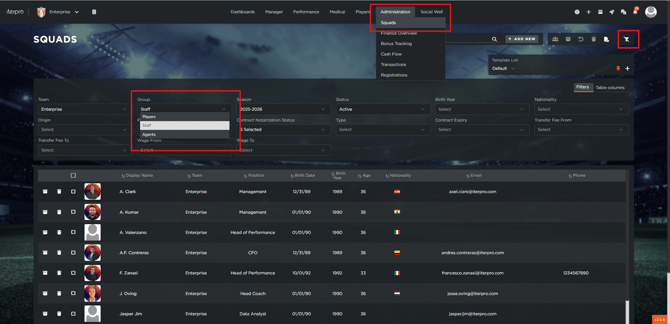
- Navigate to Administration in the main top menu.
- Select Squads from the submenu.
- Open the Filters menu on the page.
- Select "Staff" to filter the list and display only your active staff members.
Create a New Staff Member
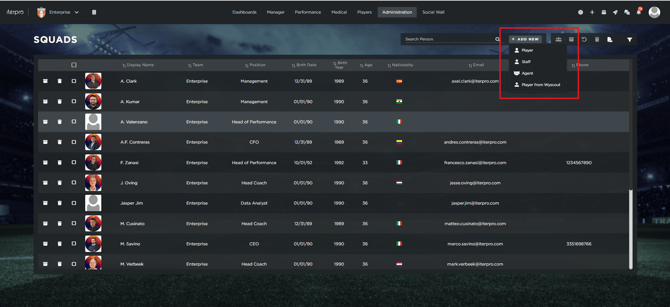
To create a new staff member:
-
Click Add New.
-
Select Staff.
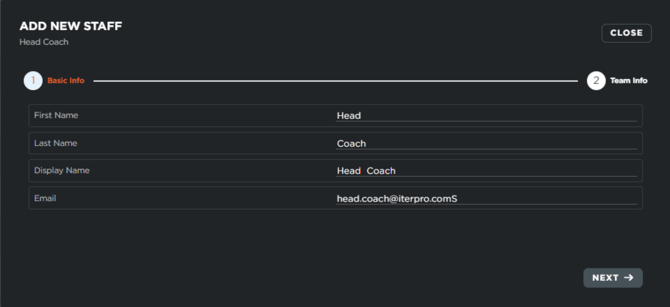
Enter the required information:
-
First name
-
Last name
-
Email (optional)
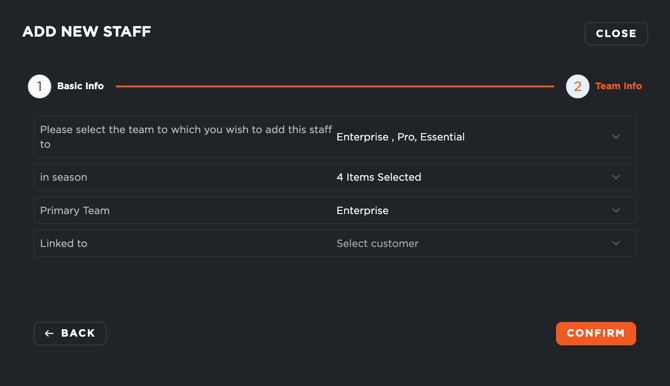
Click "Next", then select:
-
The team(s) you want to add the staff member to.
-
The season(s) in which the staff member is involved.
-
The primary team (the main squad they operate within).
-
The corresponding User account, if applicable, to link the profile.
Linking a Staff Member to a User Account
For complete platform utility, a Staff Member profile should be linked to their corresponding User account.
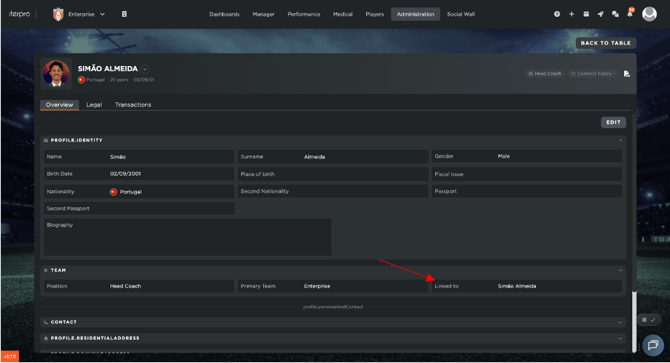
This link is essential for three key reasons:
1. Coach App Integration
To log in and use the mobile Coach App, an individual must have an active Staff Member profile linked directly to their User account, configured with the correct permissions.
2. Communication and Sharing ("Share With")
Once the Staff Member profile is linked to a User, they can be selected in "Share With" dropdown lists across the platform, allowing other team members to share reports, notes, and dashboards with them.
3. Video Gallery Access
If a staff member is active in the current season and their linked User account has been granted Video Gallery permissions, they will automatically gain access to view and manage videos on that specific screen.