TRANSFER DEALS
- 00.08: explanation of the sales and purchases deal boards
- 00.18: adding players to the sales board
- 00.39: adding players to the sales board
- 01.05: filtering transferable players
TRANSFERABLE PLAYER'S PROFILE
- 00.06: accessing transferable player's profiles
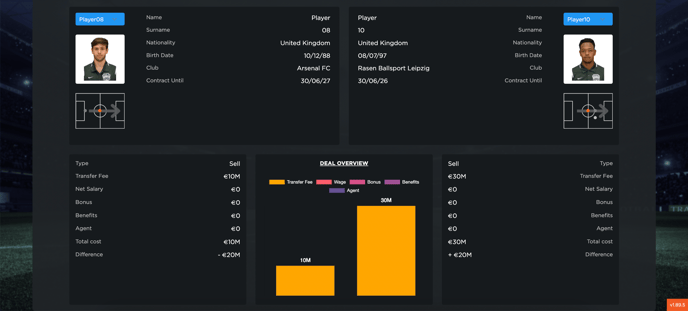
- 00.10: overview of deal and player details
- 00.20: create mock contracts for transferable player
- 00.34: amortization simulation of mock contracts
- 00.49: deal and player notes
TRADING BALANCE
- 00.04: financial impact of sales and purchase deals
- 00.10: edit your budget
- 00.22: customize the players taken into consideration for the simulation
TRADING COMPARISON
- 00.07: selecting players for comparison
- 00.14: explanation of available KPIs
FEATURE DESCRIPTION
Transfer Deal Management
When accessing the Transfer section in the Players Department, the first thing visible is the Deals Board. This board allows you to add and manage players for both sales and purchases, tracking every stage of the negotiation process.
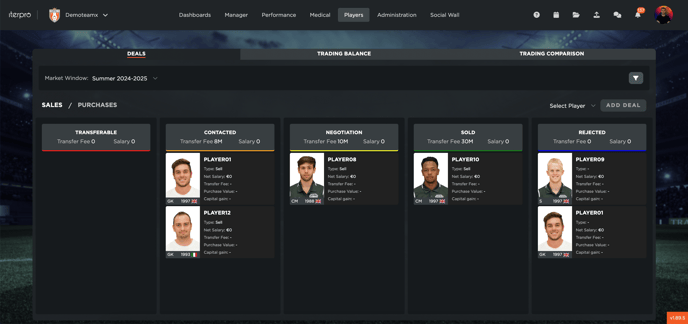
To add a player for sale, select the dropdown menu and choose any player from your current team. Once added, the player will appear in the Transferable column. You can then move the player across different negotiation stages, reflecting their current status in the transfer process.
For player purchases, the process is similar. However, instead of selecting from your own team, the players available in the dropdown are sourced from the Scouting Database. Alternatively, players can be added manually by searching within the scouting database and importing them. Once added to the Purchase Board, you can track each negotiation stage just as with outgoing transfers.
The table also includes filtering options, allowing you to refine the list of players in negotiations by applying different filters based on your preferred metrics.
Transferable Player Profile
Once a player has been added to the Deals Board, you can access their individual profile. Here, you will find multiple sections providing key details:
- Negotiation Overview – A summary of the current transfer status.
- Player Details – Information about the player's profile, with the ability to attach contacts and documents.
- Mock Contracts – Create purchase and employment contract simulations to assess the financial impact of signing or selling a player.
- Financial Analysis – After adding a mock contract, the system allows you to simulate amortization, providing insights into how the deal could affect the club’s finances.
- Notes Section – A dedicated space for adding relevant comments, updates, or negotiation-related details to keep colleagues informed.
Trading Balance
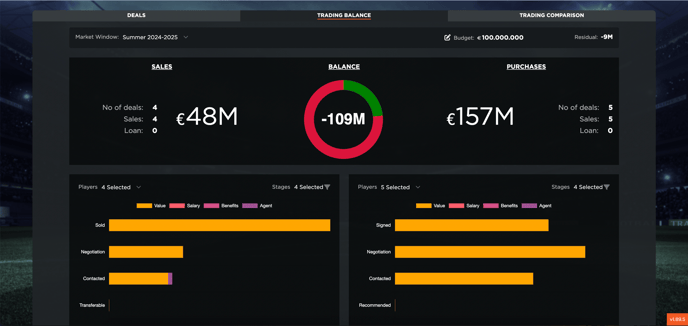
The Trading Balance tab provides a financial analysis of how sales and purchases impact the club’s budget.
- The budget can be set manually from the top of the page.
- The system automatically calculates the remaining budget based on the mock contracts created, as well as the amounts spent and received.
- The simulation is fully customizable: you can include or exclude specific players or remove certain negotiation stages to adjust the comparison.
Trading Comparison
The Trading Comparison tab enables direct comparison between players involved in sales and purchases.
- Using the dropdown menus, you can select players from both your Sales and Purchase Boards.
- The system allows for a detailed financial and personal comparison of the selected players, helping in strategic decision-making.